

Luckybeginning.com is a browser hijacker that aims to earn revenue by leading users to affiliated websites
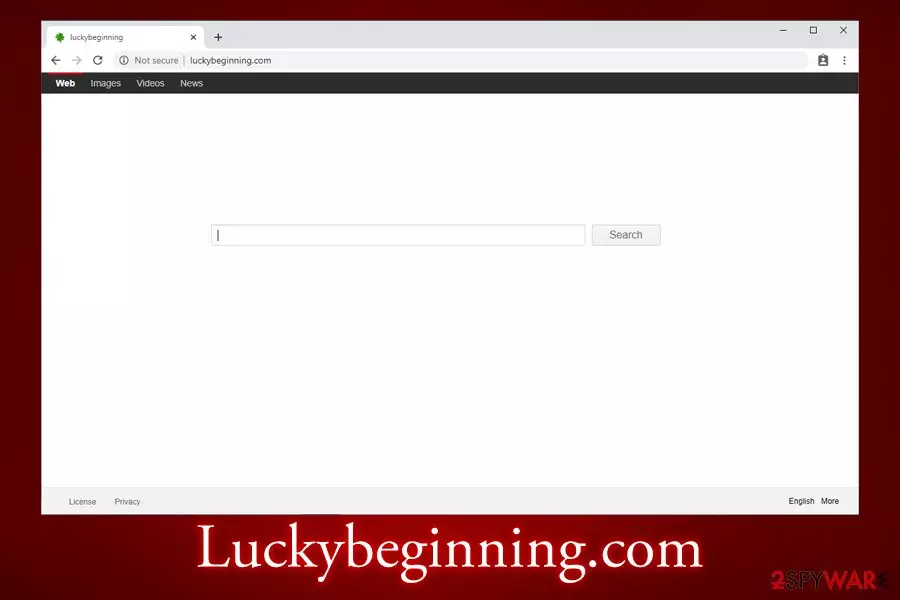
Luckybeginning.com is a search engine that has been developed by a company MobiTech Inc – the developers state that “LuckyBeginning is here to make your web experience faster, easier, and more organized.” However, this application is also considered a browser hijacker[1] and is a minor security threat, as its affiliates might bring users to misleading websites. Additionally, the site is marked as “Not secure” by Google Chrome, Opera, MS Edge, and other reputable web browsers.
In most cases, users will find Luckybeginning.com set as their homepage, new tab URL, and the search engine after the installation of freeware or shareware. This is due to a technique called software bundling – a deceptive marketing practice that results in infection of browser hijackers, adware, and even malware.
While Luckybeginning.com redirects all the searches to Google.com, its search engine cannot be trusted, as sponsored links are often presented at the top, leading to [sometimes unsafe] websites that might be misleading and result in the installation of other potentially unwanted programs. Besides, MobiTech also expresses that both anonymous and personal information might be gathered when users interact with the Luckybeginning.com site.
| Name | Luckybeginning.com |
| Type | Browser hijacker, potentially unwanted program |
| Infiltration | The unwanted application is usually installed along other software or downloaded from third-party hosting sites |
| Potential risks | Users who are infected are at the higher risks of being convinced to pay for useless software, install other potentially unwanted programs and disclose their information to unsafe third-parties |
| Symptoms | Homepage, new tab URL and the search engine altered; sponsored links appear at the top of search results; the overall amounts of ads increased |
| Termination | To get rid of browser hijackers and other PUPs, you can scan your machine with anti-malware or follow our manual removal guide at the bottom section |
| Recovery | To ensure a successful recovery and optimization, scan your computer with FortectIntego |
In general, browser hijackers are not considered to be high threats to user safety, as they do not compromise the machine's vital functions like startup repair. Additionally, they usually do not engage in illegal harvesting of keystrokes or credit card details. Nevertheless, be aware that Luckybeginning.com does indeed uses tracking technologies like cookies in order to gather valuable information about users' web browsing habits. The data includes:
- Time and date of sites' visits
- IP address
- Computer configuration settings
- Search terms
- Links clicked, etc.
Be aware that search queries and IP addresses might disclose your identity, and, depending on the location you live in, it is considered to be personally-identifiable data. Also, Luckybeginning.com Privacy Policy discloses that some PII might also be collected:
We may receive personal information about you from a broad range of activities on luckybegining.com,including surveys,contests,program registrations,tell-a-friend services and general correspondence. Also,we may receive personal information about you from certain third party distribution partners or service providers as part of providing our search services to such third parties. Depending on the service used,the personal information we collect may include contact information (such as first and last name,mailing address,email address and telephone number),demographic information (such as age,gender,occupation and household income) and location and billing information (shipping and billing address,credit card information).
While the site claims that it uses appropriate measures to retain the gathered info security, there are no guarantees that this data will not be leaked by unwanted parties or even cybercriminals. Note that the search engine does not use an encrypted connection[2] to the site, hence it makes it easier for the attackers to steal it. We believe that this is one of the main reasons for Luckybeginning.com removal.

Additionally, those infected with the so-called Luckybeginning.com virus will also experience an increased amount of ads on all sites that they visit. While most of the content is safe, those who interact with suspicious ads might be linked to sites that deceptively prompt users to download scareware[3] apps or promise free/extremely cheap gifts like “The new iPhone X for $1.”
Please do not fall for these scams, as you might end up infecting your device with other PUPs or even malware, or spend money on software that is useless. Instead, remove Luckybeginning.com from your machine by following our detailed instructions below. Additionally, due to changes to web browser settings, we also highly advise you to reset Google Chrome, MS Edge, Safari, or any other installed browser. Finally, we also suggest you use FortectIntego to fix the inconsistencies left after the Luckybeginning.com hijack.
Browser hijackers might slip into computers unnoticed
Browser hijackers can be downloaded and installed via two main methods. The first one might be treated as direct – when you visit the official website of the app and install it right there. In most of the cases, users install various PUPs intentionally when looking for certain functionality, such as video converting, video display, system optimization, or other.
Another, and probably the most likely way to get infected with a browser hijacker is during the installation of free applications obtained from third-party sites. Such and similar software packages are widely spread on the Internet, especially on such popular download websites as download.com, soft32.com, softonic.com, cnet.com, and so on.
Fortunately, it is possible to opt-out of optional components easily. For that, you have to pick Advanced/Custom settings, watch out of deceptive button placements and pre-ticked boxes, and decline all the offers on the way. The unintentional installation of PUPs usually happens due to users' inability to check each installation step carefully – so keep that in mind when you decide to download a new app.

Get rid of Luckybeginning.com hijacker
If you want to start Luckybeginning.com removal, you should first remind yourself the last time you installed new software on your computer. Since the homepage and new tab changes can be assigned by different PUPs, it might sometimes be difficult to determine which apps are related. This is especially true if you like to install new programs frequently or accept all the offers after landing on a deceptive site.
Therefore, soft the installed programs based on the date and check for any suspicious entries. To finalize Luckybeginning.com removal, you should also reset all the installed browsers. If you are struggling to find which app is responsible for the hijack, you might want to try to scan your machine with anti-malware software that recognizes PUPs.
Uninstall from Windows
Uninstall from Windows 10/8:
- Type Control Panel into the Windows search box and open the result.
- Under Programs, select Uninstall a program.


Uninstall from Windows 7/XP:
- Click on Windows Start > Control Panel (Windows XP users should click on Add/Remove Programs).
- In Control Panel, select Programs > Uninstall a program.


Remove the unwanted program:
- In the Programs and Features window, look for any recently installed suspicious entries, select them, and click Uninstall.
- If User Account Control appears, click Yes to confirm, then complete the removal.


Delete from macOS
Remove the unwanted application:
- From the menu bar, select Go > Applications.
- In the Applications folder, look for any suspicious entries, then drag them to Trash (or right-click and pick Move to Trash).


Delete leftover files and folders:
- Select Go > Go to Folder.
- Enter /Library/Application Support and remove any suspicious folders related to the unwanted program.
- Repeat the same check in the /Library/LaunchAgents and /Library/LaunchDaemons folders, deleting any suspicious entries.

- Finally, empty the Trash to permanently remove the leftovers.

Reset Internet Explorer
Remove dangerous add-ons:
- Open Internet Explorer, click on the Gear icon (IE menu) on the top-right corner of the browser
- Pick Manage Add-ons.
- You will see a Manage Add-ons window. Here, look for suspicious plugins. Click on these entries and select Disable.


Change your homepage if it was altered:
- Open IE and click on the Gear icon.
- Select Internet Options.
- In the General tab, delete the Home page address and replace it by your preferred one (for example, Google.com).
- Click Apply and then select OK.


Delete temporary files:
- Press on the Gear icon and select Internet Options.
- Under Browsing history, click Delete...
- Select relevant fields and press Delete.


Reset Internet Explorer:
- Click on Gear icon > Internet options and select Advanced tab.
- Select Reset.
- In the new window, check Delete personal settings and select Reset.


Remove from Microsoft Edge
Delete unwanted extensions from MS Edge:
- Select Menu (three horizontal dots at the top-right of the browser window) and pick Extensions.
- From the list, pick the extension and click on the Gear icon.
- Click Remove.


Clear cookies and other browser data:
- Click on the Menu (three horizontal dots at the top-right of the browser window) and select Settings > Privacy, search, and services..
- Under Clear browsing data, pick Choose what to clear.
- Select Cookies and other site data and Cached images and files. (apart from passwords, although you might want to include Media licenses as well, if applicable) and click on Clear.


Restore new tab and homepage settings:
- Click the menu icon and choose Settings.
- Then find On startup section.
- Click Remove next to any suspicious startup page.
Reset MS Edge if the above steps did not work:
- Press on Ctrl + Shift + Esc to open Task Manager.
- Click on More details arrow at the bottom of the window.
- Select Details tab.
- Now scroll down and locate every entry with Microsoft Edge name in it. Right-click on each of them and select End Task to stop MS Edge from running.


Instructions for Chromium-based Edge
Delete extensions from MS Edge (Chromium):
- Open Edge and click select Settings > Extensions.
- Delete unwanted extensions by clicking Remove.


Clear cache and site data:
- Click on Menu and go to Settings.
- Select Privacy, search and services.
- Under Clear browsing data, pick Choose what to clear.
- Under Time range, pick All time.
- Select Clear now.


Reset Chromium-based MS Edge:
- Click on Menu and select Settings.
- On the left side, pick Reset settings.
- Select Restore settings to their default values.
- Confirm with Reset.
- This will disable extensions and reset startup pages but will not delete bookmarks, saved passwords, or browsing history.


Remove from Mozilla Firefox (FF)
Remove dangerous extensions:
- Open Mozilla Firefox browser and click on the Menu (three horizontal lines at the top-right of the window).
- Select Add-ons.
- In here, select the unwanted extension and click Remove.


Reset the homepage:
- Click three horizontal lines at the top right corner to open the menu.
- Choose Settings.
- Under Home, set your preferred homepage and new tab settings.
Clear cookies and site data:
- Click Menu and pick Settings.
- Go to Privacy & Security section.
- Scroll down to locate Cookies and Site Data.
- Click on Clear Data...
- Select Cookies and Site Data and Temporary cached files and pages, then click Clear.


Reset Mozilla Firefox
If clearing the browser as explained above did not help, reset Mozilla Firefox:
- Open Mozilla Firefox browser and click the Menu.
- Go to Help and then choose Troubleshooting Information.

- Under Give Firefox a tune up section, click on Refresh Firefox...
- Once the pop-up shows up, confirm the action by pressing on Refresh Firefox.



Remove from Google Chrome
Delete malicious extensions from Google Chrome:
- Open Google Chrome, click on the Menu (three vertical dots at the top-right corner) and select More tools > Extensions.
- In the newly opened window, you will see all the installed extensions. Uninstall all suspicious extensions related to the unwanted program by clicking Remove.


Clear cache and web data from Chrome:
- Click on Menu and pick Settings.
- Under Privacy and security, select Clear browsing data.
- Select Browsing history, Cookies and other site data, as well as Cached images and files.
- Click Clear data.


Change your homepage:
- Click menu and choose Settings.
- Look for a suspicious site in the On startup section.
- Click on Open a specific or set of pages and click on three dots to find the Remove option.
Reset Google Chrome:
If the previous methods did not help you, reset Google Chrome to eliminate all the unwanted components:
- Click on Menu and select Settings.
- In the Settings, scroll down and click Advanced.
- Scroll down and locate Reset and clean up section.
- Now click Restore settings to their original defaults.
- Confirm with Reset settings.


Delete from Safari
Remove dangerous extensions:
- Open Safari, click Safari in the menu at the top-left of the screen, and select Preferences.
- Go to the Extensions tab, look for any suspicious entries, and click Uninstall to remove them.


Clear history and website data:
- Click Safari in the menu and pick Clear History.
- Set Clear to all history and confirm with Clear History.


Reset Safari:
- Click Safari in the menu and select Preferences > Advanced.
- Enable Show Develop menu in menu bar.
- From the menu bar, click Develop and select Empty Caches.


Did this guide help?
Be the first to comment