

Ads by Mackeeperapp.mackeeper.com urge you to install a questionable system optimizer
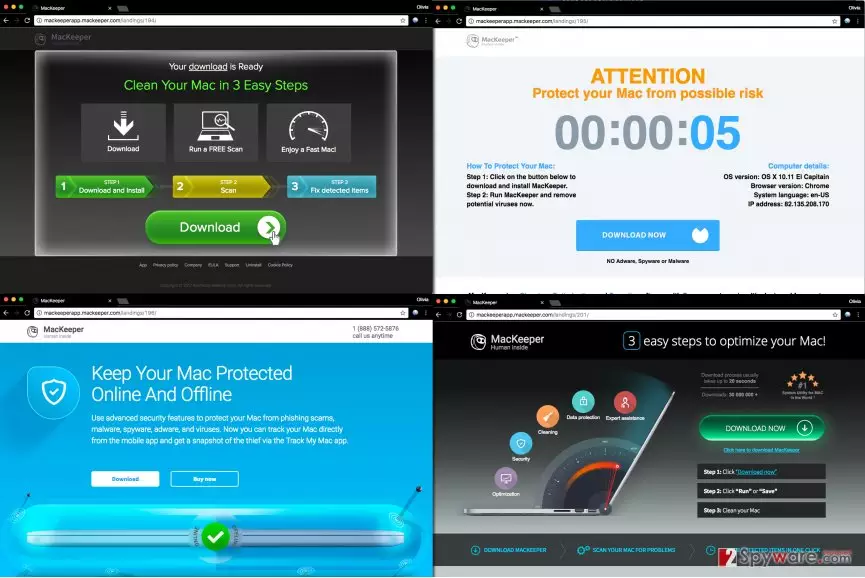
Mackeeperapp.mackeeper.com is a website used in MacKeeper promotion campaigns. If your browser repetitiously redirects[1] you to hxxp://Mackeeperapp.mackeeper.com/landings/ site, it means that your computer has been infected with an adware[2] program.
The only way to stop these ads from showing up on your screen is to remove Mackeeperapp.mackeeper.com adware.
The aim of that suspicious domain is to promote a system optimization software called MacKeeper. The program is not a virus, and it might help you to improve your Mac’s functionality, however, we believe that its promotion campaigns are highly aggressive and intolerable. For this reason, we identify it as a potentially unwanted program (PUP).
The indicated software is known to be collaborating with various ad-supported programs. As a result, these adware programs cause redirects and display ads urging the victim to install the system optimization software. In general, we do not recommend trusting programs that promote themselves in such intrusive ways at all. According to DieViren.de[3], it instantly creates an unreliable image of a program.
Before landing you on the aforementioned website, your browser might perform several redirects first. It is highly likely that it will go through websites such as Bigpicturepop.com, Onclickmax.com, Ad.Dumedia.ru, Thirafileb-uk.ru and similar ones. The suspicious offers urging you to install the software might come from these web pages as well:
- Slowmacfaster.trade;
- App4.letmegofaster.site;
- App3.letmacwork.world;
- App3.letslowbefast.today.
Apart from showing you various MacKeeper pop-up ads, they might also introduce you to Internetgazeta.cardvrmirrorr.ru ads, fake Chrome surveys and other questionable content that might pose a threat to your privacy or computer’s security.

If you care about your privacy and if the suspicious URL already started appearing on your screen, implement Mackeeperapp.mackeeper.com removal right away. If you’re interested in automatic adware removal tools, we suggest trying MalwarebytesMalwarebytes software.
Although technically it is possible to uninstall adware manually, it takes much longer, and there’s always a risk to overlook some of its components. It goes without saying that it is safer to opt for automatic PUP removal option.
Distribution of programs that display intrusive ads
The majority of adware programs get promoted by other freeware. Therefore, the computer user should be cautious when installing new applications on the system. It is important to understand that Default and Standard installation settings aren’t the reliable ones. Typically, they include statements allowing installation of extra free programs.
To avoid installing unwanted programs, always select Custom or Advanced software installation settings. They will reveal all additional programs bundled with your selected software. To avoid installing them, you should remove ticks from checkboxes next to agreements to install suggested additions.
Remove Mackeeperapp.mackeeper.com ads
To avoid encountering ads and redirects that route you to Mackeeperapp.mackeeper or similar sites, remove Mackeeperapp.mackeeper.com virus right away. You can easily complete this task by yourself if you follow instructions provided by our experts. The full removal tutorial is presented right below the article.
However, there are many programs that can deliver you these ads, therefore, to speed up the Mackeeperapp.mackeeper.com removal process, we recommend using anti-malware program. Of course, an anti-spyware program can also do the job.
If you do not own such software yet, you can always download it from our site and use it to scan your computer system.
Delete from macOS
Remove the unwanted application:
- From the menu bar, select Go > Applications.
- In the Applications folder, look for any suspicious entries, then drag them to Trash (or right-click and pick Move to Trash).


Delete leftover files and folders:
- Select Go > Go to Folder.
- Enter /Library/Application Support and remove any suspicious folders related to the unwanted program.
- Repeat the same check in the /Library/LaunchAgents and /Library/LaunchDaemons folders, deleting any suspicious entries.

- Finally, empty the Trash to permanently remove the leftovers.

Reset Internet Explorer
Remove dangerous add-ons:
- Open Internet Explorer, click on the Gear icon (IE menu) on the top-right corner of the browser
- Pick Manage Add-ons.
- You will see a Manage Add-ons window. Here, look for suspicious plugins. Click on these entries and select Disable.


Change your homepage if it was altered:
- Open IE and click on the Gear icon.
- Select Internet Options.
- In the General tab, delete the Home page address and replace it by your preferred one (for example, Google.com).
- Click Apply and then select OK.


Delete temporary files:
- Press on the Gear icon and select Internet Options.
- Under Browsing history, click Delete...
- Select relevant fields and press Delete.


Reset Internet Explorer:
- Click on Gear icon > Internet options and select Advanced tab.
- Select Reset.
- In the new window, check Delete personal settings and select Reset.


Remove from Microsoft Edge
Delete unwanted extensions from MS Edge:
- Select Menu (three horizontal dots at the top-right of the browser window) and pick Extensions.
- From the list, pick the extension and click on the Gear icon.
- Click Remove.


Clear cookies and other browser data:
- Click on the Menu (three horizontal dots at the top-right of the browser window) and select Settings > Privacy, search, and services..
- Under Clear browsing data, pick Choose what to clear.
- Select Cookies and other site data and Cached images and files. (apart from passwords, although you might want to include Media licenses as well, if applicable) and click on Clear.


Restore new tab and homepage settings:
- Click the menu icon and choose Settings.
- Then find On startup section.
- Click Remove next to any suspicious startup page.
Reset MS Edge if the above steps did not work:
- Press on Ctrl + Shift + Esc to open Task Manager.
- Click on More details arrow at the bottom of the window.
- Select Details tab.
- Now scroll down and locate every entry with Microsoft Edge name in it. Right-click on each of them and select End Task to stop MS Edge from running.


Instructions for Chromium-based Edge
Delete extensions from MS Edge (Chromium):
- Open Edge and click select Settings > Extensions.
- Delete unwanted extensions by clicking Remove.


Clear cache and site data:
- Click on Menu and go to Settings.
- Select Privacy, search and services.
- Under Clear browsing data, pick Choose what to clear.
- Under Time range, pick All time.
- Select Clear now.


Reset Chromium-based MS Edge:
- Click on Menu and select Settings.
- On the left side, pick Reset settings.
- Select Restore settings to their default values.
- Confirm with Reset.
- This will disable extensions and reset startup pages but will not delete bookmarks, saved passwords, or browsing history.


Remove from Mozilla Firefox (FF)
Remove dangerous extensions:
- Open Mozilla Firefox browser and click on the Menu (three horizontal lines at the top-right of the window).
- Select Add-ons.
- In here, select the unwanted extension and click Remove.


Reset the homepage:
- Click three horizontal lines at the top right corner to open the menu.
- Choose Settings.
- Under Home, set your preferred homepage and new tab settings.
Clear cookies and site data:
- Click Menu and pick Settings.
- Go to Privacy & Security section.
- Scroll down to locate Cookies and Site Data.
- Click on Clear Data...
- Select Cookies and Site Data and Temporary cached files and pages, then click Clear.


Reset Mozilla Firefox
If clearing the browser as explained above did not help, reset Mozilla Firefox:
- Open Mozilla Firefox browser and click the Menu.
- Go to Help and then choose Troubleshooting Information.

- Under Give Firefox a tune up section, click on Refresh Firefox...
- Once the pop-up shows up, confirm the action by pressing on Refresh Firefox.



Remove from Google Chrome
Delete malicious extensions from Google Chrome:
- Open Google Chrome, click on the Menu (three vertical dots at the top-right corner) and select More tools > Extensions.
- In the newly opened window, you will see all the installed extensions. Uninstall all suspicious extensions related to the unwanted program by clicking Remove.


Clear cache and web data from Chrome:
- Click on Menu and pick Settings.
- Under Privacy and security, select Clear browsing data.
- Select Browsing history, Cookies and other site data, as well as Cached images and files.
- Click Clear data.


Change your homepage:
- Click menu and choose Settings.
- Look for a suspicious site in the On startup section.
- Click on Open a specific or set of pages and click on three dots to find the Remove option.
Reset Google Chrome:
If the previous methods did not help you, reset Google Chrome to eliminate all the unwanted components:
- Click on Menu and select Settings.
- In the Settings, scroll down and click Advanced.
- Scroll down and locate Reset and clean up section.
- Now click Restore settings to their original defaults.
- Confirm with Reset settings.


Delete from Safari
Remove dangerous extensions:
- Open Safari, click Safari in the menu at the top-left of the screen, and select Preferences.
- Go to the Extensions tab, look for any suspicious entries, and click Uninstall to remove them.


Clear history and website data:
- Click Safari in the menu and pick Clear History.
- Set Clear to all history and confirm with Clear History.


Reset Safari:
- Click Safari in the menu and select Preferences > Advanced.
- Enable Show Develop menu in menu bar.
- From the menu bar, click Develop and select Empty Caches.


Did this guide help?
Be the first to comment