

MLF ransomware is the virus that locks files to have a reason for money demands
MLF ransomware virus is the threat locking files and then informing people that data is encrypted and attackers should be contacted, so the decryption could be possible. The infection is silent and dangerous because it involves major damaging virus and money demands, or even extortion directly from people.[1]
Once this ransomware is executed, it will encrypt files and change their filenames. The new titles of the affected files will include a unique ID assigned to the victim, the cyber criminals' email address, and a .MLF extension. For example, a file originally named 1.jpg would appear as 1.jpg.id.[9ECFA84E-3377].[DataRecovery1@cock.li].MLF.
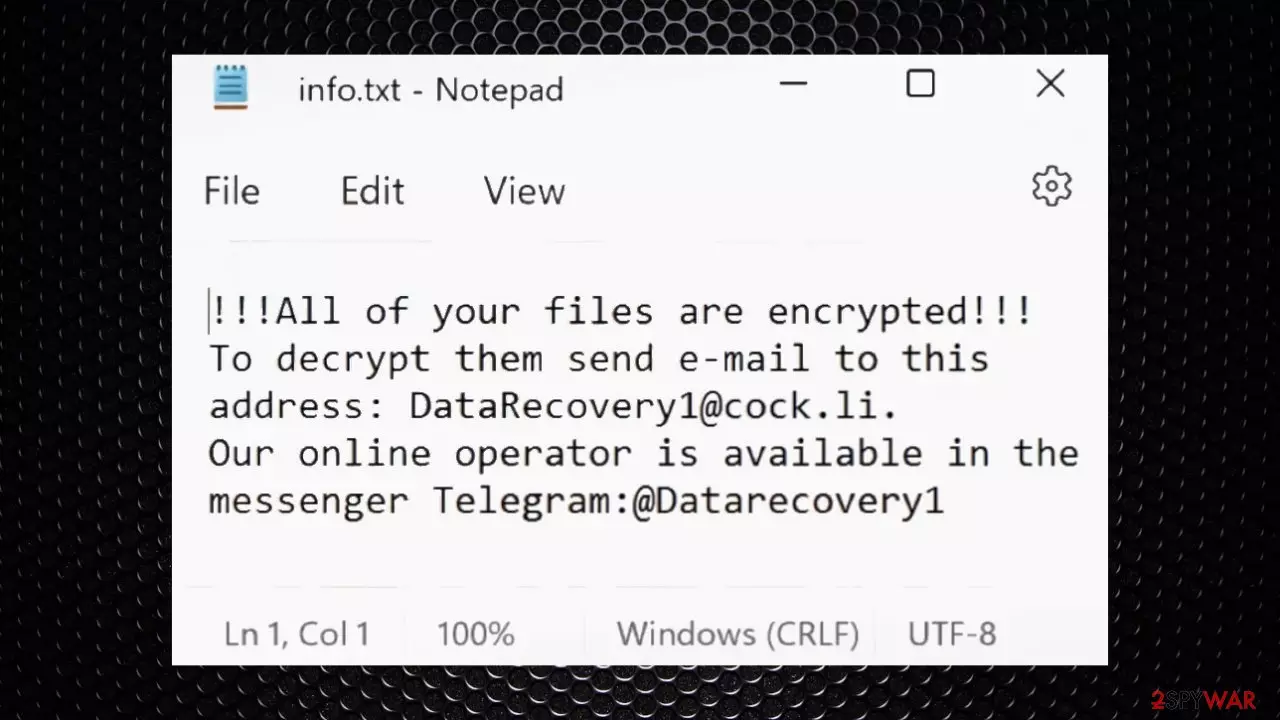
Afterward, the MLF virus creates two files – info.hta pop-up and info.txt – and drop them onto the desktop. These files contain ransom notes or direct messages from the criminals creating and operating the threat. Note that payment is not an option, however, because threat actors cannot guarantee that transferring the money can result in full data recovery.
| Name | MLF ransomware |
|---|---|
| Type | Cryptovirus, file-locker |
| Marker | .MLF and includes the unique victim ID and the contact email |
| Ransom note | info.hta and info.txt |
| Contact details | DataRecovery1@cock.li, @Datarecovery1 on Telegram |
| Distribution | Threats can spread via p2p services and spam email attachments or cracks for games, software |
| Removal | Remove the infection with anti-malware tools and security programs |
| Repair | Run FortectIntego and take care of the damage done on the machine |
Ransom notes with money demands
MLF ransomware is the product of threat actors that are financially motivated and only care about users' money, not their belongings or losses. Contacting them cannot be successful and positive, so you are advised to ignore any messages that criminals place on the machine.
The particular text file that lists all the major details:
!!!All of your files are encrypted!!!
To decrypt them send e-mail to this address: DataRecovery1@cock.li.
Our online operator is available in the messenger Telegram:@Datarecovery1
The threat is coming from the Phobos ransomware family and the particular pop-up window info.hta delivers the same message as other versions through the years of the existence of the ransomware family. These messages and scare tactics are used to trick people into paying MLF ransomware virus demands.
Stay away from the infection and ignore any of those messages displayed on the machine and in all the ransomware-related files. This is what many experts[2] related to malware research recommend to all virus victims. The threat can be especially persistent, but it is possible to fight the threat and remove the MLF file virus from the system.
Elimination of the infection
You need to remove the threat, and that is achieved best with apps like SpyHunterCombo Cleaner or MalwarebytesMalwarebytes. Once the MLF ransomware removal procedure has been carried out, the threat can still run in the background and rely on improving persistence. Trojans or other infections may be used for this purpose.
You need to stop the virus properly as well as terminate any additional attachments that come along during an attack process. Malware infections are everywhere, and they're not going away anytime soon. But, there is a light at the end of this tunnel. AV tools and detection[3] engine-based apps.
These programs can help remove any MLF ransomware virus from your computer with ease. With these tools, you can rest assured that your computer will be free of any harmful infections. Then you can worry about those damaged files and possible decryption options.
To get started, simply download and install an anti-malware program of your choice. Once installed, run a scan of your computer to detect any ransomware viruses. Finally, remove any infected files or programs that are found, and enjoy your clean and healthy computer once again

Finding the decryption tool
File encryption is a process that is similar to applying a password to a particular file or folder. However, from a technical point of view, encryption is fundamentally different due to its complexity. By using encryption, threat actors use a unique set of alphanumeric characters as a password that can not easily be deciphered if the process is performed correctly.
There are several algorithms that can be used to lock data (whether for good or bad reasons); for example, AES uses the symmetric method of encryption, meaning that the key used to lock and unlock files is the same. Unfortunately, it is only accessible to the attackers who hold it on a remote server – they ask for a payment in exchange for it. This simple principle is what allows ransomware authors to prosper in this illegal business.
While many high-profile ransomware strains such as Djvu or Dharma use immaculate encryption methods, there are plenty of failures that can be observed within the code of some novice malware developers. For example, the keys could be stored locally, which would allow users to regain access to their files without paying. In some cases, ransomware does not even encrypt files due to bugs, although victims might believe the opposite due to the ransom note that shows up right after the infection and data encryption is completed.
Therefore, regardless of which crypto-malware affects your files, you should try to find the relevant decryptor if such exists. Security researchers are in a constant battle against cybercriminals. In some cases, they manage to create a working decryption tool that would allow victims to recover files for free.
Once you have identified which ransomware you are affected by, you should check the following links for a decryptor:
- No More Ransom Project
- Free Ransomware Decryptors by Kaspersky
- Free Ransomware Decryption Tools from Emsisoft
- Avast decryptors

If you can't find a decryptor that works for you, you should try the alternative methods we list below. Additionally, it is worth mentioning that it sometimes takes years for a working decryption tool to be developed, so there are always hopes for the future.
Recover the machine
When you run the full system scan on your computer, it will show all of those pesky infections that are cluttering up everything. Antivirus tools help to remove them properly from your device. The program should list all potential threats, including the main MLF ransomware, so you can terminate the threat and other related files or malware.
However, note that the file virus is a dangerous threat to your computer system. This infection can cause data loss and expensive repairs if unchecked, so don't hesitate! Double-check that all threats have been removed from the machine before proceeding with recovery steps or loading file copies on the machine.
Otherwise, you may end up paying more than necessary for restoring lost files or fixing broken programs. If you have file copies or backups, you can proceed with the recovery steps. If not, you may need to pay a ransom to get your files back. Either way, it is important to remove the MLF file virus from your machine first to prevent further damage and take care of the security of the PC.
Once a computer is infected with malware, its system is changed to operate differently. For example, an infection can alter the Windows registry database, damage vital bootup and other sections, delete or corrupt DLL files, etc. Once a system file is damaged by malware, antivirus software is not capable of doing anything about it, leaving it just the way it is. Consequently, users might experience performance, stability, and usability issues, to the point where a full Windows reinstall is required.
Therefore, we highly recommend using a one-of-a-kind, patented technology of FortectIntego repair. Not only can it fix virus damage after the infection, but it is also capable of removing malware that has already broken into the system thanks to several engines used by the program. Besides, the application is also capable of fixing various Windows-related issues that are not caused by malware infections, for example, Blue Screen errors, freezes, registry errors, damaged DLLs, etc.
- Download the application by clicking on the link above
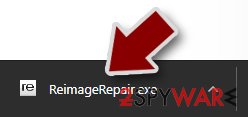
- Click on the ReimageRepair.exe
- If User Account Control (UAC) shows up, select Yes
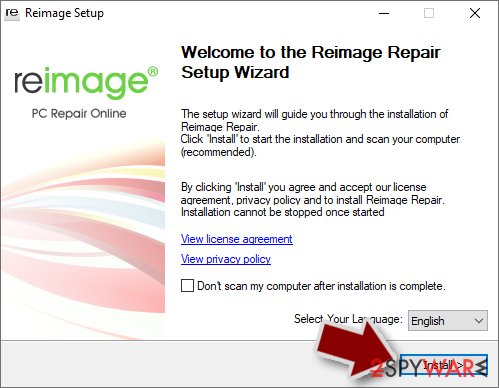
- Press Install and wait till the program finishes the installation process
- The analysis of your machine will begin immediately
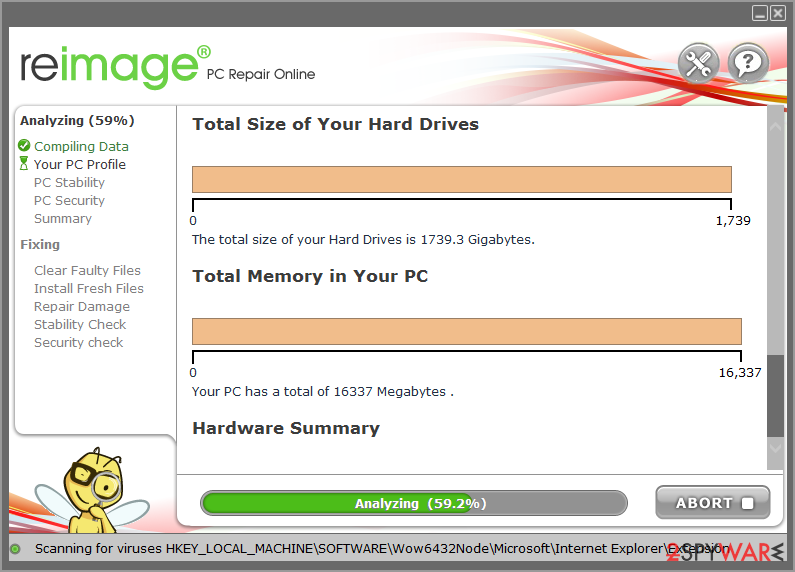
- Once complete, check the results – they will be listed in the Summary
- You can now click on each of the issues and fix them manually
- If you see many problems that you find difficult to fix, we recommend you purchase the license and fix them automatically.



Did this guide help?
Be the first to comment