

Movies Craver is a potentially unwanted application that inserts ads while you browse the internet
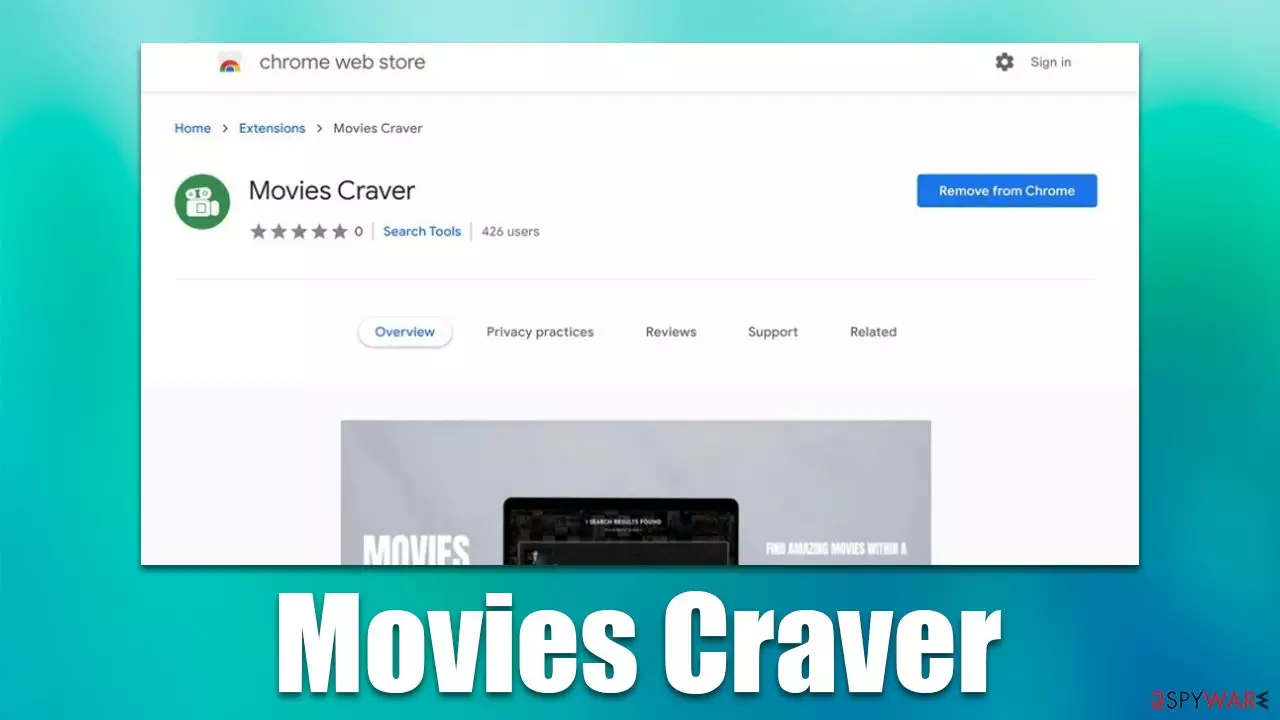
Movies Craver is yet another misleading browser extension. Initially advertised as a useful app that can help users find the most recent movies and other videos, it belongs to a category of potentially unwanted software known as adware. [1] These applications often lose their features in the unending ad campaigns they produce, making the experience of those affected rather miserable.
Movies Craver might also start tracking user data in the background, which can cause serious privacy issues in some cases. Likewise, due to excessive ads and insecure advertising networks, users are more likely to be exposed to phishing messages and potentially unwanted program promotions. We recommend eliminating the extension as soon as possible and then cleaning web browser caches[2] to prevent data tracking.
| Name | Movies Craver |
| Type | Adware, potentially unwanted browser extension |
| Distribution | Software bundles, redirects, misleading ads |
| Symptoms | Shows fake ads and promotes potentially unwanted applications |
| Risks | Installation of potentially unwanted software, such as browser hijackers; redirects can also lead to other malicious websites, resulting in monetary loss or personal data disclosure to unknown parties |
| Removal | You can use a manual guide to remove the potentially unwanted browser extension and then perform a full system scan with SpyHunterCombo Cleaner to check for other threats |
| Other steps | Remove caches and other web data to prevent data tracking – use the FortectIntego repair and maintenance tool. You can also repair damaged system components with it |
Adware is very common and is often disguised as a browser extension that can fulfill some type of purpose. Movies Craver, for example, is presented as an application that can easily provide access to movies and other useful information. However, this functionality is a mere lie, as it does not provide such functionality. Instead, users are forced to view various advertisements whenever they browse the web.
This is not the first time when adware has been disguised as a seemingly useful application. For example, AdBlock 360 is presented as a useful ad-blocker, although it begins to insert its own ads as soon as it gets installed. Custom Search Bar is another useless extension that hijacks users' homepage and shows alternative search results by presenting them as more useful ones, even though it does nothing but change the search provider and inserts ads at the top of the results.
The PUP is spread via fake messages online
One of the main reasons why adware is so widespread is due to the distribution techniques used. There are some misconceptions about adware and other PUP distribution, though, as many people believe that they simply install themselves. It is far from the truth, as adware is almost never spread via truly malicious methods such as exploit kits or drive-by downloads.[3]
Instead, the developers rely on a more gray area, where users themselves install these apps. For example, one of the most common ways to get infected with Movies Craver is after encountering a fake message which claims that an extension needs to be updated for a “safer search experience:”
Before you continue
Update your Chrome browser extension; it may be out of date. By clicking Continue below, you will be redirected to the Chrome Store where you can update the Search Verified Chrome browser extension. If you do not already have this browser extension, you will be able to download it, or navigate away to your destination. This extension will offer you a safer web search experience by giving you control to search with a variety of providers.Verified by Google Chrome.
Instant Results.
All extensions and programs spread using this method should never be downloaded, as they could be malicious. Malicious actors often show fake update prompts not only to make people download potentially unwanted programs but also malware, so it is never a good idea to go through with it.

Alternatively, you could have installed Movies Craver when you downloaded applications from third-party sources where software bundling is prevalent. In order to avoid being tricked, you should always pay close attention to the installation process of new programs – choose Advanced/Custom settings, remove ticks from pre-ticked checkboxes, and decline all the offers to install optional apps on the way.
Remove the Movies Craver extension
Luckily, it is not difficult to remove browser extensions. Usually, you can do that by pressing the “Extensions” button next to the settings menu. This might not be possible in every case, so you can rely on the instructions below that should always work:
Google Chrome
- Open Google Chrome, click on the menu (three vertical dots at the top-right corner) and select More tools > Extensions.
- In the newly opened window, you will see all the installed extensions. Uninstall all the suspicious plugins that might be related to the unwanted program by clicking Remove.


Mozilla Firefox
- Open the Mozilla Firefox browser and click on the Menu (three horizontal lines at the window's top-right).
- Select Add-ons.
- Here, select the unwanted plugin and click Remove.


MS Edge (Chromium)
- Open Edge and click select Settings > Extensions.
- Delete unwanted extensions by clicking Remove.


Safari
- Click Safari > Preferences…
- In the new window, pick Extensions.
- Select the unwanted extension and select Uninstall.


Take care of your privacy
After you have removed the extension, you should also take care of leftover files. Adware is known for its ability to track user data, including IP addresses, cookies, visited websites, clicked links, technical information, and more.
These details might later be shared with unknown third parties, which does not benefit users in any way – they might instead receive ads from unknown advertisers, which might not always be secure. You can either use FortectIntego maintenance software to delete these caches or employ the following manual steps:
Google Chrome
- Click on Menu and pick Settings.
- Under Privacy and security, select Clear browsing data.
- Select Browsing history, Cookies and other site data, as well as Cached images and files.
- Click Clear data.


Mozilla Firefox
- Click Menu and pick Options.
- Go to Privacy & Security section.
- Scroll down to locate Cookies and Site Data.
- Click on Clear Data…
- Select Cookies and Site Data, as well as Cached Web Content and press Clear.


MS Edge
- Click on Menu and go to Settings.
- Select Privacy and services.
- Under Clear browsing data, pick Choose what to clear.
- Under Time range, pick All time.
- Select Clear now.


Safari
- Click Safari > Clear History…
- From the drop-down menu under Clear, pick all history.
- Confirm with Clear History.


After removing the unwanted browser extension, scan your device with SpyHunterCombo Cleaner or MalwarebytesMalwarebytes security software to ensure that no malware or other potentially unwanted programs are installed on your device.
Did this guide help?
Be the first to comment