

Mystartsearch.com search engine causes redirects to drive traffic to predetermined websites
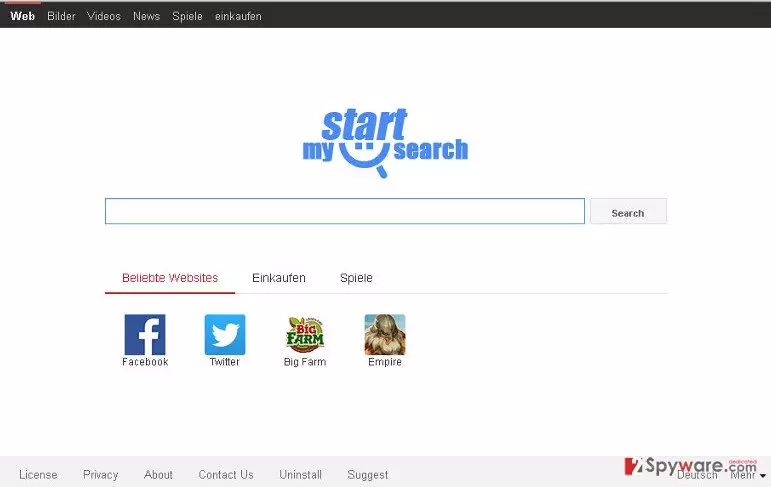
Mystartsearch.com (also known as MyStart Search and mystartsearch) is an untrustworthy search engine, which is full of links to popular websites. The developer of it is Finder Digital Media, Inc.
Redirects to mystartsearch.com may start interrupting you out of nowhere. It turns out that this controversial search tool is being advertised with a help of a browser hijacker that promotes itself with the help of bundling. In fact, there are hundreds of hijackers that have been incorporated into the freeware as optional components in exchange for money.
This browser hijacker[1] has nothing in common with viruses or malware[2], but we have to warn you that it belongs to “potentially unwanted programs” category and can cause redirects to unknown domains. It is also recognized as a member of spyware family.
Once the hijacker's files are downloaded to a computer, it starts to modify certain system modifications. It can take over each of Internet browsers by adding its homepage or/and the default search engine. Beware that this suspicious search site will try to convince you that it provides a genuine search service and links to your favorite websites.
However, after using it for a while, it becomes clear that it can easily show you altered search results that may redirect you to various websites. Keep in mind that there is always a chance that this ad-supported search engine will try to redirect you to a suspicious, unsafe or very untrustworthy website!
It is very unlikely that it endorses content shared by its affiliate websites, and that is not a feature that characterises a trustworthy search tool. That is one of the reasons why we suggest moving Mystartsearch.com removal to the top of your to-do list.
At the moment of writing, it has also been revealed that Mystartsearch.com virus is also capable of slowing browser's performance, showing different kinds of ads and even tracking the browsing activity of its users.
According to its privacy policy, it can collect non-personally identifiable information, such as your email address, PC's IP address, its location, search terms and similar data. For this reason, it is recommended to get rid of this search engine and restore browsers' settings back to normal.
You can remove mystartsearch.com with the help of FortectIntego. We have also noticed that users look for ways to jak usunąć mystartsearch.com, so if you are one unlucky Polish computer user who got infected with this virus, we suggest instructions in your language on UsunWirusa.pl page[3].

Rules to follow if you want to avoid browser hijackers
Similarly to delta-homes.com, BoBrowser or Omiga Plus, the defined browser hijacker has been labeled as a potentially unwanted program because it spreads with the help of third party software, such as download managers, video converters, video streaming software or similar programs that are typically promoted on various questionable download websites.
Such and similar programs can trick you into installing adware-type programs and browser hijackers only if you do not pay enough attention to their installation process, so make sure you do this. Here are some tips that can help you to avoid potentially unwanted software:
You should always opt for Advanced or Custom installation mode and then follow the entire installation process carefully;
Also, do not accept installation of unfamiliar programs that can be suggested for you in a bundle, such as browser add-ons, extensions, plugins, and toolbars.
If you have already noticed suspicious redirects and other suspicious activities on your computer, you should use a guide provided below. To uninstall all of the potentially unwanted software from your computer at once, run a system scan using anti-spyware or anti-malware program.
Frequently Asked Questions (FAQ):
Question. I've noticed that instead of my usual homepage, there is now Mystartsearch virus. However, I do not recall changing it myself. Besides, I have also been dealing with mystartsearch redirects for some time. Is this malware? Should I be concerned?
Answer. One of the reasons why My Start Search is categorized as a potentially unwanted program is this specific trait, that is, stealth installation on user's computer without his/hers knowledge. However, you should know that you have an option during the installation process to deselect programs you do not want to install (always opt for Advanced and Custom installation options).
In this case, we would like to advise you to follow the removal guide below and get rid of the program responsible for adjusting your browser settings.
Question. Is there a way to remove Mystartsearch malware from my browser and avoid redirects to www.mystartsearch.com? I set it back to the original one, but it keeps reappearing.
Answer. Removing www.Mystartsearch.com browser hijacker is not that easy. They are called this way for a reason as they tend to install little programs that keep adjusting your browsing settings and making it hard for you to get rid of them.
The only way for you to get rid of it once and for all is to remove it with a program we have already mentioned like FortectIntego. You can also use a guide below.
Question. I've found that my homepage and search engine has been changed into www.Mystartsearch.com. I wouldn't mind because it seems like a normal search page. However, when processing searches through this engine, the results do not seem to be very reliable… The pages I'm redirected to seem to differ from my the websites I used to visit before.. What is the best way to remove this search engine and go back to my usual one?
Answer. It is a very accurate observation; search queries processed through Mystartsearch tend to be less reliable because search results display links to affiliated websites.
Therefore, you might end up on suspicious websites. In order to avoid that, you should get rid of this program by carefully following the steps we have provided below.
Question. I've just rebooted my computer after installing a new program and it seems to be working OK… But I've opened my browser and to my surprise, there is now a new homepage called Mystart Search which also serves as a search engine and processes my searches. I want to remove it but it keeps getting back to my browser. How can I remove it? Please help!
Answer. You have just encountered what is called 'bundling.' You have downloaded a program that had additional options in its installation process that you skipped (Therefore, never do this again).
If such additional program has entered your computer without your knowledge, beware that it may cause lots of problems on your computer. What is more, it might be rather difficult to get rid of it by yourself so you should rely on a professional tool to do it. FortectIntego would be an option.
Question. Please help! I'm suffering from redirects to Mystartsearch website… I think this has something to do with the fact that my search engine has been changed to this site. Which I do not recall doing… Is it dangerous? Should I be worried?
Answer. Yes, these things are very likely to be related. While this might be more irritating than dangerous, you should rely on a more reliable search engine and get rid of the one that has been installed without your permission. The best way to remove this unwanted program is by using the specialized tool as it guarantees the best results.
Quick way to remove mystartsearch.com virus
To prevent problems caused by the described hijacker, you must remove Mystartsearch.com virus from your computer. There are thousands of people who have informed us about constant redirects, pop-up notifications and slow downs on each of web browsers. Luckily, all of these issues can be solved very easily.
If you do not want to end up with other potentially unwanted programs, adware programs or even viruses, remove suspicious programs you already own right away. For this, you can use a reliable anti-spyware or remove it manually. Since the hijacker can add its own registry entries that are hard to locate and remove, it is recommended using a special Mystartsearch.com removal tool that will help you to get rid of this search engine automatically.
Uninstall from Windows
Uninstall from Windows 10/8:
- Type Control Panel into the Windows search box and open the result.
- Under Programs, select Uninstall a program.


Uninstall from Windows 7/XP:
- Click on Windows Start > Control Panel (Windows XP users should click on Add/Remove Programs).
- In Control Panel, select Programs > Uninstall a program.


Remove the unwanted program:
- In the Programs and Features window, look for any recently installed suspicious entries, select them, and click Uninstall.
- If User Account Control appears, click Yes to confirm, then complete the removal.


Delete from macOS
Remove the unwanted application:
- From the menu bar, select Go > Applications.
- In the Applications folder, look for any suspicious entries, then drag them to Trash (or right-click and pick Move to Trash).


Delete leftover files and folders:
- Select Go > Go to Folder.
- Enter /Library/Application Support and remove any suspicious folders related to the unwanted program.
- Repeat the same check in the /Library/LaunchAgents and /Library/LaunchDaemons folders, deleting any suspicious entries.

- Finally, empty the Trash to permanently remove the leftovers.

Reset Internet Explorer
Remove dangerous add-ons:
- Open Internet Explorer, click on the Gear icon (IE menu) on the top-right corner of the browser
- Pick Manage Add-ons.
- You will see a Manage Add-ons window. Here, look for suspicious plugins. Click on these entries and select Disable.


Change your homepage if it was altered:
- Open IE and click on the Gear icon.
- Select Internet Options.
- In the General tab, delete the Home page address and replace it by your preferred one (for example, Google.com).
- Click Apply and then select OK.


Delete temporary files:
- Press on the Gear icon and select Internet Options.
- Under Browsing history, click Delete...
- Select relevant fields and press Delete.


Reset Internet Explorer:
- Click on Gear icon > Internet options and select Advanced tab.
- Select Reset.
- In the new window, check Delete personal settings and select Reset.


Remove from Microsoft Edge
Delete unwanted extensions from MS Edge:
- Select Menu (three horizontal dots at the top-right of the browser window) and pick Extensions.
- From the list, pick the extension and click on the Gear icon.
- Click Remove.


Clear cookies and other browser data:
- Click on the Menu (three horizontal dots at the top-right of the browser window) and select Settings > Privacy, search, and services..
- Under Clear browsing data, pick Choose what to clear.
- Select Cookies and other site data and Cached images and files. (apart from passwords, although you might want to include Media licenses as well, if applicable) and click on Clear.


Restore new tab and homepage settings:
- Click the menu icon and choose Settings.
- Then find On startup section.
- Click Remove next to any suspicious startup page.
Reset MS Edge if the above steps did not work:
- Press on Ctrl + Shift + Esc to open Task Manager.
- Click on More details arrow at the bottom of the window.
- Select Details tab.
- Now scroll down and locate every entry with Microsoft Edge name in it. Right-click on each of them and select End Task to stop MS Edge from running.


Instructions for Chromium-based Edge
Delete extensions from MS Edge (Chromium):
- Open Edge and click select Settings > Extensions.
- Delete unwanted extensions by clicking Remove.


Clear cache and site data:
- Click on Menu and go to Settings.
- Select Privacy, search and services.
- Under Clear browsing data, pick Choose what to clear.
- Under Time range, pick All time.
- Select Clear now.


Reset Chromium-based MS Edge:
- Click on Menu and select Settings.
- On the left side, pick Reset settings.
- Select Restore settings to their default values.
- Confirm with Reset.
- This will disable extensions and reset startup pages but will not delete bookmarks, saved passwords, or browsing history.


Remove from Mozilla Firefox (FF)
Remove dangerous extensions:
- Open Mozilla Firefox browser and click on the Menu (three horizontal lines at the top-right of the window).
- Select Add-ons.
- In here, select the unwanted extension and click Remove.


Reset the homepage:
- Click three horizontal lines at the top right corner to open the menu.
- Choose Settings.
- Under Home, set your preferred homepage and new tab settings.
Clear cookies and site data:
- Click Menu and pick Settings.
- Go to Privacy & Security section.
- Scroll down to locate Cookies and Site Data.
- Click on Clear Data...
- Select Cookies and Site Data and Temporary cached files and pages, then click Clear.


Reset Mozilla Firefox
If clearing the browser as explained above did not help, reset Mozilla Firefox:
- Open Mozilla Firefox browser and click the Menu.
- Go to Help and then choose Troubleshooting Information.

- Under Give Firefox a tune up section, click on Refresh Firefox...
- Once the pop-up shows up, confirm the action by pressing on Refresh Firefox.



Remove from Google Chrome
Delete malicious extensions from Google Chrome:
- Open Google Chrome, click on the Menu (three vertical dots at the top-right corner) and select More tools > Extensions.
- In the newly opened window, you will see all the installed extensions. Uninstall all suspicious extensions related to the unwanted program by clicking Remove.


Clear cache and web data from Chrome:
- Click on Menu and pick Settings.
- Under Privacy and security, select Clear browsing data.
- Select Browsing history, Cookies and other site data, as well as Cached images and files.
- Click Clear data.


Change your homepage:
- Click menu and choose Settings.
- Look for a suspicious site in the On startup section.
- Click on Open a specific or set of pages and click on three dots to find the Remove option.
Reset Google Chrome:
If the previous methods did not help you, reset Google Chrome to eliminate all the unwanted components:
- Click on Menu and select Settings.
- In the Settings, scroll down and click Advanced.
- Scroll down and locate Reset and clean up section.
- Now click Restore settings to their original defaults.
- Confirm with Reset settings.


Delete from Safari
Remove dangerous extensions:
- Open Safari, click Safari in the menu at the top-left of the screen, and select Preferences.
- Go to the Extensions tab, look for any suspicious entries, and click Uninstall to remove them.


Clear history and website data:
- Click Safari in the menu and pick Clear History.
- Set Clear to all history and confirm with Clear History.


Reset Safari:
- Click Safari in the menu and select Preferences > Advanced.
- Enable Show Develop menu in menu bar.
- From the menu bar, click Develop and select Empty Caches.


Did this guide help?
6 comments
S S GHOSH
I want to remove forthwith the most disturing unwanted browser "mystartsearch.com" from my computer permanently. Needful advice mayplease be sent.
Denise112
My startsearch.com hijacked my Chrome and IE. In spite of trolling the web for solutions and trying all of them, this pest refuses to go. Is there an answer?
dutifree1
Why the hell are you asking if there is an answer if its right under your nose? Have you read the post above? Strange people...to get rid of this hijacker you can check the machine with anti-malware or do manual removal by yourself. In my case, I did not remove it manually since some stupid search protect did not allow me to do so. Thus, i have initiated a full system scan with Spyhunter
Cozzens
This search engine is beyond useless. firs of all, it features nothing innovative. Secondly, it corrupts browsers settings by force and then does not allow to be removed. Thirdly, its obvious that it changes search results and promotes really questionable sites. Mystartsearch.com should not be trusted at any means!
IamGomez
It completely changed my Chrome Display Page, and now I cant find any way of getting it off. all I needed was a media player.. why did I have to install this stupid search as well???? Now, I cant get rid of it...leaving me seriously, displeased. Mystartsearch sucks
Dan
Mystartsearch.com modified my search engine and homepage. another trick used to make money and screw peoples browser up. Thats ugly! luckily, SpyHunter detects and removes it easily, at least in my case.