

Newsfile.club – a push notifications virus that can lead to infectious sources
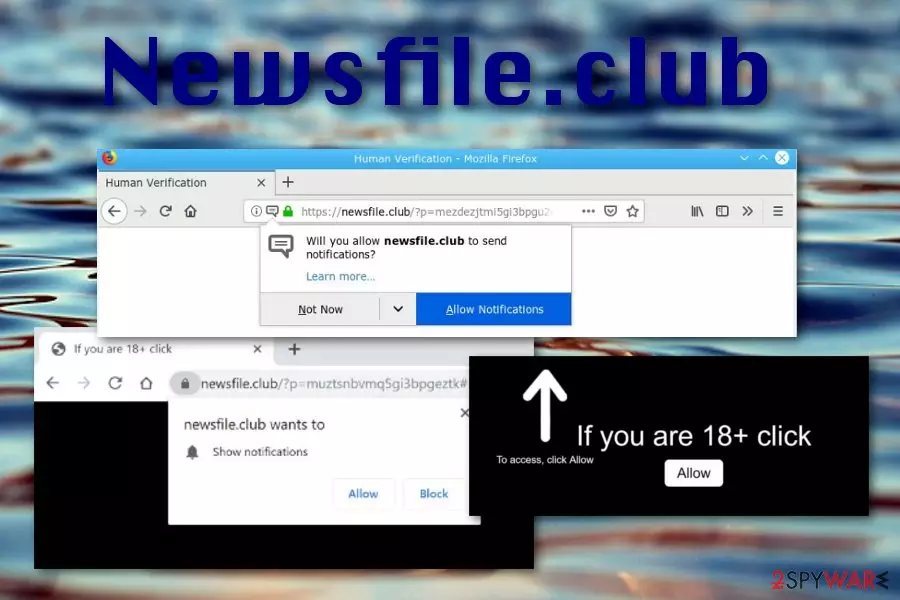
Newsfile.club is a push notifications virus that might redirect the infected user to potentially dangerous networks. Usually, where there is one PUP, another is always somewhere near. These types of third-party software promotion techniques are widely used throughout the cybersphere and are not a surprise for many users. However, those who are not aware of such things might get easily tricked by such a redirect or similar adware.
Some people might be interested in pressing on the “Allow notifications” button, however, once they start feeling harsh advertising consequences, there will be no sign of excitement left. This is not a dangerous virus or program that could be called malware, but the suspicious pop-ups and continuous redirects should be taken seriously. You can end up with a PUP or more annoying application when you continuously browse those commercial pages.
| Name | Newsfile.club |
|---|---|
| Type | Adware |
| Sub-type | Push notifications virus |
| Existence | The PUP can appear on Chrome, Firefox, Safari, and other browser apps |
| Why dangerous? | Not dangerous itself but can cause indirect damage by forcing visits to potentially infectious websites |
| Where found? | Software bundles, P2P networks, misleading adverts |
| Remove it | Get rid of the annoying threat while opting for anti-malware tools and automatic system scan |
| Repair | Run FortectIntego for the thorough system check and file recovery |
These pop-ups, banners, and other similar advertising material can show up with various text signs such as “Notifications by Newsfile.club”, “Provided by Newsfile.club”, and similar. Nevertheless, rogue pop-ups and pop-unders might be produced from more than one domain. It is known that this program holds other domain names:
- 1.newsfile[.]club.
- 2.newsfile[.]club.
- 3.newsfile[.]club
- 4.newsfile[.]club
- 5.newsfile[.]club
- etc.
The potentially unwanted program can be lurking in any kind of web browser so do not focus just on one popular app such as Chrome or Firefox as the adware can appear on Explorer, Edge, and Safari also. Here the program will supposedly alter some settings in the homepage, inject tracking cookies,[1] and plant add-ons.
All of this content is known as “helper objects” that assure smooth advertising and redirecting activities from this website. Being bombarded with ads from this page is definitely not a pleasure to feel. Rather than receiving useful offers, you will only get attractive-looking but misleading or even potentially dangerous adverts.
Constant pop-up ads might take you to other domains where malware is widely distributed and you are at big risk of ending up with a Trojan virus or ransomware on your computer system. Besides, some advertisements might come as a promotion of rogue security software and encourage you to buy misleading optimizers.

Despite all of the mentioned activities, Newsfile.club might also be good at tracking your browsing sessions. By planting specific cookies in your browser, the adware can spy on what kind of web pages you are visiting, what types of offers you have recently been searching for, identify your IP address and geographic location.[2]
Later on, the information is misused for bringing you questionable deals and convincing you into taking them. If you have now read about all annoying and possibly dangerous activities that can be brought by the adware, we recommend considering the option of performing the proper threat removal.
You can easily, safely, and effectively remove Newsfile.club with the help of anti-malware software such as SpyHunterCombo Cleaner or MalwarebytesMalwarebytes. Additionally, you will find manual elimination steps at the end of this article. Here you will learn to clean web browser applications and the entire computer by yourself. Just be careful and patient during the process and success will be claimed.
Furthermore, if the site shows up only occasionally, i.e. while visiting third-party gaming, movie-watching, or similar sources, you can try using AdBlock for preventing the ad flow. If that does not help, you can also try these steps:
- Launch your infected web browser and locate the menu.
- Go to Settings -> Advanced.
- Find the Privacy & Security section and click on Site Settings that will be under this option.
- Locate Notifications and scroll down the entire list until you find the annoying page or a similar domain.
- Remove or block the website to stop the advertising.

Know about adware distribution for precaution
According to NoVirus.uk technologists,[3] it is every user's duty to protect his/her computer as security on one computer prevents malware from spreading on other machines and devices. However, if you have been dealing with adware or similar content lately, it is about time to identify the source from which the PUP has come.
Mostly, adware lands on the machine through software bundles. The package consists of the original product and the additional component which often appears to be adware or something like that. If the user has chosen Quick configuration for completing downloads, there is a big risk of receiving that adware together with official software.
However, if you want to prevent additional stuff from reaching your system, you should opt for the right installation mode. That would be Custom or Advanced. These settings allow managing all incoming objects, identifying their security, and even removing if the component is found as a questionable one. If you did not already choose this configuration, we recommend doing it right away.
Newsfile.club pop-up ads will be gone after the threat is removed
If you have been experiencing annoying advertising activities lately and they will not stop even if you download AdBlock, you should start getting ready for the termination. This includes patience, time, and attention. However, you can minimize your efforts if you choose to get rid of the cyber threat with trustworthy anti-malware.
If you are likely to remove Newsfile.club yourself, then look at the explanation below. Here instructing steps will show you how to get rid of suspicious objects not only from affected operating systems but also clean and refresh web browsers such as Google Chrome, Mozilla Firefox, Safari, Microsoft Edge, and Internet Explorer back to their previous positions.
Uninstall from Windows
Uninstall from Windows 10/8:
- Type Control Panel into the Windows search box and open the result.
- Under Programs, select Uninstall a program.


Uninstall from Windows 7/XP:
- Click on Windows Start > Control Panel (Windows XP users should click on Add/Remove Programs).
- In Control Panel, select Programs > Uninstall a program.


Remove the unwanted program:
- In the Programs and Features window, look for any recently installed suspicious entries, select them, and click Uninstall.
- If User Account Control appears, click Yes to confirm, then complete the removal.


Delete from macOS
Remove the unwanted application:
- From the menu bar, select Go > Applications.
- In the Applications folder, look for any suspicious entries, then drag them to Trash (or right-click and pick Move to Trash).


Delete leftover files and folders:
- Select Go > Go to Folder.
- Enter /Library/Application Support and remove any suspicious folders related to the unwanted program.
- Repeat the same check in the /Library/LaunchAgents and /Library/LaunchDaemons folders, deleting any suspicious entries.

- Finally, empty the Trash to permanently remove the leftovers.

Remove from Microsoft Edge
Delete unwanted extensions from MS Edge:
- Select Menu (three horizontal dots at the top-right of the browser window) and pick Extensions.
- From the list, pick the extension and click on the Gear icon.
- Click Remove.


Clear cookies and other browser data:
- Click on the Menu (three horizontal dots at the top-right of the browser window) and select Settings > Privacy, search, and services..
- Under Clear browsing data, pick Choose what to clear.
- Select Cookies and other site data and Cached images and files. (apart from passwords, although you might want to include Media licenses as well, if applicable) and click on Clear.


Restore new tab and homepage settings:
- Click the menu icon and choose Settings.
- Then find On startup section.
- Click Remove next to any suspicious startup page.
Reset MS Edge if the above steps did not work:
- Press on Ctrl + Shift + Esc to open Task Manager.
- Click on More details arrow at the bottom of the window.
- Select Details tab.
- Now scroll down and locate every entry with Microsoft Edge name in it. Right-click on each of them and select End Task to stop MS Edge from running.


Instructions for Chromium-based Edge
Delete extensions from MS Edge (Chromium):
- Open Edge and click select Settings > Extensions.
- Delete unwanted extensions by clicking Remove.


Clear cache and site data:
- Click on Menu and go to Settings.
- Select Privacy, search and services.
- Under Clear browsing data, pick Choose what to clear.
- Under Time range, pick All time.
- Select Clear now.


Reset Chromium-based MS Edge:
- Click on Menu and select Settings.
- On the left side, pick Reset settings.
- Select Restore settings to their default values.
- Confirm with Reset.
- This will disable extensions and reset startup pages but will not delete bookmarks, saved passwords, or browsing history.


Remove from Mozilla Firefox (FF)
Remove dangerous extensions:
- Open Mozilla Firefox browser and click on the Menu (three horizontal lines at the top-right of the window).
- Select Add-ons.
- In here, select the unwanted extension and click Remove.


Reset the homepage:
- Click three horizontal lines at the top right corner to open the menu.
- Choose Settings.
- Under Home, set your preferred homepage and new tab settings.
Clear cookies and site data:
- Click Menu and pick Settings.
- Go to Privacy & Security section.
- Scroll down to locate Cookies and Site Data.
- Click on Clear Data...
- Select Cookies and Site Data and Temporary cached files and pages, then click Clear.


Reset Mozilla Firefox
If clearing the browser as explained above did not help, reset Mozilla Firefox:
- Open Mozilla Firefox browser and click the Menu.
- Go to Help and then choose Troubleshooting Information.

- Under Give Firefox a tune up section, click on Refresh Firefox...
- Once the pop-up shows up, confirm the action by pressing on Refresh Firefox.



Remove from Google Chrome
Delete malicious extensions from Google Chrome:
- Open Google Chrome, click on the Menu (three vertical dots at the top-right corner) and select More tools > Extensions.
- In the newly opened window, you will see all the installed extensions. Uninstall all suspicious extensions related to the unwanted program by clicking Remove.


Clear cache and web data from Chrome:
- Click on Menu and pick Settings.
- Under Privacy and security, select Clear browsing data.
- Select Browsing history, Cookies and other site data, as well as Cached images and files.
- Click Clear data.


Change your homepage:
- Click menu and choose Settings.
- Look for a suspicious site in the On startup section.
- Click on Open a specific or set of pages and click on three dots to find the Remove option.
Reset Google Chrome:
If the previous methods did not help you, reset Google Chrome to eliminate all the unwanted components:
- Click on Menu and select Settings.
- In the Settings, scroll down and click Advanced.
- Scroll down and locate Reset and clean up section.
- Now click Restore settings to their original defaults.
- Confirm with Reset settings.


Delete from Safari
Remove dangerous extensions:
- Open Safari, click Safari in the menu at the top-left of the screen, and select Preferences.
- Go to the Extensions tab, look for any suspicious entries, and click Uninstall to remove them.


Clear history and website data:
- Click Safari in the menu and pick Clear History.
- Set Clear to all history and confirm with Clear History.


Reset Safari:
- Click Safari in the menu and select Preferences > Advanced.
- Enable Show Develop menu in menu bar.
- From the menu bar, click Develop and select Empty Caches.


Did this guide help?
Be the first to comment