

Chunckapp – a browser hijacker which redirects to Snapdo and is distributed on both Windows and macOS systems
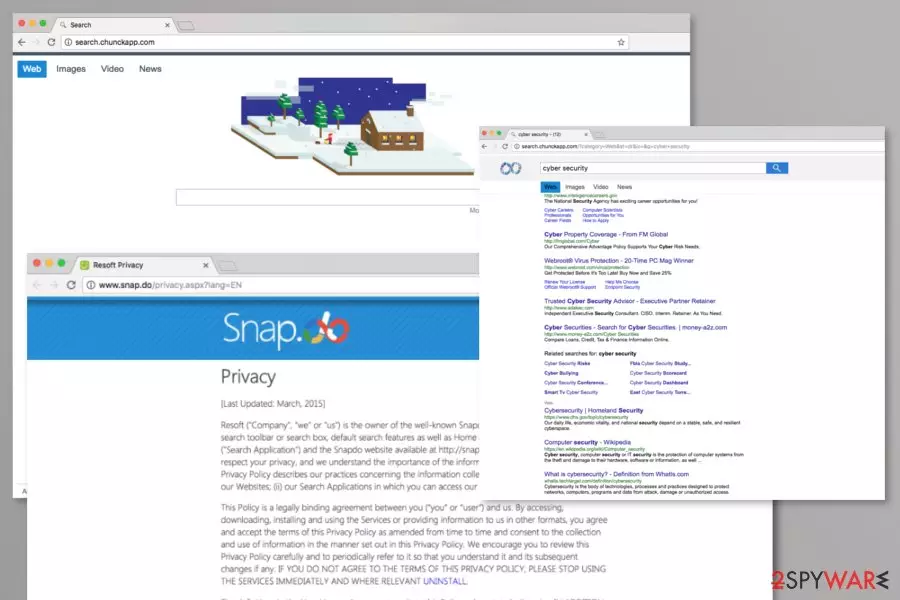
Search.chunckapp.com virus is yet another potentially unwanted program that may catch your attention if you are looking for a new browsing tool. Initially, it does not look suspicious at all. Despite its veneer, we do not recommend you to set http://search.chunckapp.com or http://feed.chunckapp.com as your default search provider as you might start experiencing unwanted changes and activities on your web browser app. Besides using the newly-developed search engine might result in unreliable search query results, struggles to find your looked up answers, and completely false information.
| Name | Search.chunckapp.com |
|---|---|
| Type | Browser-hijacking application/potentially unwanted program |
| Engine | After the successful infiltration process, the browser hijacker might set http://search.chunckapp.com or http://feed.chunckapp.com as your main search engine |
| Symptoms | Symptoms of the browser hijacker involve the modification of major browser settings, frequent advertising, redirecting, collecting browsing-related information |
| Redirect | It is known that this browser hijacker redirects users to Snapdo Search that is another potentially unwanted program |
| Removal | There are two ways to eliminate the suspicious product. You can get rid of the browser hijacker with the help of antimalware instructions or the step-by-step guidelines that have been appended to the end of this article |
| Repair | If the potentially unwanted product has compromised some of your system files and components, you can try fixing them with a repair program such as FortectIntego |
As a matter of fact, Search.chunckapp.com virus belongs to the category of browser hijackers that impersonate reliable search engines. However, the main problem that people notice while using this PUP and other browser hijacking programs is constant redirects to unknown websites. In this case, you will be redirected to Snapdo Search which is known to provide fake search results and desperately prevent its removal from the system.
Regarding reports released by victims of this browser hijacker, some have reported that they are constantly being redirected to feed.chunk app Mac virus while pressing on hyperlinks on their Apple computers while browsing the web. As you can see, this suspicious product is not only available on Windows. Due to the increasing popularity of macOS computers, the developers have begun distributing their products on Apple machines also.
To check the trustworthiness of this and other potentially unwanted applications[1], you should always take a look at their Privacy Policy. According to it, feed chunck app virus was developed by Resoft Ltd. This developer is already known for creating multiple other questionable search engines, including a previously-mentioned Snapdo hijacker. So, the connection between these two hijackers is revealed.
If you have already noticed them on your web browser, it would be unwise to let these hijackers reside on your computer. What should you do is remove feed.chunckapp.com and related programs from the system. For that purpose, you should employ antivirus software. If you still hesitate whether to delete the PUP or not, let us present to you the key arguments in the following sections.

After reading what is said in the program's information, you can also discover that your personal data can be put in danger when using feed.chunckapp. While developers are often opting for looser regulations on users‘ privacy policies[2], it is important to be self-cautious and limit the access to your private details. Beware that by using feed.chunkapp.com you give it permission to collect information about you and your browsing habits.
Therefore, it is unsure if the company is going to take care of the safeness of the collected data. As the case of Web of Trust browser plug-in revealed, sometimes even legitimate companies which promise to keep personal data confidential might fail to meet expectations[3]. In this case, your personal details can be misused for marketing reasons. Besides, according to the Privacy Policy of feed chunck app virus, the developers use tracking cookies and beacons for recording browsing-related information:
Non-Personal Information may be automatically transmitted by the user's device. When using our Service, we assign your device with a log file, a cookie (session or persistent), web beacons or other related technologies, to collect Non-Personal Information with respect to your activity in connection with our Service.
Finally, we should warn you that this virus can try to bombard you with distracting advertisements. In addition, it can redirect you to scam sites that may try to swindle your personal information. We highly recommend you leave them before they are fully launched in order to decrease the risk of getting infected with possibly malignant elements lurking there. Therefore, it would be wiser to initiate feed.chunckapp.com removal and forget about this annoying search app.
Even though Search.chunckapp.com is not technically a malicious program, it can still complete some compromisations on your system files and processes. If this happens, you can try using software such as FortectIntego for bringing the components back to their primary positions. Even though there is no 100% guarantee that certain software will help, it is definitely better to give a try to such programs that leave affected content lurking on your computer with no fix at all.

Techniques used to spread this browser hijacker
Most likely, your browser was hijacked when you recently installed a new application. Unfortunately, most users tend to skip some parts of the installation process and click the “Next” button all the time without reading what are they going to set up on their computer. As a result, many users end up installing new applications without the slightest suspicion that they accidentally installed other programs as well.
Let us suggest a few tips on how to install new freeware without dragging along suspicious software. Upon initiating the installation, choose “Custom” settings. After you unmark all irrelevant add-ons, proceed further. This is one of the ways not only to prevent potentially fraudulent applications from entering the computer but to secure your privacy as well[4].
According to security experts from LesVirus.fr,[5] browser hijackers, adware, and other potentially unwanted products can be expected to get downloaded from third-party websites such as sotfonic.com, download.com, soft32.com, and cnet.com.
However, bundling is not the only technique that can be used for browser hijacker delivery. Developers also manage to inject suspicious components into hyperlinks and advertisements or camouflage them as fake flash player updates. Be aware of all software upgrades and better visit the developer's official website and get all updates from there.

Effective Chunckapp removal method
As for the fastest and the quickest solution, we recommend you remove Chunckapp virus with the help of an anti-spyware application. It will help you to confront either this and similar PUPs or more elaborate threats as well. All programs that you can use for this procedure are provided in the list below.
Alternatively, you might check the below-displayed manual Chunckapp removal guide. In this case, you will have to find its components manually. If you are not sure about your abilities, you might combine these two methods for a 100% removal guarantee. On the final note, you might employ cautiousness tips to stay secure while browsing online[6].
One more thing to know is that feed.chunkapp.com needs to be eliminated not only from the affected computer system but also should be gone from web browsers such as Google Chrome, Mozilla Firefox, Internet Explorer, Microsoft Edge, or Safari. Note that the PUP might leave various BHOs in the browser settings section.
Uninstall from Windows
Uninstall from Windows 10/8:
- Type Control Panel into the Windows search box and open the result.
- Under Programs, select Uninstall a program.


Uninstall from Windows 7/XP:
- Click on Windows Start > Control Panel (Windows XP users should click on Add/Remove Programs).
- In Control Panel, select Programs > Uninstall a program.


Remove the unwanted program:
- In the Programs and Features window, look for any recently installed suspicious entries, select them, and click Uninstall.
- If User Account Control appears, click Yes to confirm, then complete the removal.


Delete from macOS
Remove the unwanted application:
- From the menu bar, select Go > Applications.
- In the Applications folder, look for any suspicious entries, then drag them to Trash (or right-click and pick Move to Trash).


Delete leftover files and folders:
- Select Go > Go to Folder.
- Enter /Library/Application Support and remove any suspicious folders related to the unwanted program.
- Repeat the same check in the /Library/LaunchAgents and /Library/LaunchDaemons folders, deleting any suspicious entries.

- Finally, empty the Trash to permanently remove the leftovers.

Reset Internet Explorer
Remove dangerous add-ons:
- Open Internet Explorer, click on the Gear icon (IE menu) on the top-right corner of the browser
- Pick Manage Add-ons.
- You will see a Manage Add-ons window. Here, look for suspicious plugins. Click on these entries and select Disable.


Change your homepage if it was altered:
- Open IE and click on the Gear icon.
- Select Internet Options.
- In the General tab, delete the Home page address and replace it by your preferred one (for example, Google.com).
- Click Apply and then select OK.


Delete temporary files:
- Press on the Gear icon and select Internet Options.
- Under Browsing history, click Delete...
- Select relevant fields and press Delete.


Reset Internet Explorer:
- Click on Gear icon > Internet options and select Advanced tab.
- Select Reset.
- In the new window, check Delete personal settings and select Reset.


Remove from Microsoft Edge
Delete unwanted extensions from MS Edge:
- Select Menu (three horizontal dots at the top-right of the browser window) and pick Extensions.
- From the list, pick the extension and click on the Gear icon.
- Click Remove.


Clear cookies and other browser data:
- Click on the Menu (three horizontal dots at the top-right of the browser window) and select Settings > Privacy, search, and services..
- Under Clear browsing data, pick Choose what to clear.
- Select Cookies and other site data and Cached images and files. (apart from passwords, although you might want to include Media licenses as well, if applicable) and click on Clear.


Restore new tab and homepage settings:
- Click the menu icon and choose Settings.
- Then find On startup section.
- Click Remove next to any suspicious startup page.
Reset MS Edge if the above steps did not work:
- Press on Ctrl + Shift + Esc to open Task Manager.
- Click on More details arrow at the bottom of the window.
- Select Details tab.
- Now scroll down and locate every entry with Microsoft Edge name in it. Right-click on each of them and select End Task to stop MS Edge from running.


Instructions for Chromium-based Edge
Delete extensions from MS Edge (Chromium):
- Open Edge and click select Settings > Extensions.
- Delete unwanted extensions by clicking Remove.


Clear cache and site data:
- Click on Menu and go to Settings.
- Select Privacy, search and services.
- Under Clear browsing data, pick Choose what to clear.
- Under Time range, pick All time.
- Select Clear now.


Reset Chromium-based MS Edge:
- Click on Menu and select Settings.
- On the left side, pick Reset settings.
- Select Restore settings to their default values.
- Confirm with Reset.
- This will disable extensions and reset startup pages but will not delete bookmarks, saved passwords, or browsing history.


Remove from Mozilla Firefox (FF)
Remove dangerous extensions:
- Open Mozilla Firefox browser and click on the Menu (three horizontal lines at the top-right of the window).
- Select Add-ons.
- In here, select the unwanted extension and click Remove.


Reset the homepage:
- Click three horizontal lines at the top right corner to open the menu.
- Choose Settings.
- Under Home, set your preferred homepage and new tab settings.
Clear cookies and site data:
- Click Menu and pick Settings.
- Go to Privacy & Security section.
- Scroll down to locate Cookies and Site Data.
- Click on Clear Data...
- Select Cookies and Site Data and Temporary cached files and pages, then click Clear.


Reset Mozilla Firefox
If clearing the browser as explained above did not help, reset Mozilla Firefox:
- Open Mozilla Firefox browser and click the Menu.
- Go to Help and then choose Troubleshooting Information.

- Under Give Firefox a tune up section, click on Refresh Firefox...
- Once the pop-up shows up, confirm the action by pressing on Refresh Firefox.



Remove from Google Chrome
Delete malicious extensions from Google Chrome:
- Open Google Chrome, click on the Menu (three vertical dots at the top-right corner) and select More tools > Extensions.
- In the newly opened window, you will see all the installed extensions. Uninstall all suspicious extensions related to the unwanted program by clicking Remove.


Clear cache and web data from Chrome:
- Click on Menu and pick Settings.
- Under Privacy and security, select Clear browsing data.
- Select Browsing history, Cookies and other site data, as well as Cached images and files.
- Click Clear data.


Change your homepage:
- Click menu and choose Settings.
- Look for a suspicious site in the On startup section.
- Click on Open a specific or set of pages and click on three dots to find the Remove option.
Reset Google Chrome:
If the previous methods did not help you, reset Google Chrome to eliminate all the unwanted components:
- Click on Menu and select Settings.
- In the Settings, scroll down and click Advanced.
- Scroll down and locate Reset and clean up section.
- Now click Restore settings to their original defaults.
- Confirm with Reset settings.


Delete from Safari
Remove dangerous extensions:
- Open Safari, click Safari in the menu at the top-left of the screen, and select Preferences.
- Go to the Extensions tab, look for any suspicious entries, and click Uninstall to remove them.


Clear history and website data:
- Click Safari in the menu and pick Clear History.
- Set Clear to all history and confirm with Clear History.


Reset Safari:
- Click Safari in the menu and select Preferences > Advanced.
- Enable Show Develop menu in menu bar.
- From the menu bar, click Develop and select Empty Caches.


Did this guide help?
2 comments
ParkLee
I would never have suspected it was a browser hijacker...
Phantom7079
Luckily, it is not difficult to remove it.