

Similar Photo Cleaner is a Mac virus that promises to increase computer's memory by deleting dublicate content
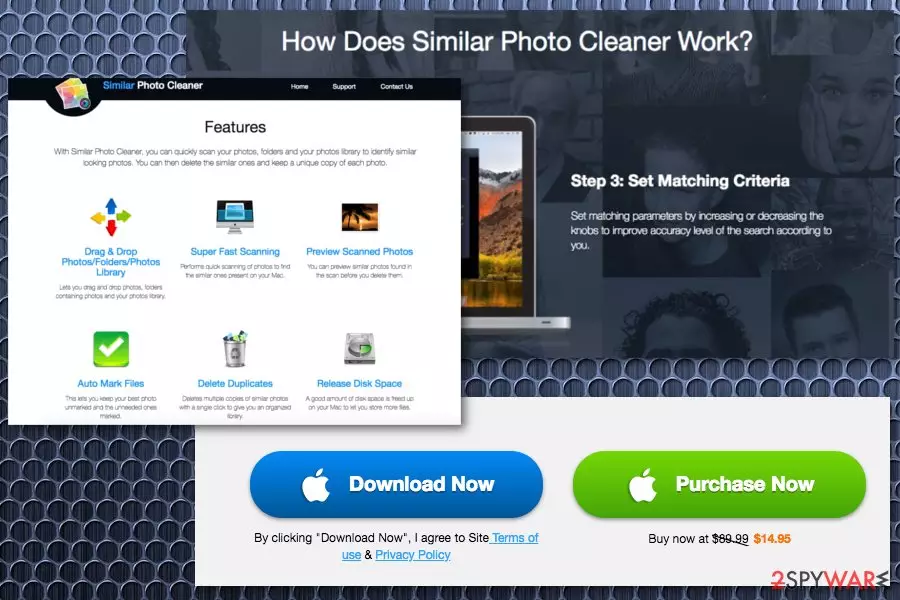
| Name | Similar Photo Cleaner |
|---|---|
| Developer | PCVARK |
| Type | Rogue tool/adware |
| Promoted as | Duplicate photo finder and removal tool |
| Affects | Different MacOS versions |
| Symptoms | Delivers fake system scanners suggesting buying its full version to increase computer's space |
| Distribution | Official website, promotional ads, bundling |
| Elimination | Download and use FortectIntego. Remove Similar Photo Cleaner and clean the system further |
If you have been wondering what is Similar Photo Cleaner virus, you should know that the term has been actively used by users who got tricked into installing this questionable application and now are struggling with its removal. The main way how people are convinced into downloading this optimization tool is promotional advertisements that are displayed on well-known sites. However, you should avoid ads offering you to “check your computer's space” because it needs only clicking on these ads to install the main file of this PUP on the system.
The app is developed by PCVARK which can be associated with similar products promising improved PC's functionality. Unfortunately, there numerous users who have been dealing with such PUPs as Mac Auto Fixer and other programs that fail to leave the computer when the user decides to delete them. However, if you are wondering how to remove Similar Photo Cleaner from Mac and Windows, you should know that you need to take appropriate steps. We added them in the end of this post.
We should also add that Similar Photo Cleaner can infiltrate your computer without your approval because it has been actively relying on bundling. If you think that this PUP has already affected your Mac, pay attention to the most common symptoms showing that you are dealing with the rogue tool:
- the PUP launches its scan right after the system is rebooted;
- the program displays numerous pop-up ads with promotional content;
- messages and alerts mostly report about exaggerated system issues;
- the PUP uses numerous techniques to push its victim into purchasing its license.
In addition to questionable messages reporting about system's optimization, Similar Photo Cleaner Mac tool displays warnings and alerts about problems with your device. The application has alternatively been categorized as adware which delivers commercial content as well. If you have this tool on the system, you can receive the following pop-up messages:
Warning:
The last site you visited might have infected
your Desktop with virus
Current risk: 93%Click on the button below to install the latest Mac
security to remove all the virusesYour Mac would have critical errors, if you do not
remove the viruses within
[5 minute counter] Install Security Update
Now
The main purpose of such Similar Photo Cleaner ads is to generate revenue from redirected online traffic. The program is seeking to initiate visits to the affiliated sites and then generate pay-per-click revenue. However, while people, because of their curiosity, tend to ignore such redirects, various experts[3] note that purchasing tools like this can lead them into malware's infiltration.
If you got tricked by this potentially unwanted program, remove Similar Photo Cleaner from the device by eliminating all related programs and files instead of paying for the useless version. Unfortunately, there might be additional programs or browser extensions that PCVARK packed together, so we highly recommend running a scan with up-to-date anti-spyware to get rid of this intruder automatically.
Use FortectIntego for general system cleaning after Similar Photo Cleaner removal. This program will help you determine what system changes have been made by the PUP on your system. Beware that its developers are offering their own uninstaller to get rid of this PUP, but we do NOT recommend installing it because it can turn out that it is yet another PUP seeking to disrupt your time online.

Program's EULA and Privacy Policy reveal its ability to track victims
We all seek to install apps without spending lots of time on their official sites. However, checking specific parts of the site is highly recommended if you want to prevent identity theft and other crimes. Keep in mind that by letting the app to the system and, most important, opting for buying the program's full version, you let its developers see your credit card details, full name, and similar data which is considered personal.
Before falling for Similar Photo Cleaner free download, we want to encourage you to read EULA and Privacy Policy before taking this offer. We have to warn you that this section contains lots of information about data tracking, information sharing with third-party companies and disclaimers about risk and promotional content.
Similar Photo Cleaner developers state the following in their Privacy Policy:
If you share Similar Photo Cleaner’s content with friends through social media like Facebook, Twitter or other social networks, you may send cookies from these social media websites/applications. We do not have any control over the settings of these cookies, therefore please check these social media websites for detailed information about their cookies and how to manage them. By using our website, you agree that we can place these types of cookies on your device.
To prevent tracking and similar issues, make sure you uninstall Similar Photo Cleaner from your computer. To get rid of the unwanted content related to the PUP, you need to employ anti-malware. Finally, make sure you do not deal with potentially unwanted programs (PUPs) in the future.
The app has mostly been distributed with the help of bundling
Even though there are tons of developers who release system optimizers on the internet via their websites and promotional advertisements the primary distribution method for PUAs is software bundles. This technique is widely used by freeware providers when they pack potentially unwanted program with software and spreads them around in packages.
When you install updates or applications from questionable websites, p2p networks or similar sources you get additional apps installed without consent. Other components are not disclosed properly, in most cases, but you can avoid this by choosing Advanced or Custom installations.
If you opt for Default or Quick process, you get everything at once, and Advanced install allows you to de-select the software you do not want to get. The only thing you need to do is pay more attention and un-mark the check from the box when the opportunity is suggested for you.
Eliminate Similar Photo Cleaner once and for all. Do NOT buy its license!
There are numerous components traveling together with this program, e.g. Similar Photo Cleaner.log. To get rid of all of them, we recommend using the anti-malware program. It will not only take care of Similar Photo Cleaner removal but will also terminate all additional processes and files added to your device without your notice. Keep in mind that the PUP is spreading around in one bundle with other PUPs capable of running in the system's background without any sign.
To remove Similar Photo Cleaner malware, you can also use the guide below. However, make sure you follow every step in exact order just to be sure that all suspicious components are eliminated and you are not going to get rid of useful ones. Finally, note that infected browsers should be reset to their primary state.
Delete from macOS
Remove the unwanted application:
- From the menu bar, select Go > Applications.
- In the Applications folder, look for any suspicious entries, then drag them to Trash (or right-click and pick Move to Trash).


Delete leftover files and folders:
- Select Go > Go to Folder.
- Enter /Library/Application Support and remove any suspicious folders related to the unwanted program.
- Repeat the same check in the /Library/LaunchAgents and /Library/LaunchDaemons folders, deleting any suspicious entries.

- Finally, empty the Trash to permanently remove the leftovers.

Remove from Mozilla Firefox (FF)
Remove dangerous extensions:
- Open Mozilla Firefox browser and click on the Menu (three horizontal lines at the top-right of the window).
- Select Add-ons.
- In here, select the unwanted extension and click Remove.


Reset the homepage:
- Click three horizontal lines at the top right corner to open the menu.
- Choose Settings.
- Under Home, set your preferred homepage and new tab settings.
Clear cookies and site data:
- Click Menu and pick Settings.
- Go to Privacy & Security section.
- Scroll down to locate Cookies and Site Data.
- Click on Clear Data...
- Select Cookies and Site Data and Temporary cached files and pages, then click Clear.


Reset Mozilla Firefox
If clearing the browser as explained above did not help, reset Mozilla Firefox:
- Open Mozilla Firefox browser and click the Menu.
- Go to Help and then choose Troubleshooting Information.

- Under Give Firefox a tune up section, click on Refresh Firefox...
- Once the pop-up shows up, confirm the action by pressing on Refresh Firefox.



Remove from Google Chrome
Delete malicious extensions from Google Chrome:
- Open Google Chrome, click on the Menu (three vertical dots at the top-right corner) and select More tools > Extensions.
- In the newly opened window, you will see all the installed extensions. Uninstall all suspicious extensions related to the unwanted program by clicking Remove.


Clear cache and web data from Chrome:
- Click on Menu and pick Settings.
- Under Privacy and security, select Clear browsing data.
- Select Browsing history, Cookies and other site data, as well as Cached images and files.
- Click Clear data.


Change your homepage:
- Click menu and choose Settings.
- Look for a suspicious site in the On startup section.
- Click on Open a specific or set of pages and click on three dots to find the Remove option.
Reset Google Chrome:
If the previous methods did not help you, reset Google Chrome to eliminate all the unwanted components:
- Click on Menu and select Settings.
- In the Settings, scroll down and click Advanced.
- Scroll down and locate Reset and clean up section.
- Now click Restore settings to their original defaults.
- Confirm with Reset settings.


Delete from Safari
Remove dangerous extensions:
- Open Safari, click Safari in the menu at the top-left of the screen, and select Preferences.
- Go to the Extensions tab, look for any suspicious entries, and click Uninstall to remove them.


Clear history and website data:
- Click Safari in the menu and pick Clear History.
- Set Clear to all history and confirm with Clear History.


Reset Safari:
- Click Safari in the menu and select Preferences > Advanced.
- Enable Show Develop menu in menu bar.
- From the menu bar, click Develop and select Empty Caches.


Did this guide help?
Be the first to comment