

Spaces.app is a potentially dangerous application that might access your sensitive information on macOS
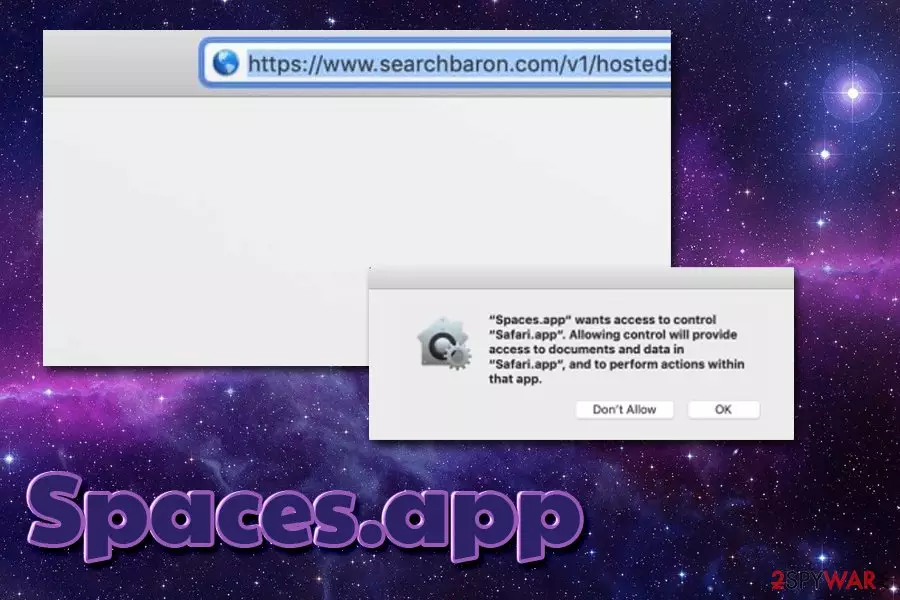
Spaces.app is a potentially unwanted program that is actively infecting Mac computer users. PUPs are usually distributed within software bundles, so users are rarely aware that their machines got infected with adware. In some other cases, they might install a dodgy app intentionally, without realizing that it is ad-supported software.
Once inside, Spaces.app modifies the settings of Google Chrome, Mozilla Firefox, or Safari, although users reported that it mostly affects the latter. A substantial amount of advertisements is then shown during web browser sessions, such as pop-ups, banners, flashing windows, in-text links, offers, deals, and other type of ads. Additionally, Spaces.app sets the new tab address and the homepage to searchbaron.com, which alters search results and prompts users to visit sponsored content.
| Name | Spaces.app |
| Type | Adware |
| Category | Potentially unwanted program, Mac virus |
| Developer | Genieo Innovation |
| Sets homepage to | searchbaron.com |
| Infiltration | Software bundles, third-party sites |
| Risk factors | Sensitive information leak to cybercriminals, malware infections, |
| Symptoms |
|
| Recognized by AV engines as | MacOS:MaxOfferDeal-L [Adw], Adware.MAC.Genieo.WQ, Not-a-virus:HEUR:AdWare.OSX.Geonei.ax, OSX.Trojan.Gen, Adware/Geonei!OSX,[1] etc. |
| Termination | User anti-malware software like FortectIntego or check our manual removal guide below |
Generally, adware is quite controversial software, as initially it was considered to be a threat to online safety and privacy and called spyware. However, due to legal battles, it had to be renamed into “not a virus,”[2] or “potentially unwanted program.” Fortunately, the dangers of this software are being brought into the light via the OSX/Shlayer campaigns, or Lenovo's Superfish scandal, which compromised users' security by exposing them to insecure connections.
Regardless of what your views on ad-supported software might be, the presence of Spaces.app should never be ignored.

Unfortunately, but Spaces.app virus belongs to one of the more dangerous infections categories, as it does not only engages in typical adware-like behavior (showing advertisements) but also attempts to elevate its privileges by prompting users to agree to the following:
“Spaces.app“ wants access to control “Safari.app“. Allowing control will provide access to documents and data in “Safari.app“, and to perform actions within that app.
No matter what you do, never allow Spaces.app to perform actions it is asking you to. Performing such action might significantly compromise your privacy and even result in banking details or another sensitive information leak.
While many people refrained from granting the app permissions, they also said that they struggled with Spaces.app removal, as the invasive pop-up message kept coming back and asked to access data from Safari. To stop the unwanted activity, you will have to delete the adware app from your device – you can do it by installing security software or (such as FortectIntego) by following our manual removal guide below.
Spaces.app was developed by an Israeli-based company Genieo Innovation – an internet solution firm that specializes in the development of information-scraping and advertisement apps, such as Regevpop, PlaySearchNow, Genieo Search, and many others. For that reason, if you found Spaces.app on your Mac, you might be infected with other PUPs.
Therefore, we suggest you scan your device with anti-malware software and remove not only Spaces.app but also other potentially unwanted programs that might have settled on your macOS or Mac OS X device.
Potentially unwanted programs are often deceptively installed via shareware or freeware installers
Without a doubt, staying away from third-party sites that distribute free software is not an option for some, as some applications might include functionalities that are not available on the official App Store or Chrome web store. However, those who do download apps from third-parties should be aware of the risks.
Some third-party sites might be straight out dangerous: specially crafted by cybercriminals to make users install malware on their devices. Therefore, experts[3] advise staying away from sites that host pirated software, such as torrent sites – these might also be induced with drive-by[4] downloads and malicious ads.

When it comes to more reputable sources, be aware that most of the well-known freeware sites still bundle software. Therefore, when you are installing a new application, make sure you never rush and read the installation instructions carefully. Decline all the offers/deals on the way, as well as pick Advanced/Custom settings and remove all the ticks near the pre-ticked boxes.
Delete Spaces.app virus to make sure your Mac is clean, and your online safety is no longer compromised
Spaces.app removal initially should not be that complicated – drag the unwanted app into the Trash. While the action would be enough for most “normal” applications, PUPs might leave traces, and they will ensure the unwanted activity continues. Therefore, you should also check additional directories where the PUP might reside, such as:
- /Library/LaunchAgents
- /Library/Application Support
- /Library/LaunchDaemons
Once you enter these directories, make sure you delete Spaces.app-related content. Nevertheless, if you are not exactly sure which entries are malicious and which belong to legitimate programs, we would highly recommend you installing reputable anti-malware software and performing a full system scan. This way, you will be able to remove Spaces.app virus automatically, along with all its traces and other unwanted programs or malware that might be present on your Mac.
After you are sure that the deceptive Spaces.app is gone, you should also reset each of the installed browsers, as explained below. This step is crucial if you allowed the PUP to scrape Safari's, or any other browser, data.
Delete from macOS
Remove the unwanted application:
- From the menu bar, select Go > Applications.
- In the Applications folder, look for any suspicious entries, then drag them to Trash (or right-click and pick Move to Trash).


Delete leftover files and folders:
- Select Go > Go to Folder.
- Enter /Library/Application Support and remove any suspicious folders related to the unwanted program.
- Repeat the same check in the /Library/LaunchAgents and /Library/LaunchDaemons folders, deleting any suspicious entries.

- Finally, empty the Trash to permanently remove the leftovers.

Reset Internet Explorer
Remove dangerous add-ons:
- Open Internet Explorer, click on the Gear icon (IE menu) on the top-right corner of the browser
- Pick Manage Add-ons.
- You will see a Manage Add-ons window. Here, look for suspicious plugins. Click on these entries and select Disable.


Change your homepage if it was altered:
- Open IE and click on the Gear icon.
- Select Internet Options.
- In the General tab, delete the Home page address and replace it by your preferred one (for example, Google.com).
- Click Apply and then select OK.


Delete temporary files:
- Press on the Gear icon and select Internet Options.
- Under Browsing history, click Delete...
- Select relevant fields and press Delete.


Reset Internet Explorer:
- Click on Gear icon > Internet options and select Advanced tab.
- Select Reset.
- In the new window, check Delete personal settings and select Reset.


Remove from Microsoft Edge
Delete unwanted extensions from MS Edge:
- Select Menu (three horizontal dots at the top-right of the browser window) and pick Extensions.
- From the list, pick the extension and click on the Gear icon.
- Click Remove.


Clear cookies and other browser data:
- Click on the Menu (three horizontal dots at the top-right of the browser window) and select Settings > Privacy, search, and services..
- Under Clear browsing data, pick Choose what to clear.
- Select Cookies and other site data and Cached images and files. (apart from passwords, although you might want to include Media licenses as well, if applicable) and click on Clear.


Restore new tab and homepage settings:
- Click the menu icon and choose Settings.
- Then find On startup section.
- Click Remove next to any suspicious startup page.
Reset MS Edge if the above steps did not work:
- Press on Ctrl + Shift + Esc to open Task Manager.
- Click on More details arrow at the bottom of the window.
- Select Details tab.
- Now scroll down and locate every entry with Microsoft Edge name in it. Right-click on each of them and select End Task to stop MS Edge from running.


Instructions for Chromium-based Edge
Delete extensions from MS Edge (Chromium):
- Open Edge and click select Settings > Extensions.
- Delete unwanted extensions by clicking Remove.


Clear cache and site data:
- Click on Menu and go to Settings.
- Select Privacy, search and services.
- Under Clear browsing data, pick Choose what to clear.
- Under Time range, pick All time.
- Select Clear now.


Reset Chromium-based MS Edge:
- Click on Menu and select Settings.
- On the left side, pick Reset settings.
- Select Restore settings to their default values.
- Confirm with Reset.
- This will disable extensions and reset startup pages but will not delete bookmarks, saved passwords, or browsing history.


Remove from Mozilla Firefox (FF)
Remove dangerous extensions:
- Open Mozilla Firefox browser and click on the Menu (three horizontal lines at the top-right of the window).
- Select Add-ons.
- In here, select the unwanted extension and click Remove.


Reset the homepage:
- Click three horizontal lines at the top right corner to open the menu.
- Choose Settings.
- Under Home, set your preferred homepage and new tab settings.
Clear cookies and site data:
- Click Menu and pick Settings.
- Go to Privacy & Security section.
- Scroll down to locate Cookies and Site Data.
- Click on Clear Data...
- Select Cookies and Site Data and Temporary cached files and pages, then click Clear.


Reset Mozilla Firefox
If clearing the browser as explained above did not help, reset Mozilla Firefox:
- Open Mozilla Firefox browser and click the Menu.
- Go to Help and then choose Troubleshooting Information.

- Under Give Firefox a tune up section, click on Refresh Firefox...
- Once the pop-up shows up, confirm the action by pressing on Refresh Firefox.



Remove from Google Chrome
Delete malicious extensions from Google Chrome:
- Open Google Chrome, click on the Menu (three vertical dots at the top-right corner) and select More tools > Extensions.
- In the newly opened window, you will see all the installed extensions. Uninstall all suspicious extensions related to the unwanted program by clicking Remove.


Clear cache and web data from Chrome:
- Click on Menu and pick Settings.
- Under Privacy and security, select Clear browsing data.
- Select Browsing history, Cookies and other site data, as well as Cached images and files.
- Click Clear data.


Change your homepage:
- Click menu and choose Settings.
- Look for a suspicious site in the On startup section.
- Click on Open a specific or set of pages and click on three dots to find the Remove option.
Reset Google Chrome:
If the previous methods did not help you, reset Google Chrome to eliminate all the unwanted components:
- Click on Menu and select Settings.
- In the Settings, scroll down and click Advanced.
- Scroll down and locate Reset and clean up section.
- Now click Restore settings to their original defaults.
- Confirm with Reset settings.


Delete from Safari
Remove dangerous extensions:
- Open Safari, click Safari in the menu at the top-left of the screen, and select Preferences.
- Go to the Extensions tab, look for any suspicious entries, and click Uninstall to remove them.


Clear history and website data:
- Click Safari in the menu and pick Clear History.
- Set Clear to all history and confirm with Clear History.


Reset Safari:
- Click Safari in the menu and select Preferences > Advanced.
- Enable Show Develop menu in menu bar.
- From the menu bar, click Develop and select Empty Caches.


Did this guide help?
Be the first to comment