

Win Speedup 2018 is the tool used to trick people into getting the licensed version of the app
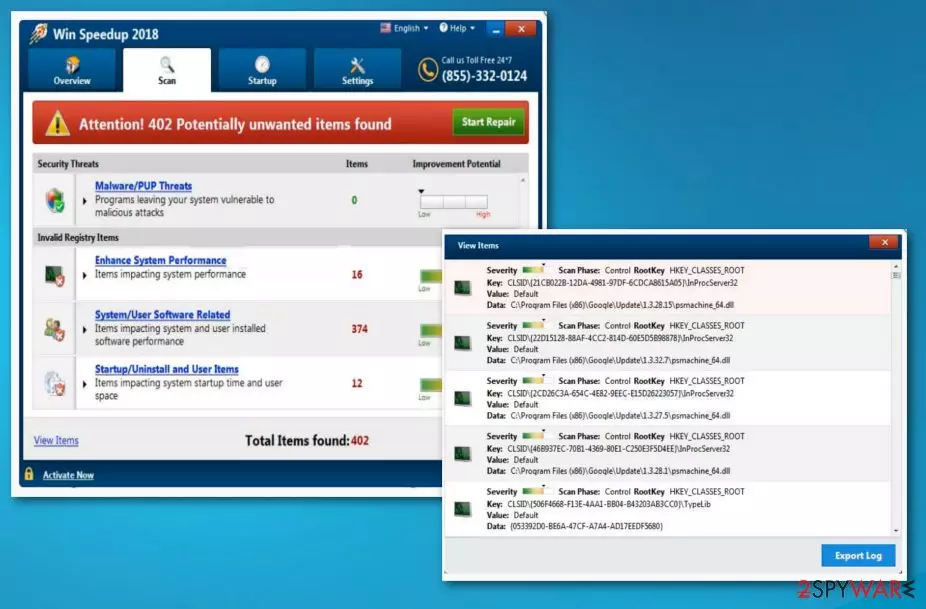
Win Speedup 2018 is a potentially unwanted program[1] that typically enters systems via software bundling or fake advertisements. The program is presented as a legitimate piece of software, capable of fixing various computer issues, detecting and preventing malware threats, as well as enhancing system performance. However, security experts agree that PC optimization tools can often show bogus scan results in order to gain monetary benefit from users who are forced to purchase a licensed version of the app. What is more, certain functions of Win Speedup 2018 may actually harm the system by tampering with Window Registry files.
| Name | Win Speedup 2018 |
|---|---|
| Type | Optimization tool/ PUP |
| Symptoms | Displays error messages that suggest purchasing other tools |
| Danger level | Low. Cannot access system settings |
| Distribution | Software bundles, deceptive advertising campaigns |
| Elimination | Anti-malware tool scan is the best tool for virus removal |
| Recovery | To repair affected registry entries and files, run FortectIntego |
The main reason to stay away from Win Speedup 2018 is the bogus scan results. Because the primary goal of this software is to make users purchase the full version (which is based on a subscription), it may display various harmless files as dangerous.
This is especially effective when less computer-savvy individuals are handling the application. Therefore, we believe that it is an incredibly deceptive way of tricking customers. Sadly, legal actions cannot be raised against these developers.

Windows registry is a database for various preferences of the software installed on your PC. In some cases, these entries can get corrupt or outdated – it happens when applications are removed and/or added. These tiny files only take a few kilobytes of space and usually will not affect your computer's performance in any way. Nevertheless, the application detects many of these and marks them for deletion, which can actually harm a normal operation of the system in some cases.
There are several tools that work in a similar way like Win Speedup 2018, such as Clean PC Pro 2018, OneSafe PC Cleaner, Advanced Mac Cleaner, and numerous others. All these apps have similar functionality – they display bogus scan results in order to gain monetary benefit. Additionally, many of these system optimizers are often rebranded and sold under a different name, without disclosing the real developer.
There are more tricks that the potentially unwanted program is using. After getting into the computer without users' consent, it initiates a system scan without warning. This guarantees that all the flashing “danger” signs reach the target. Please, to not fall for this cheap trick – it is a deceptive way to earn money. Instead, make sure you take care of Win Speedup 2018 removal.

Additionally, if you enter your credit card details to purchase the full version of Win Speedup 2018, you might disclose it to third parties. Companies that sell products online often use third parties to handle payment information. Here is what we found on the official website:
If you purchase one of our products, the payment will be handled by a 3rd party payment gateway. <…>
The payment gateways will collect information about you, such as your name, address, phone number, email and credit card details. A very limited amount of information acquired from this is shared with us, which enables us to setup your account as a customer with us. Financial details such as credit card information, etc. are not shared with us.
As you can see, a lot of data is collected. Unfortunately, not all third-party websites can secure this information, as is proved by the recent Ticketmaster[2] incident, among many others. What is more, as it is typical of adware programs, it can gather a variety of non-personally identifiable information, including, but is not limited to:
- IP address;
- Geo-location;
- Sites visited;
- Links clicked;
- Search queries, etc.
This data is valuable to any marketing company, as it gives the opportunity to generate targeted advertisements.
Finally, we would like to make you aware that several AV engines mark this app as malicious, as stated by Virus Total.[3] When it comes to scareware[4] tools, anti-virus software will often flag it as adware or a potentially unwanted program. Thus, it is not surprising that users refer to this program as Win Speedup 2018 virus.
As we have mentioned, this app gives no improvements to your PC and creates more issues than fixes. The fact that this program displays fake messages and scanners might affect PC performance even more. Therefore, you should remove Win Speedup 2018 without any doubt. To perform a full system check, use anti-malware tools like SpyHunterCombo Cleaner, MalwarebytesMalwarebytes.

Deceiving ads and misleading sites lead to freeware downloads
Most often, such intrusive programs are displayed via bundling and social engineering. They can come to your computer after clicking on questionable advertisements offering you to improve your computer's speed with only one click. However, this click can lead you to serious consequences. No matter how active the developer of these PUAs promotes it as safe and useful, Bedynet.ru[5] team reminds you that if you purchase anything from the ad you can get scammed.
The bundling technique is also commonly used. Developers hide these intrusive programs with freeware that you are downloading on purpose. But if you choose to skip through some steps you might be getting additional threats. The only way is to choose Advanced or Custom options during those installation processes. By doing this you unpack those bundles and can de-select any unwanted pieces from the list.
Remove Win Speedup 2018 tool fully from the machine
To remove the PUA and get back to a safe PC system, you need to employ specific steps that are provided below. If you really think that you need to improve your PC's functionality, you need to select only professional programs instead of deceptive ones. Since PUPs can come with other similar threats, you need to make sure that all of them are deleted after uninstalling Win Speedup 2018. It is also important to scan your PC for keeping general protection of your system.

An intrusive program that can make several harmful changes should not be on your computer for too long. This is why this case requires Win Speedup 2018 removal. We have a few suggestions for the proper tools below, but feel free to use any other trustful programs. Just be aware of possible threats and infections.
Uninstall from Windows
Uninstall from Windows 10/8:
- Type Control Panel into the Windows search box and open the result.
- Under Programs, select Uninstall a program.


Uninstall from Windows 7/XP:
- Click on Windows Start > Control Panel (Windows XP users should click on Add/Remove Programs).
- In Control Panel, select Programs > Uninstall a program.


Remove the unwanted program:
- In the Programs and Features window, look for any recently installed suspicious entries, select them, and click Uninstall.
- If User Account Control appears, click Yes to confirm, then complete the removal.


Delete from macOS
Remove the unwanted application:
- From the menu bar, select Go > Applications.
- In the Applications folder, look for any suspicious entries, then drag them to Trash (or right-click and pick Move to Trash).


Delete leftover files and folders:
- Select Go > Go to Folder.
- Enter /Library/Application Support and remove any suspicious folders related to the unwanted program.
- Repeat the same check in the /Library/LaunchAgents and /Library/LaunchDaemons folders, deleting any suspicious entries.

- Finally, empty the Trash to permanently remove the leftovers.

Remove from Microsoft Edge
Delete unwanted extensions from MS Edge:
- Select Menu (three horizontal dots at the top-right of the browser window) and pick Extensions.
- From the list, pick the extension and click on the Gear icon.
- Click Remove.


Clear cookies and other browser data:
- Click on the Menu (three horizontal dots at the top-right of the browser window) and select Settings > Privacy, search, and services..
- Under Clear browsing data, pick Choose what to clear.
- Select Cookies and other site data and Cached images and files. (apart from passwords, although you might want to include Media licenses as well, if applicable) and click on Clear.


Restore new tab and homepage settings:
- Click the menu icon and choose Settings.
- Then find On startup section.
- Click Remove next to any suspicious startup page.
Reset MS Edge if the above steps did not work:
- Press on Ctrl + Shift + Esc to open Task Manager.
- Click on More details arrow at the bottom of the window.
- Select Details tab.
- Now scroll down and locate every entry with Microsoft Edge name in it. Right-click on each of them and select End Task to stop MS Edge from running.


Instructions for Chromium-based Edge
Delete extensions from MS Edge (Chromium):
- Open Edge and click select Settings > Extensions.
- Delete unwanted extensions by clicking Remove.


Clear cache and site data:
- Click on Menu and go to Settings.
- Select Privacy, search and services.
- Under Clear browsing data, pick Choose what to clear.
- Under Time range, pick All time.
- Select Clear now.


Reset Chromium-based MS Edge:
- Click on Menu and select Settings.
- On the left side, pick Reset settings.
- Select Restore settings to their default values.
- Confirm with Reset.
- This will disable extensions and reset startup pages but will not delete bookmarks, saved passwords, or browsing history.


Remove from Mozilla Firefox (FF)
Remove dangerous extensions:
- Open Mozilla Firefox browser and click on the Menu (three horizontal lines at the top-right of the window).
- Select Add-ons.
- In here, select the unwanted extension and click Remove.


Reset the homepage:
- Click three horizontal lines at the top right corner to open the menu.
- Choose Settings.
- Under Home, set your preferred homepage and new tab settings.
Clear cookies and site data:
- Click Menu and pick Settings.
- Go to Privacy & Security section.
- Scroll down to locate Cookies and Site Data.
- Click on Clear Data...
- Select Cookies and Site Data and Temporary cached files and pages, then click Clear.


Reset Mozilla Firefox
If clearing the browser as explained above did not help, reset Mozilla Firefox:
- Open Mozilla Firefox browser and click the Menu.
- Go to Help and then choose Troubleshooting Information.

- Under Give Firefox a tune up section, click on Refresh Firefox...
- Once the pop-up shows up, confirm the action by pressing on Refresh Firefox.



Remove from Google Chrome
Delete malicious extensions from Google Chrome:
- Open Google Chrome, click on the Menu (three vertical dots at the top-right corner) and select More tools > Extensions.
- In the newly opened window, you will see all the installed extensions. Uninstall all suspicious extensions related to the unwanted program by clicking Remove.


Clear cache and web data from Chrome:
- Click on Menu and pick Settings.
- Under Privacy and security, select Clear browsing data.
- Select Browsing history, Cookies and other site data, as well as Cached images and files.
- Click Clear data.


Change your homepage:
- Click menu and choose Settings.
- Look for a suspicious site in the On startup section.
- Click on Open a specific or set of pages and click on three dots to find the Remove option.
Reset Google Chrome:
If the previous methods did not help you, reset Google Chrome to eliminate all the unwanted components:
- Click on Menu and select Settings.
- In the Settings, scroll down and click Advanced.
- Scroll down and locate Reset and clean up section.
- Now click Restore settings to their original defaults.
- Confirm with Reset settings.


Delete from Safari
Remove dangerous extensions:
- Open Safari, click Safari in the menu at the top-left of the screen, and select Preferences.
- Go to the Extensions tab, look for any suspicious entries, and click Uninstall to remove them.


Clear history and website data:
- Click Safari in the menu and pick Clear History.
- Set Clear to all history and confirm with Clear History.


Reset Safari:
- Click Safari in the menu and select Preferences > Advanced.
- Enable Show Develop menu in menu bar.
- From the menu bar, click Develop and select Empty Caches.


Did this guide help?
Be the first to comment