

“Windows Error Code: DLL011150” is a tech support scam that some users might be tricked by
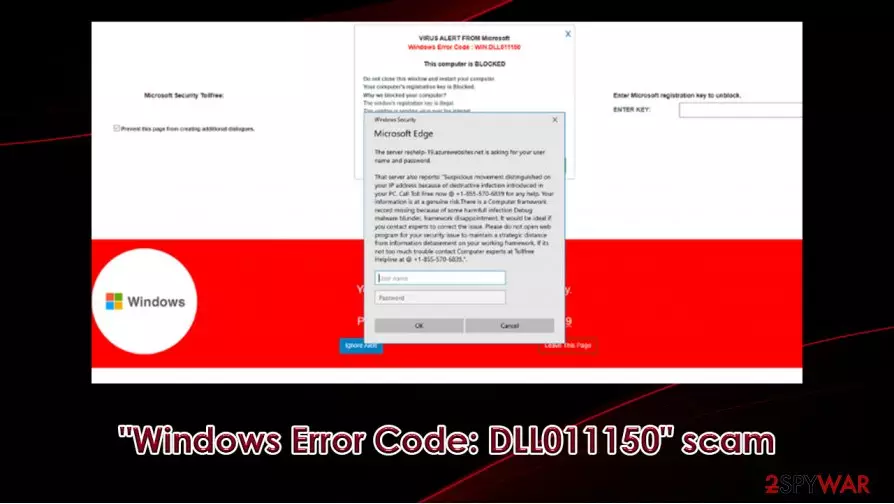
“Windows Error Code: DLL011150” scam is a fake alert that anybody could encounter when browsing the web on Google Chrome, Mozilla Firefox, Safari, or another web browser. In the message, it is claimed that the computer has been blocked due to suspicious activity and malware infection that was seemingly detected based on users' IP. Additionally, visitors are also asked for a username and a password in a “Sign in” field.
As evident, “Windows Error Code: DLL011150” is yet another tech support scam[1] that uses social engineering in order to make users call the alleged helpline at +1 (877) 938 0878 and sort out the issue. Most probably, there are no issues with your PC if you encountered this fake error, and cybercriminals are simply willing to trick you into paying fake tech support fees, subscribing to useless services, or installing malware behind your back. “Windows Error Code: DLL011150” scam can cause serious financial damages, malware infections, as well as privacy issues, so you should never trust the prompt.
| Name | “Windows Error Code: DLL011150” scam |
| Type | Tech support scam, fake alert, online fraud |
| Distribution | Users can encounter a fake popup accidentally after being redirected from a malicious website, or due to adware infection on their computers |
| Display | Users can encounter the alert on a random website (for example, jkcomputersupport.co) |
| Claims | The message claims that users' computers are infected with malware so that their computer returned an error “Windows Error Code: DLL011150,” which prompted a complete computer block. To resolve this, they are asked to call a provided tech support phone number |
| Dangers | Installation of malware, financial losses, identity theft |
| Contact number | +1 (877) 938 0878, although the number can vary from site to site |
| Solution | Never call the provided number, and leave the site immediately. Additionally, you should check your machine for adware – uninstall all suspicious programs as explained in the bottom section below |
| Further checks | If you contacted the fake tech support, you should immediately change all your passwords, scan your computer with anti-malware, and then fix possible virus damage with FortectIntego or similar repair software |
Social engineering is a tactic used by cybercriminals in order to make users do things that they otherwise would not. By exploiting people's psychology and lack of knowledge on a particular topic, crooks reach their goals fast, causing significant financial losses or other damage in the process. “Windows Error Code: DLL011150” is one such instance, and if you encountered this fake error message or called the criminals, you should not ignore it.
“Windows Error Code: DLL011150” scam can be encountered on a variety of different websites. Most commonly, the URL names resemble words that are associated with technical support or computer fixing, for example, “jkcomputersupport.co” – this is another trick to make users believe the fake claims.
As soon as such a malicious site is reached, visitors are presented with the following message:
VIRUS ALERT FROM Microsoft
Windows Error Code: DLL011150
This computer is BLOCKED
The server khadir.xyz is asking for your username and password.
That server also reports: “Suspicious movement distinguished on your IP address because of destructive infection introduced in your PC. Call Toll Free now @ +1 (877) 938 0878 for any help. Your information is at a genuine risk. There is a computer framework record missing because of some harmful infection Debug malware blunder framework disappointment. It would be ideal if you contact experts to rectify the issue. Please do not open web program. Contact Computer experts at Toll Free Helpline at +1 (877) 938 0878
CONTACT US
TOLL FREE Helpline: +1 (877) 938 0878.
“Windows Error Code: DLL011150” scam is just one of many fake messages that attempt to utilize a familiar name (in this case, tech giant Microsoft) to make users believe in claims that are not true. However, Microsoft has nothing to do with this message, and it is created by cybercriminals who seek to trick regular users into calling the provided number. You should never agree to what the crooks are asking you for, and instead remove “Windows Error Code: DLL011150” scam site from your screen immediately.

Unfortunately, there are many visitors that might be compelled to call the provided number after they are threatened by false claims (computer infection, information loss, username and password compromise, computer blockage). The “Windows Error Code: DLL011150” scam authors would try to convince to do one of the following:
- Purchase a licence for an alleged anti-malware software;
- Ask to allow remote connection and install malicious software on the computer (this can be used to steal login information, passwords, banking details, etc.);
- Pay for the fake tech support services (crooks speak using technical terms and pretend that that they have fixed the issue)
If you have provided remote access to your computer, “Windows Error Code: DLL011150” virus removal should be performed with the help of powerful anti-malware software, such as SpyHunterCombo Cleaner or MalwarebytesMalwarebytes. In case you see that your machine is struggling after the elimination of malicious software, repair it with FortectIntego.
Finally, if you experience frequent redirects to “Windows Error Code: DLL011150” and similar scam sites, you should check for potentially unwanted programs – we provide details below.
The art of social engineering: signs to look out for
Phishing is one of the most common techniques used by threat actors to infect users' machines with malware or make them provide sensitive details about themselves, such as credit card details or high-demand Premium user accounts (Netflix, Amazon, etc.). Unfortunately, many users are unaware of what cybercriminals do behind closed doors, and troubles start when they encounter an online scam for the first time.
While some scams are engineered to near perfection, others are just done poorly. “Windows Error Code: DLL011150” fake alert belongs to the latter group, as it contains multiple grammar/spelling errors, and also use a combination of words that make no sense whatsoever (for example, “There is a computer framework record missing because of some harmful infection Debug malware blunder framework disappointment” seems to be a phrase compiled by somebody who is not English native, and has no clue what these words mean in the first place).
Thus, the first thing to look out for is grammar and fluency of the message, although this is not always the case. Some criminals manage to replicate messages in a manner that would make a lot of sense from a technical point of view – extortion scams are perfect examples of cleverly engineered fraud.
Also, experts[2] suggest you should look out for the following popups and messages while surfing the web:
- Fake Flash Player updates or downloads that are seemingly missing from your system;[3]
- Surveys that promote too-good-to-be-true prizes, such as iPhone or a PlayStation;
- Push notification prompts that ask you to press “Allow” to view the contents of the site.

The correct way to handle “Windows Error Code: DLL011150” scam
“Windows Error Code: DLL011150” scam removal from the web browser is easy – simply do not click on anything and close down the tab. Nonetheless, some malicious pages are engineered in a way that might prevent you from doing so, and you might not be able to close it in a regular way. In such a case, you should open Task Manager by pressing Ctrl + Shift + Esc and shut down the process of your web browser.
While you can remove “Windows Error Code: DLL011150” scam from your screen easily, there are many other issues that might be related to its appearance in the first place. As previously mentioned, frequent redirects and ads can be caused by potentially unwanted programs – check the instructions below on how to eliminate them easily on Mac and Windows systems.
If you contacted malicious actors behind the “Windows Error Code: DLL011150” virus scam and provided remote access to your computer, you should immediately scan it wit anti-malware software to ensure that your computer is not infected. Also, you should reset passwords on all your accounts and, if you were tricked into paying, you should contact your bank and explain the situation, as it might be able to reverse the transaction.[4]
Uninstall from Windows
Uninstall from Windows 10/8:
- Type Control Panel into the Windows search box and open the result.
- Under Programs, select Uninstall a program.


Uninstall from Windows 7/XP:
- Click on Windows Start > Control Panel (Windows XP users should click on Add/Remove Programs).
- In Control Panel, select Programs > Uninstall a program.


Remove the unwanted program:
- In the Programs and Features window, look for any recently installed suspicious entries, select them, and click Uninstall.
- If User Account Control appears, click Yes to confirm, then complete the removal.


Delete from macOS
Remove the unwanted application:
- From the menu bar, select Go > Applications.
- In the Applications folder, look for any suspicious entries, then drag them to Trash (or right-click and pick Move to Trash).


Delete leftover files and folders:
- Select Go > Go to Folder.
- Enter /Library/Application Support and remove any suspicious folders related to the unwanted program.
- Repeat the same check in the /Library/LaunchAgents and /Library/LaunchDaemons folders, deleting any suspicious entries.

- Finally, empty the Trash to permanently remove the leftovers.

Reset Internet Explorer
Remove dangerous add-ons:
- Open Internet Explorer, click on the Gear icon (IE menu) on the top-right corner of the browser
- Pick Manage Add-ons.
- You will see a Manage Add-ons window. Here, look for suspicious plugins. Click on these entries and select Disable.


Change your homepage if it was altered:
- Open IE and click on the Gear icon.
- Select Internet Options.
- In the General tab, delete the Home page address and replace it by your preferred one (for example, Google.com).
- Click Apply and then select OK.


Delete temporary files:
- Press on the Gear icon and select Internet Options.
- Under Browsing history, click Delete...
- Select relevant fields and press Delete.


Reset Internet Explorer:
- Click on Gear icon > Internet options and select Advanced tab.
- Select Reset.
- In the new window, check Delete personal settings and select Reset.


Remove from Microsoft Edge
Delete unwanted extensions from MS Edge:
- Select Menu (three horizontal dots at the top-right of the browser window) and pick Extensions.
- From the list, pick the extension and click on the Gear icon.
- Click Remove.


Clear cookies and other browser data:
- Click on the Menu (three horizontal dots at the top-right of the browser window) and select Settings > Privacy, search, and services..
- Under Clear browsing data, pick Choose what to clear.
- Select Cookies and other site data and Cached images and files. (apart from passwords, although you might want to include Media licenses as well, if applicable) and click on Clear.


Restore new tab and homepage settings:
- Click the menu icon and choose Settings.
- Then find On startup section.
- Click Remove next to any suspicious startup page.
Reset MS Edge if the above steps did not work:
- Press on Ctrl + Shift + Esc to open Task Manager.
- Click on More details arrow at the bottom of the window.
- Select Details tab.
- Now scroll down and locate every entry with Microsoft Edge name in it. Right-click on each of them and select End Task to stop MS Edge from running.


Instructions for Chromium-based Edge
Delete extensions from MS Edge (Chromium):
- Open Edge and click select Settings > Extensions.
- Delete unwanted extensions by clicking Remove.


Clear cache and site data:
- Click on Menu and go to Settings.
- Select Privacy, search and services.
- Under Clear browsing data, pick Choose what to clear.
- Under Time range, pick All time.
- Select Clear now.


Reset Chromium-based MS Edge:
- Click on Menu and select Settings.
- On the left side, pick Reset settings.
- Select Restore settings to their default values.
- Confirm with Reset.
- This will disable extensions and reset startup pages but will not delete bookmarks, saved passwords, or browsing history.


Remove from Mozilla Firefox (FF)
Remove dangerous extensions:
- Open Mozilla Firefox browser and click on the Menu (three horizontal lines at the top-right of the window).
- Select Add-ons.
- In here, select the unwanted extension and click Remove.


Reset the homepage:
- Click three horizontal lines at the top right corner to open the menu.
- Choose Settings.
- Under Home, set your preferred homepage and new tab settings.
Clear cookies and site data:
- Click Menu and pick Settings.
- Go to Privacy & Security section.
- Scroll down to locate Cookies and Site Data.
- Click on Clear Data...
- Select Cookies and Site Data and Temporary cached files and pages, then click Clear.


Reset Mozilla Firefox
If clearing the browser as explained above did not help, reset Mozilla Firefox:
- Open Mozilla Firefox browser and click the Menu.
- Go to Help and then choose Troubleshooting Information.

- Under Give Firefox a tune up section, click on Refresh Firefox...
- Once the pop-up shows up, confirm the action by pressing on Refresh Firefox.



Remove from Google Chrome
Delete malicious extensions from Google Chrome:
- Open Google Chrome, click on the Menu (three vertical dots at the top-right corner) and select More tools > Extensions.
- In the newly opened window, you will see all the installed extensions. Uninstall all suspicious extensions related to the unwanted program by clicking Remove.


Clear cache and web data from Chrome:
- Click on Menu and pick Settings.
- Under Privacy and security, select Clear browsing data.
- Select Browsing history, Cookies and other site data, as well as Cached images and files.
- Click Clear data.


Change your homepage:
- Click menu and choose Settings.
- Look for a suspicious site in the On startup section.
- Click on Open a specific or set of pages and click on three dots to find the Remove option.
Reset Google Chrome:
If the previous methods did not help you, reset Google Chrome to eliminate all the unwanted components:
- Click on Menu and select Settings.
- In the Settings, scroll down and click Advanced.
- Scroll down and locate Reset and clean up section.
- Now click Restore settings to their original defaults.
- Confirm with Reset settings.


Delete from Safari
Remove dangerous extensions:
- Open Safari, click Safari in the menu at the top-left of the screen, and select Preferences.
- Go to the Extensions tab, look for any suspicious entries, and click Uninstall to remove them.


Clear history and website data:
- Click Safari in the menu and pick Clear History.
- Set Clear to all history and confirm with Clear History.


Reset Safari:
- Click Safari in the menu and select Preferences > Advanced.
- Enable Show Develop menu in menu bar.
- From the menu bar, click Develop and select Empty Caches.


Did this guide help?
Be the first to comment