

Total Blocker is a browser extension that disrupts your online browsing experience by injecting ads on the sites you visit and intercepting search results
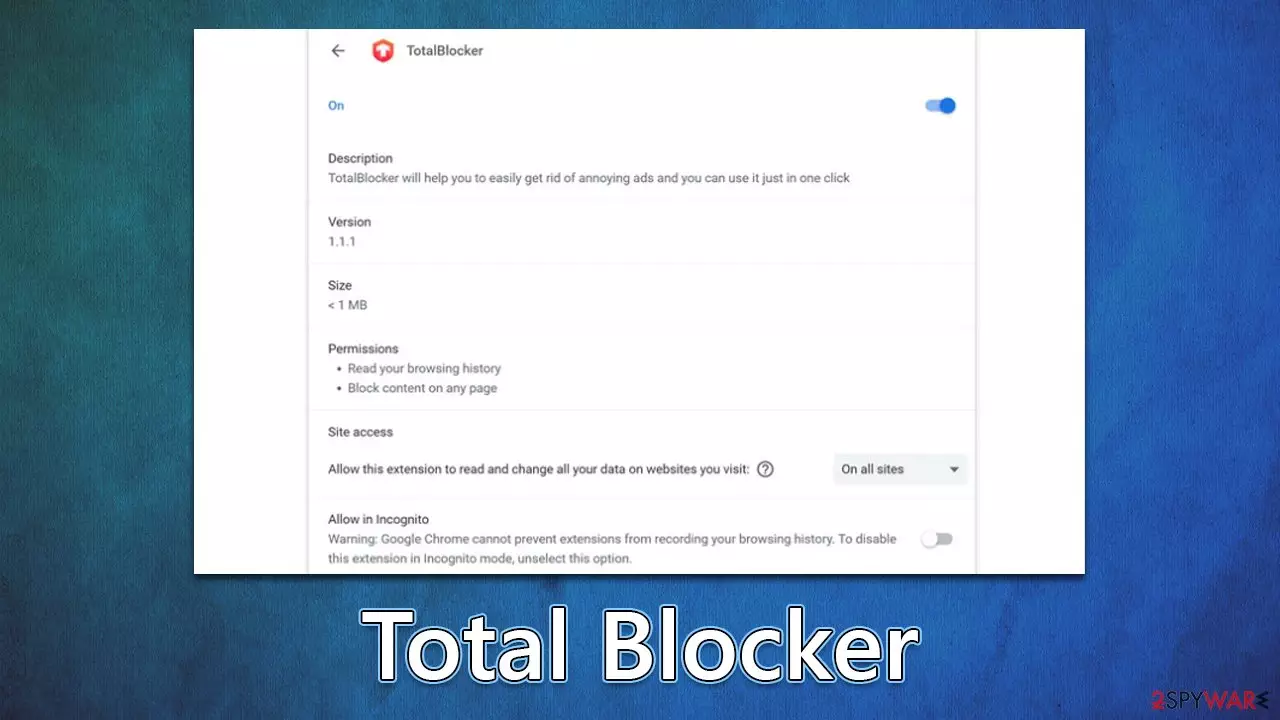
Total Blocker is an application you might install when looking for an extension that could block advertisements on various websites for you. In other cases, you might simply find it one day running on your Google Chrome or another browser seemingly out of nowhere – this happens due to the popular but questionable distribution technique known as bundling.[1]
The truth is that Total Blocker is a fake ad-blocking app that, instead of protecting users from ads, inserts them everywhere they go (including websites and search results) and even redirects them to suspicious websites. This is also one of the reasons why it is categorized as adware, which is a type of potentially unwanted software.
Besides displaying pop-ups, deals, offers, and other annoying apps, it may also track various user data in the background, increasing the risk of having one's privacy breached.
| Name | Total Blocker |
| Type | Adware, potentially unwanted browser extension |
| Distribution | Software bundling, misleading ads, third-party websites |
| Symptoms | Shows intrusive advertisements of dubious nature and redirects to sponsored sites |
| Risks | Installation of potentially unwanted software, such as browser hijackers; redirects can also lead to other malicious websites, resulting in monetary loss or personal data disclosure to unknown parties |
| Removal | To remove PUPs manually, you can follow our removal guide below. If the unwanted ads do not stop, you should scan your computer with security software |
| Other steps | After adware elimination, make sure you clean your browsers to prevent data tracking. FortectIntego can significantly quicken this process |
What is adware and is it dangerous?
Adware such as Total Blocker is pervasive across the web, but its reliability can be dubious as developers often prioritize monetization or advertisements over user experience and safety. Consequently, numerous security providers flag Adware whenever it's installed on a device – cautioning users of its potential risks.
Developers of adware habitually utilize insecure networks for advertising, which leads to users seeing low-quality ads. Not only can these be highly intrusive and annoying but they may also prove to be malicious. For instance, those affected are more likely to encounter phishing[2] websites or advices that suggest downloading potentially unwanted programs.
Not only are users exposed to potentially dangerous advertisements, but their data is also collected and tracked. This information can include location details, ISP info, search queries, the websites visited and more. These records may then be shared with or sold to third parties, which reduces the level of protection associated with that data.
Fake ad-blockers are common
It goes without saying that most users are unwilling to see intrusive ads when they read news articles or visit entertainment websites. This is why so many opt to employ an ad-blocker – a small application that can effectively block the code that is meant to spawn an ad upon entry.

While it may sound great, this can come with several downfalls. First of all, these apps can be not allowed on some sites, i.e., users are asked to disable them before they can enter. In other cases, ad-blockers can even break elements of the page, resulting in users not being able to view the page correctly. Also, they prevent monetization by content creators, which is not a good thing in many cases.
Finally, there are plenty of apps that are are straight out fake, and Total Blocker is one of them. Other examples include Free Ad Blocker Pro, Boss Blocker, Ad Blocker App, and many others of a similar nature. They show intrusive ads instead of blocking them, which negates the whole purposes of this application. Thus, if you want to use an ad-blocking app, you should choose wisely, as some of them can turn out to be malicious.
Remove adware and take care of your privacy
It is imperative to scan your system with a powerful anti-malware tool such as SpyHunterCombo Cleaner or MalwarebytesMalwarebytes prior to commencing the removal process of the virus. As adware may attempt to infiltrate through various deceptive means, it's likely that there could be malicious programs installed on a deeper level – they might be obfuscated under legitimate processes and never appear in an app list. Security software should always remain your go-to choice for protection against all kinds of malware threats.
When it comes to Total Blocker removal, you need to access browser settings and eliminate it from there. Here how this process looks on various browsers:
Google Chrome
- Open Google Chrome, click on the Menu (three vertical dots at the top-right corner) and select More tools > Extensions.
- In the newly opened window, you will see all the installed extensions. Uninstall all the suspicious plugins that might be related to the unwanted program by clicking Remove.


Mozilla Firefox
- Open Mozilla Firefox browser and click on the Menu (three horizontal lines at the top-right of the window).
- Select Add-ons.
- In here, select unwanted plugin and click Remove.


MS Edge
- Open Edge and click select Settings > Extensions.
- Delete unwanted extensions by clicking Remove.


Safari
- Click Safari > Preferences…
- In the new window, pick Extensions.
- Select the unwanted extension and select Uninstall.


After you have successfully uninstalled the extension, it is essential to clear out your browser caches. Adware is notorious for its ability to collect user-specific data such as IP addresses, cookies[3] and websites visited, links clicked on, device technical information among other things. You can either remove cached files quickly with FortectIntego maintenance utility or opt for manual elimination steps as explained below:
Google Chrome
- Click on Menu and pick Settings.
- Under Privacy and security, select Clear browsing data.
- Select Browsing history, Cookies and other site data, as well as Cached images and files.
- Click Clear data.


Mozilla Firefox
- Click Menu and pick Options.
- Go to Privacy & Security section.
- Scroll down to locate Cookies and Site Data.
- Click on Clear Data…
- Select Cookies and Site Data, as well as Cached Web Content and press Clear.


MS Edge
- Click on Menu and go to Settings.
- Select Privacy and services.
- Under Clear browsing data, pick Choose what to clear.
- Under Time range, pick All time.
- Select Clear now.


Safari
- Click Safari > Clear History…
- From the drop-down menu under Clear, pick all history.
- Confirm with Clear History.


Did this guide help?
Be the first to comment