

Key Searchs is a bogus browser extension developed by crooks to generate revenue
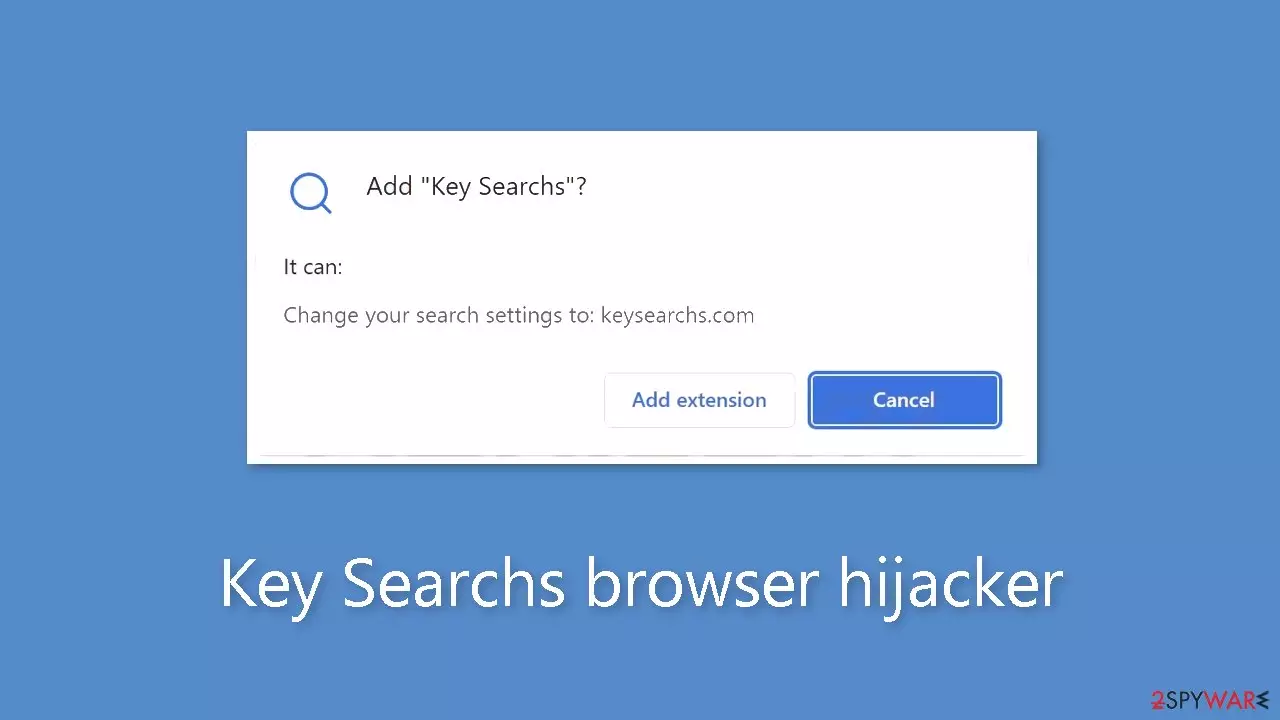
If you come across Key Searchs on a web store, it is strongly advised not to install it because it is considered a browser hijacker. Prompt uninstallation is advised if you think it has already affected your browser. The default search engine, new tab address, and other crucial browser settings may all be changed with this plugin.
Such applications are frequently presented as useful tools by crooks. They routinely make bold statements about things like ad banning, improving online security, and other things. It's vital to highlight that none of these claims are accurate because these add-ons are only intended to collect data and make income through pay-per-click advertising.
As a result, users can experience an increase in the amount of commercial content they encounter, such as pop-up ads, banners, and redirects.[1] Browser hijacker developers frequently neglect user security and privacy concerns, and occasionally they employ rogue advertising networks to disseminate adverts that direct users to dangerous websites. Individuals may be exposed to scam pages using this, which are designed to trick people into giving up personal information, downloading potentially unwanted programs (PUPs),[2] or even downloading malware.
| NAME | Key Searchs |
| TYPE | Browser hijacker; potentially unwanted program |
| SYMPTOMS | The main settings of the browser get changed, like the homepage, new tab address, and search engine |
| DISTRIBUTION | Shady websites, deceptive ads, freeware installations |
| DANGERS | Users might get redirected to shady sites that can trick people into downloading PUPs or even malware |
| ELIMINATION | Remove the extension in your browser settings |
| FURTHER STEPS | Use FortectIntego to fix any remaining damage and optimize the machine |
Distribution methods
There are numerous ways for browser hijackers to spread throughout the Internet. Some crooks make specific plugin promotion websites for their products and then advertise them on suspicious websites. Therefore, it is crucial to avoid blindly believing any online advertisement. Avoid clicking on random links and buttons, especially on websites that are involved in illegal activity, as they frequently contain false advertisements and covert redirects.
While we continually advise obtaining browser extensions from legitimate online stores, it's crucial to keep in mind that scammers have developed strategies to get through strict review procedures. Because of this, some browser hijackers, like Key Searchs, are able to obtain listings on trustworthy websites like the Chrome Web Store.
It is best to do extensive research in order to protect your online experience. Consider the amount of users a plugin has attracted while reading user reviews, evaluating ratings, and other feedback. Choose programs with a lot of positive user comments and users. Examine the plugin's description in detail, paying close attention to grammar and spelling; any anomalies in this area should raise a red flag.

Key Searchs hijacker removal steps
Browser hijackers are considered relatively minor infections, falling short of the malevolence exhibited by Trojans, ransomware, or other forms of malware. Consequently, users typically encounter minimal difficulty in eradicating them. By diligently adhering to our detailed, step-by-step guide, you should be able to expel the intruder effortlessly.
Typically, hijackers establish a presence within web browsers, necessitating the removal of the primary culprit – the browser extension – to fully eliminate the potentially unwanted program (PUP). If you have limited experience dealing with browser add-ons, we have provided comprehensive instructions below for your assistance.
Google Chrome
- Open Google Chrome, click on the Menu (three vertical dots at the top-right corner) and select More tools > Extensions.
- In the newly opened window, you will see all the installed extensions. Uninstall all the suspicious plugins that might be related to the unwanted program by clicking Remove.


Mozilla Firefox
- Open Mozilla Firefox browser and click on the Menu (three horizontal lines at the top-right of the window).
- Select Add-ons.
- In here, select the unwanted plugin and click Remove.


MS Edge
- Open Edge and click select Settings > Extensions.
- Delete unwanted extensions by clicking Remove.


Safari
- Click Safari > Preferences…
- In the new window, pick Extensions.
- Select the unwanted extension and select Uninstall.


Check your system for PUPs
While Key Searchs serves as a browser plugin, it's crucial to keep in mind the chance that other programs are silently carrying out harmful actions on your computer. If you routinely download software from unreliable sources, this scenario is very relevant. If you're not careful throughout the installation process, bundled installations, which group several apps together, may unintentionally add a number of applications to your system. As a result, it's wise to review the list of installed programs on your computer.
Adware and other potentially unwanted programs (PUAs) are regularly distributed through freeware[3] platforms. We strongly advise sticking to using just official web stores or developer websites for software installation. Always select “Custom” or “Advanced” installation options, carefully read the Privacy Policy and Terms of Use, and carefully analyze the file list to make sure that any boxes next to irrelevant applications are unchecked.
Consider doing a complete scan with trustworthy anti-malware solutions like SpyHunterCombo Cleaner, MalwarebytesMalwarebytes, or other dependable software to successfully remove PUAs from your device. This step makes sure that any hidden harmful programs and background processes are found and eliminated. It's important to note that those who visit risky websites have a larger chance of getting infected with malware. Ordinary computer users may find it extremely difficult to detect the presence of malware without the help of security software because these processes are frequently hidden.
Windows
- Enter Control Panel into Windows search box and hit Enter or click on the search result.
- Under Programs, select Uninstall a program.

- From the list, find the entry of the suspicious program.
- Right-click on the application and select Uninstall.
- If User Account Control shows up, click Yes.
- Wait till the uninstallation process is complete and click OK.



Mac
- From the menu bar, select Go > Applications.
- In the Applications folder, look for all related entries.
- Click on the app and drag it to Trash (or right-click and pick Move to Trash)


To fully remove an unwanted app, you need to access Application Support, LaunchAgents, and LaunchDaemons folders and delete relevant files:
- Select Go > Go to Folder.
- Enter /Library/Application Support and click Go or press Enter.
- In the Application Support folder, look for any dubious entries and then delete them.
- Now enter /Library/LaunchAgents and /Library/LaunchDaemons folders the same way and terminate all the related .plist files.


3. Clean your browsers
Cookies are small pieces of data that are used to include all sorts of settings. While they cannot be malicious by themselves, they can be stolen by third parties and used for malicious purposes. They can store information such as your IP address, geolocation, websites you visit, links you click on, and things you purchase online.
Therefore, security experts advise cleaning web browsers regularly. You can employ automatic cleaning tools such as FortectIntego, although you can also refer to the manual instructions below.
Google Chrome
- Click on Menu and pick Settings.
- Under Privacy and security, select Clear browsing data.
- Select Browsing history, Cookies and other site data, as well as Cached images and files.
- Click Clear data.


Mozilla Firefox
- Click Menu and pick Options.
- Go to Privacy & Security section.
- Scroll down to locate Cookies and Site Data.
- Click on Clear Data…
- Select Cookies and Site Data, as well as Cached Web Content and press Clear.


MS Edge
- Click on Menu and go to Settings.
- Select Privacy and services.
- Under Clear browsing data, pick Choose what to clear.
- Under Time range, pick All time.
- Select Clear now.


Safari
- Click Safari > Clear History…
- From the drop-down menu under Clear, pick all history.
- Confirm with Clear History.


d
Did this guide help?
Be the first to comment