

Error #268D3 – is a scam message that tries to blackmail users into disclosing personal data or downloading malicious software
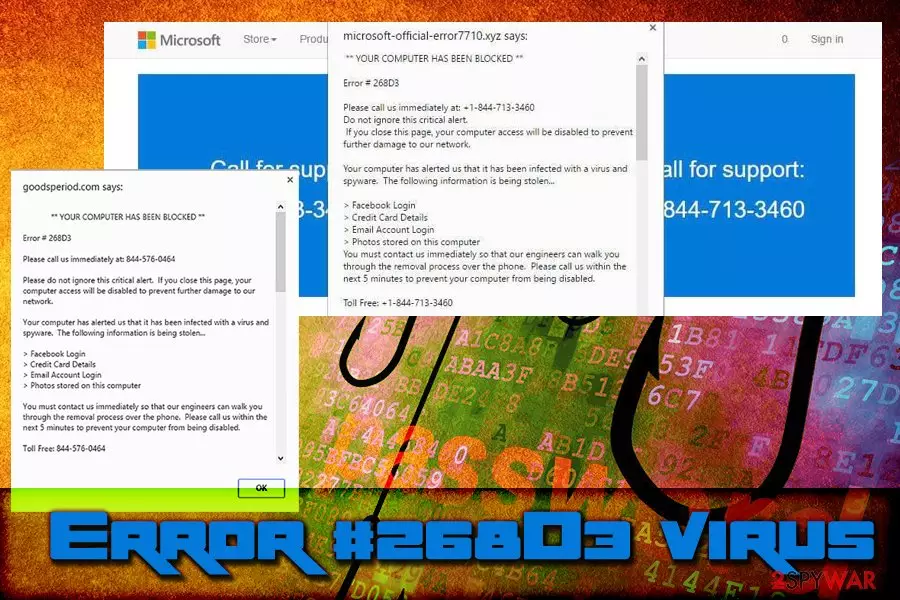
Error 268D3 is a tech support scam and appears as a pop-up message on Google Chrome, Internet Explorer, Mozilla Firefox, Safari, or any other installed browser. While some users might experience the redirect once in a while, those who encounter Error 268D3 pop-ups regularly are most likely affected by adware. The purpose of the fake message is to convince users that their machines are damaged, infected, or criminals are stealing personal information. Thus, in order to “fix” it, they are asked to contact the fake technicians that try to convince users to grant remote PC access, are asked to install bogus software or pay money for the alleged support. There are several variants of the scam that are circulating on the web, such as Error 268d3x8938, Error 268D3-XC00037 or This Computer is BLOCKED.
| Name | Error #268D3 |
|---|---|
| Type | Adware |
| Variants |
|
|
Symptoms |
Tries to scare the victim that computer is blocked and that the only way to unlock it is to call at given number |
| Main aims | Singing the victim for paid services, installing malware or suspicious program on the system |
| Elimination | Reset your web browser to disable the error. To remove adware which is used for displaying it, use FortectIntego |
The purpose of the Microsoft Error 268D3 scam is to convince the victim that one's computer has been infected. The message claims that the detected issue can be solved only with a help of experienced computer technicians. However, people waiting for your call behind the provided number are simply scammers trying to swindle money from inexperienced PC users.
You might be dealing with “Error #268D3” virus if your computer reports about “critical” problems and claims that the only way to solve them is to call toll free numbers. In reality, these numbers will connect you to scammers[1] who are willing to trick users into downloading fake software or stealing their personal information.
Besides, in most of the cases, such scams as Microsoft alert 268D3 end up with greatly increased telephone bills, so there is no doubt that you must disable error by removing adware that causes these fake error messages as soon as possible. We should also add that this fake Tech support notification is closely related to Microsoftsupportdesk.com redirect problem. Of course, you can also be rerouted to another scam site that is filled with Microsoft logos, and other tricky details.

Signs showing that Error 268D3 virus is on the system
- Unexpected redirects to phishing websites that pretend to be legitimate Microsoft support pages. These sites immediately show you a big alert which starts with a line ** YOUR COMPUTER HAS BEEN BLOCKED ** .
- Then, the website provides the error code and claims that you must reach tech support immediately because your computer is infected with virus and spyware. Keep in mind that following commands that are given to you in this report can easily reveal your passwords, credit card details, and similar information[2].
- When infected with the described virus, annoying pop-ups keep reappearing in Microsoft Edge, Safari, Google Chrome, and Firefox browsers. Usually, the website prevents the user from closing it by continuously enabling JavaScript codes that display repetitious pop-ups.
You must ignore this message and remove Error 268D3 on Mac Safari or Windows because it has nothing to do with a real tech support service. To unblock your computer, you should disable this scam alert by going to your Task manager and ending the process which is called as bsodm.exe.
Unfortunately, each virus, including Error number 268D3 scam, mutates, so there is a chance that you will need to disable another process. To spot the malicious one, check the date of installation and select the one that was installed on the same day as the appearance of this fake Tech support scam message.
If you are not an advanced computer user, you can detect adware which has been causing the error on your desktop with a help of a well-known and trustworthy anti-malware program, such as FortectIntego. To implement a successful removal, you can also find instructions on how to fix Error #268D3 here.

It is clear that the malicious software which is hiding behind this scam tries to intimidate its victims. If you see this bogus message on your screen, you should ignore[3] it and take care of Error 268D3 removal[4]. Make sure you do this without a delay tech support scammers who are seeking to intimidate you and trick you into calling the numbers provided below can try to initiate additional activities[5] on your computer.
Error 268D3 variants
As we already mentioned, there are several different Error 268D3 variants:
Error 268d3x8938
ERROR 268d3x8938 hoax can appear on Google Chrome, Internet Explorer, Mozilla Firefox, Safari or other browsers. However, the pop-up always states the the alert is coming from Microsoft Edge:
**Microsoft Warning Alert**
ERROR # 268d3x8938(3)Suspicious activity detected on your IP address due to harmful virus installed in your computer. Call Toll Free now @ +1-855-624-0192 for any assistance…”
Please call us immediately at: +1-855-624-0192
Do not ignore this critical alert.
If you close this page, your computer access will be disabled to prevent further damage to our network.
Your computer has alerted is that it has been infected with a Pornographic Spyware and riskware. The following information is being stolen…
1. Facebook Logins
2. Credit Card Details
3. Email Account Logins
4. Photos stored on this computer.
You must contact us immediately so that our expert engineers can walk you through the removal process over the phone to protect your identity.
Please call us within the next 5 minutes.
Microsoft support scams have been around for a very long time, and users should learn how to recognize them. It is typical for ERROR # 268d3x8938 authors to construct a message that is filled with spelling and grammar errors and there is a always a “you must call the number or…” condition, that can allegedly put things back to normal. Of course, people who never encountered such fake alerts might become frightened that their personal data lake banking details might be stolen, and that is what crooks are counting on.
If you do not know much about scams, simply do some research online, do not rush calling anyone or performing money transactions, or whatever is asked of you. Just to be sure, scan your computer with anti-malware software such as FortectIntego or SpyHunterCombo Cleaner.

Error 268D3-XC00037
Error 268D3-XC00037 is another variant of Error 268D3. It shows a fake pop-up that states that the computer is blocked due to the alleged spyware and virus infection. Crooks then proceed with explaining that credit card details, email account logins, and photos on the computer “are being stolen.”
Mostly, everybody who is PC savvy would immediately spot deception, as no hackers would inform you that your credit card details are being stolen. In a likely scenario, users might get infected with a trojan that affects the system and allows crooks to access it remotely. Now, their goal is not for you to be aware that such activity is taking place, because you could simply eliminate malware with the anti-virus. Thus, informing users that their computer is infected merely is not what real cybercriminals do.
Therefore, Error # 268D3-XC00037 is another fraudulent message that usually does not pose any risks, as long as the provided number is called. Those who do get tricked, actually risk of their personal data to be stolen with the help of deception.
This Computer is BLOCKED
In September 2018, security researcher Takedownscammer posted a tweet[6] about the new variant of ERROR 268d3x8938 scam – This Computer is BLOCKED. This new variant, for the most part, focuses on the supposedly illegal activities on the targeted PC, and for that reason, it has been locked. Bad actors claim that they “detected” the following:
- Illegal Windows registration key;
- Pirated software on the device;
- The computer is sending viruses over the internet;
- The device is hacked.
And then crooks explain that they have blocked the computer due to these reasons, and it should not be restarted. To unlock the As evident, This Computer is BLOCKED is merely a scam and you should not fall for it. Remember, Microsoft would never ask you to contact support by providing a contact number, there are other procedures set in place – such troubleshooting on the official website or error codes that can be researched.
Therefore, if you found This Computer is BLOCKED pop-up on your Google Chrome or another browser, make sure you scan your computer for adware, ignore the message and never contact the criminals.

Scammers seek to swindle money from unsuspecting victims
Scammers who have been working behind this 268D3 scam seek to convince their victims that they need to call the given number. Otherwise, their computer systems will be blocked due to special circumstances. However, their primary objective is to convince the PC user to give them access to the computer and get a chance to install malicious programs on the PC system. Beware, because they might try to spy on you and steal your personal or banking information.
However, some scammers do not seek to get access to victim’s computer, but they aim to talk the victim into buying rogue anti-spyware or anti-malware programs. You should not let frauds fool you, so as soon as you notice Error 268D3 pop-ups, you should check the list of programs that were recently installed on your computer system.
Ways to catch a similar type of computer virus
Usually, such potentially unwanted programs (PUP) spread along with other free software and can be installed without the users' knowledge. It happens because the statements about the existence of these additions are usually concealed behind Default or Standard installation settings, and the majority of computers users tend to rely on them.
To avoid installing optional applications, we recommend you to choose Custom or Advanced option and then drop off all unwanted attachments by deselecting them. Only then you can finish the installation procedure as usual.
We also recommend you to inform your employees or family members how to install software properly and also warn them about tech support scammers. According to user reports, the virus is currently rampaging in Germany and France[7].
Remove Error #268D3 from Mac and Windows
You should remove Error 268D3 virus as soon as you can, since this program ruins computer’s performance, generates a never-ending flow of pop-up ads and attempts to deceive the PC user.
Cybercriminals hide behind the name of Microsoft to delude you but remember that Microsoft Critical Alert 268D3 is fake, and has nothing in common with Microsoft company. Microsoft support would never ask you to provide personal information or credit card details via phone.
To stop these fake alerts from appearing on your computer screen, you should implement Error 268D3 removal automatically or manually. Choose the method which looks the best for you, and get rid of this adware parasite right away.
Uninstall from Windows
Uninstall from Windows 10/8:
- Type Control Panel into the Windows search box and open the result.
- Under Programs, select Uninstall a program.


Uninstall from Windows 7/XP:
- Click on Windows Start > Control Panel (Windows XP users should click on Add/Remove Programs).
- In Control Panel, select Programs > Uninstall a program.


Remove the unwanted program:
- In the Programs and Features window, look for any recently installed suspicious entries, select them, and click Uninstall.
- If User Account Control appears, click Yes to confirm, then complete the removal.


Delete from macOS
Remove the unwanted application:
- From the menu bar, select Go > Applications.
- In the Applications folder, look for any suspicious entries, then drag them to Trash (or right-click and pick Move to Trash).


Delete leftover files and folders:
- Select Go > Go to Folder.
- Enter /Library/Application Support and remove any suspicious folders related to the unwanted program.
- Repeat the same check in the /Library/LaunchAgents and /Library/LaunchDaemons folders, deleting any suspicious entries.

- Finally, empty the Trash to permanently remove the leftovers.

Reset Internet Explorer
Remove dangerous add-ons:
- Open Internet Explorer, click on the Gear icon (IE menu) on the top-right corner of the browser
- Pick Manage Add-ons.
- You will see a Manage Add-ons window. Here, look for suspicious plugins. Click on these entries and select Disable.


Change your homepage if it was altered:
- Open IE and click on the Gear icon.
- Select Internet Options.
- In the General tab, delete the Home page address and replace it by your preferred one (for example, Google.com).
- Click Apply and then select OK.


Delete temporary files:
- Press on the Gear icon and select Internet Options.
- Under Browsing history, click Delete...
- Select relevant fields and press Delete.


Reset Internet Explorer:
- Click on Gear icon > Internet options and select Advanced tab.
- Select Reset.
- In the new window, check Delete personal settings and select Reset.


Remove from Microsoft Edge
Delete unwanted extensions from MS Edge:
- Select Menu (three horizontal dots at the top-right of the browser window) and pick Extensions.
- From the list, pick the extension and click on the Gear icon.
- Click Remove.


Clear cookies and other browser data:
- Click on the Menu (three horizontal dots at the top-right of the browser window) and select Settings > Privacy, search, and services..
- Under Clear browsing data, pick Choose what to clear.
- Select Cookies and other site data and Cached images and files. (apart from passwords, although you might want to include Media licenses as well, if applicable) and click on Clear.


Restore new tab and homepage settings:
- Click the menu icon and choose Settings.
- Then find On startup section.
- Click Remove next to any suspicious startup page.
Reset MS Edge if the above steps did not work:
- Press on Ctrl + Shift + Esc to open Task Manager.
- Click on More details arrow at the bottom of the window.
- Select Details tab.
- Now scroll down and locate every entry with Microsoft Edge name in it. Right-click on each of them and select End Task to stop MS Edge from running.


Instructions for Chromium-based Edge
Delete extensions from MS Edge (Chromium):
- Open Edge and click select Settings > Extensions.
- Delete unwanted extensions by clicking Remove.


Clear cache and site data:
- Click on Menu and go to Settings.
- Select Privacy, search and services.
- Under Clear browsing data, pick Choose what to clear.
- Under Time range, pick All time.
- Select Clear now.


Reset Chromium-based MS Edge:
- Click on Menu and select Settings.
- On the left side, pick Reset settings.
- Select Restore settings to their default values.
- Confirm with Reset.
- This will disable extensions and reset startup pages but will not delete bookmarks, saved passwords, or browsing history.


Remove from Mozilla Firefox (FF)
Remove dangerous extensions:
- Open Mozilla Firefox browser and click on the Menu (three horizontal lines at the top-right of the window).
- Select Add-ons.
- In here, select the unwanted extension and click Remove.


Reset the homepage:
- Click three horizontal lines at the top right corner to open the menu.
- Choose Settings.
- Under Home, set your preferred homepage and new tab settings.
Clear cookies and site data:
- Click Menu and pick Settings.
- Go to Privacy & Security section.
- Scroll down to locate Cookies and Site Data.
- Click on Clear Data...
- Select Cookies and Site Data and Temporary cached files and pages, then click Clear.


Reset Mozilla Firefox
If clearing the browser as explained above did not help, reset Mozilla Firefox:
- Open Mozilla Firefox browser and click the Menu.
- Go to Help and then choose Troubleshooting Information.

- Under Give Firefox a tune up section, click on Refresh Firefox...
- Once the pop-up shows up, confirm the action by pressing on Refresh Firefox.



Remove from Google Chrome
Delete malicious extensions from Google Chrome:
- Open Google Chrome, click on the Menu (three vertical dots at the top-right corner) and select More tools > Extensions.
- In the newly opened window, you will see all the installed extensions. Uninstall all suspicious extensions related to the unwanted program by clicking Remove.


Clear cache and web data from Chrome:
- Click on Menu and pick Settings.
- Under Privacy and security, select Clear browsing data.
- Select Browsing history, Cookies and other site data, as well as Cached images and files.
- Click Clear data.


Change your homepage:
- Click menu and choose Settings.
- Look for a suspicious site in the On startup section.
- Click on Open a specific or set of pages and click on three dots to find the Remove option.
Reset Google Chrome:
If the previous methods did not help you, reset Google Chrome to eliminate all the unwanted components:
- Click on Menu and select Settings.
- In the Settings, scroll down and click Advanced.
- Scroll down and locate Reset and clean up section.
- Now click Restore settings to their original defaults.
- Confirm with Reset settings.


Delete from Safari
Remove dangerous extensions:
- Open Safari, click Safari in the menu at the top-left of the screen, and select Preferences.
- Go to the Extensions tab, look for any suspicious entries, and click Uninstall to remove them.


Clear history and website data:
- Click Safari in the menu and pick Clear History.
- Set Clear to all history and confirm with Clear History.


Reset Safari:
- Click Safari in the menu and select Preferences > Advanced.
- Enable Show Develop menu in menu bar.
- From the menu bar, click Develop and select Empty Caches.


Did this guide help?
5 comments
marqo
This crapware got inside my computer, thanks for the tutorial. Removed it without any problems.
Amanta
I just hate technical support scammers! Who are they? Dont they have anything else to do with their lives?
iVY
couldnt remove it manually! it seems malicious! gotta try to remove it automatically
Reeboooot
YAY! Got rid of this stubborn computer infection, finally! :D Im so happy :P Do you guys removed it manually, just like I did??
anna
I got this from a play store game on my galaxty tab 2, need help removing it. I tried CM security, malwarebytes etc. With no success.