

YahLover.worm pop-up is a bogus alert that tries to make users spend money on fake tech support services
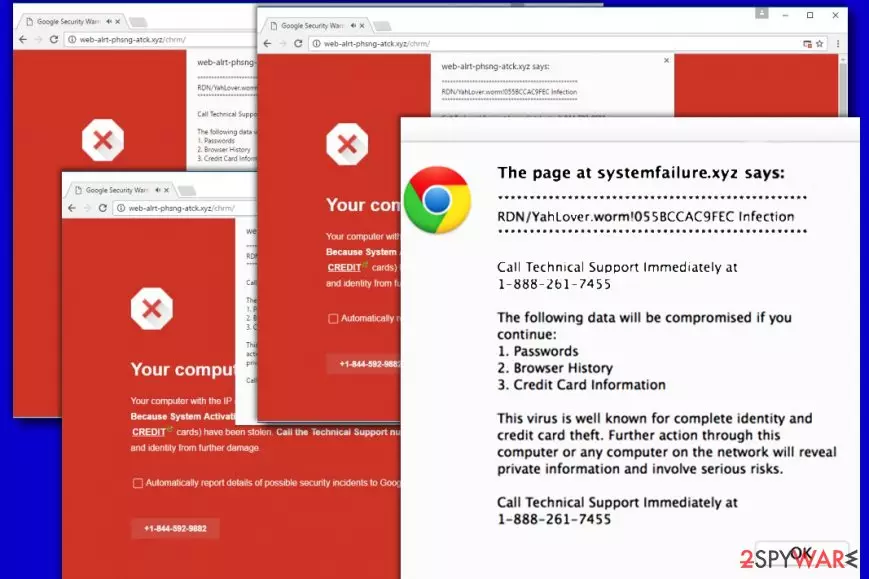
YahLover.worm is a non-existent virus name that malicious actors came up with to use in a scam scheme. The fraudulent pop-up might show up on Google Chrome, Mozilla Firefox, Safari, or another web browser unexpectedly. In the background, users will also see a seemingly legitimate Google-type browser waning that alerts about malware or phishing danger. In the meantime, the alert will inform you that the computer was infected with a YahLover.worm virus and that a personal information leak is almost inevitable.
However, YahLover.worm virus pop-up is a tech support scam[1] that should never be trusted, as the message is simply a web page shown within the browser. Once the provided number is called, threat actors will attempt to extort money from victims in various ways or infect their machines with keylogging or other info-stealing malware.
| Name | YahLover.worm |
| Type | Tech support scam (might be related to adware infection) |
| Infiltration | Adware is typically distributed via software bundles, although can also be installed via fake update prompts, attractive ad offers, and similar deceptive methods |
| Infection symptoms |
|
| Scam traits | Users will see a pop-up message that displays a notification about an alleged computer infection that leaks sensitive user data. In the background, users will see a red-colored page which is meant to evoke feelings of anxiety about an imminent danger |
| Risk factors | Financial losses after calling the provided number, malware infections, personal data exposure to malicious parties, identity theft, increased telephone bill, etc. |
| Removal | To eliminate adware, perform a full system scan with a reputable security tool or follow our manual guide below |
| System fix | To eliminate virus damage on the system, scan it with FortectIntego |
While you can encounter YahLover.worm notification on a random website by accident, frequent appearances of bogus websites and ads might indicate adware infection on Mac or another operating system. When such an infection infiltrates the system, it hijacks the web browser and starts causing fake alerts.
Similarly to You Have A ZEUS Virus scam, Windows Detected ZEUS Virus scam or Windows Defender Alert: Zeus Virus, this infection scam seeks to scare you into thinking that your computer is infected with the banking virus and that the only way to fix it is to dial a special number and reach for some “reputable” technicians. In reality, the only ones that you can reach are scammers.
Pop-up window titles of such fake alerts vary. However, the most popular of them are RDN/YahLover.worm!055BCCAC9FEC infection and rdn/yahlover.worm 055bccac9fec infection notifications. They both suggest dialing 1-844-592-9882, 1-800-214-7440, or similar numbers to get technical help.[2]
On the one hand, the felons did a good job by forging a legitimate browser‘s alert. Interestingly, that phone number varies each time, which suggests the scale of this scam.
What is more, the scam may prevent you from leaving this page. However, you can cancel it by choosing “Prevent this page from creating additional dialogues.” After that, we highly recommend you to remove YahLover.worm fake alert and programs (malware) which are related to it.
Despite its name, which falsely claims to be a computer worm, the notification has nothing to do with malware infection (although adware is sometimes considered malicious by some security researchers). Therefore, YahLover.worm removal is not necessary, as such a virus simply does not exist. What is necessary tho is terminating adware from the computer as we explain below, resetting the installed web browsers, and then using FortectIntego to fix potential damage done to the system.

Recently, tech support scams have become more active than ever[3] and there is no surprise why. In the age of informational technologies, personal data has become one of the most valued things. The idea of losing it may seem more terrifying than the fact itself. Likewise, such sentiments are the perfect inspiration resource for crooks.
The creators of YahLover.worm have been trying to scare netizens with a virus infecting their systems and stealing personal information.[4] If you are one of their victims, you should notice such misleading alert on your Safari or other web browser:
RDN/YahLover.worm!055BCCAC9FEC Infection
*************************************************
Call Technical Support Immediately at 1-800-214-7440
The following data will be compromised if you continue:
1. Passwords
2. Browser History
3. Credit Card Information
This virus is well known for complete identity and credit card theft. Further action through this computer or any computer on the network will reveal private information and involve serious risks.
Call Technical Support Immediately at 1-800-214-7440
Less proficient computer users might be horrified with such a message and dash off to call the number given in the report. In this case, you can be tricked into losing hundreds of dollars for supposed tech support.
Once the scammer notices that the victim is inexperienced PC user, he/she usually tries to connect to the system remotely and shows the alleged competence by launching Command Prompt or Powershell. Users might fall into such a scam and transfer the money for the supposed technical assistance.
While some scammers remove the “virus” to withdraw pop-up from the computer, other felons leave a “farewell gift” – ransomware or another virus. In this relation, YahLover.worm infection scam may not behave so aggressively, but its presence should not be ignored.
The distribution peculiarities of this tech support scam
The majority of tech support scams are spread via corrupted websites and poorly protected web pages. Likewise, if you tend to download programs and use services promoted in pirated domains, you might be redirected to the website monitored by the scammers, and then, enjoy the unpleasant effects of adware hijack.
Luckily, this adware does not possess a sophisticated technical structure, so it will not be difficult to deal with it. However, its termination process will require your attention.

Terminate adware that shows fake YahLover.worm alerts
Reliable security software can easily take care of YahLover.worm removal. In fact, you need to find all adware-type programs that could be related to this scam. For that, you need to install one of the tools that are given below and update it before you start the system scan The software usually takes from 5 to 20 minutes to scan the device and remove YahLover.worm virus scam.
It is modified adware, so we highly recommend thinking twice before using manual guidelines. If you are willing to use them, it would be better that you combined manual and automatic removal options. The below-shown instructions display how to reset the browser.
YahLover.worm scam reminds you of a general truth that your safety and the confidentiality of your data greatly depend on your awareness and cautiousness as well[5].
Uninstall from Windows
Uninstall from Windows 10/8:
- Type Control Panel into the Windows search box and open the result.
- Under Programs, select Uninstall a program.


Uninstall from Windows 7/XP:
- Click on Windows Start > Control Panel (Windows XP users should click on Add/Remove Programs).
- In Control Panel, select Programs > Uninstall a program.


Remove the unwanted program:
- In the Programs and Features window, look for any recently installed suspicious entries, select them, and click Uninstall.
- If User Account Control appears, click Yes to confirm, then complete the removal.


Delete from macOS
Remove the unwanted application:
- From the menu bar, select Go > Applications.
- In the Applications folder, look for any suspicious entries, then drag them to Trash (or right-click and pick Move to Trash).


Delete leftover files and folders:
- Select Go > Go to Folder.
- Enter /Library/Application Support and remove any suspicious folders related to the unwanted program.
- Repeat the same check in the /Library/LaunchAgents and /Library/LaunchDaemons folders, deleting any suspicious entries.

- Finally, empty the Trash to permanently remove the leftovers.

Reset Internet Explorer
Remove dangerous add-ons:
- Open Internet Explorer, click on the Gear icon (IE menu) on the top-right corner of the browser
- Pick Manage Add-ons.
- You will see a Manage Add-ons window. Here, look for suspicious plugins. Click on these entries and select Disable.


Change your homepage if it was altered:
- Open IE and click on the Gear icon.
- Select Internet Options.
- In the General tab, delete the Home page address and replace it by your preferred one (for example, Google.com).
- Click Apply and then select OK.


Delete temporary files:
- Press on the Gear icon and select Internet Options.
- Under Browsing history, click Delete...
- Select relevant fields and press Delete.


Reset Internet Explorer:
- Click on Gear icon > Internet options and select Advanced tab.
- Select Reset.
- In the new window, check Delete personal settings and select Reset.


Remove from Microsoft Edge
Delete unwanted extensions from MS Edge:
- Select Menu (three horizontal dots at the top-right of the browser window) and pick Extensions.
- From the list, pick the extension and click on the Gear icon.
- Click Remove.


Clear cookies and other browser data:
- Click on the Menu (three horizontal dots at the top-right of the browser window) and select Settings > Privacy, search, and services..
- Under Clear browsing data, pick Choose what to clear.
- Select Cookies and other site data and Cached images and files. (apart from passwords, although you might want to include Media licenses as well, if applicable) and click on Clear.


Restore new tab and homepage settings:
- Click the menu icon and choose Settings.
- Then find On startup section.
- Click Remove next to any suspicious startup page.
Reset MS Edge if the above steps did not work:
- Press on Ctrl + Shift + Esc to open Task Manager.
- Click on More details arrow at the bottom of the window.
- Select Details tab.
- Now scroll down and locate every entry with Microsoft Edge name in it. Right-click on each of them and select End Task to stop MS Edge from running.


Instructions for Chromium-based Edge
Delete extensions from MS Edge (Chromium):
- Open Edge and click select Settings > Extensions.
- Delete unwanted extensions by clicking Remove.


Clear cache and site data:
- Click on Menu and go to Settings.
- Select Privacy, search and services.
- Under Clear browsing data, pick Choose what to clear.
- Under Time range, pick All time.
- Select Clear now.


Reset Chromium-based MS Edge:
- Click on Menu and select Settings.
- On the left side, pick Reset settings.
- Select Restore settings to their default values.
- Confirm with Reset.
- This will disable extensions and reset startup pages but will not delete bookmarks, saved passwords, or browsing history.


Remove from Mozilla Firefox (FF)
Remove dangerous extensions:
- Open Mozilla Firefox browser and click on the Menu (three horizontal lines at the top-right of the window).
- Select Add-ons.
- In here, select the unwanted extension and click Remove.


Reset the homepage:
- Click three horizontal lines at the top right corner to open the menu.
- Choose Settings.
- Under Home, set your preferred homepage and new tab settings.
Clear cookies and site data:
- Click Menu and pick Settings.
- Go to Privacy & Security section.
- Scroll down to locate Cookies and Site Data.
- Click on Clear Data...
- Select Cookies and Site Data and Temporary cached files and pages, then click Clear.


Reset Mozilla Firefox
If clearing the browser as explained above did not help, reset Mozilla Firefox:
- Open Mozilla Firefox browser and click the Menu.
- Go to Help and then choose Troubleshooting Information.

- Under Give Firefox a tune up section, click on Refresh Firefox...
- Once the pop-up shows up, confirm the action by pressing on Refresh Firefox.



Remove from Google Chrome
Delete malicious extensions from Google Chrome:
- Open Google Chrome, click on the Menu (three vertical dots at the top-right corner) and select More tools > Extensions.
- In the newly opened window, you will see all the installed extensions. Uninstall all suspicious extensions related to the unwanted program by clicking Remove.


Clear cache and web data from Chrome:
- Click on Menu and pick Settings.
- Under Privacy and security, select Clear browsing data.
- Select Browsing history, Cookies and other site data, as well as Cached images and files.
- Click Clear data.


Change your homepage:
- Click menu and choose Settings.
- Look for a suspicious site in the On startup section.
- Click on Open a specific or set of pages and click on three dots to find the Remove option.
Reset Google Chrome:
If the previous methods did not help you, reset Google Chrome to eliminate all the unwanted components:
- Click on Menu and select Settings.
- In the Settings, scroll down and click Advanced.
- Scroll down and locate Reset and clean up section.
- Now click Restore settings to their original defaults.
- Confirm with Reset settings.


Delete from Safari
Remove dangerous extensions:
- Open Safari, click Safari in the menu at the top-left of the screen, and select Preferences.
- Go to the Extensions tab, look for any suspicious entries, and click Uninstall to remove them.


Clear history and website data:
- Click Safari in the menu and pick Clear History.
- Set Clear to all history and confirm with Clear History.


Reset Safari:
- Click Safari in the menu and select Preferences > Advanced.
- Enable Show Develop menu in menu bar.
- From the menu bar, click Develop and select Empty Caches.


Did this guide help?
Be the first to comment