

“Dangerous try to get an access to your personal logins” is a tech support scam which might leave your pockets empty
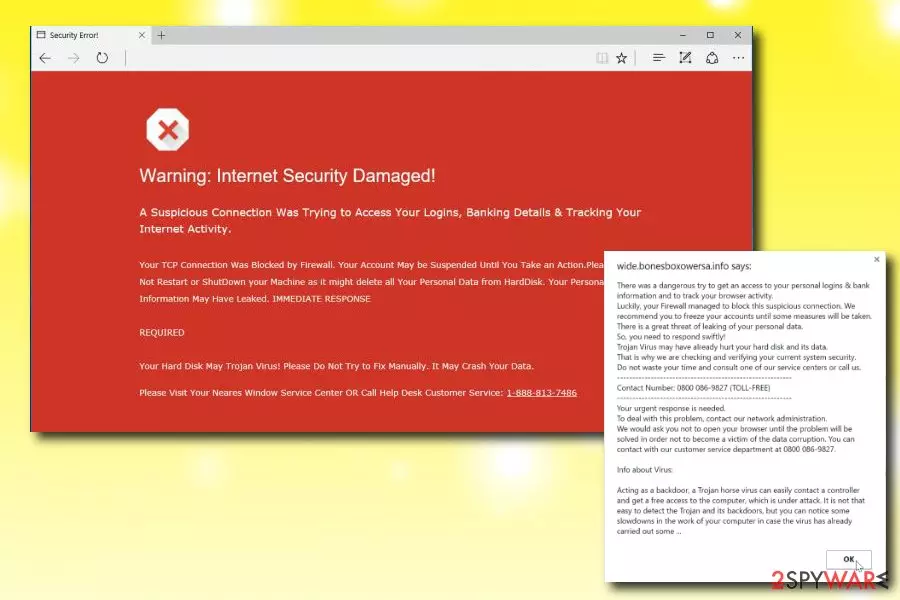
“There was a dangerous try to get an access to your personal logins” is a fake alert that reappears during users’ browsing sessions. Typically, such messages show up once users enter suspicious websites. However, you can also get spammed with “Dangerous try to get an access to your personal logins” pop-ups if you have an adware[1] program installed on your machine.
| SUMMARY | |
| Name | There was a dangerous try to get an access to your personal logins |
|---|---|
| Type | Adware |
| Sub-type | Tech support scam |
| Affected browsers | Google Chrome, Internet Explorer, Mozilla Firefox, Safari, etc. |
| Symptoms | Intrusive ads, redirects |
| Distribution | Software bundling |
| Elimination | Download and install FortectIntego. Otherwise, you can check our manual guide below |
Adware related to “Dangerous try to get an access to your personal logins” scam typically infiltrates computers without permission. Additionally, it starts disrupting browsing sessions by generating intrusive advertisements in various forms (pop-ups, banners, deals, offers, coupons, etc.), causing redirects and slowing down Google Chrome, Internet Explorer, Mozilla Firefox, or other browsers.
“Dangerous try to get an access to your personal logins” virus is not a unique cyberthreat. There are plenty similar tech support scams on the web, including Zeus virus detected, Google Chrome Critical ERROR, Microsoft Warning Alert, and Chrome Security Warning.
All of these scams fall into the scareware[2] category and have incredibly similar functionality. Their primary goal is to make victims panic and call the provided number in order to fix the allegedly damaged PC. In this case, users are asked using +1 844 243-2014. However, you should never fall for this and similar alerts as they have nothing to do with a real state of your computer.
“There was a dangerous try to get an access to your personal logins” hoax informs users that there was a dangerous attempt to access their logins and personal information. Apparently, Firewall blocked the connection. Nevertheless, the personal data is still in danger, and the trojan virus may have already damaged the hard drive and its contents. Thus, cybercrooks urge users to contact fake Microsoft tech support to make sure that nothing happened to the HDD.
However, it is all a hoax, and the only threat that affects users PCs is adware. Therefore, simply close your browser and remove Dangerous try to get an access to your personal logins virus immediately. You can install FortectIntego for that and run a full system scan.
Dangerous try to get an access to your personal logins alert targets Google Chrome users, however, it can affect any browser. Thus, there is another sign of a scam. If you get a similar message on a Firefox or other browser, don’t even read the message and close it down.
Note that some warning messages can be legitimate (red screen) but you will be never asked to contact anyone via the phone, neither will you be prompted to give away any personal information.
Inexperienced users who contact cybercrooks are at risk of:
- Receiving a large bill charged for the phone made to fake technicians;
- Being asked remote access to their machine. It can eventually lead to malware installation (such as keyloggers which can record all the data typed on a keyboard);
- Being pushed to download and install bogus software and pay for it;
- Being urged to subscribe to useless services;
- Exposing personal information (such as credentials, name, home address and similar) to cybercrooks when asked, etc.
It goes without saying that you should never contact these thieves as all they want is your money or personal information (it could be later used for illegal purposes). If these messages don’t leave you alone, you should perform “Dangerous try to get an access to your personal logins” removal.

Adware can be included in software bundles
Adware is a piece of software that most users would not download and install deliberately (no wonder, as it only causes frustration). Thus, unwanted programs creators found an effective method to distribute their software – via freeware bundling.
Free software developers inject their installers with adware or other PUPs and deceptively try to make users to install these rogue programs. It is evident by the proposal of using Recommended/Quick settings. Thus, be aware that this is a trick used to make you install additional components.
Therefore, it is essential to pick Advanced or Custom settings and remove all the additional offered applications. Most importantly – never rush the installation process.
Removal guide for Dangerous try to get an access to your personal logins scam
If you see a message on the red screen – do not panic. All you have to do is remove “Dangerous try to get an access to your personal logins” virus from your machine and proceed with normal web browsing sessions. You can do that either manually or automatically.
Manual “Dangerous try to get an access to your personal logins” removal can be a bit tricky as it requires certain computer knowledge. Therefore, if you are experienced with PCs and their operation – advance with this method. You can find an illustrated guide below.
For most users, security researchers[3] recommend automatic removal option. For that, simply download and install one of the suggested security programs, bring it up to date and run a full system scan. This process usually takes only a few moments, so it is a very convenient elimination process.
Uninstall from Windows 10/8: Uninstall from Windows 7/XP: Remove the unwanted program: Remove the unwanted application: Delete leftover files and folders: Remove dangerous add-ons: Change your homepage if it was altered: Delete temporary files: Reset Internet Explorer: Delete unwanted extensions from MS Edge: Clear cookies and other browser data: Restore new tab and homepage settings: Reset MS Edge if the above steps did not work: Delete extensions from MS Edge (Chromium): Clear cache and site data: Reset Chromium-based MS Edge: Remove dangerous extensions: Reset the homepage: Clear cookies and site data: Reset Mozilla Firefox If clearing the browser as explained above did not help, reset Mozilla Firefox: Delete malicious extensions from Google Chrome: Clear cache and web data from Chrome: Change your homepage: Reset Google Chrome: If the previous methods did not help you, reset Google Chrome to eliminate all the unwanted components: Remove dangerous extensions: Clear history and website data: Reset Safari:Uninstall from Windows


Delete from macOS


Reset Internet Explorer


Remove from Microsoft Edge


Instructions for Chromium-based Edge


Remove from Mozilla Firefox (FF)


Remove from Google Chrome



Delete from Safari


Did this guide help?
Be the first to comment