

Browser Opinion Survey – a fake pop-up that that resembles countless other survey scams
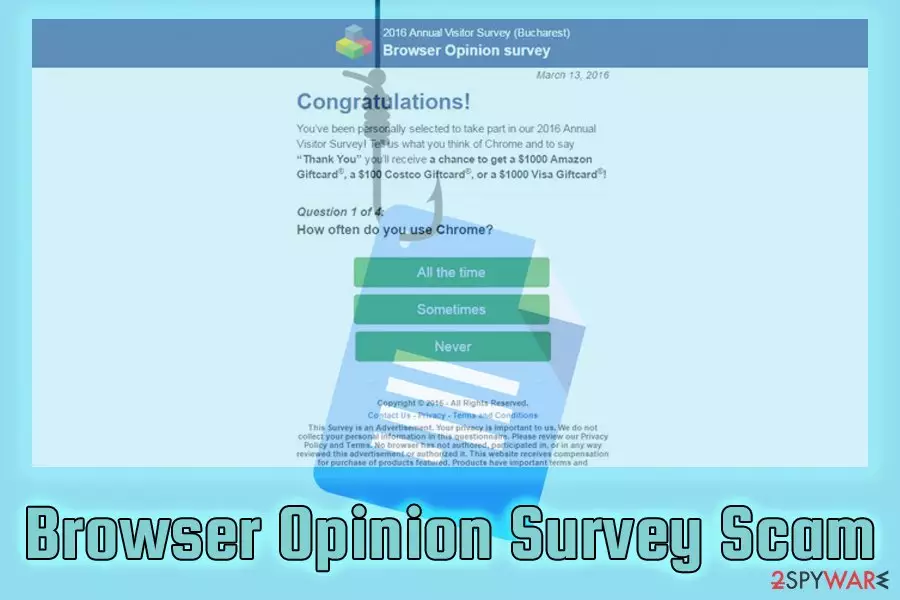
Browser Opinion Survey (also known as 2018 Annual Visitor Survey) is a malicious advertisement that shows up unexpectedly on Google Chrome, Internet Explorer, Mozilla Firefox, Safari or another browser and claims that the user has been selected to participate in an online survey and win an Amazon voucher worth $1000, iPhone X, or other valuable prizes. While it might seem like an excellent opportunity to win some money, users should refrain from participating as the fake alert is a survey scam and should be ignored. Users who agree to participate in Browser Opinion Survey risk losing money, installing bogus software or disclosing sensitive information to bad actors.
| Summary | |
| Name | Browser Opinion Survey |
| Also known as | 2018 Annual Visitor Survey |
| Type | Adware |
| Sub-type | Survey scam |
| Similar scams | National Consumer Center scam, Unlock this Page to Continue, Congratulations Amazon User |
| Affected browsers | Google Chrome, Internet Explorer, Mozilla Firefox, Safari, Opera, etc |
| Symptoms | Fake pop-ups offering prizes for a survey completion |
| Elimination | You can get rid of adware by using FortectIntego or by checking our manual guide below |
Browser Opinion Survey scam is not the first of that kind, as countless others emerged over the years. Once users are aware of these hoaxes, they are pretty easy to identify. As soon as users realize it is a scam, they need to remove Browser Opinion Survey advertisements from their browsers by simply closing them.
Nevertheless, some users may be redirected to fake surveys simply out of nowhere repeatedly. In such case, the computer is affected by an adware[1] application that must have entered the PC while user was carelessly installing freeware or shareware. Adware applications can come in various forms, including:
- Browser extensions
- Toolbars
- System optimizers
- PDF converters
- Media Players
- Download managers, and similar
In some cases, users might not even notice any difference within their system, like no slowdowns or additional processes running in the Task Manager. However, redirects to Browser Opinion Survey scam can become a daily struggle. Users might see the following fake message:
2018 Annual Visitor Survey
Browser Opinion surveyCongratulations!
You've been personally selected to take part in our 2018 Annual Visitor Survey! Tell us what you think of Chrome and to say “Thank You” you'll receive a chance to get a $1000 Amazon Giftcard, a $100 Costco Giftcard, or a $1000 Visa Giftcard!
Nevertheless, those who get tricked by cybercrooks who created Browser Opinion Survey virus might be forced to disclose their personal information, such as home address, email, name, location, or even banking details. This data can be used by criminals to enroll you in ad campaigns which will spam your inbox with commercial content, or even sell this data on the Dark Web[2] for profit.
In some other cases, users might be tricked into subscribing to a service they do not require, and their credit card will be billed every month. Victims have to manually opt out of such subscriptions, even if they were not clearly explained that they are being enrolled. Unfortunately, none of the money that already has been paid can be claimed back. Thus, by trusting the Browser Opinion Survey scam, you risk losing your money.

Additionally, crooks might request remote access to the computer. This activity is especially dangerous as they might install malware on the targeted machine. Threats like trojans cannot be spotted quickly, and they do not emit many symptoms (if any). Therefore, what started as innocent participation in an online survey, might end in a severe malware infection.
Security researchers[3] advise users to be vigilant and quit the bogus web page instantly. In case they experience the unwanted redirects frequently, they should take care of Browser Opinion Survey removal. There are two options for that: users can make use of PUP elimination tools like FortectIntego or SpyHunterCombo Cleaner, or get rid of all the adware-related components manually.
Be prepared for online scams: you can find them anywhere on world wide web
As we already mentioned, survey scams can be easy to recognize. Users who are hard to convince of “you get this for free” idea already have it covered. Those who are more gullible might be in trouble, however. Thus, all users should be cautious and remember, that if the deal is too good to be true, it most likely is. Look at everything with skepticism and do not provide any information or download anything before you make sure it is legitimate.
To avoid adware infections, users should carefully study the installation procedure of new programs or even its updates. Unfortunately, even well-known companies use software bundling to deliver optional components to users and increase their revenue. While some of the applications might be useful and can be trusted, most the third-party installers offer nothing but junk.
Therefore, do not rush the software installation process and do not click “Next” several times without looking. Check every step carefully and, when prompted, always opt for Advanced/Custom installation mode instead of Recommended/Quick one. This way, you will be able to get rid of any additional components that are offered together with the desired application.
Do not delay Browser Opinion Survey scam removal – use the below solutions
It is vital to remove Browser Opinion Survey virus as soon as the suspicious activity is noticed on the device, as potentially unwanted programs can often lead you to dubious websites where more of unwanted applications can be installed. This way, adware multiplies quickly, making it hard to detect and get rid of.
For a quick Browser Opinion Survey removal, use security software, especially if the adware was present on your computer for a while. Additionally, anti-virus software is capable of preventing other malware from entering your PC.
Those who are more computer-savvy and do not want any additional software to be installed on their machines, feel free to use our manual instructions below. However, please make sure each step is executed precisely and in the correct order.
Uninstall from Windows
Uninstall from Windows 10/8:
- Type Control Panel into the Windows search box and open the result.
- Under Programs, select Uninstall a program.


Uninstall from Windows 7/XP:
- Click on Windows Start > Control Panel (Windows XP users should click on Add/Remove Programs).
- In Control Panel, select Programs > Uninstall a program.


Remove the unwanted program:
- In the Programs and Features window, look for any recently installed suspicious entries, select them, and click Uninstall.
- If User Account Control appears, click Yes to confirm, then complete the removal.


Delete from macOS
Remove the unwanted application:
- From the menu bar, select Go > Applications.
- In the Applications folder, look for any suspicious entries, then drag them to Trash (or right-click and pick Move to Trash).


Delete leftover files and folders:
- Select Go > Go to Folder.
- Enter /Library/Application Support and remove any suspicious folders related to the unwanted program.
- Repeat the same check in the /Library/LaunchAgents and /Library/LaunchDaemons folders, deleting any suspicious entries.

- Finally, empty the Trash to permanently remove the leftovers.

Reset Internet Explorer
Remove dangerous add-ons:
- Open Internet Explorer, click on the Gear icon (IE menu) on the top-right corner of the browser
- Pick Manage Add-ons.
- You will see a Manage Add-ons window. Here, look for suspicious plugins. Click on these entries and select Disable.


Change your homepage if it was altered:
- Open IE and click on the Gear icon.
- Select Internet Options.
- In the General tab, delete the Home page address and replace it by your preferred one (for example, Google.com).
- Click Apply and then select OK.


Delete temporary files:
- Press on the Gear icon and select Internet Options.
- Under Browsing history, click Delete...
- Select relevant fields and press Delete.


Reset Internet Explorer:
- Click on Gear icon > Internet options and select Advanced tab.
- Select Reset.
- In the new window, check Delete personal settings and select Reset.


Remove from Microsoft Edge
Delete unwanted extensions from MS Edge:
- Select Menu (three horizontal dots at the top-right of the browser window) and pick Extensions.
- From the list, pick the extension and click on the Gear icon.
- Click Remove.


Clear cookies and other browser data:
- Click on the Menu (three horizontal dots at the top-right of the browser window) and select Settings > Privacy, search, and services..
- Under Clear browsing data, pick Choose what to clear.
- Select Cookies and other site data and Cached images and files. (apart from passwords, although you might want to include Media licenses as well, if applicable) and click on Clear.


Restore new tab and homepage settings:
- Click the menu icon and choose Settings.
- Then find On startup section.
- Click Remove next to any suspicious startup page.
Reset MS Edge if the above steps did not work:
- Press on Ctrl + Shift + Esc to open Task Manager.
- Click on More details arrow at the bottom of the window.
- Select Details tab.
- Now scroll down and locate every entry with Microsoft Edge name in it. Right-click on each of them and select End Task to stop MS Edge from running.


Instructions for Chromium-based Edge
Delete extensions from MS Edge (Chromium):
- Open Edge and click select Settings > Extensions.
- Delete unwanted extensions by clicking Remove.


Clear cache and site data:
- Click on Menu and go to Settings.
- Select Privacy, search and services.
- Under Clear browsing data, pick Choose what to clear.
- Under Time range, pick All time.
- Select Clear now.


Reset Chromium-based MS Edge:
- Click on Menu and select Settings.
- On the left side, pick Reset settings.
- Select Restore settings to their default values.
- Confirm with Reset.
- This will disable extensions and reset startup pages but will not delete bookmarks, saved passwords, or browsing history.


Remove from Mozilla Firefox (FF)
Remove dangerous extensions:
- Open Mozilla Firefox browser and click on the Menu (three horizontal lines at the top-right of the window).
- Select Add-ons.
- In here, select the unwanted extension and click Remove.


Reset the homepage:
- Click three horizontal lines at the top right corner to open the menu.
- Choose Settings.
- Under Home, set your preferred homepage and new tab settings.
Clear cookies and site data:
- Click Menu and pick Settings.
- Go to Privacy & Security section.
- Scroll down to locate Cookies and Site Data.
- Click on Clear Data...
- Select Cookies and Site Data and Temporary cached files and pages, then click Clear.


Reset Mozilla Firefox
If clearing the browser as explained above did not help, reset Mozilla Firefox:
- Open Mozilla Firefox browser and click the Menu.
- Go to Help and then choose Troubleshooting Information.

- Under Give Firefox a tune up section, click on Refresh Firefox...
- Once the pop-up shows up, confirm the action by pressing on Refresh Firefox.



Remove from Google Chrome
Delete malicious extensions from Google Chrome:
- Open Google Chrome, click on the Menu (three vertical dots at the top-right corner) and select More tools > Extensions.
- In the newly opened window, you will see all the installed extensions. Uninstall all suspicious extensions related to the unwanted program by clicking Remove.


Clear cache and web data from Chrome:
- Click on Menu and pick Settings.
- Under Privacy and security, select Clear browsing data.
- Select Browsing history, Cookies and other site data, as well as Cached images and files.
- Click Clear data.


Change your homepage:
- Click menu and choose Settings.
- Look for a suspicious site in the On startup section.
- Click on Open a specific or set of pages and click on three dots to find the Remove option.
Reset Google Chrome:
If the previous methods did not help you, reset Google Chrome to eliminate all the unwanted components:
- Click on Menu and select Settings.
- In the Settings, scroll down and click Advanced.
- Scroll down and locate Reset and clean up section.
- Now click Restore settings to their original defaults.
- Confirm with Reset settings.


Delete from Safari
Remove dangerous extensions:
- Open Safari, click Safari in the menu at the top-left of the screen, and select Preferences.
- Go to the Extensions tab, look for any suspicious entries, and click Uninstall to remove them.


Clear history and website data:
- Click Safari in the menu and pick Clear History.
- Set Clear to all history and confirm with Clear History.


Reset Safari:
- Click Safari in the menu and select Preferences > Advanced.
- Enable Show Develop menu in menu bar.
- From the menu bar, click Develop and select Empty Caches.


Did this guide help?
Be the first to comment