

Win Erx03 is a scam campaign that uses fake error messages to scare people
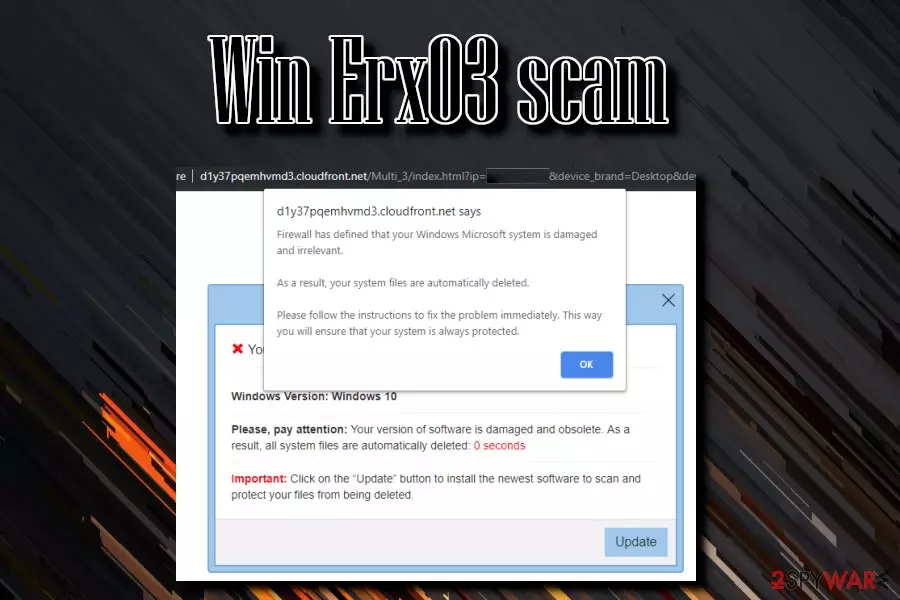
Win Erx03 is a scam message that tries to intimidate users and make them believe their Windows OS is damaged and needs fixing immediately. While the notification attempts to imitate legitimate alerts displayed by Microsoft, it is browser-based, which means that users can only encounter it after landing on a malicious website while browsing the web on Google Chrome, Mozilla Firefox, or another web browser.
Cybercriminals behind the hoax try to make visitors believe that their computer has crashed due to virus infection and that they need to press the “Update” button to install unknown software on their machines, which would allegedly fix the problem for good.
If you get tricked by the Win Erx03 scam and proceed with the provided instructions, you could end up downloading and installing adware, a browser hijacker, or malware on your computer. This way, you might also be convinced into spending money on scamware, or provide sensitive information, such as passwords or credit card details, to cybercriminals.
While redirects to websites displaying the fake alert can be encountered randomly, there could be an already installed adware on your system causing this unwanted browser behavior. Furthermore, the developers have started using Cloudfront to load their fake alerts (ads have mostly been coming from D30q6395bxosug.cloudfront.net). The main reason for the appearance of the virus is a malicious JavaScript[1] that is embedded in unsafe sites.
| SUMMARY | |
| Name | Win Erx03 |
| Type | Scam/fake error/phishing/malware/adware |
| Targeted system | Windows OS |
| False claim | Cybercriminals create a fake error code, along with a fake message that claims that viruses were found on the system and that window is damaged. They then offer to download potentially dangerous software in order to “fix” this error |
| Main dangers | Malware infection, personal information disclosure, financial losses |
| Cause | JavaScript on malicious websites or adware |
| Elimination | To stop malicious ads from being displayed via your web browser, employ an ad-blocking browser extension. If you suspect that your device might be infected with adware, you can follow the instructions below to eliminate it thoroughly |
| Optimization | Scan your system with FortectIntego if you experience any errors after eliminating all malware from your system |
There are plenty of technical support scams in the wild, claiming thousands of victims each day. While the attributes and delivery measures might differ slightly, all of them operate in a very similar manner – they intimidate and scare users, threatening with some type of consequences, in the meantime providing the ultimate “solution” for the non-existent problem. Crooks often employ non-existent Windows error codes to make the scam more believable – Error # WINDOWS-PORN-91, Error code # MS-6F0EXFE, or ERROR # 0x6a4-0xf9fx3999 are just a few examples.
The fake error alert scam in-depth
According to security researchers,[2] online scams like Win Erx03 on Windows 10 are designed to make users download bogus software.[3] Unfortunately, such applications can be harmful to the system. For that reason, under no circumstances, you should click “Update” as the executable can be launched straight away. Instead, close down your Google Chrome or another browser that you are using and get rid of fake alerts by eliminating the cause.
The error reads as follows:
Your Windows system is damaged
Windows Version: Windows 10
Please, pay attention: Your version of software is damaged and obsolete. As a result, all system files are automatically deleted: 0 seconds
Important: Click on the “Update” button to install the newest software to scan and protect your files from being deleted
Additionally, a pop-up message might also appear, which claims:
Windows Firewall has detected that you have not updated your Windows system. It remains damaged and vulnerable. **Do not leave this page until you have updated your system software.**
While these statements are a hoax, many users who do not have adequate computer knowledge might not be aware of this being a fake. Your system files cannot be deleted that easily because Windows has certain precautionary measures set in place. While some malware could modify or delete files, it would definitely not be announced in the pop-up message.[4] For that reason, many users instantaneously recognize that the Win Erx03 popup is fake.

If you encounter Win Erx 03 virus error occasionally, you do not need to do anything special, simply ignore it. Installing such applications like AdBlock or similar could block many malicious ads and prevent the pop-up from showing up again. However, if you suffer from persistent redirects, intrusive ads, a slow browser, and similar issues, you should remove Win Erx03 virus by uninstalling suspicious entries as it has nothing in common with Microsoft[5] or other companies that it impersonates. You will find full instructions below.
In case you already clicked “Update” and installed something, you should scan your machine with anti-malware software, as most of malicious software cannot be eliminated manually. Afterward, we recommend using FortectIntego to fix the damage done to the PC. All components related to Win Erx 03 scam appearance should be removed, otherwise, the program might renew itself in a short period of time.
Note that there is no reason for postponing Win Erx03 removal on your computer as this program is created for illegitimate purposes only. If you want to be sure that the rogue program is bombarding fake alerts, we advise scanning your computer system with a reliable computer tool that will show you true results. Once the scan is finished, you should see that there are no errors or malware to the ones that were provided by the scam.

Deceiving content online leads to various attacks
Potentially unwanted programs usually spread with the help of software bundling – a technique that allows freeware developers to hide optional components within the installation wizard of the program. While the information about the additional programs is provided, it is usually hidden under the Advanced/Custom installation setting, which most users skip and go for the Recommended/Quick mode.
Another trick used is the pre-selected boxes that users might not notice if they click “Next” several times. Therefore, pick Advanced settings and scrutinize the installation steps to avoid getting tricked. Additionally, it is also as important to pick legitimate download sources for the programs. Third-party websites are filled with adware[6] and other PUPs, although “reputable” download sites like Download.com or Cnet are filled with bundled software.
Remove the infection that causes issues and Win Erx03 alerts
Fortunately, there are several ways to prevent persistent ads from showing up on your browsers. To remove Win Erx03 virus, you should first check for adware on your machine. You can find full instructions below. However, you can also rely on security software that specializes in detecting and eliminating potentially unwanted programs automatically. These programs will ensure you that the elimination will be finished fast and successfully.
If you checked your machine for unwanted applications and did not find any, we suggest you use an ad-blocking application for Win Erx03 removal from your browsers. This method can effectively prevent bogus messages from appearing while browsing the web. This is a good option if wanted to avoid ads that show up on specific websites only. However, make sure your system is not infected first.

The video removal guide for the malware
If you spotted the fake alert on your browser, note that it should be terminated before it forces system crashes and redirects to unapproved domains. Those who are struggling with Win Erx03 elimination should check our video guide explaining how to get rid of the virus from the machine completely. The video will guide you through the entire elimination process. Click here to view it:
Uninstall from Windows
Uninstall from Windows 10/8:
- Type Control Panel into the Windows search box and open the result.
- Under Programs, select Uninstall a program.


Uninstall from Windows 7/XP:
- Click on Windows Start > Control Panel (Windows XP users should click on Add/Remove Programs).
- In Control Panel, select Programs > Uninstall a program.


Remove the unwanted program:
- In the Programs and Features window, look for any recently installed suspicious entries, select them, and click Uninstall.
- If User Account Control appears, click Yes to confirm, then complete the removal.


Remove from Microsoft Edge
Delete unwanted extensions from MS Edge:
- Select Menu (three horizontal dots at the top-right of the browser window) and pick Extensions.
- From the list, pick the extension and click on the Gear icon.
- Click Remove.


Clear cookies and other browser data:
- Click on the Menu (three horizontal dots at the top-right of the browser window) and select Settings > Privacy, search, and services..
- Under Clear browsing data, pick Choose what to clear.
- Select Cookies and other site data and Cached images and files. (apart from passwords, although you might want to include Media licenses as well, if applicable) and click on Clear.


Restore new tab and homepage settings:
- Click the menu icon and choose Settings.
- Then find On startup section.
- Click Remove next to any suspicious startup page.
Reset MS Edge if the above steps did not work:
- Press on Ctrl + Shift + Esc to open Task Manager.
- Click on More details arrow at the bottom of the window.
- Select Details tab.
- Now scroll down and locate every entry with Microsoft Edge name in it. Right-click on each of them and select End Task to stop MS Edge from running.


Instructions for Chromium-based Edge
Delete extensions from MS Edge (Chromium):
- Open Edge and click select Settings > Extensions.
- Delete unwanted extensions by clicking Remove.


Clear cache and site data:
- Click on Menu and go to Settings.
- Select Privacy, search and services.
- Under Clear browsing data, pick Choose what to clear.
- Under Time range, pick All time.
- Select Clear now.


Reset Chromium-based MS Edge:
- Click on Menu and select Settings.
- On the left side, pick Reset settings.
- Select Restore settings to their default values.
- Confirm with Reset.
- This will disable extensions and reset startup pages but will not delete bookmarks, saved passwords, or browsing history.


Remove from Mozilla Firefox (FF)
Remove dangerous extensions:
- Open Mozilla Firefox browser and click on the Menu (three horizontal lines at the top-right of the window).
- Select Add-ons.
- In here, select the unwanted extension and click Remove.


Reset the homepage:
- Click three horizontal lines at the top right corner to open the menu.
- Choose Settings.
- Under Home, set your preferred homepage and new tab settings.
Clear cookies and site data:
- Click Menu and pick Settings.
- Go to Privacy & Security section.
- Scroll down to locate Cookies and Site Data.
- Click on Clear Data...
- Select Cookies and Site Data and Temporary cached files and pages, then click Clear.


Reset Mozilla Firefox
If clearing the browser as explained above did not help, reset Mozilla Firefox:
- Open Mozilla Firefox browser and click the Menu.
- Go to Help and then choose Troubleshooting Information.

- Under Give Firefox a tune up section, click on Refresh Firefox...
- Once the pop-up shows up, confirm the action by pressing on Refresh Firefox.



Remove from Google Chrome
Delete malicious extensions from Google Chrome:
- Open Google Chrome, click on the Menu (three vertical dots at the top-right corner) and select More tools > Extensions.
- In the newly opened window, you will see all the installed extensions. Uninstall all suspicious extensions related to the unwanted program by clicking Remove.


Clear cache and web data from Chrome:
- Click on Menu and pick Settings.
- Under Privacy and security, select Clear browsing data.
- Select Browsing history, Cookies and other site data, as well as Cached images and files.
- Click Clear data.


Change your homepage:
- Click menu and choose Settings.
- Look for a suspicious site in the On startup section.
- Click on Open a specific or set of pages and click on three dots to find the Remove option.
Reset Google Chrome:
If the previous methods did not help you, reset Google Chrome to eliminate all the unwanted components:
- Click on Menu and select Settings.
- In the Settings, scroll down and click Advanced.
- Scroll down and locate Reset and clean up section.
- Now click Restore settings to their original defaults.
- Confirm with Reset settings.


Delete from Safari
Remove dangerous extensions:
- Open Safari, click Safari in the menu at the top-left of the screen, and select Preferences.
- Go to the Extensions tab, look for any suspicious entries, and click Uninstall to remove them.


Clear history and website data:
- Click Safari in the menu and pick Clear History.
- Set Clear to all history and confirm with Clear History.


Reset Safari:
- Click Safari in the menu and select Preferences > Advanced.
- Enable Show Develop menu in menu bar.
- From the menu bar, click Develop and select Empty Caches.


Did this guide help?
Be the first to comment