

UpdateSearch – a fake search engine that delivers sponsored results and serves ads
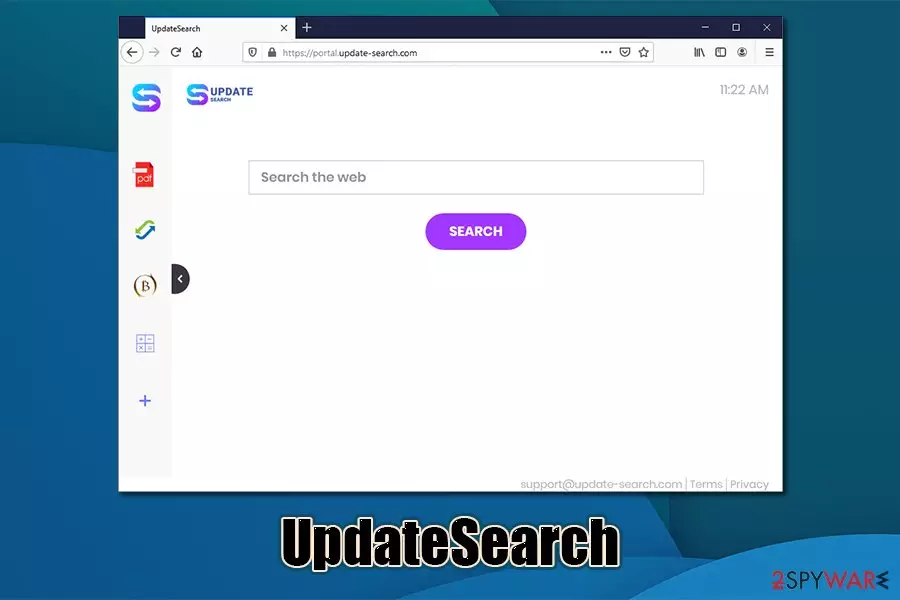
UpdateSearch is yet another browser hijacker[1] that can be downloaded from the official sources or installed unintentionally when looking for new software on third-party websites. Just as many other potentially unwanted programs of this type, it changes the web browser settings of Google Chrome, Mozilla Firefox, Safari, or another web browser in order to serve users sponsored content and deliver ads on all visited sites. Hence, those infected will see their homepage and the new tab address set to portal.update-search.com.
When trying to look for desired content, UpdateSearch will redirect all the searches to Yahoo, with a bunch of ads at the top. This guarantees that most of the users click on affiliated pages, bringing the developers financial gain. While infected, users' web browsing data is gathered and shared with service providers and third-parties – an activity that might cause privacy issues.
| Name | UpdateSearch |
| Type | Browser hijacker, potentially unwanted program (PUP) |
| Infiltration | Users install browser hijackers unintentionally in most cases after being tricked by an attractive ad/fake update prompt or when they download freeware apps from third-party sites. Nonetheless, intentional installation is also possible |
| Symptoms |
|
| Dangers | Diminished web browsing experience due to ads and altered search results, personal information disclosure to unknown parties, installation of other PUPs/malware |
| Elimination | To get rid of potentially unwanted applications, please follow our detailed guide below |
| Optimization | In case you found or unwanted apps or malware on your system, we suggest you also scan the machine with repair software FortectIntego for best results. Also, a browser reset is recommended |
Browser hijackers are generally not considered to be major security threats by security experts [2], although they definitely should be ignored, especially if the infiltration happened behind your back. To make sure that no such event takes place in the future, you should pay close attention to when installing freeware applications from third-party sources – we explain how to avoid unwanted programs in the next section of the article. Nonetheless, you should focus on UpdateSearch removal.
As soon as UpdateSearch hijack occurs, most modern web browsers, such as Google Chrome or Mozilla Firefox, should notify about the performed changes. However, many might not check the prompt and continue using the web browser as previously. Once the setting is accepted, the hijacker settles for good until it is eliminated.
There are a variety of different changes that the PUP performs in order to stay on users' web browsers as long as possible. In the meantime, they are ensuring users that their presence is extremely valuable and that it provides numerous benefits. Indeed, UpdateSearch provides links to such features as PDF conversion, currency conversion, cryptocurrency, conversion, and so on.
However, it is important to note that these perks can be easily accessed without having your browser hijacked by the so-called UpdateSearch virus. All modern browsers are highly customizable and include a variety of features. If you are unsure how to use them, you should check the latest patch release notes delivered by Google, Microsoft, and other companies that provide search engines.
Thus, apps like UpdateSearch are generally obsolete, considering that they manipulate users' search results (which lead to unknown sponsored sites) and monitor users' online behavior. For that, tracking technologies such as cookies, web beacons, and others, are used.

While it is true that many companies gather information for marketing purposes and “increased user experience,” many begin to comprehend that the scope of data gathering is immense. As the internet and IT companies evolve, more regulations are put into place, and inadequate data collection and sharing practices are being tracked down and punished.
When it comes to UpdateSearch, it also gathers a variety of user data, as stated in its privacy policy:[3]
The first type of information we collect is aggregated, non-identifiable, non-personal information, which may be made available or gathered via the user's use of the Service (” Non-Personal Information”). <…>
The second type of information is individually identifiable information, namely information that identifies an individual or entity or may with reasonable effort identify an individual (” Personal Information”).
An IP address is now considered to be personally identifiable information in most countries and the US states. Other collected data includes search queries, clicks, visited pages, OS and browser information, ISP, search logs, and much more. While the data is non-PI, you should be aware that third-parties are monitoring your behavior.
These reasons should be enough for you to remove UpdateSearch and utilize trusted search providers instead. If you want a more privacy-focused search engines, we recommend using DuckDuckGo or equipping your computer with a VPN.
To get rid of the UpdateSearch browser hijacker, follow detailed instructions we provide below. Also, we recommend using FortectIntego for Windows maintenance purposes, scanning the machine with anti-malware, and clearing web browser cache and data regularly. Alternatively, you can also rely on a browser reset, instructions for which we provide below.
Potentially unwanted programs clutter your computer – avoid them as much as you can
In most cases, browser hijackers such as Mazy Search, SearchConverterz, DownloadManagerNow, and many others, are represented as useful tools that can enhance user web browsing experience. Indeed, add-ons and extensions are awesome additions to the web browser, as it helps to customize each of the users' experience. However, potentially unwanted applications are most typically worthless and provide the alleged functionality that is already present within legitimate tools. And while these PUPs are unlikely to compromise your computer security, they will alter the way your browse the web, and they will spy on you.
Thus, you should always make sure that you avoid unintentional installation on potentially unwanted apps. If you are unsure whether the program is trustworthy, you should first check it online – read forum posts, blogs, user reviews, and similar descriptions. However, keep in mind that software bundling is also a common technique that uses deception in order to make users install applications they didn't want in the first place.
If possible, you should always choose well-known and reputable sources for your app downloads. Do not trust random pop-up ads that advertise and allegedly useful program, and do not believe prompts which claim that something is missing from your PC, or that it is infected with malware. Finally, always pick Advanced/Custom settings instead of recommended ones during the installation of freeware apps.

Get rid of UpdateSearch hijack and employ more reliable search tools instead
There are two ways you can remove UpdateSearch from your web browser – manual or automatic. Both techniques can be effective, although the situation changes drastically if your web browser or a computer is infected with multiple threats. In fact, many potentially unwanted apps travel in a single software bundle, so if you missed one, there might be more installed on your system, and you might not be aware of it.
Nonetheless, we suggest you first perform UpdateSearch removal via your browser – locate the extension and get rid of it at once. If you are having troubles with this process, or the app has set the Managed by your organization setting, you can always reset the web browser fully as we explain below. In any case, if you notice strange behavior within your web browser or the computer, we recommend scanning the computer with anti-malware software to ensure that everything is in order.
Uninstall from Windows
Uninstall from Windows 10/8:
- Type Control Panel into the Windows search box and open the result.
- Under Programs, select Uninstall a program.


Uninstall from Windows 7/XP:
- Click on Windows Start > Control Panel (Windows XP users should click on Add/Remove Programs).
- In Control Panel, select Programs > Uninstall a program.


Remove the unwanted program:
- In the Programs and Features window, look for any recently installed suspicious entries, select them, and click Uninstall.
- If User Account Control appears, click Yes to confirm, then complete the removal.


Delete from macOS
Remove the unwanted application:
- From the menu bar, select Go > Applications.
- In the Applications folder, look for any suspicious entries, then drag them to Trash (or right-click and pick Move to Trash).


Delete leftover files and folders:
- Select Go > Go to Folder.
- Enter /Library/Application Support and remove any suspicious folders related to the unwanted program.
- Repeat the same check in the /Library/LaunchAgents and /Library/LaunchDaemons folders, deleting any suspicious entries.

- Finally, empty the Trash to permanently remove the leftovers.

Reset Internet Explorer
Remove dangerous add-ons:
- Open Internet Explorer, click on the Gear icon (IE menu) on the top-right corner of the browser
- Pick Manage Add-ons.
- You will see a Manage Add-ons window. Here, look for suspicious plugins. Click on these entries and select Disable.


Change your homepage if it was altered:
- Open IE and click on the Gear icon.
- Select Internet Options.
- In the General tab, delete the Home page address and replace it by your preferred one (for example, Google.com).
- Click Apply and then select OK.


Delete temporary files:
- Press on the Gear icon and select Internet Options.
- Under Browsing history, click Delete...
- Select relevant fields and press Delete.


Reset Internet Explorer:
- Click on Gear icon > Internet options and select Advanced tab.
- Select Reset.
- In the new window, check Delete personal settings and select Reset.


Remove from Microsoft Edge
Delete unwanted extensions from MS Edge:
- Select Menu (three horizontal dots at the top-right of the browser window) and pick Extensions.
- From the list, pick the extension and click on the Gear icon.
- Click Remove.


Clear cookies and other browser data:
- Click on the Menu (three horizontal dots at the top-right of the browser window) and select Settings > Privacy, search, and services..
- Under Clear browsing data, pick Choose what to clear.
- Select Cookies and other site data and Cached images and files. (apart from passwords, although you might want to include Media licenses as well, if applicable) and click on Clear.


Restore new tab and homepage settings:
- Click the menu icon and choose Settings.
- Then find On startup section.
- Click Remove next to any suspicious startup page.
Reset MS Edge if the above steps did not work:
- Press on Ctrl + Shift + Esc to open Task Manager.
- Click on More details arrow at the bottom of the window.
- Select Details tab.
- Now scroll down and locate every entry with Microsoft Edge name in it. Right-click on each of them and select End Task to stop MS Edge from running.


Instructions for Chromium-based Edge
Delete extensions from MS Edge (Chromium):
- Open Edge and click select Settings > Extensions.
- Delete unwanted extensions by clicking Remove.


Clear cache and site data:
- Click on Menu and go to Settings.
- Select Privacy, search and services.
- Under Clear browsing data, pick Choose what to clear.
- Under Time range, pick All time.
- Select Clear now.


Reset Chromium-based MS Edge:
- Click on Menu and select Settings.
- On the left side, pick Reset settings.
- Select Restore settings to their default values.
- Confirm with Reset.
- This will disable extensions and reset startup pages but will not delete bookmarks, saved passwords, or browsing history.


Remove from Mozilla Firefox (FF)
Remove dangerous extensions:
- Open Mozilla Firefox browser and click on the Menu (three horizontal lines at the top-right of the window).
- Select Add-ons.
- In here, select the unwanted extension and click Remove.


Reset the homepage:
- Click three horizontal lines at the top right corner to open the menu.
- Choose Settings.
- Under Home, set your preferred homepage and new tab settings.
Clear cookies and site data:
- Click Menu and pick Settings.
- Go to Privacy & Security section.
- Scroll down to locate Cookies and Site Data.
- Click on Clear Data...
- Select Cookies and Site Data and Temporary cached files and pages, then click Clear.


Reset Mozilla Firefox
If clearing the browser as explained above did not help, reset Mozilla Firefox:
- Open Mozilla Firefox browser and click the Menu.
- Go to Help and then choose Troubleshooting Information.

- Under Give Firefox a tune up section, click on Refresh Firefox...
- Once the pop-up shows up, confirm the action by pressing on Refresh Firefox.



Remove from Google Chrome
Delete malicious extensions from Google Chrome:
- Open Google Chrome, click on the Menu (three vertical dots at the top-right corner) and select More tools > Extensions.
- In the newly opened window, you will see all the installed extensions. Uninstall all suspicious extensions related to the unwanted program by clicking Remove.


Clear cache and web data from Chrome:
- Click on Menu and pick Settings.
- Under Privacy and security, select Clear browsing data.
- Select Browsing history, Cookies and other site data, as well as Cached images and files.
- Click Clear data.


Change your homepage:
- Click menu and choose Settings.
- Look for a suspicious site in the On startup section.
- Click on Open a specific or set of pages and click on three dots to find the Remove option.
Reset Google Chrome:
If the previous methods did not help you, reset Google Chrome to eliminate all the unwanted components:
- Click on Menu and select Settings.
- In the Settings, scroll down and click Advanced.
- Scroll down and locate Reset and clean up section.
- Now click Restore settings to their original defaults.
- Confirm with Reset settings.


Delete from Safari
Remove dangerous extensions:
- Open Safari, click Safari in the menu at the top-left of the screen, and select Preferences.
- Go to the Extensions tab, look for any suspicious entries, and click Uninstall to remove them.


Clear history and website data:
- Click Safari in the menu and pick Clear History.
- Set Clear to all history and confirm with Clear History.


Reset Safari:
- Click Safari in the menu and select Preferences > Advanced.
- Enable Show Develop menu in menu bar.
- From the menu bar, click Develop and select Empty Caches.


Did this guide help?
Be the first to comment