

Better Converter Pro is a browser hijacking application designed by Polarity Technologies Ltd
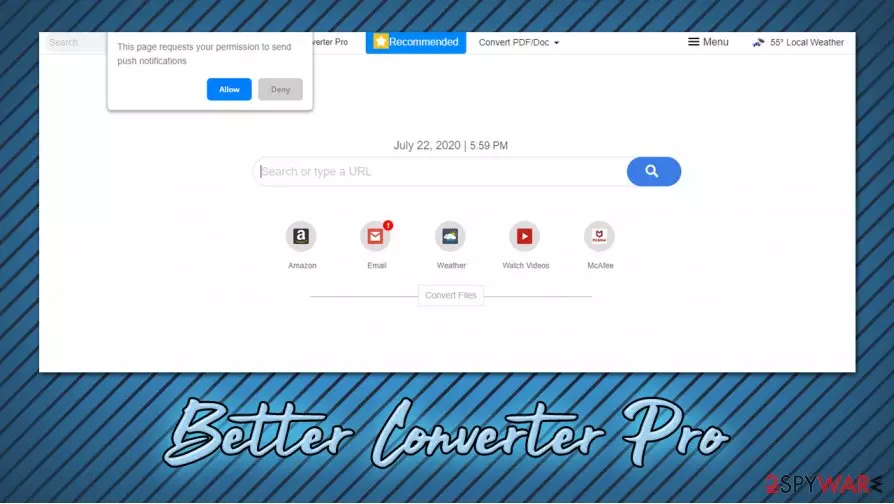
Better Converter Pro is a browser extension that is allegedly designed for convenient file conversion to DOC or PDF formats. However, this application is considered to be a browser hijacker, as it typically spreads within software bundle packages (although some people might download it from Google Web Store or other sources). As a result, users find the app installed seemingly without their consent.
Once installed, Better Converter Pro changes the homepage and the new tab URL of Google Chrome, Mozilla Firefox, MS Edge, Safari, or another web browser to search.betterconverterprotab.com. It appends a customized search engine that redirects all searches to search.yahoo.com. Additionally, the PUP shows sponsored links and ads at the top, monetizing on users' clicks. Behind the scenes, the app also engages in information tracking and uses deceptive links to direct users to promotional offers, so many experts[1] recommend to uninstall it.
| Name | Better Converter Pro |
| Type | Browser hijacker, potentially unwanted application, browser extension |
| Developer | Polarity Technologies Ltd |
| Distribution | The app can be downloaded from the official Google Web Store, although it can also be spread via software bundles and deceptive advertisements |
| Symptoms |
|
| Dangers | Users might spend money on useless services and suffer from financial losses. Additionally, data collection practices might cause privacy issues |
| Elimination | You can get rid of unwanted browser extension by accessing your web browser settings. In case you find installed apps on the computer, you can follow our manual elimination guidelines below or scan the machine with powerful anti-malware software |
| Optimization | In case you find other PUPs or malware on the system, you should reset all the installed browsers and make additional checks with FortectIntego to fix virus damage |
Polarity is one of the largest potentially unwanted programs (mainly, browser hijackers) developer and distributor. The developer specializes in inserting a variety of links into the homepage of the hijacked browser, some of which lead to unknown websites.
In most of the cases, such sites attempt to sell something to the user or offer to download particular apps. Besides Better Converter Pro, the company is also known for such PUPs like Shipment Trackers, Hide My Searches, Search Encrypt, My Weather Radar, and many others.
All of these programs are very similar – the differences include a different “theme” of the hijacker, as well as the embedded links that vary based on the alleged functionality of the app. As evident, Better Converter Pro is presented with a feature that can help users to convert files. All they have to do is upload a file and then retrieve it in a PDF or DOC format.
While this feature might seem like a useful one, do not forget that the installed app also includes a variety of negative features:
- Does not work if you decide to remove Better Converter Pro homepage;
- Asks to enable notifications so that ads could be shown directly on your desktop;
- Displays fraudulent links that lead to suspicious websites (for example, by pressing on what seems to be a link to a known anti-malware software developer, users are redirected to a VPN offer).
Besides, once the Better Converter Pro extension is active, it will track your web browsing activities with the help of tracking technologies like cookies, web beacons,[2] and others. The collected data includes installed extensions, system information, browser preferences, geolocation, search queries, visited pages, and much more.

Besides, Better Converter Pro developers also share this data is business partners, ad networks, affiliates, and other parties. However, it is also stated that Polarity as no liability for affiliated party actions that it shares this data with:[3]
We disclaim and shall have no liability or obligation in connection with any third party actions or omissions concerning your information, even if those acts or omissions are a result of our sharing and disclosure your information, as allowed pursuant to this Privacy Policy.
Thus, if you need to convert files, find a service that will not display ads in various was, and track your online activity. To proceed with Better Converter Pro removal, all you have to do is access the installed extension settings and eliminate it from your browser. However, if the suspicious browser activities do not stop, we suggest you scan the system with anti-malware and then perform further checks with a repair tool FortectIntego.
You can easily avoid PUPs: be observant during freeware installation process
Potentially unwanted programs are called so due to several reasons, and one of them is the distribution technique. In many cases, users find such apps installed on their machines without their consent (or at least it seems so initially). While users themselves could be to blame for not noticing optional components within software bundle packages, the deception used to make people install these apps does not make it OK.
In many cases, developers of PUPs or the distribution sites owners compile several apps into a single installed. Users who download such packages do not extract them correctly, i.e., they pick Recommended/Quick setup, which automatically installs additional apps. The permission to install these programs is automatic, as users have to agree with Terms and Conditions prior to installation. This is how browser hijackers and other unwanted software make the way into users' machines.
Thus, always opt for Advanced/Custom settings instead and remove all the ticks from the pre-ticked boxes, read the small print, do not get tricked by misleading button placement, and always read all the installation instructions carefully.
You can remove Better Converter Pro easily
If you are wondering how to remove Better Converter Pro, it should not be that difficult. The reason you web browser settings, such as homepage, new tab address, and the search engine changed is due to extension installed on your web browser. Therefore, you should locate it and uninstall it from your web browser.

As soon as you remove Better Converter Pro from your browser, all the changes to your web browser should go away. If for some reason, that does not happen, you can reset your browsers as explained below. This process will also eliminate browser cookies that were accumulated over time, increasing your online privacy.
In case ads and redirects do not stop even after you uninstall Better Converter Pro virus, you should look for other browser extensions/programs/malware. For that, you can check the installed app list via Applications (Mac) or Programs & Features (Windows) folders. Also, it is recommended to scan the device with powerful anti-malware.
Uninstall from Windows
Uninstall from Windows 10/8:
- Type Control Panel into the Windows search box and open the result.
- Under Programs, select Uninstall a program.


Uninstall from Windows 7/XP:
- Click on Windows Start > Control Panel (Windows XP users should click on Add/Remove Programs).
- In Control Panel, select Programs > Uninstall a program.


Remove the unwanted program:
- In the Programs and Features window, look for any recently installed suspicious entries, select them, and click Uninstall.
- If User Account Control appears, click Yes to confirm, then complete the removal.


Delete from macOS
Remove the unwanted application:
- From the menu bar, select Go > Applications.
- In the Applications folder, look for any suspicious entries, then drag them to Trash (or right-click and pick Move to Trash).


Delete leftover files and folders:
- Select Go > Go to Folder.
- Enter /Library/Application Support and remove any suspicious folders related to the unwanted program.
- Repeat the same check in the /Library/LaunchAgents and /Library/LaunchDaemons folders, deleting any suspicious entries.

- Finally, empty the Trash to permanently remove the leftovers.

Reset Internet Explorer
Remove dangerous add-ons:
- Open Internet Explorer, click on the Gear icon (IE menu) on the top-right corner of the browser
- Pick Manage Add-ons.
- You will see a Manage Add-ons window. Here, look for suspicious plugins. Click on these entries and select Disable.


Change your homepage if it was altered:
- Open IE and click on the Gear icon.
- Select Internet Options.
- In the General tab, delete the Home page address and replace it by your preferred one (for example, Google.com).
- Click Apply and then select OK.


Delete temporary files:
- Press on the Gear icon and select Internet Options.
- Under Browsing history, click Delete...
- Select relevant fields and press Delete.


Reset Internet Explorer:
- Click on Gear icon > Internet options and select Advanced tab.
- Select Reset.
- In the new window, check Delete personal settings and select Reset.


Remove from Microsoft Edge
Delete unwanted extensions from MS Edge:
- Select Menu (three horizontal dots at the top-right of the browser window) and pick Extensions.
- From the list, pick the extension and click on the Gear icon.
- Click Remove.


Clear cookies and other browser data:
- Click on the Menu (three horizontal dots at the top-right of the browser window) and select Settings > Privacy, search, and services..
- Under Clear browsing data, pick Choose what to clear.
- Select Cookies and other site data and Cached images and files. (apart from passwords, although you might want to include Media licenses as well, if applicable) and click on Clear.


Restore new tab and homepage settings:
- Click the menu icon and choose Settings.
- Then find On startup section.
- Click Remove next to any suspicious startup page.
Reset MS Edge if the above steps did not work:
- Press on Ctrl + Shift + Esc to open Task Manager.
- Click on More details arrow at the bottom of the window.
- Select Details tab.
- Now scroll down and locate every entry with Microsoft Edge name in it. Right-click on each of them and select End Task to stop MS Edge from running.


Instructions for Chromium-based Edge
Delete extensions from MS Edge (Chromium):
- Open Edge and click select Settings > Extensions.
- Delete unwanted extensions by clicking Remove.


Clear cache and site data:
- Click on Menu and go to Settings.
- Select Privacy, search and services.
- Under Clear browsing data, pick Choose what to clear.
- Under Time range, pick All time.
- Select Clear now.


Reset Chromium-based MS Edge:
- Click on Menu and select Settings.
- On the left side, pick Reset settings.
- Select Restore settings to their default values.
- Confirm with Reset.
- This will disable extensions and reset startup pages but will not delete bookmarks, saved passwords, or browsing history.


Remove from Mozilla Firefox (FF)
Remove dangerous extensions:
- Open Mozilla Firefox browser and click on the Menu (three horizontal lines at the top-right of the window).
- Select Add-ons.
- In here, select the unwanted extension and click Remove.


Reset the homepage:
- Click three horizontal lines at the top right corner to open the menu.
- Choose Settings.
- Under Home, set your preferred homepage and new tab settings.
Clear cookies and site data:
- Click Menu and pick Settings.
- Go to Privacy & Security section.
- Scroll down to locate Cookies and Site Data.
- Click on Clear Data...
- Select Cookies and Site Data and Temporary cached files and pages, then click Clear.


Reset Mozilla Firefox
If clearing the browser as explained above did not help, reset Mozilla Firefox:
- Open Mozilla Firefox browser and click the Menu.
- Go to Help and then choose Troubleshooting Information.

- Under Give Firefox a tune up section, click on Refresh Firefox...
- Once the pop-up shows up, confirm the action by pressing on Refresh Firefox.



Remove from Google Chrome
Delete malicious extensions from Google Chrome:
- Open Google Chrome, click on the Menu (three vertical dots at the top-right corner) and select More tools > Extensions.
- In the newly opened window, you will see all the installed extensions. Uninstall all suspicious extensions related to the unwanted program by clicking Remove.


Clear cache and web data from Chrome:
- Click on Menu and pick Settings.
- Under Privacy and security, select Clear browsing data.
- Select Browsing history, Cookies and other site data, as well as Cached images and files.
- Click Clear data.


Change your homepage:
- Click menu and choose Settings.
- Look for a suspicious site in the On startup section.
- Click on Open a specific or set of pages and click on three dots to find the Remove option.
Reset Google Chrome:
If the previous methods did not help you, reset Google Chrome to eliminate all the unwanted components:
- Click on Menu and select Settings.
- In the Settings, scroll down and click Advanced.
- Scroll down and locate Reset and clean up section.
- Now click Restore settings to their original defaults.
- Confirm with Reset settings.


Delete from Safari
Remove dangerous extensions:
- Open Safari, click Safari in the menu at the top-left of the screen, and select Preferences.
- Go to the Extensions tab, look for any suspicious entries, and click Uninstall to remove them.


Clear history and website data:
- Click Safari in the menu and pick Clear History.
- Set Clear to all history and confirm with Clear History.


Reset Safari:
- Click Safari in the menu and select Preferences > Advanced.
- Enable Show Develop menu in menu bar.
- From the menu bar, click Develop and select Empty Caches.


Did this guide help?
Be the first to comment