

HelperService adware – a PUP that bombards Mac users with all kinds of ads
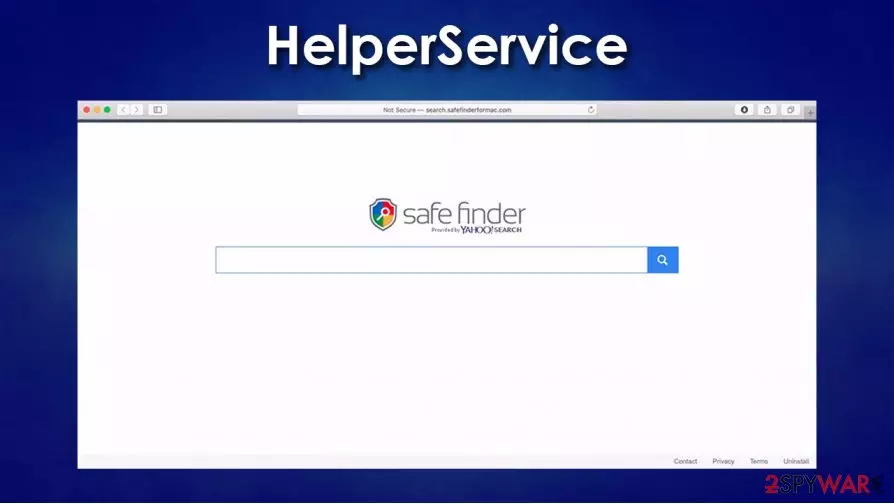
HelperService adware is a potentially unwanted program[1] (PUP) that affects macOS devices and displays an excessive amount of all kinds of advertisements (from fullscreen ads to pop-ups) that impede the normal browsing experience. It slows down the machine and the internet connection.
Furthermore, it has browser hijacker abilities – changes homepage, new tab, and default search engine preferences to another provider, such as Safe Finder, without permission. Infected users can also find an extension attached to their web browsers, regardless if they use Safari, Google Chrome, or Mozilla Firefox.
HelperService virus is spread via fake Flash Player updates and software bundles downloaded from the internet. In particular, this version was observed being delivered via DVLPlayer installer downloaded from insecure sources. While this infection is relatively serious, in this article, we will explain how to remediate your Mac after removing the threat effectively.
| name | HelperService adware |
|---|---|
| type | Mac virus, adware, browser hijacker |
| Family | Adload – a family known for Mac malware |
| Symptoms | Slower browsing speed and overall performance. Tons of ads, like banners, pop-ups, surveys, etc. |
| Risks | Privacy issues, additional PUP acquirement |
| Distribution | Deceptive ads, software bundles, fake installers |
| Removal | This PUP can be removed with anti-malware tools, but manual attention will also be needed. Full elimination instructions are provided at the bottom of the article |
| Repair | Restore all corrupted, or in any other way damaged system files by using the FortectIntego system repair tool |
Potentially unwanted programs weren't created yesterday. They've been around for quite some time now, but people who still don't know how to evade them are being tricked into installing it. PUPs are mainly spread via freeware bundles and deceptive ads. Users should know that no website is able to identify whether a virus infects their device or that its software is out of date. Don't believe misleading ads.
When installing software from a bundle, people have to take their time and don't rush with the Standard/Recommended installation. That's where they get duped. All boxes opting in for installation of every offered app in the bundle are pre-ticked. Pick the Advanced/Custom installation and remove ticks from all preselected software that you don't want, don't need, and didn't even know it would be installed in the first place.
HelperService virus belongs to a prevalent adware family called Adload. Viruses from this family specialize in infecting only devices running on any macOS. The family consists of adware and browser hijackers. The latest versions are OptimalUnit virus, NetInput virus, and AuraSearch virus.
Apart from bombarding users' machines with ads and changing specific browser settings, HelperService adware could be capable of collecting various browsing-related data, including:
- geolocations
- IP addresses
- search queries
- visited portals, etc.
This information could be sold to or shared with interested third-parties or end up in cybercriminals' hands.
Besides, HelperService ads can redirect people to shady, deceptive, or even malicious websites. These websites could push to allow their notifications, install fake updates, or other PUPs. Any of these choices would increase ad placement even more.

That's why our cybersecurity team recommends downloading trustworthy anti-malware software such as MalwarebytesMalwarebytes or SpyHunterCombo Cleaner to remove HelperService adware. Run the app and perform a full system scan. Get rid of any suspicious files along with the adware. Afterward, uninstall the browser extension from your browser with our guide at the bottom of this article.
To maintain an excellent device's performance and prevent it from freezing, crashing, and other irregularities, experts[2] recommend using the FortectIntego system tune-up tool right after HelperService removal. This powerful app will restore normal settings and ensure top performance from your machine.
Simple guidelines to increase personal cybersecurity level
Since most countries have some sort of quarantine, cybercriminals have more time on their hands to develop new malware and research new means of distribution. That's why it's essential for all users that use the internet to increase their cybersecurity level. Our expert team compiled a list of guidelines that could help people evade all kinds of malware:
- Keep backups of all important files. Store them on at least two separate devices, one of them being offline storage.
- Obtain a professional anti-malware tool. Scan the whole system regularly, and don't forget to update its virus databases.
- Use powerful system repair tools to keep all system settings and files maintained.
- Install all the latest updates to your device's operating system and other software.
- Learn the basic techniques cybercriminals use to spread malware and PUPs by reading our articles

Directions for HelperService adware removal with anti-malware tools
VirusTotal has reported[3] that only 23 out of 63 anti-malware engines have blocked this hybrid of adware and browser hijacker from installing on the device. That reiterates the point of having a professional anti-virus tool watching your back. Here are a few examples of HelperService detection names:
- Program:MacOS/Uwamson.A!ml
- Mac/Virus.Adware.3d7
- MacOS:AdAgent-AB [Adw]
- ADWARE/OSX.Agent.zbxgl
- OSX/Agent.BJ
If you don't have a reliable anti-malware tool, now is the time to acquire one. If you have one, then launch it and perform a full system scan. Remove HelperService adware and any other files that the software suggests. If this PUP is installed as a browser extension, you can uninstall it by using our free step-by-step guide provided below. If you are willing to look for malicious entries yourself, check the following locations on your Mac:
~/Library/LaunchAgents/com.helper.service.plist
~/Library/Application Support/HelperService/HelperService
Once HelperService adware removal is done, users should take care of their system files and settings, which most likely got messed up by the PUP. Users shouldn't try and fix these settings by themselves as it is recommended only for highly-experienced users. Use system repair tools to fix all issues automatically.
Delete from macOS
Remove the unwanted application:
- From the menu bar, select Go > Applications.
- In the Applications folder, look for any suspicious entries, then drag them to Trash (or right-click and pick Move to Trash).


Delete leftover files and folders:
- Select Go > Go to Folder.
- Enter /Library/Application Support and remove any suspicious folders related to the unwanted program.
- Repeat the same check in the /Library/LaunchAgents and /Library/LaunchDaemons folders, deleting any suspicious entries.

- Finally, empty the Trash to permanently remove the leftovers.

Remove from Mozilla Firefox (FF)
Remove dangerous extensions:
- Open Mozilla Firefox browser and click on the Menu (three horizontal lines at the top-right of the window).
- Select Add-ons.
- In here, select the unwanted extension and click Remove.


Reset the homepage:
- Click three horizontal lines at the top right corner to open the menu.
- Choose Settings.
- Under Home, set your preferred homepage and new tab settings.
Clear cookies and site data:
- Click Menu and pick Settings.
- Go to Privacy & Security section.
- Scroll down to locate Cookies and Site Data.
- Click on Clear Data...
- Select Cookies and Site Data and Temporary cached files and pages, then click Clear.


Reset Mozilla Firefox
If clearing the browser as explained above did not help, reset Mozilla Firefox:
- Open Mozilla Firefox browser and click the Menu.
- Go to Help and then choose Troubleshooting Information.

- Under Give Firefox a tune up section, click on Refresh Firefox...
- Once the pop-up shows up, confirm the action by pressing on Refresh Firefox.



Remove from Google Chrome
Delete malicious extensions from Google Chrome:
- Open Google Chrome, click on the Menu (three vertical dots at the top-right corner) and select More tools > Extensions.
- In the newly opened window, you will see all the installed extensions. Uninstall all suspicious extensions related to the unwanted program by clicking Remove.


Clear cache and web data from Chrome:
- Click on Menu and pick Settings.
- Under Privacy and security, select Clear browsing data.
- Select Browsing history, Cookies and other site data, as well as Cached images and files.
- Click Clear data.


Change your homepage:
- Click menu and choose Settings.
- Look for a suspicious site in the On startup section.
- Click on Open a specific or set of pages and click on three dots to find the Remove option.
Reset Google Chrome:
If the previous methods did not help you, reset Google Chrome to eliminate all the unwanted components:
- Click on Menu and select Settings.
- In the Settings, scroll down and click Advanced.
- Scroll down and locate Reset and clean up section.
- Now click Restore settings to their original defaults.
- Confirm with Reset settings.


Delete from Safari
Remove dangerous extensions:
- Open Safari, click Safari in the menu at the top-left of the screen, and select Preferences.
- Go to the Extensions tab, look for any suspicious entries, and click Uninstall to remove them.


Clear history and website data:
- Click Safari in the menu and pick Clear History.
- Set Clear to all history and confirm with Clear History.


Reset Safari:
- Click Safari in the menu and select Preferences > Advanced.
- Enable Show Develop menu in menu bar.
- From the menu bar, click Develop and select Empty Caches.


Did this guide help?
Be the first to comment