

Big Linker – a browser hijacker that will inject ads into search results
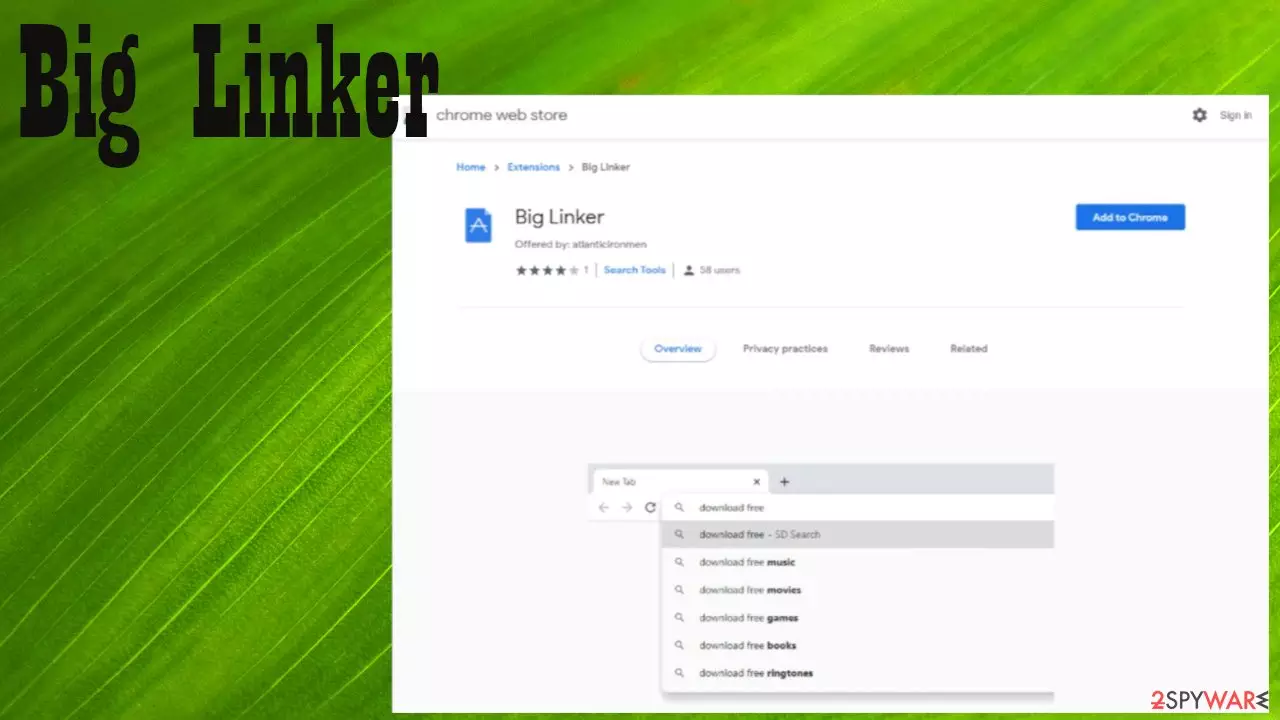
Big Linker is deemed as a potentially unwanted program[1] because of the way it operates and is spread. This piece of software will modify your infected browser settings by changing the new tab, default search engine, and homepage to keysearchs.com. Each time a search query is entered, a new tab will open with altered results from Bing, Yahoo, Google, or other legitimate sources, depending on your geolocation.
By causing redirects, this browser hijacker is able to record your browsing history. And what's worse, the redirects allow it to alter search results and display ads in them. And here's where things could get complicated as deceptive Big Linker ads might result in various mishaps.
It doesn't matter if you installed this PUP willingly or it got on your device unknowingly. The important thing is to remove it. This article explains the subtle browser hijacker delivery techniques, their functions, symptoms, risks, and of course, removal options.
| name | Big Linker |
|---|---|
| Type | PUP, browser hijacker, redirect virus |
| Promoted fae search site | keysearchs.com |
| Altered browser settings | Homepage, default search engine, new tab |
| Purpose | Browsing data collection, ad exhibition, redirects to affiliated sites |
| Symptoms | Apart from the changed browser preferences, devices and the internet connection are slower. Redirects to questionable portals occur out of the blue |
| Risks | Privacy issues, financial losses, identity theft, malware infections |
| Distribution | Official stores, deceptive ads, freeware bundles, fake Flash Player updates |
| Removal | Compatible and trustworthy anti-malware security software can be used to eliminate this threat from any type of device |
| System Health | Use the powerful FortectIntego system repair tool to delete any tracking cookies, clean up junk files, and most importantly, restore any broken system files/settings |
If Big Linker virus is anything like other browser hijackers, it will be able to gather much more than just browsing history. Search inquiries, used apps, device/browser details, IP addresses, geolocations, and other browsing-related information can be collected.
Although these details are considered non-personal information and are mainly used by advertisers to customize ads specifically for you, they could be misused if they fell into the wrong hands. But that's just the beginning of threats that this browser hijacker could cause.
Big Linker redirect could open a new tab out of nowhere. Thus forcing you to visit a site of its choice. Most PUPs advertise other shady websites, such as:
- gambling,
- fake updates,
- scams,
- malware,
- porn,
- gaming, etc.
These websites usually pay-per-click to the PUP operators for every sent forth user. Thus many techniques can be used to redirect people to them. Big Linker ads are one of them as the ad content might be completely different from where you'll end up if you click it.

An ad stating that you have to click it to receive a $50 discount for a new TV could redirect you to a fake update site where you'll be pushed to installed another PUP or to a portal with malicious scripts where hazardous infections could be installed automatically through drive-by downloads.
Therefore, you should consider Big Linker removal immediately before more harm comes your way. You can do that automatically by performing a full system scan with reliable and free anti-malware software such as SpyHunterCombo Cleaner or MalwarebytesMalwarebytes and letting the security tools do the dirty work.
Security analysts[2] highly recommend another tool to repair any damage your device system files sustained and delete tracking cookies. After you remove Big Linker, run system diagnostics with the FortectIntego all-in-one system optimizer to get your device back on track.
Avoid the most popular PUP distribution techniques
Browser hijackers, adware, unnecessary toolbars, and other potentially unwanted programs can be distributed in many ways. But the most popular one is through software bundles. To gain revenue, third-party software vendors include PUPs in packs with legitimate software.

The trick behind this technique is fairly simple – all apps are preselected for installation. Thus if you rush through it by choosing the Recommended, Quick or Standard option, all of them are installed instantly, and your device becomes infected.
Although PUPs aren't as dangerous as malware,[3] they can still diminish your device's performance harshly. Avoid third-party software vendors by downloading apps directly from developers, or pick the Advanced/Custom mode when installing a bundle and deselect all untrustworthy, unwanted, unnecessary apps from installation.
Use reliable security tools to remove Big Linker virus
Each and every device that is regularly used on the internet should have proper protection. Anti-malware tools can block dangerous websites, prevent you from installing potentially unwanted programs, such as Big Linker browser hijacker and safeguard your devices from hazardous malware infections.
You will need such tools to remove Big Linker from your affected machine. Launch it and scan the entire system. Agree with whatever the security tool recommends getting rid of. Please remember to frequently update its virus database to have the latest malware signatures and properly defend your machines.
You might need to get your hands dirty to finish Big Linker removal as AV tools can't delete it from your browsers. Below you'll find our comprehensive manuals to do that from any browser. Please don't forget to restore and clean up your device with compatible system repair tools afterward.
Uninstall from Windows
Uninstall from Windows 10/8:
- Type Control Panel into the Windows search box and open the result.
- Under Programs, select Uninstall a program.


Uninstall from Windows 7/XP:
- Click on Windows Start > Control Panel (Windows XP users should click on Add/Remove Programs).
- In Control Panel, select Programs > Uninstall a program.


Remove the unwanted program:
- In the Programs and Features window, look for any recently installed suspicious entries, select them, and click Uninstall.
- If User Account Control appears, click Yes to confirm, then complete the removal.


Delete from macOS
Remove the unwanted application:
- From the menu bar, select Go > Applications.
- In the Applications folder, look for any suspicious entries, then drag them to Trash (or right-click and pick Move to Trash).


Delete leftover files and folders:
- Select Go > Go to Folder.
- Enter /Library/Application Support and remove any suspicious folders related to the unwanted program.
- Repeat the same check in the /Library/LaunchAgents and /Library/LaunchDaemons folders, deleting any suspicious entries.

- Finally, empty the Trash to permanently remove the leftovers.

Remove from Microsoft Edge
Delete unwanted extensions from MS Edge:
- Select Menu (three horizontal dots at the top-right of the browser window) and pick Extensions.
- From the list, pick the extension and click on the Gear icon.
- Click Remove.


Clear cookies and other browser data:
- Click on the Menu (three horizontal dots at the top-right of the browser window) and select Settings > Privacy, search, and services..
- Under Clear browsing data, pick Choose what to clear.
- Select Cookies and other site data and Cached images and files. (apart from passwords, although you might want to include Media licenses as well, if applicable) and click on Clear.


Restore new tab and homepage settings:
- Click the menu icon and choose Settings.
- Then find On startup section.
- Click Remove next to any suspicious startup page.
Reset MS Edge if the above steps did not work:
- Press on Ctrl + Shift + Esc to open Task Manager.
- Click on More details arrow at the bottom of the window.
- Select Details tab.
- Now scroll down and locate every entry with Microsoft Edge name in it. Right-click on each of them and select End Task to stop MS Edge from running.


Instructions for Chromium-based Edge
Delete extensions from MS Edge (Chromium):
- Open Edge and click select Settings > Extensions.
- Delete unwanted extensions by clicking Remove.


Clear cache and site data:
- Click on Menu and go to Settings.
- Select Privacy, search and services.
- Under Clear browsing data, pick Choose what to clear.
- Under Time range, pick All time.
- Select Clear now.


Reset Chromium-based MS Edge:
- Click on Menu and select Settings.
- On the left side, pick Reset settings.
- Select Restore settings to their default values.
- Confirm with Reset.
- This will disable extensions and reset startup pages but will not delete bookmarks, saved passwords, or browsing history.


Remove from Mozilla Firefox (FF)
Remove dangerous extensions:
- Open Mozilla Firefox browser and click on the Menu (three horizontal lines at the top-right of the window).
- Select Add-ons.
- In here, select the unwanted extension and click Remove.


Reset the homepage:
- Click three horizontal lines at the top right corner to open the menu.
- Choose Settings.
- Under Home, set your preferred homepage and new tab settings.
Clear cookies and site data:
- Click Menu and pick Settings.
- Go to Privacy & Security section.
- Scroll down to locate Cookies and Site Data.
- Click on Clear Data...
- Select Cookies and Site Data and Temporary cached files and pages, then click Clear.


Reset Mozilla Firefox
If clearing the browser as explained above did not help, reset Mozilla Firefox:
- Open Mozilla Firefox browser and click the Menu.
- Go to Help and then choose Troubleshooting Information.

- Under Give Firefox a tune up section, click on Refresh Firefox...
- Once the pop-up shows up, confirm the action by pressing on Refresh Firefox.



Remove from Google Chrome
Delete malicious extensions from Google Chrome:
- Open Google Chrome, click on the Menu (three vertical dots at the top-right corner) and select More tools > Extensions.
- In the newly opened window, you will see all the installed extensions. Uninstall all suspicious extensions related to the unwanted program by clicking Remove.


Clear cache and web data from Chrome:
- Click on Menu and pick Settings.
- Under Privacy and security, select Clear browsing data.
- Select Browsing history, Cookies and other site data, as well as Cached images and files.
- Click Clear data.


Change your homepage:
- Click menu and choose Settings.
- Look for a suspicious site in the On startup section.
- Click on Open a specific or set of pages and click on three dots to find the Remove option.
Reset Google Chrome:
If the previous methods did not help you, reset Google Chrome to eliminate all the unwanted components:
- Click on Menu and select Settings.
- In the Settings, scroll down and click Advanced.
- Scroll down and locate Reset and clean up section.
- Now click Restore settings to their original defaults.
- Confirm with Reset settings.


Delete from Safari
Remove dangerous extensions:
- Open Safari, click Safari in the menu at the top-left of the screen, and select Preferences.
- Go to the Extensions tab, look for any suspicious entries, and click Uninstall to remove them.


Clear history and website data:
- Click Safari in the menu and pick Clear History.
- Set Clear to all history and confirm with Clear History.


Reset Safari:
- Click Safari in the menu and select Preferences > Advanced.
- Enable Show Develop menu in menu bar.
- From the menu bar, click Develop and select Empty Caches.


Did this guide help?
Be the first to comment