

1stepdownload.com is a deceptive website that delivers intrusive pop-ups
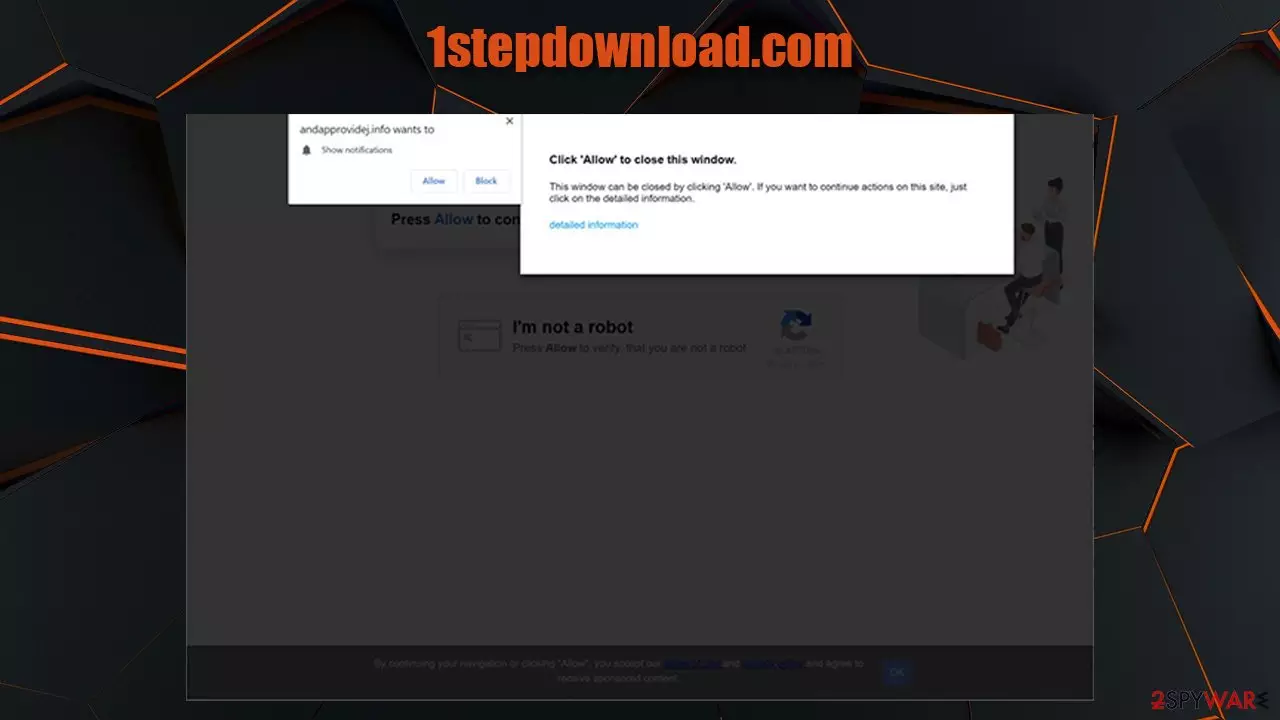
1stepdownload.com is an URL that could appear on your browser after you get redirected from somewhere else. Upon entry, you would see a prompt that would ask you to enable notifications to be received from the site. If you agree to do that, intrusive pop-ups will start showing up on your desktop in regular time intervals, whether you like it or not.
If you are not familiar with this scam, we will explain to you how it works in subsequent paragraphs. Also, the reason you are here is probably that you want to get rid of these pesky, annoying ads. Do not worry; you can find 1stepdownload.com removal instructions below this article.
| Name | 1stepdownload.com |
|---|---|
| Type | Push notifications, pop-ups |
| IP address | 172.67.150.177 |
| Distribution | The unwanted ad activity starts as soon as “Allow” button is pressed in the notification prompt |
| Symptoms | Regardless of which browser is used, notifications from the site will be shown directly on users' desktops |
| Dangers | Installation of potentially unwanted programs or malware, data loss, information leak, financial losses due to encountered scams |
| Deletion | You can stop the intrusive notifications by accessing web browser settings, as explained in the instructions below. If you suspect adware infection, you should use security software to eliminate it quickly |
| Further steps | Cleaning web browsers is just as important when dealing with potentially unwanted programs, so do so by following the instructions below or use FortectIntego as an automatic fix |
First of all, let's talk about how you got to this shady website in the first place. As already mentioned, you could have been redirected from another shady website (for example, pirated software distribution platforms) or after you clicked on an ad accidentally. This behavior is not uncommon online, so you should be very careful with it in the first place – especially if you end up on high-risk websites.
Alternatively, adware[1] installed on your system could be the reason why your Google Chrome, Mozilla Firefox, MS Edge, or another browser is taking you to weird places such as 1stepdownload.com. If that happens to you, you should ignore all the content displayed on the page, leave it immediately and check your system for adware. You can use SpyHunterCombo Cleaner or another reputable security software for that.
Once you access the website, you might be presented with the following message:
Click “Allow” if you are not a robot
Alternatively, you might see a download prompt or that you should click Allow in order for a video from YouTube to be played. In reality, there is no content to be shown after the button is clicked. Instead, you will be redirected to another shady website that could ask you to do the same thing, just use a different technique to trick you into doing so.

In general, push notification scams are extremely common – Newsdom.cc, Connect.wcsoft.link and Sixmedia.cam are perfect examples. Cybercriminals create these websites in order to fool innocent people and then profit from ad revenue – the ads that are shown directly on users' desktops.
Speaking of which, if you click on these pop-ups, you could be taken to malware-laden or scam website, where your personal details could be stolen, or a Trojan could be installed on your system automatically (cybercriminals use software vulnerabilities to penetrate your system without you having to even click on anything – so make sure all your software is patched with the most recent updates).
As long as you don't click on 1stepdownload.com ads and links, you should be relatively safe. All you have to do is remove the annoying pop-up notifications, we provide instructions for every browser below. You should also clean your browsers from the accumulated web data and cookies – you can do that automatically with FortectIntego.
Online scams are common: here's how to avoid them
Push notification scams are very common and, while these pages are getting shut down by service providers relatively quickly, some manage to stay online for a while. Besides, crooks create new ones on a regular basis and, since each of these sites is basically a copy of one another, it takes them very little time to do so.
Therefore, even if the internet is a much safer place than it used to be 20 years ago, you should always use caution, as scammers are there for that juicy ad revenue, your money, or data. Here are a few tips from security researchers at virusi.hr:[2]
- Don't trust notifications that claim your system is infected with a virus or that something is missing (for example, Flash Player is often used for this, even though this software is no longer available or needed);[3]
- Equip your system with modern anti-malware and web protection apps;
- Do not visit pirated software distribution websites;
- Always check the URL of the website that you are visiting – the page might look like a warning from Microsoft, but it is actually a scam;
- Never open suspicious email attachments from unknown sources, especially those that ask you to enable macros.

Delete 1stepdownload.com notifications from your browser
It is important to note that regardless of which browser was used to enable notifications for a particular site, they will appear on your desktop. However, in order to remove 1stepdownload.com ads, you would have to access the settings of the browser you allowed this to happen in the first place.
Thus, if you are using Google Chrome, use the instructions below on how to stop a website from sending you notifications. Keep in mind that the same guide can be used to disable notifications from any website on the internet.
However, if the strange browser behavior does not stop (for example, you still receive random redirects to suspicious sites or pop-ups show up on most sites that you visit), you should check your device for adware. The best way to do that is by scanning the machine with SpyHunterCombo Cleaner and then using FortectIntego to clean web browsers accordingly. Alternatively, you can use the guide below and do it manually.
Remove from Microsoft Edge
Delete unwanted extensions from MS Edge:
- Select Menu (three horizontal dots at the top-right of the browser window) and pick Extensions.
- From the list, pick the extension and click on the Gear icon.
- Click Remove.


Clear cookies and other browser data:
- Click on the Menu (three horizontal dots at the top-right of the browser window) and select Settings > Privacy, search, and services..
- Under Clear browsing data, pick Choose what to clear.
- Select Cookies and other site data and Cached images and files. (apart from passwords, although you might want to include Media licenses as well, if applicable) and click on Clear.


Restore new tab and homepage settings:
- Click the menu icon and choose Settings.
- Then find On startup section.
- Click Remove next to any suspicious startup page.
Reset MS Edge if the above steps did not work:
- Press on Ctrl + Shift + Esc to open Task Manager.
- Click on More details arrow at the bottom of the window.
- Select Details tab.
- Now scroll down and locate every entry with Microsoft Edge name in it. Right-click on each of them and select End Task to stop MS Edge from running.


Instructions for Chromium-based Edge
Delete extensions from MS Edge (Chromium):
- Open Edge and click select Settings > Extensions.
- Delete unwanted extensions by clicking Remove.


Clear cache and site data:
- Click on Menu and go to Settings.
- Select Privacy, search and services.
- Under Clear browsing data, pick Choose what to clear.
- Under Time range, pick All time.
- Select Clear now.


Reset Chromium-based MS Edge:
- Click on Menu and select Settings.
- On the left side, pick Reset settings.
- Select Restore settings to their default values.
- Confirm with Reset.
- This will disable extensions and reset startup pages but will not delete bookmarks, saved passwords, or browsing history.


Remove from Mozilla Firefox (FF)
Remove dangerous extensions:
- Open Mozilla Firefox browser and click on the Menu (three horizontal lines at the top-right of the window).
- Select Add-ons.
- In here, select the unwanted extension and click Remove.


Reset the homepage:
- Click three horizontal lines at the top right corner to open the menu.
- Choose Settings.
- Under Home, set your preferred homepage and new tab settings.
Clear cookies and site data:
- Click Menu and pick Settings.
- Go to Privacy & Security section.
- Scroll down to locate Cookies and Site Data.
- Click on Clear Data...
- Select Cookies and Site Data and Temporary cached files and pages, then click Clear.


Reset Mozilla Firefox
If clearing the browser as explained above did not help, reset Mozilla Firefox:
- Open Mozilla Firefox browser and click the Menu.
- Go to Help and then choose Troubleshooting Information.

- Under Give Firefox a tune up section, click on Refresh Firefox...
- Once the pop-up shows up, confirm the action by pressing on Refresh Firefox.



Remove from Google Chrome
Delete malicious extensions from Google Chrome:
- Open Google Chrome, click on the Menu (three vertical dots at the top-right corner) and select More tools > Extensions.
- In the newly opened window, you will see all the installed extensions. Uninstall all suspicious extensions related to the unwanted program by clicking Remove.


Clear cache and web data from Chrome:
- Click on Menu and pick Settings.
- Under Privacy and security, select Clear browsing data.
- Select Browsing history, Cookies and other site data, as well as Cached images and files.
- Click Clear data.


Change your homepage:
- Click menu and choose Settings.
- Look for a suspicious site in the On startup section.
- Click on Open a specific or set of pages and click on three dots to find the Remove option.
Reset Google Chrome:
If the previous methods did not help you, reset Google Chrome to eliminate all the unwanted components:
- Click on Menu and select Settings.
- In the Settings, scroll down and click Advanced.
- Scroll down and locate Reset and clean up section.
- Now click Restore settings to their original defaults.
- Confirm with Reset settings.


Delete from Safari
Remove dangerous extensions:
- Open Safari, click Safari in the menu at the top-left of the screen, and select Preferences.
- Go to the Extensions tab, look for any suspicious entries, and click Uninstall to remove them.


Clear history and website data:
- Click Safari in the menu and pick Clear History.
- Set Clear to all history and confirm with Clear History.


Reset Safari:
- Click Safari in the menu and select Preferences > Advanced.
- Enable Show Develop menu in menu bar.
- From the menu bar, click Develop and select Empty Caches.


Did this guide help?
Be the first to comment