

The main goal of UpgradedPlatform is to hijack your Mac and display intrusive ads via browsers
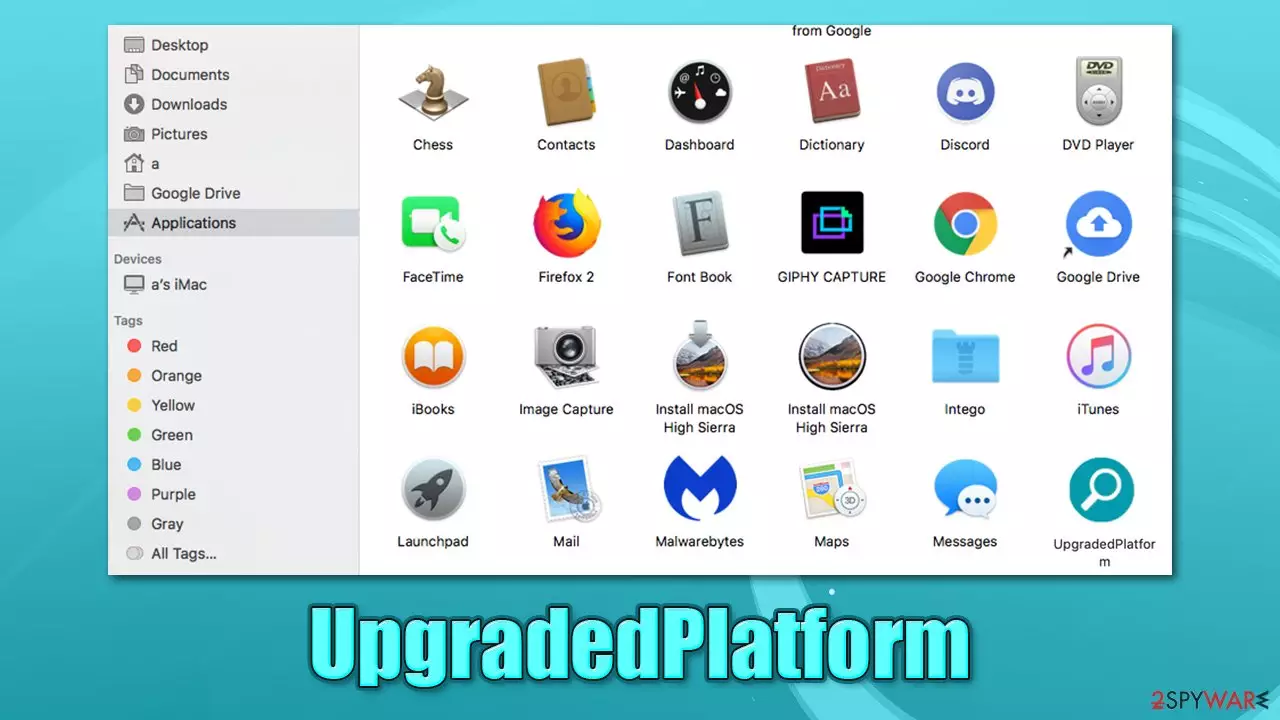
UpgradedPlatform is unwanted software that might have ended up on your system by accident. You have likely installed it after being tricked by a fake Flash Player update or installing insecure applications from torrent or similar websites. Regardless of how this app got into your Mac, it is definitely not something you want to keep, and we will explain why in this article.
First of all, this potentially unwanted application (PUA) belongs to the Adload adware family – one of the more prominent strains that target Macs exclusively. It can be easily identified by its unique icon, which uses a magnifying glass on a teal, green or blue background – you can find a browser extension and an app installed on your device. Unlike regular adware,[1] it has plenty of capabilities and functions that can easily be considered malicious.
Once installed, the virus would change the homepage of your Safari, Chrome, or another browser to Safe Finder or another provider (which might be fully legitimate). Each time you would search the web, alternative results would be presented to you. They would include promotional links and ads; overall, advertisement activity would be more pervasive.
The app uses various persistence techniques and drops many files across the system, making browser extension and the application of UpgradedPlatform removal rather difficult. However, there are several means that can be useful when dealing with this annoying and potentially dangerous Mac threat.
| Name | UpgradedPlatform |
| Type | Mac virus, adware, browser hijacker |
| Malware family | Adload |
| Distribution | Users typically install these apps unintentionally – either when dealing with a software bundle from an insecure website or after being tricked by fake updates |
| Symptoms | Unknown extension installed on the web browser and can't be removed; homepage and new tab address altered to Safe Finder or another provider; increased amount of advertisements |
| Removal | The easiest way to eliminate unwarned and malicious software on Macs is by performing a full system scan with SpyHunterCombo Cleaner or MalwarebytesMalwarebytes security software. Alternatively, you can attempt to terminate the infection manually |
| Optimization | For best performance and system remediation, we recommend using FortectIntego |
How Adload parasites spread
Security researchers are warning users about the increased number of threats targeting Mac devices. It is no surprise that cybercriminals have been following this trend in order to exploit these systems, and their popularity has made them a much more attractive target for hacking schemes.
Fake updates
Flash Player updates are among the most popular techniques used to promote potentially unwanted and malicious software. Users believe that the plugin is needed to display certain web content, although this is not true for a long time now. In fact, Flash has been discontinued from early 2021 due to its vulnerabilities that constantly had to be patched, and the number of victims who had it install was rising.
Flash Player functionality is already replaced by other technologies, which are also implemented within all the modern browsers, including Safari, Firefox, and Chrome. Never download any “updates” that come from a prompt on a random website – these are all scams and should be ignored. Employ ad-block or security programs to prevent such ads from being shown to you in the first place.
Software bundles
If you got used to downloading software from third-party websites, stop doing so immediately. There is a reason why your Mac asks you to enter your ID before installing third-party apps can proceed. In fact, Apple Store has millions of apps to choose from, hence there is no need to visit third-party websites.
Most users download potentially unwanted or malicious applications along with cracked versions of otherwise paid apps. It goes without saying that such activities are illegal. Since pirated software websites are rarely regulated, there are plenty of malicious actors who place fake installers that are disguised as useless programs. This way, thousands of users get infected with malware each day.

Browser hijacking capabilities
Adware has very distinct functions once it is installed on the system – it shows you ads. However, this adware family is known for its hijacking capabilities that affect the whole system, as well as browsers. As soon as it is granted permission to do so, it can take over the browser by appending a different search provider, which results in completely different search results.
These are usually not dangerous by themselves but can commonly lead to pages users otherwise would never visit. This way, the app developers obtain pay-per-click revenue, as users are more likely to click the top results, which are not genuine; they are simply ads.
Browser redirects can also occur, and these can lead to malicious websites where you could encounter banners, pop-ups, notification prompts, and other dangerous content. You might also be tricked into providing your personal details, installing additional useless apps, or paying for products or services you do not need.
Once installed on the browser, the extension might be able to track some of your sensitive data, including passwords or banking details. This is another very dangerous trait of the virus and can cause serious privacy issues in the future.
Besides, the extension is installed with elevated privileges, which would prevent you from removing it easily. You can follow the instructions below to find out how to bypass this functionality.
Easiest way to remove UpgradedPlatform is by using security software
UpgradedPlatform is a mere copy of many other Adload apps, such as TypeCharacter, BestForMac, and plenty of others. They do not provide anything useful but instead compromise the security and integrity of your computer. It is unknown who is behind the campaign, but new versions of the virus arise regularly.
These are commonly recognized by numerous security applications (according to Virus Total[2] analysis) and for a reason. Once installed, the virus makes use of AppleScript[3] in order to create new login items and profiles and drops several .plist files to ensure persistence.
While removing the app manually is possible, we strongly recommend employing security software, such as SpyHunterCombo Cleaner or MalwarebytesMalwarebytes, to do the job for you. This will save you a lot of time and ensure that all the malicious components are deleted properly.
If you want to delete it manually, proceed with the following:
- Open Applications folder
- Select Utilities
- Double-click Activity Monitor
- Here, look for suspicious processes related to adware and use Force Quit command to shut them down
- Go back to the Applications folder
- Find UpgradedPlatform in the list and move it to Trash.
If you are unable to shut down the related processes or can't move the app to Trash, you should look for malicious profiles and login items:
- Go to Preferences and select Accounts
- Click Login items and delete everything suspicious
- Next, pick System Preferences > Users & Groups
- Find Profiles and remove unwanted profiles from the list.
There are likely to be more .plist files hiding in the following locations – delete them all:
- Select Go > Go to Folder.
- Enter /Library/Application Support and click Go or press Enter.
- In the Application Support folder, look for any dubious entries and then delete them.
- Now enter /Library/LaunchAgents and /Library/LaunchDaemons folders the same way and terminate all the related .plist files.


Keep in mind that the manual elimination process might not always result in full virus removal. Therefore, we strongly recommend you perform a scan with security software.
How to clean your browsers
Adware can seriously meddle with your browsers. Since UpgradedPlatform consists of a browser extension besides the main application, you should ensure that not only the malicious files are deleted from your system, but also browsers are cleaned accordingly. Otherwise, the unwanted activities of PUAs can continue, even after the main app is eliminated.
You can get rid of web data, cookies, and other leftovers with the help of FortectIntego utility automatically. Otherwise, you can also do it manually, although this might take some time – especially if you use several browsers. If you are using Safari, you should proceed with the following steps:
- Click Safari > Preferences…
- In the new window, pick Extensions.
- Select the unwanted extension and select Uninstall.


Cookies and website data:
- Click Safari > Clear History…
- From the drop-down menu under Clear, pick all history.
- Confirm with Clear History.


In some cases, resetting the browser is the best practice once all adware is deleted from the device:
- Click Safari > Preferences…
- Go to Advanced tab.
- Tick the Show Develop menu in menu bar.
- From the menu bar, click Develop, and then select Empty Caches.


If you are using Google Chrome or Mozilla Firefox, you will find the step-by-step instructions below.
Delete from macOS
Remove the unwanted application:
- From the menu bar, select Go > Applications.
- In the Applications folder, look for any suspicious entries, then drag them to Trash (or right-click and pick Move to Trash).


Delete leftover files and folders:
- Select Go > Go to Folder.
- Enter /Library/Application Support and remove any suspicious folders related to the unwanted program.
- Repeat the same check in the /Library/LaunchAgents and /Library/LaunchDaemons folders, deleting any suspicious entries.
- Finally, empty the Trash to permanently remove the leftovers.
Remove from Mozilla Firefox (FF)
Remove dangerous extensions:
- Open Mozilla Firefox browser and click on the Menu (three horizontal lines at the top-right of the window).
- Select Add-ons.
- In here, select the unwanted extension and click Remove.


Reset the homepage:
- Click three horizontal lines at the top right corner to open the menu.
- Choose Settings.
- Under Home, set your preferred homepage and new tab settings.
Clear cookies and site data:
- Click Menu and pick Settings.
- Go to Privacy & Security section.
- Scroll down to locate Cookies and Site Data.
- Click on Clear Data...
- Select Cookies and Site Data and Temporary cached files and pages, then click Clear.


Reset Mozilla Firefox
If clearing the browser as explained above did not help, reset Mozilla Firefox:
- Open Mozilla Firefox browser and click the Menu.
- Go to Help and then choose Troubleshooting Information.

- Under Give Firefox a tune up section, click on Refresh Firefox...
- Once the pop-up shows up, confirm the action by pressing on Refresh Firefox.



Remove from Google Chrome
Delete malicious extensions from Google Chrome:
- Open Google Chrome, click on the Menu (three vertical dots at the top-right corner) and select More tools > Extensions.
- In the newly opened window, you will see all the installed extensions. Uninstall all suspicious extensions related to the unwanted program by clicking Remove.


Clear cache and web data from Chrome:
- Click on Menu and pick Settings.
- Under Privacy and security, select Clear browsing data.
- Select Browsing history, Cookies and other site data, as well as Cached images and files.
- Click Clear data.


Change your homepage:
- Click menu and choose Settings.
- Look for a suspicious site in the On startup section.
- Click on Open a specific or set of pages and click on three dots to find the Remove option.
Reset Google Chrome:
If the previous methods did not help you, reset Google Chrome to eliminate all the unwanted components:
- Click on Menu and select Settings.
- In the Settings, scroll down and click Advanced.
- Scroll down and locate Reset and clean up section.
- Now click Restore settings to their original defaults.
- Confirm with Reset settings.


Did this guide help?
Be the first to comment