

ExtendedService is a malicious Mac application which spreads via fake Flash Player updates
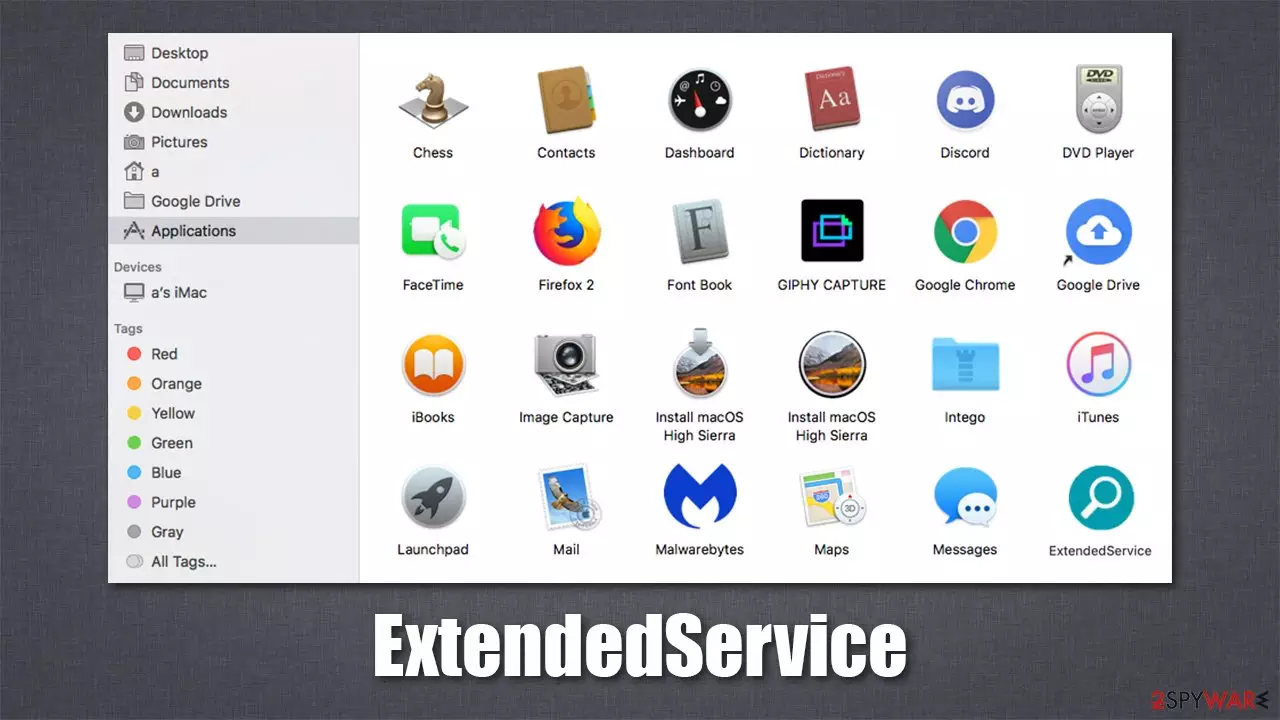
ExtendedService is a member of the extensive Adload malware family, which focuses on Macs exclusively. Its characteristics can be described as those of adware with browser hijacking qualities which spreads via deceptive methods such as fake Flash Player updates or software bundle[1] installers downloaded from illegal third-party sources (torrents, cracks, and similar).
In order to get installed on the device, users have to enter their Apple ID, hence giving it elevated permissions immediately. However, they often don't realize that these permissions are given to the ExtendedService virus rather than the initial app that they tried to install. As a result, an application that is installed on the system level, as well as an extension which attaches itself to Safari, Google Chrome, or Mozilla Firefox web browsers.
The modifications of the browsers come immediately after the installation. Typically victims can see that their homepage and new tab of the browser are no longer the same and are swapped to something else. Search results are also redirected to a different provider, such as Yahoo, diminishing the web browser experience, which is then cluttered with ads.
On the technical side, the virus does much more than just showing ads or altering search results. It drops a bunch of files on the system and establishes itself with higher privileges. This is how users might find other potentially unwanted programs or even malware such as Shlayer Trojan[2] installed on their devices as well.
| name | ExtendedService |
|---|---|
| Type | Mac virus, adware, browser hijacker |
| Family | AdLoad |
| Distribution | Third-party domains distributing pirated software, software bundles, fake Flash Player updates |
| Symptoms | Appends an extension to browser that can not be deleted easily; changes homepage/new tab to Safe Finder, Akamaihd, or something else; redirects lead to potentially malicious or scam sites, promotes suspicious software, etc. |
| Risks | Identity theft, installation of other malicious/unwanted software, financial losses |
| Elimination | Malware drops several .plist files on the system, so manual removal might be complicated. Instead, you should eliminate it with the help of SpyHunterCombo Cleaner or another powerful security software |
| System fix | After you terminate the infection with all its associated components, we recommend you also scan your machine with FortectIntego for best results |
The impact
Even though versions of Adload are generally categorized as adware or potentially unwanted applications, there are plenty of security applications that would mark it as a Trojan or malware. There are several reasons for this – it all comes down to that ExtendedService has plenty of traits that are observed in the operation of malware.
Versions of the strain are released at an alarming rate – we have previously discussed UnitCache, LaunchOptimization, ExpandedActivity, and many others. Malware use names that include two or three random words and the icon, which includes a magnifying glass on a teal, green, or blue background.
Below you will find more operational properties of ExtendedService.
Distribution
Usually, malware is distributed via email spam. However, the developer of this virus takes a different approach and uses fake updates and software bundles downloaded from illegal websites to infect as many people as possible.
While the fake update prompts can include the names of any software, it usually comes down to the notorious Flash Player. Whenever you see a website asking you to update or install it, don't do it as it is a scam. Instead, you will end up installing malware. Flash has been discontinued by Adobe and has been replaced with more advanced technologies years prior.
When it comes to the bundled software, you should simply stay away from third-party websites – especially those that offer illegal versions of popular apps. Apple Store has plenty of free and paid apps to choose from, so keep in mind that every time you access alternative sources for your downloads, you risk your computer security.

Adware traits and browser hijacking
The main goal of adware is to show users ads to monetize the activity. The more people are exposed to commercial material, the more revenue is generated. While this monetization method is very common and used legally on many websites or by many apps, cybercriminals tend to insert ads in illegal ways.
To be precise, the changes to the web browser settings ensure that users are unable to search the web by using their original provider, which can be particularly annoying. Users might struggle to find relevant information online, all while having to deal with numerous ads.
Besides, the ExtendedService extension is installed on the browser with elevated permissions, which allows it to harvest personal information typed within the browser environment – it includes credit card details or passwords of various accounts. As evident, this is an extreme privacy violation and might end up in monetary losses, being susceptible to further phishing campaigns or even identity theft.
Persistence
The app is notorious for not allowing users to uninstall it as they normally would. The browser extension is grayed out within the browser settings, making it impossible to delete in a usual way. The app itself, even if dragged to Trash, quickly returns. This is yet another malicious trait.
Once users give the app permission to be installed on the system, it abuses AppleScript in order to trick the built-in XProtect, which is commonly used for malware protection.[3] This allows the app to populate malicious .plist files in several places on the macOS, which can easily prevent the elimination from being successful when usual methods are used.
Additionally, malware might also establish new Login Items and Profiles, further increasing the impact on the device and persistence capabilities. In any case, in the next few paragraphs, we will explain how to deal with the infection.
Effective malware removal
Due to various persistence methods, we strongly recommend using SpyHunterCombo Cleaner, MalwarebytesMalwarebytes, or other reputable anti-malware to remove ExtendedService and all of its malicious components. Security software is easily capable of not only removing but also preventing malware from being executed, so you must never ignore warnings coming from it – it is not a false positive.
If you want to get rid of malware yourself, you can try, although security experts recommend avoiding doing so. You might delete wrong files or leave some malicious ones running, which might result resurface of the virus. If you are still up for it, proceed with the following instructions.
- Open Applications folder
- Select Utilities
- Double-click Activity Monitor
- Here, look for suspicious processes related to adware and use Force Quit command to shut them down
- Go back to the Applications folder
- Find ExtendedService in the list and move it to Trash.
The above steps might not be possible. If that is the case, you should look for malicious Profiles/Login Items to terminate:
- Go to Preferences and select Accounts
- Click Login items and delete everything suspicious
- Next, pick System Preferences > Users & Groups
- Find Profiles and remove unwanted profiles from the list.
Finally, you should look for leftovers – .plist files. These are configuration files that might enable adware to work more efficiently:
- Select Go > Go to Folder.
- Enter /Library/Application Support and click Go or press Enter.
- In the Application Support folder, look for any dubious entries and then delete them.
- Now enter /Library/LaunchAgents and /Library/LaunchDaemons folders the same way and delete all the related .plist files.


Clean your web browsers
While you might have deleted malicious files either manually or automatically, web browsers might still remain vulnerable (although security software should be able to remove the extension). During its operation, adware loads various components within the browser environment. For example, it can use cookies to track you.
To ensure the elimination process is successful, you should either reset your browser or clean it properly. You can avoid going through the steps below if you employ an automatic maintenance tool FortectIntego. Otherwise, proceed with the following instructions on Safari:
- Click Safari > Clear History…
- From the drop-down menu under Clear, pick all history.
- Confirm with Clear History.


Reset the browser:
- Click Safari > Preferences…
- Go to Advanced tab.
- Tick the Show Develop menu in menu bar.
- From the menu bar, click Develop, and then select Empty Caches.


If you are using Google Chrome or Mozilla Firefox, you will find the step-by-step instructions below.
Remove from Mozilla Firefox (FF)
Remove dangerous extensions:
- Open Mozilla Firefox browser and click on the Menu (three horizontal lines at the top-right of the window).
- Select Add-ons.
- In here, select the unwanted extension and click Remove.


Reset the homepage:
- Click three horizontal lines at the top right corner to open the menu.
- Choose Settings.
- Under Home, set your preferred homepage and new tab settings.
Clear cookies and site data:
- Click Menu and pick Settings.
- Go to Privacy & Security section.
- Scroll down to locate Cookies and Site Data.
- Click on Clear Data...
- Select Cookies and Site Data and Temporary cached files and pages, then click Clear.


Reset Mozilla Firefox
If clearing the browser as explained above did not help, reset Mozilla Firefox:
- Open Mozilla Firefox browser and click the Menu.
- Go to Help and then choose Troubleshooting Information.

- Under Give Firefox a tune up section, click on Refresh Firefox...
- Once the pop-up shows up, confirm the action by pressing on Refresh Firefox.



Remove from Google Chrome
Delete malicious extensions from Google Chrome:
- Open Google Chrome, click on the Menu (three vertical dots at the top-right corner) and select More tools > Extensions.
- In the newly opened window, you will see all the installed extensions. Uninstall all suspicious extensions related to the unwanted program by clicking Remove.


Clear cache and web data from Chrome:
- Click on Menu and pick Settings.
- Under Privacy and security, select Clear browsing data.
- Select Browsing history, Cookies and other site data, as well as Cached images and files.
- Click Clear data.


Change your homepage:
- Click menu and choose Settings.
- Look for a suspicious site in the On startup section.
- Click on Open a specific or set of pages and click on three dots to find the Remove option.
Reset Google Chrome:
If the previous methods did not help you, reset Google Chrome to eliminate all the unwanted components:
- Click on Menu and select Settings.
- In the Settings, scroll down and click Advanced.
- Scroll down and locate Reset and clean up section.
- Now click Restore settings to their original defaults.
- Confirm with Reset settings.


Did this guide help?
Be the first to comment