

Redirects to Sincemensegment.top might indicate adware infection
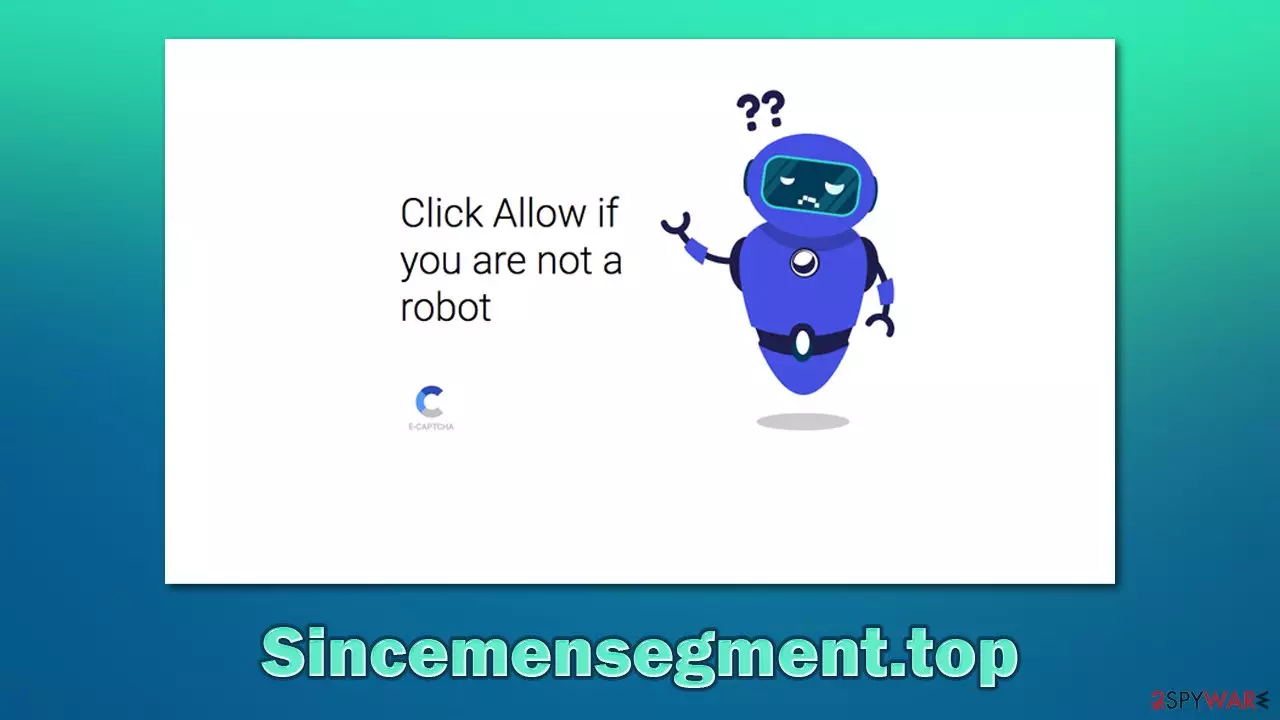
Sincemensegment.top ads can show up on your desktop one day suddenly. This phenomenon has been widely questioned by people for many years now. It is because many users have not encountered push notification scams before, and they are unaware of how they work. In this article, we will explain where the pop-ups are coming from, how to stop them, and how to check your system thoroughly to ensure that no malicious software is running in the background.
Nobody would access this scam site on purpose. Instead, users are redirected from some other malicious page – they either click on a fake link, or an URL redirect does this job automatically. Upon website entry, users are presented with two different components, which include a pop-up that asks whether push notifications should be allowed, and a picture or a GIF (which also contains a deceptive message), encouraging them to press the allow button.
While most users would leave Sincemensegment.top website immediately, sensing that something is not right, others – mostly those who are less familiar with online scams – would listen to the message that is provided by scammers. In other cases, some users might click the allow button accidentally, although this is less common.
As soon as that is done, the website has permission to send users the information whenever it is programmed to do so, although this activity does not always start immediately, which only adds to the confusion. These prompts can include all sorts of information including links. Evidently, scammers do not care about the well-being of users and instead see them as means for easy monetization through ad clicks.
| Name | Sincemensegment.top |
|---|---|
| Type | Push notifications, scam, ads |
| Distribution | Site authors employ various tricks to make users enable notifications; the entry happens as soon as the “Allow” button is pressed on the prompt |
| Symptoms | Pop-up notifications show up on a regular basis on the screen – these ads often include inappropriate, scam, phishing, or other similar content |
| risks | Clicking on links that are embedded within the notification prompt, exploring the sites these links bring to, or downloading files can result in malware infection, financial losses, and privacy issues |
| Elimination | You can stop the intrusive notifications by accessing web browser settings, as explained in the instructions below. If you suspect adware infection, you should scan your machine with SpyHunterCombo Cleaner or another security application |
| Further steps | Cleaning web browsers is just as important when dealing with potentially unwanted programs, so do so by following the instructions below or use FortectIntego for a quicker option |
Online scams can trick you into doing things you otherwise wouldn't
At 2-spyware.com, we have been observing and analyzing online scams for many years. While the internet is overall much more regulated and users are less likely to encounter malicious content online, there are thousands of scams and phishing[1] attempts circulating on the web. This is why it is important to keep your guard up at all times and employ adequate security tools that would prevent unintentional infiltration of malware or personal information disclosure to unknown parties.
While there are many different scams that one can encounter while browsing the web (tech support, get rich quick, survey scams, and many others), push notifications have been used by unfair individuals the profit from ads. In order for this to work, scammers create web pages that take barely a few minutes to make. They are then enrolled in a complicated chain of advertisement networks (usually with a bad reputation), which interlinks them with other malicious websites.
As a result, users may be redirected to websites such as Sincemensegment.top after clicking a link or even accessing another malicious website. Likewise, browser redirects might also be initiated by potentially unwanted programs, namely adware.[2] These apps are distributed in unfair ways, which results in many people not even knowing that they have them installed in the first place. This is why it is a good practice to scan your computer with antimalware software (SpyHunterCombo Cleaner is our choice) as soon as you notice some strange behavior, e.g., redirects.
As soon as you access the website, you might get surprised by an unexpected request to allow notifications to be shown. While this practice is common, fraud is not always used to make users accept this proposal. Instead, crooks use various fake messages to mislead users and make them believe that's what they're doing is not what it actually is.
Here is an example of a few messages is that you might come across after encountering a scam website:
- If you are 18+ tap Allow
- Click Allow to continue
- Press Allow to watch the video
- Click allow to verify that you are not a robot
It does not really matter whether you press the allow a block button within the prompt in terms of the content you will be allegedly presented with. Instead, you're likely to be redirected to a similar website, such as Frolicpan.com, Read-before-the-rest.com, or Fre-master1.xyz. However, if you press the allow button, you do grant permission for the site to show you notifications at any time.

Therefore, the best action here is to leave immediately and never interact with the site's content. Simply remember that notification prompt always means the same, regardless of what the contents of the page tell you.
Sincemensegment.top pop-up removal steps
Before you proceed with the removal of the intrusive pop-ups, you should make sure that your system is scanned with security software, such as SpyHunterCombo Cleaner or MalwarebytesMalwarebytes. This option is also a must for those who downloaded something or clicked on links on suspicious websites. In fact, malware can run in the background without any symptoms at all,[3] all the while stealing your information performing other malicious actions behind your back.
Keep in mind that if something malicious was found on your device, you should also clean your web browsers accordingly. This includes deleting web data, cookies, caches, and other leftovers. If you want a quick solution, we highly recommend using FortectIntego – it could do it for you automatically.
In order to remove Sincemensegment.top ads, you have to access the setting section of your browser and deny the permission for the website descend you notifications. Below you will find how to do that on all most popular browsers.
Google Chrome
- Select Menu > Settings > Advanced.
- Click on Site Settings > Notifications.
- Check the Allow section and find the address of the site.
- Select More Actions and pick Block.


Mozilla Firefox:
- Go to Menu and then select Options.
- Go to Privacy & Security > Notifications > Settings.
- Choose Block after picking this option from the drop-down menu.
- Confirm with Save Changes.


MS Edge (Chromium)
- Go to Menu and pick Settings.
- Select Site permissions.
- Click on Notifications.
- Find the site URL, and click More actions.
- Pick Block.


MS Edge (legacy):
- Open Microsoft Edge, and click the Settings and more button (three horizontal dots) at the top-right of the window.
- Select Settings and then go to Advanced.
- Under Website permissions, pick Manage permissions and select the URL in question.
- Toggle the switch to the left to turn notifications off on Microsoft Edge.


Safari
- Click on Safari > Preferences…
- Go to the Websites tab and, under General, select Notifications.
- Select the web address in question, click the drop-down menu and select Deny.


Also, below you will find information on how to get rid of potential and wanted programs manually and how to clean your web browsers as well. Even if computer maintenance can be done manually, we strongly recommend using security tools that would prevent malware infections, unwanted redirects, system crashes, and other disturbances.
Uninstall from Windows
Uninstall from Windows 10/8:
- Type Control Panel into the Windows search box and open the result.
- Under Programs, select Uninstall a program.


Uninstall from Windows 7/XP:
- Click on Windows Start > Control Panel (Windows XP users should click on Add/Remove Programs).
- In Control Panel, select Programs > Uninstall a program.


Remove the unwanted program:
- In the Programs and Features window, look for any recently installed suspicious entries, select them, and click Uninstall.
- If User Account Control appears, click Yes to confirm, then complete the removal.


Delete from macOS
Remove the unwanted application:
- From the menu bar, select Go > Applications.
- In the Applications folder, look for any suspicious entries, then drag them to Trash (or right-click and pick Move to Trash).


Delete leftover files and folders:
- Select Go > Go to Folder.
- Enter /Library/Application Support and remove any suspicious folders related to the unwanted program.
- Repeat the same check in the /Library/LaunchAgents and /Library/LaunchDaemons folders, deleting any suspicious entries.

- Finally, empty the Trash to permanently remove the leftovers.

Remove from Microsoft Edge
Delete unwanted extensions from MS Edge:
- Select Menu (three horizontal dots at the top-right of the browser window) and pick Extensions.
- From the list, pick the extension and click on the Gear icon.
- Click Remove.


Clear cookies and other browser data:
- Click on the Menu (three horizontal dots at the top-right of the browser window) and select Settings > Privacy, search, and services..
- Under Clear browsing data, pick Choose what to clear.
- Select Cookies and other site data and Cached images and files. (apart from passwords, although you might want to include Media licenses as well, if applicable) and click on Clear.


Restore new tab and homepage settings:
- Click the menu icon and choose Settings.
- Then find On startup section.
- Click Remove next to any suspicious startup page.
Reset MS Edge if the above steps did not work:
- Press on Ctrl + Shift + Esc to open Task Manager.
- Click on More details arrow at the bottom of the window.
- Select Details tab.
- Now scroll down and locate every entry with Microsoft Edge name in it. Right-click on each of them and select End Task to stop MS Edge from running.


Instructions for Chromium-based Edge
Delete extensions from MS Edge (Chromium):
- Open Edge and click select Settings > Extensions.
- Delete unwanted extensions by clicking Remove.


Clear cache and site data:
- Click on Menu and go to Settings.
- Select Privacy, search and services.
- Under Clear browsing data, pick Choose what to clear.
- Under Time range, pick All time.
- Select Clear now.


Reset Chromium-based MS Edge:
- Click on Menu and select Settings.
- On the left side, pick Reset settings.
- Select Restore settings to their default values.
- Confirm with Reset.
- This will disable extensions and reset startup pages but will not delete bookmarks, saved passwords, or browsing history.


Remove from Mozilla Firefox (FF)
Remove dangerous extensions:
- Open Mozilla Firefox browser and click on the Menu (three horizontal lines at the top-right of the window).
- Select Add-ons.
- In here, select the unwanted extension and click Remove.


Reset the homepage:
- Click three horizontal lines at the top right corner to open the menu.
- Choose Settings.
- Under Home, set your preferred homepage and new tab settings.
Clear cookies and site data:
- Click Menu and pick Settings.
- Go to Privacy & Security section.
- Scroll down to locate Cookies and Site Data.
- Click on Clear Data...
- Select Cookies and Site Data and Temporary cached files and pages, then click Clear.


Reset Mozilla Firefox
If clearing the browser as explained above did not help, reset Mozilla Firefox:
- Open Mozilla Firefox browser and click the Menu.
- Go to Help and then choose Troubleshooting Information.

- Under Give Firefox a tune up section, click on Refresh Firefox...
- Once the pop-up shows up, confirm the action by pressing on Refresh Firefox.



Remove from Google Chrome
Delete malicious extensions from Google Chrome:
- Open Google Chrome, click on the Menu (three vertical dots at the top-right corner) and select More tools > Extensions.
- In the newly opened window, you will see all the installed extensions. Uninstall all suspicious extensions related to the unwanted program by clicking Remove.


Clear cache and web data from Chrome:
- Click on Menu and pick Settings.
- Under Privacy and security, select Clear browsing data.
- Select Browsing history, Cookies and other site data, as well as Cached images and files.
- Click Clear data.


Change your homepage:
- Click menu and choose Settings.
- Look for a suspicious site in the On startup section.
- Click on Open a specific or set of pages and click on three dots to find the Remove option.
Reset Google Chrome:
If the previous methods did not help you, reset Google Chrome to eliminate all the unwanted components:
- Click on Menu and select Settings.
- In the Settings, scroll down and click Advanced.
- Scroll down and locate Reset and clean up section.
- Now click Restore settings to their original defaults.
- Confirm with Reset settings.


Delete from Safari
Remove dangerous extensions:
- Open Safari, click Safari in the menu at the top-left of the screen, and select Preferences.
- Go to the Extensions tab, look for any suspicious entries, and click Uninstall to remove them.


Clear history and website data:
- Click Safari in the menu and pick Clear History.
- Set Clear to all history and confirm with Clear History.


Reset Safari:
- Click Safari in the menu and select Preferences > Advanced.
- Enable Show Develop menu in menu bar.
- From the menu bar, click Develop and select Empty Caches.


Did this guide help?
Be the first to comment