

Leaurned-fundonals.com is a malicious website designed to push scams to users
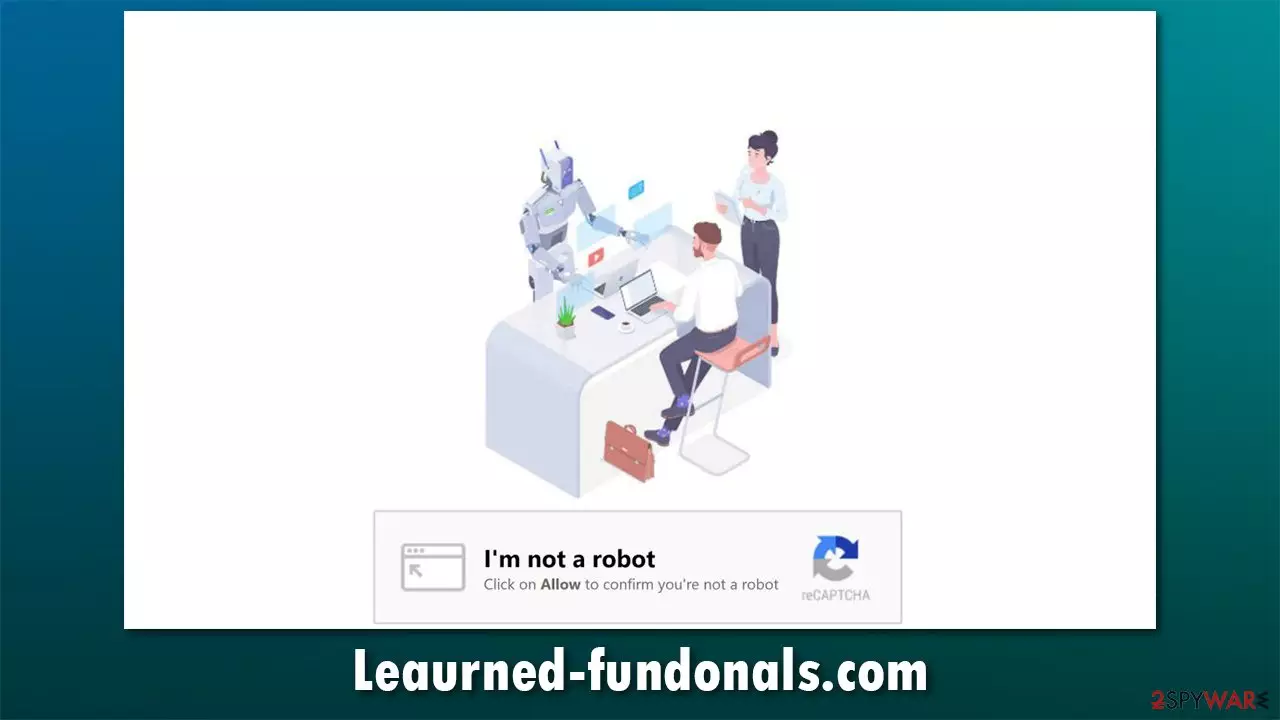
Every user cam across ads when browsing the web at some point – they are ubiquitous, and for a reason. Ads allow websites to monetize their content without charging users for it, and most users don't mind advertisements that are not intrusive as long as they can get something for free. Nonetheless, many malicious parties use ads unfairly or even maliciously.
Leaurned-fundonals.com is just one of the thousands of websites based on a push notification scam. While there could be numerous ways how users enter it, the contents of the site are always of a deceptive nature, and there are two elements to it that are visible immediately:
- A push notification prompt which asks users to enable notifications;
- A message in the background (typically includes a picture as well) asking visitors to press the “Allow” button in a deceptive manner.
While most users realize that there is something wrong here, some less experienced people do fulfill the request. By doing so, they immediately grant permission for the website to send notifications without restrictions, which can greatly disrupt users' time online.
What makes this scheme quite bad is the contents of those pop-ups. While some of the links embedded within these notifications are relatively safe, Leaurned-fundonals.com ads also include links to phishing, fake update, or even malware-laden websites. Thus, you should never click on the links provided, as it might be very dangerous.
Instead, you should ensure that there are no malicious programs installed on your system and stop the intrusive pop-ups via web browser settings, as we explain below.
| Name | Leaurned-fundonals.com |
| Type | Push notifications, ads, scam |
| Distribution | As soon as the “Allow” button is pressed within the site's notification prompt |
| Symptoms | Pop-up notifications show up at any time at the bottom right or top right corner of the screen (depending on the OS) |
| Risks | Ads and links to sites displayed by the website might be dangerous: you might suffer from monetary losses, disclosure of sensitive information to unknown parties, or install malware/PUPs on the system |
| Removal | You can eliminate the intrusive notifications via your web browser settings; checking the system for adware and malware with SpyHunterCombo Cleaner is also recommended |
| Additional steps | Computer infections can cause significant damage to system files or disrupt normal settings. To revert these changes and remediate the OS, perform a full system scan with FortectIntego repair software |
How did you end up on Leaurned-fundonals.com?
In order to understand how the scam works, let's first talk about how users end up on the website in the first place. Evidently, no people would intentionally visit a website of dubious origin intentionally. In fact, if the web address is typed in the URL bar, nothing would come up. Instead, users might find themselves being redirected to it randomly.
In most cases, users end up on Leaurned-fundonals.com after clicking on a link somewhere else, typically on websites that are considered less secure (torrents, gambling, etc.). They might also be taken away automatically thanks to embedded scripts within these sites, where their browser redirects them automatically without warning or a click.
Besides, staying away from websites that distribute software cracks or pirated programs would also likely shield you from being infected with the most dangerous malware; for example, Djvu ransomware variants such as Koom or Efdc are known to be spread via torrent and software crack sites.
Alternatively, potentially unwanted programs might also cause unexpected browser redirects. Adware[1] is known to be one of the main culprits for this issue. It also ensures that users are exposed to as much commercial content as possible, including pop-ups, banners, coupons, deals, and other types of ads.
To ensure that your device is not infected, we strongly recommend you perform a scan with SpyHunterCombo Cleaner or another reputable anti-malware software. Of course, if you are aware of which app is causing the unwanted behavior, then you could also remove it manually, although you should keep in mind that the method is far from perfect. Automatic malware removal software can check the system thoroughly and remove all the malicious components at once.

If malware or adware has been found on your computer, make sure you also either reset or clean your browsers from various caches, cookies,[2] and other web data. This will help to stop unwanted web tracking and ensure that no more ads are showing up randomly. We recommend using FortectIntego for a quicker solution, as it can also repair any system damage sustained during a virus attack.
Stop the intrusive notifications by accessing the settings of your browser
The behavior of push notifications is so invasive that many users believe they have been infected with a virus. While it could be the case, notifications from Leaurned-fundonals.com are definitely not the symptom of infection but rather that permission was granted to show these pop-ups to a particular website.
Luckily, this can be easily reverted. If you have already scanned your device with security software and nothing was found, please proceed with the instructions below to stop the pop-ups from showing up on your screen.
Google Chrome (desktop):
- Open Google Chrome browser and go to Menu > Settings.
- Scroll down and click on Advanced.
- Locate the Privacy and security section and pick Site Settings > Notifications.

- Look at the Allow section and look for a suspicious URL.
- Click the three vertical dots next to it and pick Block. This should remove unwanted notifications from Google Chrome.



Google Chrome (Android):
- Open Google Chrome and tap on Settings (three vertical dots).
- Select Notifications.
- Scroll down to Sites section.
- Locate the unwanted URL and toggle the button to the left (Off setting).


Mozilla Firefox:
- Open Mozilla Firefox and go to Menu > Options.
- Click on Privacy & Security section.
- Under Permissions, you should be able to see Notifications. Click Settings button next to it.

- In the Settings – Notification Permissions window, click on the drop-down menu by the URL in question.
- Select Block and then click on Save Changes. This should remove unwanted notifications from Mozilla Firefox.



Safari:
- Click on Safari > Preferences…
- Go to Websites tab and, under General, select Notifications.
- Select the web address in question, click the drop-down menu and select Deny.


MS Edge:
- Open Microsoft Edge, and click the Settings and more button (three horizontal dots) at the top-right of the window.
- Select Settings and then go to Advanced.
- Under Website permissions, pick Manage permissions and select the URL in question.
- Toggle the switch to the left to turn notifications off on Microsoft Edge.


MS Edge (Chromium):
- Open Microsoft Edge, and go to Settings.
- Select Site permissions.
- Go to Notifications on the right.
- Under Allow, you will find the unwanted entry.
- Click on More actions and select Block.


Internet Explorer:
- Open Internet Explorer, and click on the Gear icon at the top-right on the window.
- Select Internet options and go to Privacy tab.
- In the Pop-up Blocker section, click on Settings.
- Locate web address in question under Allowed sites and pick Remove.


Ways to avoid being tricked by online scams
Let's make it clear: push notifications, as a feature, are not malicious. It is a simple component – an API[3] – which can be used by any website out there. If the developer chooses to use it, a notification prompt will be shown to users as soon as they enter a particular site. They are then free to choose either allow or block notifications.
However, crooks were quick to realize that this tool can be used to deliver ads to users, and they were quick to implement it. All they have to do is convince users that they need to allow notifications to be shown in the first place on a website specifically created just for that.
Here are a few scam message examples you might encounter after accessing Leaurned-fundonals.com:
- Click Allow to continue
- Confirm you are not a robot
- If you are 18+ press Allow
- Click “Allow” to start downloading
- Click “Allow” to play the video
None of these statements are genuine, as all of them are preying on visitors' inability to understand that the push notification prompt actually allows the intrusive ads in, and whatever is claimed within these messages never shows up – any video, any 18+ content, or anything similar of that sort. Instead, users are simply redirected to another similar website (for example, Flewssyzygia.casa, Erceandblo.xyz, or Mytravelsday1.xyz), even if the Block button is pressed instead of the “Allow” one.
Many malicious actors soon copied this behavior, and now we see thousands of scam websites like that. If you encounter a similar website in the future, keep this in mind and leave it immediately. If you allow these notifications by accident, you can also use the aforementioned instructions to easily remove them.
Remove from Microsoft Edge
Delete unwanted extensions from MS Edge:
- Select Menu (three horizontal dots at the top-right of the browser window) and pick Extensions.
- From the list, pick the extension and click on the Gear icon.
- Click Remove.


Clear cookies and other browser data:
- Click on the Menu (three horizontal dots at the top-right of the browser window) and select Settings > Privacy, search, and services..
- Under Clear browsing data, pick Choose what to clear.
- Select Cookies and other site data and Cached images and files. (apart from passwords, although you might want to include Media licenses as well, if applicable) and click on Clear.


Restore new tab and homepage settings:
- Click the menu icon and choose Settings.
- Then find On startup section.
- Click Remove next to any suspicious startup page.
Reset MS Edge if the above steps did not work:
- Press on Ctrl + Shift + Esc to open Task Manager.
- Click on More details arrow at the bottom of the window.
- Select Details tab.
- Now scroll down and locate every entry with Microsoft Edge name in it. Right-click on each of them and select End Task to stop MS Edge from running.


Instructions for Chromium-based Edge
Delete extensions from MS Edge (Chromium):
- Open Edge and click select Settings > Extensions.
- Delete unwanted extensions by clicking Remove.


Clear cache and site data:
- Click on Menu and go to Settings.
- Select Privacy, search and services.
- Under Clear browsing data, pick Choose what to clear.
- Under Time range, pick All time.
- Select Clear now.


Reset Chromium-based MS Edge:
- Click on Menu and select Settings.
- On the left side, pick Reset settings.
- Select Restore settings to their default values.
- Confirm with Reset.
- This will disable extensions and reset startup pages but will not delete bookmarks, saved passwords, or browsing history.


Remove from Mozilla Firefox (FF)
Remove dangerous extensions:
- Open Mozilla Firefox browser and click on the Menu (three horizontal lines at the top-right of the window).
- Select Add-ons.
- In here, select the unwanted extension and click Remove.


Reset the homepage:
- Click three horizontal lines at the top right corner to open the menu.
- Choose Settings.
- Under Home, set your preferred homepage and new tab settings.
Clear cookies and site data:
- Click Menu and pick Settings.
- Go to Privacy & Security section.
- Scroll down to locate Cookies and Site Data.
- Click on Clear Data...
- Select Cookies and Site Data and Temporary cached files and pages, then click Clear.


Reset Mozilla Firefox
If clearing the browser as explained above did not help, reset Mozilla Firefox:
- Open Mozilla Firefox browser and click the Menu.
- Go to Help and then choose Troubleshooting Information.

- Under Give Firefox a tune up section, click on Refresh Firefox...
- Once the pop-up shows up, confirm the action by pressing on Refresh Firefox.



Remove from Google Chrome
Delete malicious extensions from Google Chrome:
- Open Google Chrome, click on the Menu (three vertical dots at the top-right corner) and select More tools > Extensions.
- In the newly opened window, you will see all the installed extensions. Uninstall all suspicious extensions related to the unwanted program by clicking Remove.


Clear cache and web data from Chrome:
- Click on Menu and pick Settings.
- Under Privacy and security, select Clear browsing data.
- Select Browsing history, Cookies and other site data, as well as Cached images and files.
- Click Clear data.


Change your homepage:
- Click menu and choose Settings.
- Look for a suspicious site in the On startup section.
- Click on Open a specific or set of pages and click on three dots to find the Remove option.
Reset Google Chrome:
If the previous methods did not help you, reset Google Chrome to eliminate all the unwanted components:
- Click on Menu and select Settings.
- In the Settings, scroll down and click Advanced.
- Scroll down and locate Reset and clean up section.
- Now click Restore settings to their original defaults.
- Confirm with Reset settings.


Delete from Safari
Remove dangerous extensions:
- Open Safari, click Safari in the menu at the top-left of the screen, and select Preferences.
- Go to the Extensions tab, look for any suspicious entries, and click Uninstall to remove them.


Clear history and website data:
- Click Safari in the menu and pick Clear History.
- Set Clear to all history and confirm with Clear History.


Reset Safari:
- Click Safari in the menu and select Preferences > Advanced.
- Enable Show Develop menu in menu bar.
- From the menu bar, click Develop and select Empty Caches.


Did this guide help?
Be the first to comment