

BasicEngine is a Mac virus that evades all built-in defenses
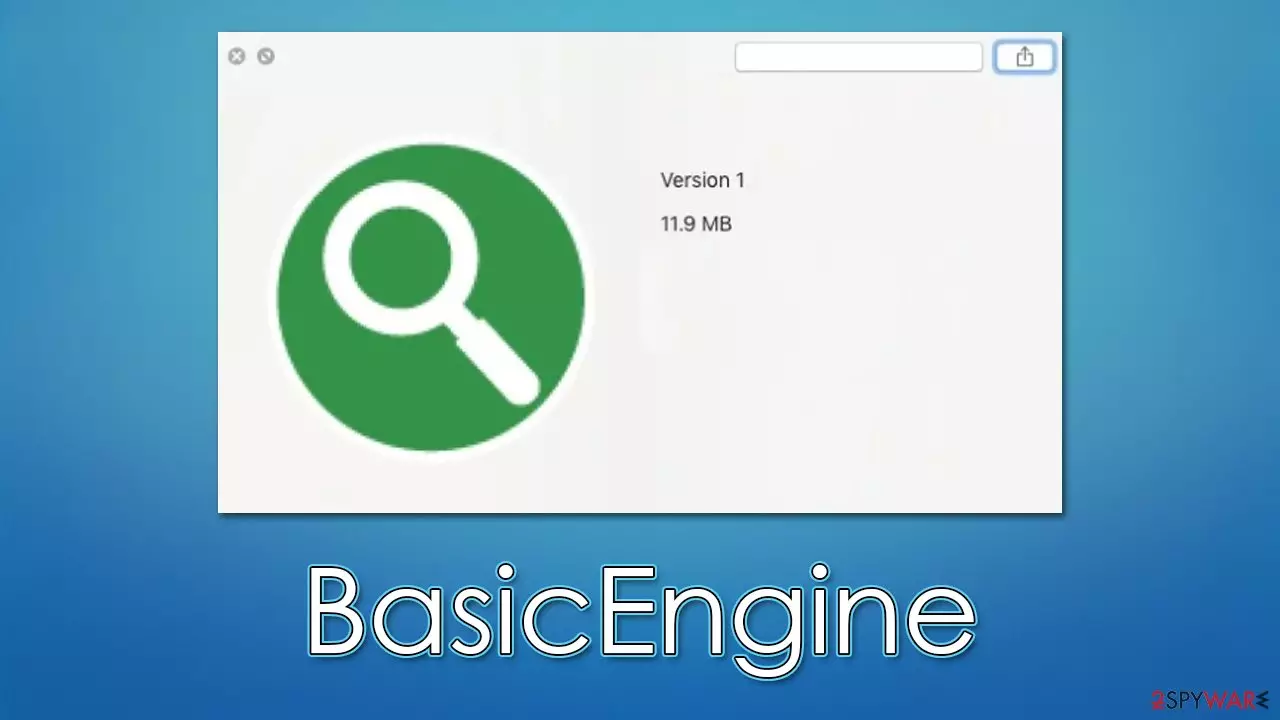
BasicEngine is a potentially unwanted application designed for Mac systems, although it is not your typical one. First of all, it stems from a very prominent malware family known as Adload, which has been infecting thousands of users regularly with its hundreds of versions.
The BasicEngine virus arrives at users' computers without them indenting to let it in, although that's precisely what happens. People are usually unaware of the distribution methods of malware, so they end up installing it themselves. The reason for this is fake Flash Player updates and repacked or cracked software installers. In both cases, people think that they are installing something else and give permission for the installation by entering their Apple ID.
Users might not immediately notice that their devices have been infected. The first signs are usually spotted as soon as Safari, Chrome, Firefox, or another used browser is opened, as people can see that their homepage is changed to something different and a new extension installed. With the help of this component, the virus can monitor users' behavior online and display various intrusive ads during their browsing sessions.
| Name | BasicEngine |
| Type | Mac virus, adware, browser hijacker |
| Malware family | Adload |
| Distribution | Pirated software installers, fake Flash Player updates, misleading ads |
| Symptoms | Installs a new extension and application on the system; changes homepage and new tab of the browser; inserts ads and malicious links; tracks sensitive user data via extension |
| Removal | Although not recommended to novice users, manual elimination of Mac malware is possible. Use SpyHunterCombo Cleaner to remove all the malicious components automatically |
| System optimization | Malware and adware can meddle with your system, reducing its performance. If you want to quickly fix various issues, we recommend you try using automated tools like FortectIntego |
How you get infected
It is not a secret that users would not purposely install malicious software on their systems, so crooks need to devise ways of making it into reality. One of the most common ways of distributing malware on the internet is by using some form of phishing or social engineering,[1] and BasicEngine is not an exception.
The vast majority of users who get infected with this virus do so after they are tricked by a fake Flash Player Update. Flash Player is a well-known software that has been used to play multimedia content online and is rather ingrained in users' minds as something that is needed.
In reality, the plugin has been long replaced by technologies such as HTML 5[2] and was discontinued by its developer Adobe several years ago.[3] Therefore, there is no reason for you to download Flash Player anymore, especially if it comes from random websites.
Other popular Adload distribution methods are software cracks and pirated software installers. People who visit peer-to-peer networks and similar sites are at a much higher risk of malware infection, so we recommend staying away from these in general (seeing how it is illegal to download copyrighted software that is otherwise paid).
More about Adload
Adload is one of the more prominent malware families that so many people encounter on a regular basis. It has been around since at least 2017, with hundreds of versions released by an unknown group of cybercriminals behind it. The most recent versions are:
There were also some connections found to other malware strains, including Bundlore and Shlayer, both of which use the fake Flash Player installer name “Installer.App,” which might indicate that the developers of these strains are the same.
Adload versions always use a distinctive icon that consists of a teal, blue, green, or green background with a magnifying glass on it. Also, since malware runs on the highest permissions on the system, it can automatically engage in additional application installation without user permission, so it is not uncommon for several malicious apps to be installed on one affected system.

BasicEngine removal
Adload's simple yet effective distribution and operation methods ensure it remains on the system as long as possible. Due to persistence mechanisms, malware can remain on the system without any disturbances. While we do provide manual removal methods below, we strongly recommend you employ SpyHunterCombo Cleaner, MalwarebytesMalwarebytes, or other powerful security software to get rid of the infection.
Remove the main app
Your first task is to stop the background processes from running during the elimination. This can be achieved by accessing the Activity Monitor and then getting rid of the main app:
- Select Utilities
- Double-click Activity Monitor
- Here, look for suspicious processes related to adware and use the Force Quit command to shut them down
- Go back to the Applications folder
- Find UpgradedPlatform in the list and move it to Trash.


Your next target is the Login Items and unwanted Profiles created by the virus, as these elements might increase the persistence if not removed correctly:
- Go to Preferences and pick Accounts
- Click Login items and delete everything suspicious
- Next, pick System Preferences > Users & Groups
- Find Profiles and remove unwanted profiles from the list.
Finally, you should get rid of the leftover files. The PLIST files are small config files, also known as “Properly list.” They hold various user settings and hold information about certain applications.
- Select Go > Go to Folder.
- Enter /Library/Application Support and click Go or press Enter.
- In the Application Support folder, look for any dubious entries and then delete them.
- Now enter /Library/LaunchAgents and /Library/LaunchDaemons folders the same way and terminate all the related .plist files.


Get rid of malicious browser components
If trying to remove the BasicEngine virus manually, you should remember the browser extension. Thanks to this component, malware can steal your personal information, such as personal account details or even banking information. Thus, make sure you eliminate the extension as soon as possible.
Safari
- Click Safari > Preferences…
- In the new window, pick Extensions.
- Select the unwanted extension and select Uninstall.


Google Chrome
- Open Google Chrome, click on the Menu (three vertical dots at the top-right corner) and select More tools > Extensions.
- In the newly opened window, you will see all the installed extensions. Uninstall all the suspicious plugins that might be related to the unwanted program by clicking Remove.


After you get rid of the extension, you should ensure that all the caches are eliminated from your local folders, or tracking activities might continue. You can do this effectively with the help of FortectIntego utility, which can also be used to remove various junk from the system, improving its performance. If you rather do this manually, follow these steps:
Safari
- Click Safari > Clear History…
- From the drop-down menu under Clear, pick all history.
- Confirm with Clear History.


Google Chrome
- Click on Menu and pick Settings.
- Under Privacy and security, select Clear browsing data.
- Select Browsing history, Cookies and other site data, as well as Cached images and files.
- Click Clear data.


If you could not remove malware components within your web browser, you could simply reset it, as we explain below. Your bookmarks and other preferences will not be lost.
Safari
- Click Safari > Preferences…
- Go to the Advanced tab.
- Tick the Show Develop menu in the menu bar.
- From the menu bar, click Develop, and then select Empty Caches.


Google Chrome
- Click on Menu and select Settings.
- In the Settings, scroll down and click Advanced.
- Scroll down and locate Reset and clean up section.
- Now click Restore settings to their original defaults.
- Confirm with Reset settings.


Remove from Mozilla Firefox (FF)
Remove dangerous extensions:
- Open Mozilla Firefox browser and click on the Menu (three horizontal lines at the top-right of the window).
- Select Add-ons.
- In here, select the unwanted extension and click Remove.


Reset the homepage:
- Click three horizontal lines at the top right corner to open the menu.
- Choose Settings.
- Under Home, set your preferred homepage and new tab settings.
Clear cookies and site data:
- Click Menu and pick Settings.
- Go to Privacy & Security section.
- Scroll down to locate Cookies and Site Data.
- Click on Clear Data...
- Select Cookies and Site Data and Temporary cached files and pages, then click Clear.


Reset Mozilla Firefox
If clearing the browser as explained above did not help, reset Mozilla Firefox:
- Open Mozilla Firefox browser and click the Menu.
- Go to Help and then choose Troubleshooting Information.

- Under Give Firefox a tune up section, click on Refresh Firefox...
- Once the pop-up shows up, confirm the action by pressing on Refresh Firefox.



Did this guide help?
Be the first to comment