

PowerAnalytics is a Mac virus that comes from a prominent malware family
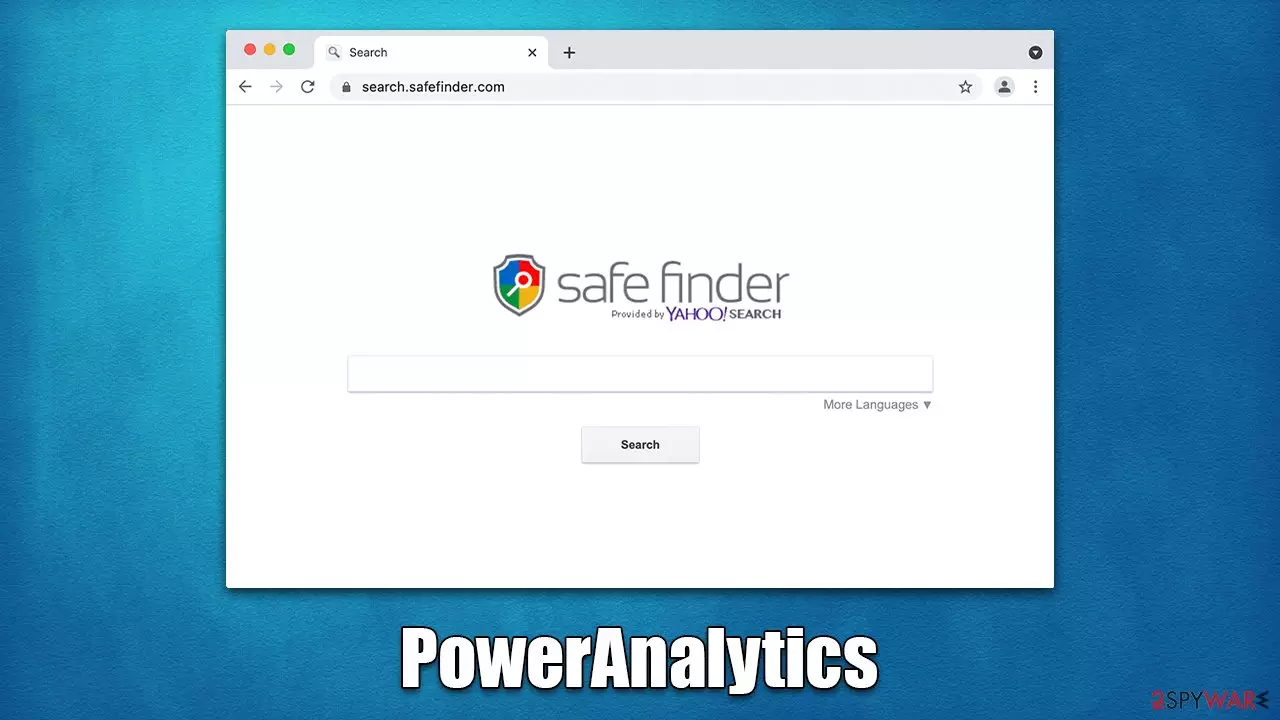
PowerAnalytics is a dangerous Mac applicate that you may find on their system one day unexpectedly. This usually happens when users install the virus along with dubious software downloads from insecure sources or, more often, whenever they are tricked by a fake Flash Player update prompt.
Since the installation happens inadvertently, most users only notice the presence of the app after opening Safari, Chrome, or another used browser. While it is not always the case, users may see their homepage being swapped to a different one, such as Safe Finder, and results may start to be generated via Yahoo, Bing, or another provider. These also typically include plenty of ads and sponsored links, some of which are of dubious nature.
Besides the browser hijacking capabilities, PowerAnalytics runs on the system with the highest permissions, which allows it to steal personal user data typed into browsers, drop plenty of persistence components, and even install additional versions of Adload malware strain or other unwanted/malicious apps.
| Name | PowerAnalytics |
| Type | Mac virus, adware, browser hijacker |
| Malware family | Adload |
| Distribution | Mostly fake Flash Player updates, although other phishing messages and installers of pirated apps can also cause the infection |
| Symptoms | A new extension is downloaded to the browser, along with a matching app; search and browsing preferences are changed to use a different search engine; new user profiles and login items are created on the account; intrusive advertising and redirects |
| Risks | Installation of other malware, personal data disclosure to cybercriminals, financial losses |
| Removal | The easiest way to remove Mac malware is to perform a full system scan with SpyHunterCombo Cleaner security software. We also provide a manual guide below |
| System optimization | After you terminate the infection with all its associated components, we recommend you also scan your device with FortectIntego to clean your browsers and other leftover files from the virus |
Adload: the threat that won't leave Mac users alone
Adload is one of the most active Mac threats there, successfully distributed via fake Flash Player prompts[1] or illegal software installers from illicit websites. It has been active since at least 2017 and has hundreds of variants released so far, including OperativeService, CrownVanirty, ViewOrigin, and many others.
Malware has a distinctive naming style; its names typically contain two or three predefined words that are chosen at random. The magnifying glass icon is identical across all variants, while the background may differ (we have seen it using blue, teal, green, red, and, most recently, gray colors).
Adload functions are essentially the same from one version to the next, despite the fact that its creators are continually updating some modules and enhancing persistence techniques in order to get over Mac's built-in security measures.[2]
PowerAnalytics and other Adload variants have a lot going for them despite being initially labeled as adware. The main objective of the cybercriminals who are behind it is to generate passive income from different ads that may appear as pop-ups, deals, offers, banners, and other forms. Since rogue advertising networks are being employed, the quality of these ads may be atrocious, and the likelihood of running into phishing and other dangerous content is significantly increased.

Remove the virus from your Mac
Regular Mac apps can be easily uninstalled by moving them to the Trash; there are no leftovers or other complications to deal with thereafter. It is a very different scenario when dealing with computer infections, though, as they are not supposed to be eliminated easily by users; the longer they remain on users' computers, the better for cybercriminals and their wallets.
Given how harmful the illness may be, it is unquestionably vital to get rid of it as soon as feasible. However, adopting basic techniques might not be sufficient because Adload versions are notorious for their persistence. Therefore, we advise using security software SpyHunterCombo Cleaner or MalwarebytesMalwarebytes to get rid of it. All you have to do is update your anti-malware software and then use it to scan the entire system.
If you really want to, you may also proceed with the manual instructions we leave below. However, remember that using a manual solution might not always be so straightforward: the virus may return if not all components of it are terminated. Regardless of which method you choose to go with, we recommend you check browser cleaning instructions.
Start with the processes that may be running in the background – they may mess up the PowerAnalytics removal process.
- Open Applications folder
- Select Utilities
- Double-click Activity Monitor
- Here, look for suspicious processes and use the Force Quit command to shut them down
- Go back to the Applications folder
- Find the malicious entry and place it in Trash.


Deleting unwanted profiles and Login Items is necessary when trying to eliminate malware from a Mac.
- Go to Preferences and pick Accounts
- Click Login items and delete everything suspicious
- Next, pick System Preferences > Users & Groups
- Find Profiles and remove unwanted profiles from the list.
The PLIST files are small config files, also known as the “Properly list.” They hold various user settings and hold information about certain applications. To remove the virus, you have to find the related PLIST files and delete them.
- Select Go > Go to Folder.
- Enter /Library/Application Support and click Go or press Enter.
- In the Application Support folder, look for any dubious entries and then delete them.
- Now enter /Library/LaunchAgents and /Library/LaunchDaemons folders the same way and delete all the related .plist files.


Regardless of the PowerAnalytics Mac virus removal method you choose, you should always check your web browser to make sure it's clean. If you don't delete them, cookies,[3] for instance, could stay on your browser for years and keep third parties from following you. Additionally, you should make sure that all of the extension's components are removed because it may start collecting sensitive data like passwords or credit card numbers.
Safari
- Click Safari > Preferences…
- In the new window, pick Extensions.
- Select the unwanted extension and select Uninstall.


Google Chrome
- Open Google Chrome, click on the Menu (three vertical dots at the top-right corner) and select More tools > Extensions.
- In the newly opened window, you will see all the installed extensions. Uninstall all the suspicious plugins that might be related to the unwanted program by clicking Remove.


You might not be able to remove the extension due to the persistence mechanisms used by malware. If that happened to you, you should simply opt for browser reset:
Safari
- Click Safari > Preferences…
- Go to the Advanced tab.
- Tick the Show Develop menu in the menu bar.
- From the menu bar, click Develop, and then select Empty Caches.


Google Chrome
- Click on Menu and select Settings.
- In the Settings, scroll down and click Advanced.
- Scroll down and locate Reset and clean up section.
- Now click Restore settings to their original defaults.
- Confirm with Reset settings.


In order to stop tracking cookies from functioning, make sure to clear the web browser's caches after the extension has been successfully deleted. If you prefer the manual way, follow these instructions. You can also choose to have FortectIntego automatically clean your browsers.
Safari
- Click Safari > Clear History…
- From the drop-down menu under Clear, pick all history.
- Confirm with Clear History.


Google Chrome
- Click on Menu and pick Settings.
- Under Privacy and security, select Clear browsing data.
- Select Browsing history, Cookies and other site data, as well as Cached images and files.
- Click Clear data.


Did this guide help?
Be the first to comment