

Alert-info.space – a website pushing various shady apps for iOS and macOS devices
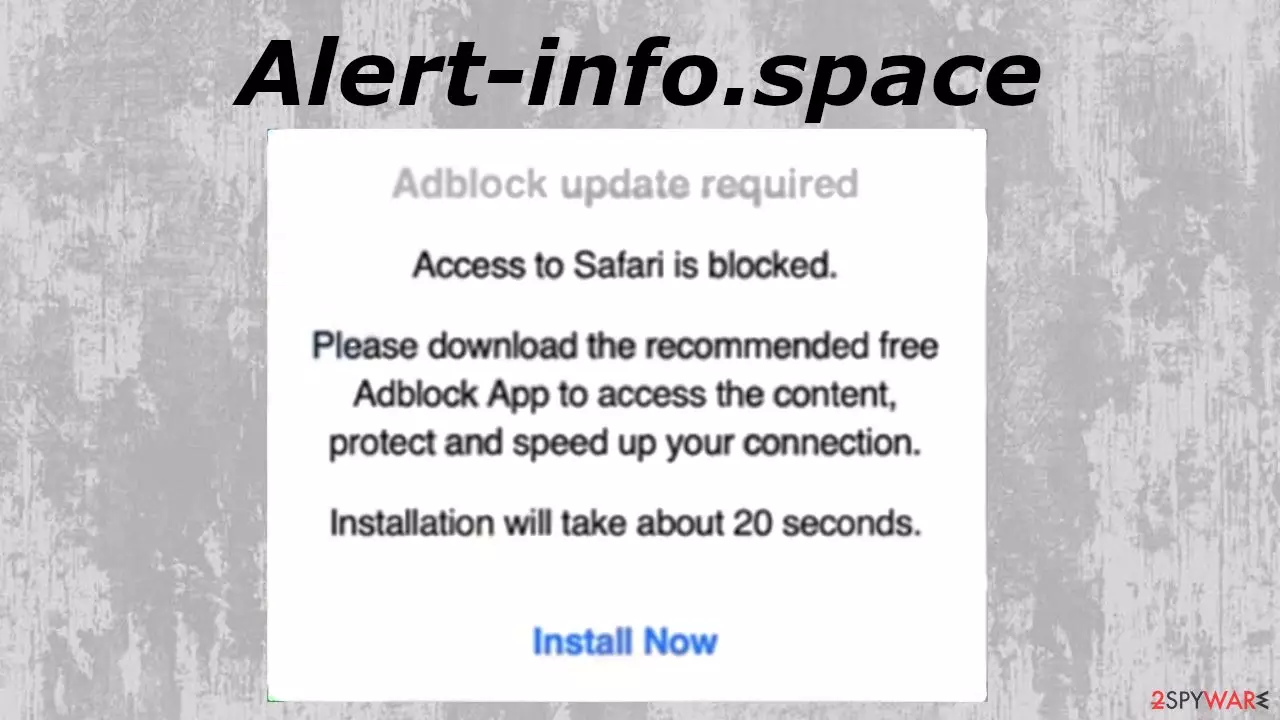
Alert-info.space is a scam page that tries to scare visitors by showing various false claims. It focuses on iPhones and Mac computers, but other devices could be affected too. When you visit this shady website, you might see an error message stating that access to the Safari browser is blocked and that you need to download an app that will improve your safety, boost internet connection, or other lies.
Please note that these claims are not true. This technique is used to intimidate you into downloading affiliated promotional apps that most likely are potentially unwanted programs (PUPs). Whatsmore, if you didn't visit Alert-info.space pop-up website willingly, that means you have adware infection on your device.
At the time of the research, this website was pushing to install Adblock App for Safari. Although adware pages frequently change their suggested apps. Hence other pop-up error messages might be shown. Please don't install any software that this page tries to force on you.
| name | Alert-info.space |
|---|---|
| Type | Adware, Mac virus, scam site |
| IP address | 172.67.175.249 |
| False Statement | Numerous variations are possible. At the time of writing, the site claimed that an Adblock update was required. Hence access to the Safari browser is blocked |
| Symptoms | Infected Mac devices are visibly slower, might crash, or exhibit other abnormal behavior. Besides, adware displays tons of deceptive ads and causes redirects |
| Risks | Additional worthless PUP installation, financial losses, privacy issues |
| Distribution | Scam portals, misleading advertisement, software bundles, fake Flash Player updates/installers |
| Removal | Compatible anti-malware software should be used to eliminate any cyber threats, including malware, adware, browser hijackers, and other suspicious files |
| System Repair | Mac infections can cause havoc to system files and settings, which could result in various system irregularities. Users should consider using the FortectIntego tool to fix any system-related issues |
Alert-info.space virus is one of many that are targeting iOS and macOS devices. Tionscalen.top virus, ProtocolPort virus, the whole “Will damage your computer. You should move it to the Trash” virus family are just a couple of examples of similar infections that portray false claims.
Their main goal is to deceive visitors into downloading promoted apps. These programs are usually useless malware detectors, adblockers, and other potentially unwanted programs that could provide false-positive results to seem relative. And afterward, push their worthless licensed version.
As we've mentioned before, Alert-info.space redirect is caused by an adware infection. The good news is that it's not hazardous malware, but that doesn't mean you're not in danger. Potentially unwanted programs show deceptive ads and trigger redirects that usually lead to hazardous or even malicious pages.
These might include gambling, porn, scams, and other mischievous content. Infected device users might also be redirected to pages with push notification viruses, fake software downloads, or even malware. Therefore, neither Alert-info.space ads nor the ones resulted by adware should ever be clicked.

Nowadays, trustworthy anti-malware software should be installed on every device that is regularly used on the internet. A proper security tool will block shady websites and will also be needed for Alert-info.space removal. If you don't own one, we suggest downloading free tools such as SpyHunterCombo Cleaner or MalwarebytesMalwarebytes.
All you need to do to safely remove Alert-info.space and any adware, PUPs, or malware is to update the security tools virus database and perform a full system scan. The anti-malware solution will do the rest. Afterward, IT experts at Uirusu.jp[1] highly recommend using the FortectIntego tool to fix any system inconsistencies and clean up your Mac.
Don't trust deceptive ads that claim that you need to update your software
Potentially unwanted programs, such as adware, browser hijackers, useless toolbars, and others, can be delivered in different ways. This junkware is usually offered with software bundles, tech support scams, torrent websites, and various misleading ads. In fact, our research suggests that these ads are one of the main causes of PUP infections.
Deceptive ads are usually displayed on shady websites or if you already have PUP installed on your device. They can claim that you have a virus infection, that you need to update your software (especially Flash Players), that some useless app will increase your browsing or gaming performance, or other lies.
Although deceptive ads have been around for ages, people still get hooked on fake claims. For Pete's sake, please remember this – no website can determine if you have a virus infection or that your software is outdated. PUP developers use these tricks to distribute their worthless creations.

Simple instructions to remove Alert-info.space virus from infected Apple devices
Various malware[2] and potentially unwanted programs[3] are always searching for unprotected devices. That's why in this day and age, every laptop, PC, cell phone, tablet, or other device that is regularly used to browse the internet needs a trustworthy watchdog in anti-malware software. The same goes for the infection like Alert-info.space virus termination.
Security tools would prevent you from visiting hazardous pages, stop malware before it infects your device, and safeguard your every move. Such tools can also be used to remove Alert-info.space along with any other suspicious files. Make sure to update the AV tool's virus database regularly to avoid the latest infections.
There's one con about anti-malware software. It can take care of Alert-info.space removal with ease, but it usually can't fix broken system files and clean up your device from hazardous tracking cookies and other browser-related issues. Professional system optimizers should be used frequently to keep all system settings and other matters in order.
Delete from macOS
Remove the unwanted application:
- From the menu bar, select Go > Applications.
- In the Applications folder, look for any suspicious entries, then drag them to Trash (or right-click and pick Move to Trash).


Delete leftover files and folders:
- Select Go > Go to Folder.
- Enter /Library/Application Support and remove any suspicious folders related to the unwanted program.
- Repeat the same check in the /Library/LaunchAgents and /Library/LaunchDaemons folders, deleting any suspicious entries.

- Finally, empty the Trash to permanently remove the leftovers.

Remove from Mozilla Firefox (FF)
Remove dangerous extensions:
- Open Mozilla Firefox browser and click on the Menu (three horizontal lines at the top-right of the window).
- Select Add-ons.
- In here, select the unwanted extension and click Remove.


Reset the homepage:
- Click three horizontal lines at the top right corner to open the menu.
- Choose Settings.
- Under Home, set your preferred homepage and new tab settings.
Clear cookies and site data:
- Click Menu and pick Settings.
- Go to Privacy & Security section.
- Scroll down to locate Cookies and Site Data.
- Click on Clear Data...
- Select Cookies and Site Data and Temporary cached files and pages, then click Clear.


Reset Mozilla Firefox
If clearing the browser as explained above did not help, reset Mozilla Firefox:
- Open Mozilla Firefox browser and click the Menu.
- Go to Help and then choose Troubleshooting Information.

- Under Give Firefox a tune up section, click on Refresh Firefox...
- Once the pop-up shows up, confirm the action by pressing on Refresh Firefox.



Remove from Google Chrome
Delete malicious extensions from Google Chrome:
- Open Google Chrome, click on the Menu (three vertical dots at the top-right corner) and select More tools > Extensions.
- In the newly opened window, you will see all the installed extensions. Uninstall all suspicious extensions related to the unwanted program by clicking Remove.


Clear cache and web data from Chrome:
- Click on Menu and pick Settings.
- Under Privacy and security, select Clear browsing data.
- Select Browsing history, Cookies and other site data, as well as Cached images and files.
- Click Clear data.


Change your homepage:
- Click menu and choose Settings.
- Look for a suspicious site in the On startup section.
- Click on Open a specific or set of pages and click on three dots to find the Remove option.
Reset Google Chrome:
If the previous methods did not help you, reset Google Chrome to eliminate all the unwanted components:
- Click on Menu and select Settings.
- In the Settings, scroll down and click Advanced.
- Scroll down and locate Reset and clean up section.
- Now click Restore settings to their original defaults.
- Confirm with Reset settings.


Delete from Safari
Remove dangerous extensions:
- Open Safari, click Safari in the menu at the top-left of the screen, and select Preferences.
- Go to the Extensions tab, look for any suspicious entries, and click Uninstall to remove them.


Clear history and website data:
- Click Safari in the menu and pick Clear History.
- Set Clear to all history and confirm with Clear History.


Reset Safari:
- Click Safari in the menu and select Preferences > Advanced.
- Enable Show Develop menu in menu bar.
- From the menu bar, click Develop and select Empty Caches.


Did this guide help?
Be the first to comment