

Bestlandcn.com is a website that shows fake notification about somebody allegedly spying on your iPhone
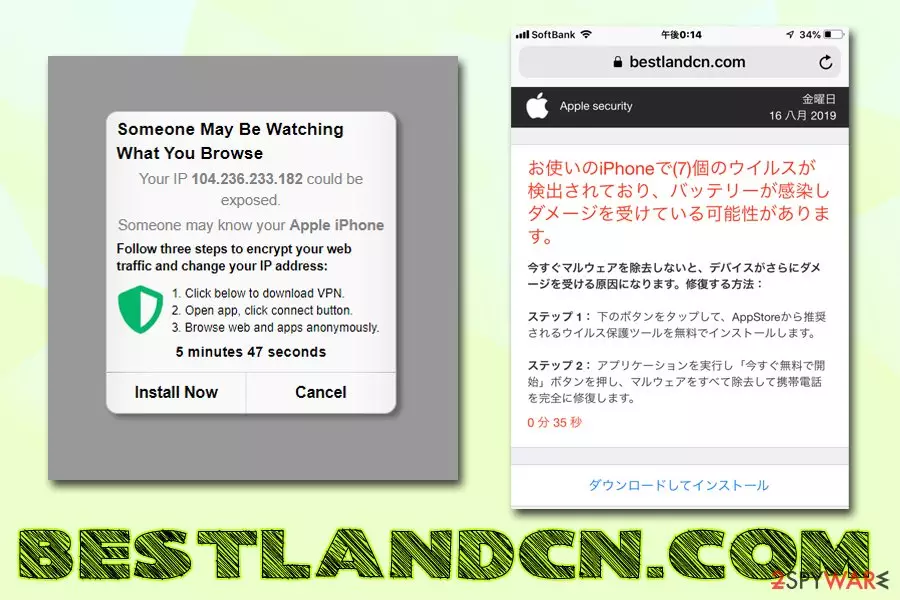
Bestlandcn.com is a pop-up scam message that users might encounter while browsing the internet on their iPhones or iPads, although the site can also be opened through any other operating system. The fake alert states that “Someone may be watching what you browse,” and that you need to download and install Hi VPN in order to change your IP address and encrypt your web traffic. Additionally, Bestlandcn.com scam also shows a fake IP address, implying that it is visible to everybody.
However, Bestlandcn.com is a regular scam that uses deceptive methods to scare users and make them download third-party software. While the application is not necessarily malicious (the link brings you to Apple App Store), its promotion methods are extremely dubious, hence we do not recommend using it. Besides, crooks might change the link and redirect users to malware-laden sites instead. Therefore, never download anything that is placed on the Bestlandcn.com website.
| Name | Bestlandcn.com |
| Type | Scam, Mac virus |
| Category | Potentially unwanted program, adware |
| Infiltration | PUPs are usually installed along free software that is downloaded from third-party sites. Nevertheless, users may install adware intentionally without knowing that it uses intrusive advertising during its operation |
| Main symptoms | Redirects to scam websites, sponsored links, pop-up ads on all visited sites, altered bookmarks, additionally installed applications, etc. |
| Targeted operating systems | Bestlandcn.com scam mainly aims at iPhone and iPad users, although Mac, MacBook, Windows, and other users may view the scam as well |
| Prevalence | Users from Japan are main targets of the scam, although it does not mean that the fake alert cannot be encountered by people from another countries |
| Involved risks | Installation of potentially unwanted programs or malware, personal details disclosure to unknown parties (or even cybercriminals) |
| Removal | If you encountered Bestlandcn.com accidentally on your iPhone or iPad, do not download anything from the site. Instead, close down the tab |
Even though you might encounter the Bestlandcn.com pop-up accidentally while browsing the internet on Safari, Google Chrome, Mozilla Firefox or another browser, the site might also be opened by potentially unwanted programs[1] installed on your iPhone. These adware apps usually get installed along with other software from third-party sites that are not approved by Apple. Therefore, you should be careful when dealing with non-official websites that host freeware and always opt for official download sources if possible.
Thus, if your iPhone, iPad, MacBook, or another device is affected by adware, Bestlandcn.com removal will require you to find the unwanted app and terminate it from your device. If you want a quick solution, scan your phone or computer with security software like FortectIntego – it should find all the PUAs and malware and eliminate them along with all the components.
Once you land on Bestlandcn.com site, you will see the following message:
Someone May Be Watching What You Browse
Your IP 104.236.233.182 could be exposed.
Someone may know your Apple iPhoneFollow three steps to encrypt your web traffic and change your IP address:
1. Click below to download VPN.
2. Open app, click connect button.
3. Browse web and apps anonymously.5 minutes 56 seconds
However, this is not the only version of Bestlandcn.com scam that users can encounter. In other cases, victims may see the notorious “Your system is infected with 3 viruses” alert, or similar. These messages often claim that the iPhone is infected with various viruses and, if no action is taken, banking information or other sensitive data will be stolen. Additionally, it can also be stated that the computer is damaged, or similar ridiculous claims.

As a general rule, Bestlandcn.com will often include a timer – it is a well-known social engineering tactic to create a sense of urgency. The timer simply prompts users to act quicker, and, while doing so, users often forget to calm down and check if the message was legitimate in the first place. Of course, people who encountered online scams before should not have trouble recognizing that Bestlandcn.com is a hoax.
It is not yet known who the developers of the site are, but it seems like the Bestlandcn.com virus mainly targets Japan[2] and a few other Asian countries. Nevertheless, the fake message checks for the IP address of the visitor and shows the message in the native language accordingly. Therefore, you might encounter the scam in any language due to targeted advertising techniques.[3]
You should remove Bestlandcn.com scam from your browser without clicking on anything and simply closing down the tab. After, check your device for any traces of adware and then reset all the installed browsers if you find anything suspicious that was installed without your permission.
Prefer App Store or other official sources when downloading and installing new apps on your macOS, iPhone or iPad
Official app stores have millions of applications available:[4]
- Google Play 2.46 million;
- Apple App Store 1.96 million;
- Windows Store 0.7 million;
- Amazon Appstore 0.48 million.
With so much to choose from, there is hardly a reason to go to third-party sites to download apps. Nevertheless, because many users are used to opting for third-party sites since years prior from when the official stores opened, old habits die hard. In other cases, users simply lack the knowledge and are not aware of the dangers that lurk outside the official sources.

Of course, asking to never download apps from third-party sites is unreasonable, although you should be aware of several things. First of all, all freeware hosting sites are bundling software – this is when several apps are included in a single installation package. While users should be able to decline those apps (otherwise it would be illegal), most of software bundling techniques allow developers to slip in unwanted programs by using deception.
Thus, you should never rush the installation process and always carefully read all the presented information, check if the vital documents (Privacy Policy, for example) are present, remove all the ticks from pre-ticked boxes, decline all the deals or offers and always opt for Advanced or Custom installation settings.
Do not associate with Bestlandcn.com site and check your device fro adware
As we previously mentioned, Bestlandcn.com pop-up appearance on your Safari or another browser does not mean that you are infected with anything – you might have simply stumbled upon the site by accident. As long as you do not press any buttons or download anything, you should be just fine. Nevertheless, if you are experiencing frequent browser redirects, Bestlandcn.com removal will require some additional actions from you.
First of all, you should go to the installed app list and check if you recognize every installed application. If not, then hurry up and uninstall it. Even so, if your browser continues the redirects and shows you plenty of ads, you should employ anti-virus software and run a full system scan. To fully remove Bestlandcn.com infection, you should also reset each of the installed browsers, as explained below.
Delete from macOS
Remove the unwanted application:
- From the menu bar, select Go > Applications.
- In the Applications folder, look for any suspicious entries, then drag them to Trash (or right-click and pick Move to Trash).


Delete leftover files and folders:
- Select Go > Go to Folder.
- Enter /Library/Application Support and remove any suspicious folders related to the unwanted program.
- Repeat the same check in the /Library/LaunchAgents and /Library/LaunchDaemons folders, deleting any suspicious entries.

- Finally, empty the Trash to permanently remove the leftovers.

Reset Internet Explorer
Remove dangerous add-ons:
- Open Internet Explorer, click on the Gear icon (IE menu) on the top-right corner of the browser
- Pick Manage Add-ons.
- You will see a Manage Add-ons window. Here, look for suspicious plugins. Click on these entries and select Disable.


Change your homepage if it was altered:
- Open IE and click on the Gear icon.
- Select Internet Options.
- In the General tab, delete the Home page address and replace it by your preferred one (for example, Google.com).
- Click Apply and then select OK.


Delete temporary files:
- Press on the Gear icon and select Internet Options.
- Under Browsing history, click Delete...
- Select relevant fields and press Delete.


Reset Internet Explorer:
- Click on Gear icon > Internet options and select Advanced tab.
- Select Reset.
- In the new window, check Delete personal settings and select Reset.


Remove from Microsoft Edge
Delete unwanted extensions from MS Edge:
- Select Menu (three horizontal dots at the top-right of the browser window) and pick Extensions.
- From the list, pick the extension and click on the Gear icon.
- Click Remove.


Clear cookies and other browser data:
- Click on the Menu (three horizontal dots at the top-right of the browser window) and select Settings > Privacy, search, and services..
- Under Clear browsing data, pick Choose what to clear.
- Select Cookies and other site data and Cached images and files. (apart from passwords, although you might want to include Media licenses as well, if applicable) and click on Clear.


Restore new tab and homepage settings:
- Click the menu icon and choose Settings.
- Then find On startup section.
- Click Remove next to any suspicious startup page.
Reset MS Edge if the above steps did not work:
- Press on Ctrl + Shift + Esc to open Task Manager.
- Click on More details arrow at the bottom of the window.
- Select Details tab.
- Now scroll down and locate every entry with Microsoft Edge name in it. Right-click on each of them and select End Task to stop MS Edge from running.


Instructions for Chromium-based Edge
Delete extensions from MS Edge (Chromium):
- Open Edge and click select Settings > Extensions.
- Delete unwanted extensions by clicking Remove.


Clear cache and site data:
- Click on Menu and go to Settings.
- Select Privacy, search and services.
- Under Clear browsing data, pick Choose what to clear.
- Under Time range, pick All time.
- Select Clear now.


Reset Chromium-based MS Edge:
- Click on Menu and select Settings.
- On the left side, pick Reset settings.
- Select Restore settings to their default values.
- Confirm with Reset.
- This will disable extensions and reset startup pages but will not delete bookmarks, saved passwords, or browsing history.


Remove from Mozilla Firefox (FF)
Remove dangerous extensions:
- Open Mozilla Firefox browser and click on the Menu (three horizontal lines at the top-right of the window).
- Select Add-ons.
- In here, select the unwanted extension and click Remove.


Reset the homepage:
- Click three horizontal lines at the top right corner to open the menu.
- Choose Settings.
- Under Home, set your preferred homepage and new tab settings.
Clear cookies and site data:
- Click Menu and pick Settings.
- Go to Privacy & Security section.
- Scroll down to locate Cookies and Site Data.
- Click on Clear Data...
- Select Cookies and Site Data and Temporary cached files and pages, then click Clear.


Reset Mozilla Firefox
If clearing the browser as explained above did not help, reset Mozilla Firefox:
- Open Mozilla Firefox browser and click the Menu.
- Go to Help and then choose Troubleshooting Information.

- Under Give Firefox a tune up section, click on Refresh Firefox...
- Once the pop-up shows up, confirm the action by pressing on Refresh Firefox.



Remove from Google Chrome
Delete malicious extensions from Google Chrome:
- Open Google Chrome, click on the Menu (three vertical dots at the top-right corner) and select More tools > Extensions.
- In the newly opened window, you will see all the installed extensions. Uninstall all suspicious extensions related to the unwanted program by clicking Remove.


Clear cache and web data from Chrome:
- Click on Menu and pick Settings.
- Under Privacy and security, select Clear browsing data.
- Select Browsing history, Cookies and other site data, as well as Cached images and files.
- Click Clear data.


Change your homepage:
- Click menu and choose Settings.
- Look for a suspicious site in the On startup section.
- Click on Open a specific or set of pages and click on three dots to find the Remove option.
Reset Google Chrome:
If the previous methods did not help you, reset Google Chrome to eliminate all the unwanted components:
- Click on Menu and select Settings.
- In the Settings, scroll down and click Advanced.
- Scroll down and locate Reset and clean up section.
- Now click Restore settings to their original defaults.
- Confirm with Reset settings.


Delete from Safari
Remove dangerous extensions:
- Open Safari, click Safari in the menu at the top-left of the screen, and select Preferences.
- Go to the Extensions tab, look for any suspicious entries, and click Uninstall to remove them.


Clear history and website data:
- Click Safari in the menu and pick Clear History.
- Set Clear to all history and confirm with Clear History.


Reset Safari:
- Click Safari in the menu and select Preferences > Advanced.
- Enable Show Develop menu in menu bar.
- From the menu bar, click Develop and select Empty Caches.


Did this guide help?
Be the first to comment