Cosmos System Care is yet another system optimizer that is useless
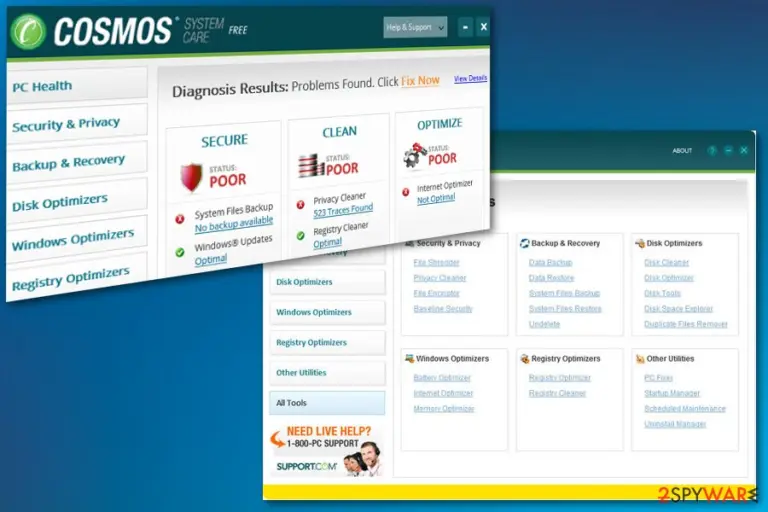
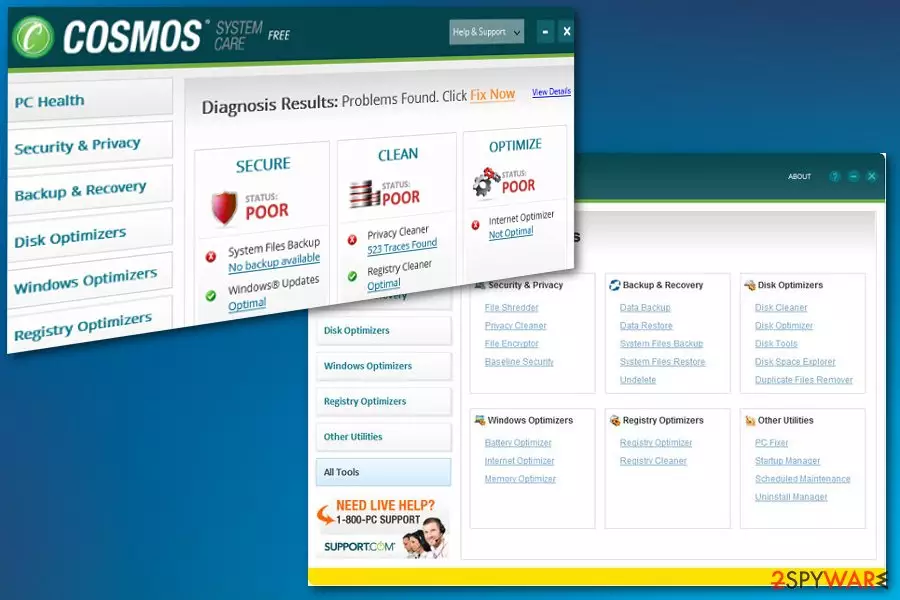
Cosmos System Care is a tool that can be categorized as a potentially unwanted application. System optimization tools as such often look safe and legitimate because of the alleged beneficial features. This rogue application is also promoted as a program that makes your system secure, clean and helps the device to run smoothly. Unfortunately, all these functions are a hoax, and the only thing you will see is the fake scan results. Cosmos System Care is not trustworthy because all those statements about cleaning the system, deleting junk files, fixing Windows Registry keys and so on, are not true. While the dubious app can be downloaded from its official website, software bundling is its primary distribution method. This marketing technique allows PUP creators to inject their products into many users' systems without them even noticing.
Name
Cosmos System Care
Type
System tool/Adware
Sub-type
Potentially unwanted application
Symptoms
Delivers fake results about possible threats, suggest buying a full version
Main danger
Lures people to buy useless software
Distribution
Software bundles, deceptive ads
Elimination
Perform Cosmos System Care removal using your trustworthy antivirus and then repair the system with FortectIntego
There are thousands of similar system optimization tools, including Global System Mechanic, Total System Care, SystemKeeperPro and many other fake tools that do nothing valuable for the system and might even damage it instead[1]. By clearing Windows registry keys, Cosmos System Care can damage the system and prevent certain vital processes from starting.
Because this useless app is spread with the help of software bundling and appears seemingly out of nowhere, users tend to call it a Cosmos System Care virus. However, this fake optimization tool is not malicious, at least not in a way malware is. However, users are at risk of losing money when they are tricked to pay for the licensed version of the dubious program. Additionally, it is not clear if the third-parties used to process these payments are safe and will not release any personal details to cybercriminals.
Also, Cosmos System Care is related to other PUPs like adware which is responsible for constant redirects and intrusive advertisements. These potentially unwanted programs and other cyber infections are known for the ability to track various user information as such:
geo-location;
IP address;
search queries;
commonly visited websites;
mostly searched items, coupons, sales.
This program is useless and not trustworthy, the only threat is hiding in your machine is this rogue tool. You need to remove Cosmos System Care if you received alerts about the security of your device. You can do that using the antivirus of your choice. Such programs can scan your system and remove them from the system.
Even after the Cosmos System Care removal, the PUP might leave computer damage behind. To make sure that the system is back to normal, scan it using FortectIntego or other reputable system repair tool.
Deceptive marketing method is used to distribute unwanted applications
Bundling technique is used to distribute various silent intruders, and potentially unwanted applications are no exception. Freeware providers bundle their products with rogue applications and spread them on the internet. Users who often download applications from P2P networks[2] are more likely not only to obtain PUPs but also malware.
Choosing Advanced or Custom options, according to researchers[3] can help avoid such infections. During the installation process, you can see and de-select additional programs. If you opt for Default settings, you will not be able to eliminate potentially unwanted programs, and they will end up on your computer – something you might not even notice.
Get rid of Cosmos System Care right now
If the antivirus program you are using did not warn you about the infection, you should use an alternative tool for Cosmos System Care removal. An antivirus program can detect various possible threats and remove them from the operating system.
Potentially unwanted programs, especially adware can initiate the installation of additional useless apps. In some cases, they might be difficult to eliminate, as they might lack the uninstallation executable. Therefore, Reputable anti-virus software can not only remove Cosmos System Care but also check if there are additional infections on your machine.
Uninstall from Windows
Uninstall from Windows 10/8:
Type Control Panel into the Windows search box and open the result.
Under Programs, select Uninstall a program.
Uninstall from Windows 7/XP:
Click on Windows Start > Control Panel (Windows XP users should click on Add/Remove Programs).
In Control Panel, select Programs > Uninstall a program.
Remove the unwanted program:
In the Programs and Features window, look for any recently installed suspicious entries, select them, and click Uninstall.
If User Account Control appears, click Yes to confirm, then complete the removal.
Delete from macOS
Remove the unwanted application:
From the menu bar, select Go > Applications.
In the Applications folder, look for any suspicious entries, then drag them to Trash (or right-click and pick Move to Trash).
Delete leftover files and folders:
Select Go > Go to Folder.
Enter /Library/Application Support and remove any suspicious folders related to the unwanted program.
Repeat the same check in the /Library/LaunchAgents and /Library/LaunchDaemons folders, deleting any suspicious entries.
Finally, empty the Trash to permanently remove the leftovers.













Be the first to comment