

What to expect from so-called Delta-search.com virus?
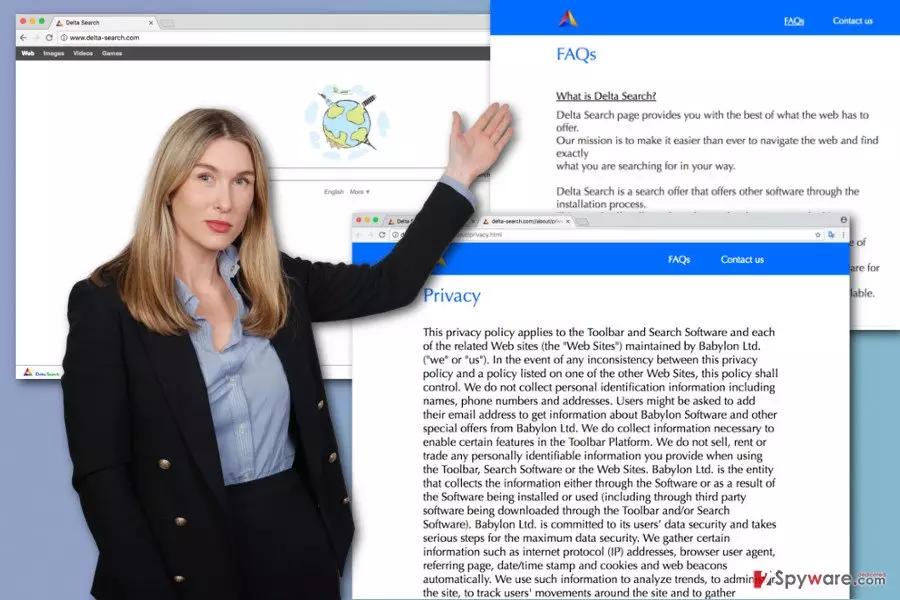
Delta-search.com virus is a suspicious search engine, created byBabylon Ltd, that tends to hijack[1] all popular web browser. Due to its ability to take full control over the browsers, it is classified as a browser hijacker. This potentially unwanted application may initiate various issues on the affected computer. First of all, it alters targeted browser’s settings and might modify Windows shortcuts or registry in order to prevent users from getting rid of it easily. Secondly, it might bother with continuous redirects to the unknown websites that promote various goods and services. Thirdly, Delta-search.com browser hijacker might provide tons of annoying pop-ups that make your browser freeze or crash. It goes without saying that commercial content and redirects make browsing the Web nerve-wracking. Fourthly, this program might be capable of tracking data. Getting to know more about the user allows delivering personalized ads[2] and encourage people to click them. Clicks are crucial for the developers because they generate advertising-based revenue[3]. Sadly, some of the links or ads might redirect to the shady and harmful places on Web. If you want to stay safe and avoid these issues, you should scan your computer with FortectIntego and let this anti-malware software detect and eliminate this cyber parasite. Of course, you can remove Delta-search.com manually too, but the first method is easier.
Delta-search.com virus spreads as a browser add-on, known as Delta Search Toolbar. It mostly travels in a bundle with freeware and shareware, which should be monitored for getting a chance to avoid them. So, it means that your browser is not guilty of this issue. Actually, it’s your fault that it sneaked inside the system because you have installed particular free program carelessly. Now, you should stay away from this search engine. It’s even better to start Delta-search.com removal immediately. Please, do NOT fall into thinking that delta-search.com or similar search engine (delta-homes.com, Search.certified-toolbar.com, etc.) is a normal search engine! If you don’t want to visit suspicious and clearly unsafe websites, you should stay away from it. If you have just found yourself on this or similar search engine without any intention to do that, you should leave it because it may not only show you altered search results. However, the main problem is related to Delta-search.com redirect issues. Some of the links included in the search results and delivered ads may redirect to the infected, tech support or phishing[4] website, where you can get infected with ransomware[5] or become a victim of other cyber crimes.
How did this browser hijacker end up on my computer?
As we have mentioned, Delta-search.com redirect virus may infiltrate your computer without any permission asked because its distribution relies on a suspicious technique, which is known as bundling. Beware that this hijacker may hide inside freeware, shareware and similar software, which is promoted for free, so you should start monitoring its installation. How can you do that? In order to prevent from Delta-search.com hijack and keep your browsers (Internet Explorer, Mozilla Firefox, Google Chrome, etc.) protected, you should always select Custom or Advanced installation of the freeware. After doing so, make sure you uncheck all checkboxes that claim that you want to make Delta Search your homepage or your default search engine. To sum up, it’s clear that owners of this page are using unfair methods for promoting their search engine. If you are familiar with this problem and have been suffering from annoying redirects for a while, you should keep reading to know how can you remove this hijacker from your computer.
How to solve Delta-search.com redirect problem?
Only one Delta-search.com redirect might cost you a lot. You may lose your files to the ransomware or reveal private details to the cyber criminals. Hence, you should not postpone this activity. It may initiate many other unwanted activities that make your online life miserable and unbearable. If you have found this search engine on your computer and you know that you haven’t installed it by yourself, you have to follow the guide below and remove Delta-search.com ASAP. The illustrated guidelines help you to locate and delete browser hijacker. Though, you should be careful and eliminate all hijacker-related components. If you miss something, you may be unpleasantly surprised that it still is in your browser after rebooting your PC. If you do not want to encounter any unpleasant surprises, you should opt for automatic Delta-search.com removal. This method requires installing an anti-malware program and scanning the computer with updated software. We highly recommend choosing this method because you may also be tricked into installing other browser hijackers, an adware-type program, and similar PUP on your computer, and professional tools remove them all.
Uninstall from Windows
Uninstall from Windows 10/8:
- Type Control Panel into the Windows search box and open the result.
- Under Programs, select Uninstall a program.


Uninstall from Windows 7/XP:
- Click on Windows Start > Control Panel (Windows XP users should click on Add/Remove Programs).
- In Control Panel, select Programs > Uninstall a program.


Remove the unwanted program:
- In the Programs and Features window, look for any recently installed suspicious entries, select them, and click Uninstall.
- If User Account Control appears, click Yes to confirm, then complete the removal.


Delete from macOS
Remove the unwanted application:
- From the menu bar, select Go > Applications.
- In the Applications folder, look for any suspicious entries, then drag them to Trash (or right-click and pick Move to Trash).


Delete leftover files and folders:
- Select Go > Go to Folder.
- Enter /Library/Application Support and remove any suspicious folders related to the unwanted program.
- Repeat the same check in the /Library/LaunchAgents and /Library/LaunchDaemons folders, deleting any suspicious entries.

- Finally, empty the Trash to permanently remove the leftovers.

Reset Internet Explorer
Remove dangerous add-ons:
- Open Internet Explorer, click on the Gear icon (IE menu) on the top-right corner of the browser
- Pick Manage Add-ons.
- You will see a Manage Add-ons window. Here, look for suspicious plugins. Click on these entries and select Disable.


Change your homepage if it was altered:
- Open IE and click on the Gear icon.
- Select Internet Options.
- In the General tab, delete the Home page address and replace it by your preferred one (for example, Google.com).
- Click Apply and then select OK.


Delete temporary files:
- Press on the Gear icon and select Internet Options.
- Under Browsing history, click Delete...
- Select relevant fields and press Delete.


Reset Internet Explorer:
- Click on Gear icon > Internet options and select Advanced tab.
- Select Reset.
- In the new window, check Delete personal settings and select Reset.


Remove from Microsoft Edge
Delete unwanted extensions from MS Edge:
- Select Menu (three horizontal dots at the top-right of the browser window) and pick Extensions.
- From the list, pick the extension and click on the Gear icon.
- Click Remove.


Clear cookies and other browser data:
- Click on the Menu (three horizontal dots at the top-right of the browser window) and select Settings > Privacy, search, and services..
- Under Clear browsing data, pick Choose what to clear.
- Select Cookies and other site data and Cached images and files. (apart from passwords, although you might want to include Media licenses as well, if applicable) and click on Clear.


Restore new tab and homepage settings:
- Click the menu icon and choose Settings.
- Then find On startup section.
- Click Remove next to any suspicious startup page.
Reset MS Edge if the above steps did not work:
- Press on Ctrl + Shift + Esc to open Task Manager.
- Click on More details arrow at the bottom of the window.
- Select Details tab.
- Now scroll down and locate every entry with Microsoft Edge name in it. Right-click on each of them and select End Task to stop MS Edge from running.


Instructions for Chromium-based Edge
Delete extensions from MS Edge (Chromium):
- Open Edge and click select Settings > Extensions.
- Delete unwanted extensions by clicking Remove.


Clear cache and site data:
- Click on Menu and go to Settings.
- Select Privacy, search and services.
- Under Clear browsing data, pick Choose what to clear.
- Under Time range, pick All time.
- Select Clear now.


Reset Chromium-based MS Edge:
- Click on Menu and select Settings.
- On the left side, pick Reset settings.
- Select Restore settings to their default values.
- Confirm with Reset.
- This will disable extensions and reset startup pages but will not delete bookmarks, saved passwords, or browsing history.


Remove from Mozilla Firefox (FF)
Remove dangerous extensions:
- Open Mozilla Firefox browser and click on the Menu (three horizontal lines at the top-right of the window).
- Select Add-ons.
- In here, select the unwanted extension and click Remove.


Reset the homepage:
- Click three horizontal lines at the top right corner to open the menu.
- Choose Settings.
- Under Home, set your preferred homepage and new tab settings.
Clear cookies and site data:
- Click Menu and pick Settings.
- Go to Privacy & Security section.
- Scroll down to locate Cookies and Site Data.
- Click on Clear Data...
- Select Cookies and Site Data and Temporary cached files and pages, then click Clear.


Reset Mozilla Firefox
If clearing the browser as explained above did not help, reset Mozilla Firefox:
- Open Mozilla Firefox browser and click the Menu.
- Go to Help and then choose Troubleshooting Information.

- Under Give Firefox a tune up section, click on Refresh Firefox...
- Once the pop-up shows up, confirm the action by pressing on Refresh Firefox.



Remove from Google Chrome
Delete malicious extensions from Google Chrome:
- Open Google Chrome, click on the Menu (three vertical dots at the top-right corner) and select More tools > Extensions.
- In the newly opened window, you will see all the installed extensions. Uninstall all suspicious extensions related to the unwanted program by clicking Remove.


Clear cache and web data from Chrome:
- Click on Menu and pick Settings.
- Under Privacy and security, select Clear browsing data.
- Select Browsing history, Cookies and other site data, as well as Cached images and files.
- Click Clear data.


Change your homepage:
- Click menu and choose Settings.
- Look for a suspicious site in the On startup section.
- Click on Open a specific or set of pages and click on three dots to find the Remove option.
Reset Google Chrome:
If the previous methods did not help you, reset Google Chrome to eliminate all the unwanted components:
- Click on Menu and select Settings.
- In the Settings, scroll down and click Advanced.
- Scroll down and locate Reset and clean up section.
- Now click Restore settings to their original defaults.
- Confirm with Reset settings.


Delete from Safari
Remove dangerous extensions:
- Open Safari, click Safari in the menu at the top-left of the screen, and select Preferences.
- Go to the Extensions tab, look for any suspicious entries, and click Uninstall to remove them.


Clear history and website data:
- Click Safari in the menu and pick Clear History.
- Set Clear to all history and confirm with Clear History.


Reset Safari:
- Click Safari in the menu and select Preferences > Advanced.
- Enable Show Develop menu in menu bar.
- From the menu bar, click Develop and select Empty Caches.


Did this guide help?
12 comments
mic and co
thanks a lot this worked 10 times beter than the ones on youtube
Monica
Thank you so much! I was going insane and now its gone!
William
Eu não quero este redicionamento.
William
Para que serve esta janelaa?
Moarxweird
This Introduction seems great, but it doesnt work yet. Everytime I open a new Tab, it goes to delta search website, and i couldnt manage to stop that. Fortunately I never had that toolbar, but it always starts the page when i open a tab... i set web.de as my starting page, but it doesnt work... please help?
Superman
**** READ THIS FOR REMOVAL ****
Hello
This jerk above from the company requesting you email him for instructions...scumbag.
Out of curiosity I went to their site. They ask you download undoubtedly another virus for removal..
I dont know how these idiots make money doing this or why it is worth their time, but GET A F**KING LIFE !!
To remove.
It is attached to Browser Protect, another virus you will have installed with it.
I got this by downloading subtitles for a movie, foolishly and against my better judgement.
Anyway, get these. I have researched all of this stuff and they are the best around. Trust me.
IO BIT Uninstaller - This uninstalls and will FORCE uninstall of all programs on your machine PLUS delete all of the registry files associated with the program. It is very good.
..PS> I also use and recommend IO Bit Smart Defrag...real time defrag. It is very good and comes highly recommended. I like their software so much I downloaded and use also their malware program...fwiw
CCLEANER - the steadfast and solid computer cleaner which I have always used..their registry cleaner did pick up remaining traces of the programs Active X portion...but I did run it before IOBit so perhaps IoBit would have taken them also...nevertheless, if you get one cleaner, make it this one.
Lastly, the last freee version of JV16 PowerTools. - Cannot recall the version at the moment, but it is well known and always suggested amongst experts. USE WITH EXTREME CAUTION...but it is very safe and backs up everything you do. Simply use common sense. Goto Registry Cleaner, Anything you do not recognize, right click on it for entry details. All I did not recognize were google chrome, and Delta related items. Then run the cleaner.
A red dot beside means it should not be removed. Green means ok, but use common sense. If you scroll across, even those in red shown after IOBit Removal were actually files related to Delta. Delete them.
AFter all is good, delete the backups.
that is all.
These are the best programs around. I research thigns very thoroughly, and do keep a level head about these things and try and ignore all teh talk on line..ie. everyone has an opinion and suggests software, etc...but these are genuinely the best.
I never write comments online, but hope this helps others.
I hate this crap from these people....
Best regards
Superman
PS - Within Firefox delete the add on, change home page back to whatever you use..
ALSO, do not click on the pop up after removing some of the registry entries that states something to the effect "A program is requesting to change your browser settings. Keep your current settings?"
Upon initial disabling and removal of the add on within Firefox and some of the registry entries using JV16 PowerTools as noted above, this popped up.
Clicking yes will reinstall the thing..
So I recommend to remove all of the registry entries as stated above first, then reboot and open browser. I believe the add on will no longer even be there.
ok, thats all I know...Kind regards
Delta Search
Hello
As a member of the Delta Search Support Department, I am happy to answer any questions you have. The removal of our Search program is actually quite easy. Please send me an email at support@delta-search.com and I will send you the removal instructions.
F DS
Why dont you just give the removal instructions here you friggin douchebag.
Andre
remove delta search from my system please
S
I dont know what to do anymore, I just cant get rid of it.
Tried everything I found online. Im desperate & its getting on my nerves.
Also S
Hey, download HitmanPro, its a really good virus removal software from Google. Download it for free, run a scan, then click "Free 30 Day Trial" (or else the program wont remove the files for you, and its a pain to do on your own). After that, youll get a prompt to reboot your comp and then the files should be gone. Hope that helps!
(PS, it has to be Hitman as I tried my other anti-virus programs and they didnt detect anything)