

Fast Forms Finder is the potentially unwanted program that promotes its useful functions
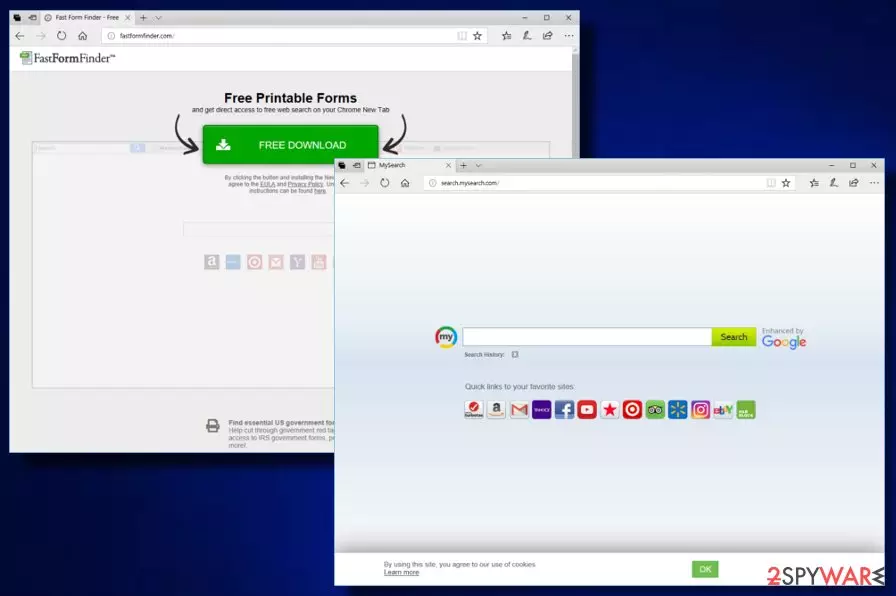
Fast Forms Finder is an aggressive PUP that belongs to the browser hijacker family. It is similar to numerous browser-hijacking applications which are provided by the same developer called Polarity Technologies Ltd. All of them have one main goal – to gain profit by redirecting users to third-party websites. While such activity may seem only annoying and some part of promoted websites are safe,[1] it can lead you to malicious websites as well. The virus affects Chrome, Firefox, IE, and other browsers, so avoiding this redirect virus becomes a real challenge. Typically, it sets the default search engine to search.mysearch.com or search.searchfff.com right after infiltrating the computer system.
| Name | Fast Forms Finder |
|---|---|
| Type | Browser hijacker |
| Sub-type | PUP |
| Danger level | Low. This program affects only browsers but does not touch other computer system components |
| Search engine(s) | search.mysearch.com; search.searchfff.com |
| OS affected | Mac OS X; Windows OS |
| the Main purpose | To gain income by increasing web traffic to third-party websites |
| Spreads with the help of | The official site; third-party software; freeware |
| Tips to avoid | Do not visit suspicious-looking sites, avoid using third-party sources. Most importantly, always have an antivirus running on your computer |
| Elimination process | To remove the PUP, download and install FortectIntego to clear the damage caused y the PUP |
People get tricked into downloading this browser-hijacking app by falling for its “useful features,” such as fast links to various news, movie-watching sites, weather forecasts, etc. However, this program is good neither to your computer nor to your browser as it starts causing continuous pop-up ads and in-text links right after infiltrating the system.
Besides, just like hundreds of other browser hijackers, Fast Forms Finder is using unfair techniques to get into the computer system unnoticed. Beware that it has been actively spreading around with the help of software bundles, and infiltrating systems usually due to the careless users' activity while installing third-party software.
Despite the fact that the PUP installs secretly, it also gathers details related to the user's browsing activity. The extraction from its Privacy Policy notifies about this unwanted program's feature:
Polarity may collect information about you when you visit our Sites or use our Services, including the following:
- Information you provide us. We collect the content, communications and other information you provide when you contact us, including your email address.
- Information we get from your use of our services. We collect information about the Services that you use and how you use them. This information includes:
- Device Information. We collect device-specific information (such as your hardware model and operating system version).
- Log Information. When you use our Services or view content provided by Polarity, we automatically collect and store certain information in server logs.
Even if this browser hijacker might not seem that damaging from the first view, in some cases, it might be used to collect personal details about its users what might lead victims to identity theft.[2]

According to tech experts[3], hijacks on web browsers have become a common issue nowadays. This browser hijacker is especially redirected to hijacking the Google Chrome browser and Mac OS X. While it can also be compatible with Windows OS, Mac users keep posting questions regarding this PUP.
To avoid unwanted redirects to unknown websites, data leakage, and similar issues, you should take care of Fast Forms Finder removal from Chrome on Mac OS X without any hesitation. Instructions on how to get rid of this virus from other operating systems and web browsers are provided below this article.
To remove the virus, we highly recommend using an anti-malware tool such as SpyHunterCombo Cleaner, MalwarebytesMalwarebytes. This tool was selected as the most effective one to detect hijackers on the system and eliminate them with all their components. Besides, it will recover the system to its previous state by reinstalling damaged files and similar parts of the system.

Avoid hijacker's invasion to keep your web browser clean and your data safe
PUPs, such as browser hijackers, adware, and others, typically come bundled with freeware and shareware. According to the research, such programs are provided by third-party sources and filled with additional components that are not disclosed properly. In exchange for spreading PUPs, these apps typically generate income.[4]
However, some PUPs can be downloaded from their official download sites as well. Usually, they are promoted as “highly useful” software packs that are capable of improving users' online activity. Once you click the download link, the browser hijacker settles down on your browser and begins its unwanted tasks.
To avoid such consequences, always take care of your computer's safety while surfing the Internet. Be aware of unknown sites and third-party software which can include anything, including PUPs. Also, download software only from trustworthy sources and make sure you opt either for Custom or Advanced installation mode to get an opportunity to opt-out of “optional” components.

You can get rid of Fast Forms Finder with the help of two methods
There are two methods to remove the intruder from the system. First of all, you can perform a full removal of this hijacker manually by eliminating all unnecessary browser extensions, dubious apps, and browser plug-ins from your Task Manager. Additionally, get rid of Fast Forms Finder from Chrome or any other web browser by resetting it to its previous state. Some guiding steps are shown below this article.
To continue, you can perform the full virus removal automatically. To get rid of the cyber threat in a faster way, download and install an anti-malware program and update it to its latest version. Additionally, run a full system scan and delete detected malware. The total process should take no longer than a few minutes.
After the elimination is finished, also consider refreshing your browsers that were affected by the hijack. This will ensure you that no additional harmful content is left and you will be able to do your browsing activity without experiencing any crash downs again.
Uninstall from Windows
Uninstall from Windows 10/8:
- Type Control Panel into the Windows search box and open the result.
- Under Programs, select Uninstall a program.


Uninstall from Windows 7/XP:
- Click on Windows Start > Control Panel (Windows XP users should click on Add/Remove Programs).
- In Control Panel, select Programs > Uninstall a program.


Remove the unwanted program:
- In the Programs and Features window, look for any recently installed suspicious entries, select them, and click Uninstall.
- If User Account Control appears, click Yes to confirm, then complete the removal.


Delete from macOS
Remove the unwanted application:
- From the menu bar, select Go > Applications.
- In the Applications folder, look for any suspicious entries, then drag them to Trash (or right-click and pick Move to Trash).


Delete leftover files and folders:
- Select Go > Go to Folder.
- Enter /Library/Application Support and remove any suspicious folders related to the unwanted program.
- Repeat the same check in the /Library/LaunchAgents and /Library/LaunchDaemons folders, deleting any suspicious entries.

- Finally, empty the Trash to permanently remove the leftovers.

Remove from Microsoft Edge
Delete unwanted extensions from MS Edge:
- Select Menu (three horizontal dots at the top-right of the browser window) and pick Extensions.
- From the list, pick the extension and click on the Gear icon.
- Click Remove.


Clear cookies and other browser data:
- Click on the Menu (three horizontal dots at the top-right of the browser window) and select Settings > Privacy, search, and services..
- Under Clear browsing data, pick Choose what to clear.
- Select Cookies and other site data and Cached images and files. (apart from passwords, although you might want to include Media licenses as well, if applicable) and click on Clear.


Restore new tab and homepage settings:
- Click the menu icon and choose Settings.
- Then find On startup section.
- Click Remove next to any suspicious startup page.
Reset MS Edge if the above steps did not work:
- Press on Ctrl + Shift + Esc to open Task Manager.
- Click on More details arrow at the bottom of the window.
- Select Details tab.
- Now scroll down and locate every entry with Microsoft Edge name in it. Right-click on each of them and select End Task to stop MS Edge from running.


Instructions for Chromium-based Edge
Delete extensions from MS Edge (Chromium):
- Open Edge and click select Settings > Extensions.
- Delete unwanted extensions by clicking Remove.


Clear cache and site data:
- Click on Menu and go to Settings.
- Select Privacy, search and services.
- Under Clear browsing data, pick Choose what to clear.
- Under Time range, pick All time.
- Select Clear now.


Reset Chromium-based MS Edge:
- Click on Menu and select Settings.
- On the left side, pick Reset settings.
- Select Restore settings to their default values.
- Confirm with Reset.
- This will disable extensions and reset startup pages but will not delete bookmarks, saved passwords, or browsing history.


Remove from Mozilla Firefox (FF)
Remove dangerous extensions:
- Open Mozilla Firefox browser and click on the Menu (three horizontal lines at the top-right of the window).
- Select Add-ons.
- In here, select the unwanted extension and click Remove.


Reset the homepage:
- Click three horizontal lines at the top right corner to open the menu.
- Choose Settings.
- Under Home, set your preferred homepage and new tab settings.
Clear cookies and site data:
- Click Menu and pick Settings.
- Go to Privacy & Security section.
- Scroll down to locate Cookies and Site Data.
- Click on Clear Data...
- Select Cookies and Site Data and Temporary cached files and pages, then click Clear.


Reset Mozilla Firefox
If clearing the browser as explained above did not help, reset Mozilla Firefox:
- Open Mozilla Firefox browser and click the Menu.
- Go to Help and then choose Troubleshooting Information.

- Under Give Firefox a tune up section, click on Refresh Firefox...
- Once the pop-up shows up, confirm the action by pressing on Refresh Firefox.



Remove from Google Chrome
Delete malicious extensions from Google Chrome:
- Open Google Chrome, click on the Menu (three vertical dots at the top-right corner) and select More tools > Extensions.
- In the newly opened window, you will see all the installed extensions. Uninstall all suspicious extensions related to the unwanted program by clicking Remove.


Clear cache and web data from Chrome:
- Click on Menu and pick Settings.
- Under Privacy and security, select Clear browsing data.
- Select Browsing history, Cookies and other site data, as well as Cached images and files.
- Click Clear data.


Change your homepage:
- Click menu and choose Settings.
- Look for a suspicious site in the On startup section.
- Click on Open a specific or set of pages and click on three dots to find the Remove option.
Reset Google Chrome:
If the previous methods did not help you, reset Google Chrome to eliminate all the unwanted components:
- Click on Menu and select Settings.
- In the Settings, scroll down and click Advanced.
- Scroll down and locate Reset and clean up section.
- Now click Restore settings to their original defaults.
- Confirm with Reset settings.


Delete from Safari
Remove dangerous extensions:
- Open Safari, click Safari in the menu at the top-left of the screen, and select Preferences.
- Go to the Extensions tab, look for any suspicious entries, and click Uninstall to remove them.


Clear history and website data:
- Click Safari in the menu and pick Clear History.
- Set Clear to all history and confirm with Clear History.


Reset Safari:
- Click Safari in the menu and select Preferences > Advanced.
- Enable Show Develop menu in menu bar.
- From the menu bar, click Develop and select Empty Caches.


Did this guide help?
Be the first to comment