

Notice-iphone.club is the threat that appears on the calendar as fake messages and alerts with links to possibly dangerous sites
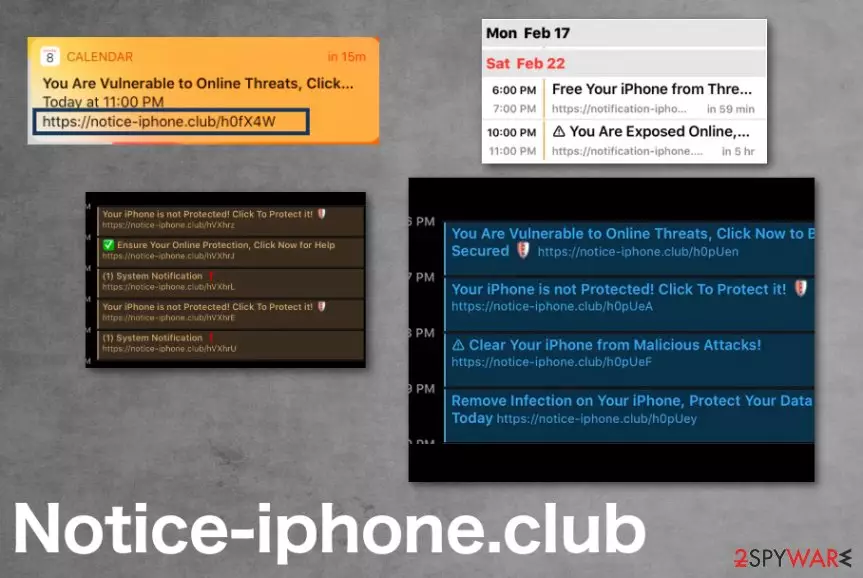
Notice iPhone Club virus is the hijacking program because it manages to control these calendar applications and interfere with any activities regarding online browsing with an intense amount of online ads and different intrusive material that comes to the screen of your directly. The alert may not trigger anything, but your interaction with one link leads to many other redirects and sites opened on the screen until it is not easy to exit the browser window without clicking on something possibly dangerous. Unfortunately, once a potentially unwanted program or even more intrusive virus ends up on your computer, many changes can be made in system folders and preferences, so the less you click on anything, the better.
| Name | Notice-iphone.club |
|---|---|
| Type | Mac malware |
| Danger | The site redirects to questionable pages online and advertising services, or even malware-laced websites where direct interaction with the content can lead to downloads and PUP installations. Such ad-supported pages can access data about users' online browsing habits and track that information, use it for their or third-party company purposes[1] |
| Main symptoms | Suspicious alerts about events, people or content on social media, lotteries, prizes, winnings and so on appear on the calendar applications |
| Related | iPhone Calendar virus |
| Version of | iPhone virus is the general umbrella term for threats affect strictly mobile Apple devices |
| Distribution | This site is a part of the shady campaign that can spread around via deceptive sites, misleading ads and triggered by potentially unwanted programs dropped during an insecure freeware installation [2] |
| Elimination | Notice-iphone.club removal includes a thorough anti-malware scan on the machine because you may have got a more serious infection on the machine without knowing or noticing already |
| Repair | Run FortectIntego on the system to clean the additional virus damage and fix possibly affected or even damaged system files. This tool is needed for general system performance improvement |
Notice-iphone.club is the program that diminishes the speed of your machine significantly, so you should react as soon as possible and clean the system to get back to a properly working machine. Unfortunately, clearing the calendar events or removing the affected application is not enough. These applications are all okay, but symptoms that you fin on them get caused by the PUP infection.
Notice iPhone Club message on the calendar can state about:
- malware risks;
- prizes;
- needed software updates;
- direct infection of cyber threats.
You can remove Notice-iphone.club from the machine by eliminating all related adware-type or general potentially unwanted programs. Because once the calendar app has those unwanted events added to them, it stats to shows deceptive notifications on your screen directly. All those alerts are designed to redirect to untrustworthy websites and open advertisements from one click on a safe-looking hyperlink.
Notice-iphone.club deceptive site contains advertisements, might ask for permissions to show additional notifications, display other pop-up windows, different verification forms, or notices that claim about prizes. All these deceptive messages also try to trick you into allowing notifications or visiting pages where views can get generated.
There are many users who got affected by Notice iPhone Club and started to receive such notices, notifications, and encountered unwanted events added to the calendar applications. Experts[3] note that these events, in most cases, get added after visiting deceptive pages or clicking on pop-ups, misleading windows, notifications. This often happens when you try to close them and end up triggering infections like this. 
Notice-iphone.club advertises other unwanted software and can try to trick you into downloading programs without even noticing sometimes. Or even act as the common scammy site that tries to obtain personal information from you by using keyloggers and other misleading techniques that lead to direct forms asking to put some information. It can be done by showing virus warnings and claiming the need for AV tools or remote access of IT experts.
Trusting such pages can lead to lost money or data when you reveal your credit card details. Pay them directly or allow the criminals to access your system. Notice-iphone.club can lead to privacy issues and identity theft or different losses, so try to avoid revealing any data to people behind these sites and other warnings or pop-ups.
If you already got affected by this calendar application virus, you need to make sure that the device is cleaned. The best option for such a removal process is to get an anti-malware tool and delete the Notice iPhone Club and other associated PUPs directly from your device. It is mainly targeting mobile devices, so choose a compatible tool and make sure to get it from an official provider.
When you are sure that all shady programs got terminated, go through the system with FortectIntego and fix possible virus damage or parts of the machine that Notice iPhone Club virus damaged or affected. Since calendar events can get added automatically and other settings may get altered without your knowledge, go to Calendar application and locate any added calendars on there, delete the ones that are not controlled by you and block questionable pop-ups on your browsers. Additional tips can be found at the end of this article. 
Mac malware gets sneakier than ever
People still tend to trust all those claims that macOS is immune to malware, and nor Mac computers nor iPhones can get infected. Unfortunately, these claims are false, and you should be aware that the Mac virus is a real threat, and the particular type of cyber intruders got indicated because of the persistence and popularity.
Mac malware is especially popular among scammers because it is easy to evade detections and block from operating systems and internet providers with those deceptive sites, misleading pop-ups, and malicious ads. This online content is the key to the distribution of such PUPs and mobile viruses.
You can try to avoid getting the infection if you pay closer attention to details, content you constantly visit, and sources you get programs from. Advanced or Custom installation options should be the only ones that you select, forget about Quick or Recommended options. This is how you can fully take control of what applications get to be installed on the machine, especially on the mobile device where there are more ways to spread malware silently.
Clean the machine to get rid of the Notice-iphone.club virus
Once the potentially unwanted program gets installed on the machine it can either load files and programs at the same time or install them later on. No matter the cases, you need to remove Notice-iphone.club and all those related programs to eliminate the threat completely. Anything leftover can still trigger redirects, pop-ups, and even intrusive alerts, so cleaning the device fully is crucial.
Make sure to run the full system scan using an anti-malware tool and perform the professional Notice-iphone.club removal by also improving the performance. Unfortunately, AV tools cannot do everything for you, so also don't forget to repair files in system folders and functions and features of the affected device using system optimizer or a cleaner.
Delete from macOS
Remove the unwanted application:
- From the menu bar, select Go > Applications.
- In the Applications folder, look for any suspicious entries, then drag them to Trash (or right-click and pick Move to Trash).


Delete leftover files and folders:
- Select Go > Go to Folder.
- Enter /Library/Application Support and remove any suspicious folders related to the unwanted program.
- Repeat the same check in the /Library/LaunchAgents and /Library/LaunchDaemons folders, deleting any suspicious entries.

- Finally, empty the Trash to permanently remove the leftovers.

Remove from Mozilla Firefox (FF)
Remove dangerous extensions:
- Open Mozilla Firefox browser and click on the Menu (three horizontal lines at the top-right of the window).
- Select Add-ons.
- In here, select the unwanted extension and click Remove.


Reset the homepage:
- Click three horizontal lines at the top right corner to open the menu.
- Choose Settings.
- Under Home, set your preferred homepage and new tab settings.
Clear cookies and site data:
- Click Menu and pick Settings.
- Go to Privacy & Security section.
- Scroll down to locate Cookies and Site Data.
- Click on Clear Data...
- Select Cookies and Site Data and Temporary cached files and pages, then click Clear.


Reset Mozilla Firefox
If clearing the browser as explained above did not help, reset Mozilla Firefox:
- Open Mozilla Firefox browser and click the Menu.
- Go to Help and then choose Troubleshooting Information.

- Under Give Firefox a tune up section, click on Refresh Firefox...
- Once the pop-up shows up, confirm the action by pressing on Refresh Firefox.



Remove from Google Chrome
Delete malicious extensions from Google Chrome:
- Open Google Chrome, click on the Menu (three vertical dots at the top-right corner) and select More tools > Extensions.
- In the newly opened window, you will see all the installed extensions. Uninstall all suspicious extensions related to the unwanted program by clicking Remove.


Clear cache and web data from Chrome:
- Click on Menu and pick Settings.
- Under Privacy and security, select Clear browsing data.
- Select Browsing history, Cookies and other site data, as well as Cached images and files.
- Click Clear data.


Change your homepage:
- Click menu and choose Settings.
- Look for a suspicious site in the On startup section.
- Click on Open a specific or set of pages and click on three dots to find the Remove option.
Reset Google Chrome:
If the previous methods did not help you, reset Google Chrome to eliminate all the unwanted components:
- Click on Menu and select Settings.
- In the Settings, scroll down and click Advanced.
- Scroll down and locate Reset and clean up section.
- Now click Restore settings to their original defaults.
- Confirm with Reset settings.


Delete from Safari
Remove dangerous extensions:
- Open Safari, click Safari in the menu at the top-left of the screen, and select Preferences.
- Go to the Extensions tab, look for any suspicious entries, and click Uninstall to remove them.


Clear history and website data:
- Click Safari in the menu and pick Clear History.
- Set Clear to all history and confirm with Clear History.


Reset Safari:
- Click Safari in the menu and select Preferences > Advanced.
- Enable Show Develop menu in menu bar.
- From the menu bar, click Develop and select Empty Caches.


Did this guide help?
Be the first to comment