

Searchmarquis.com is a misleading extension that creates issues on various machines, including macOS devices
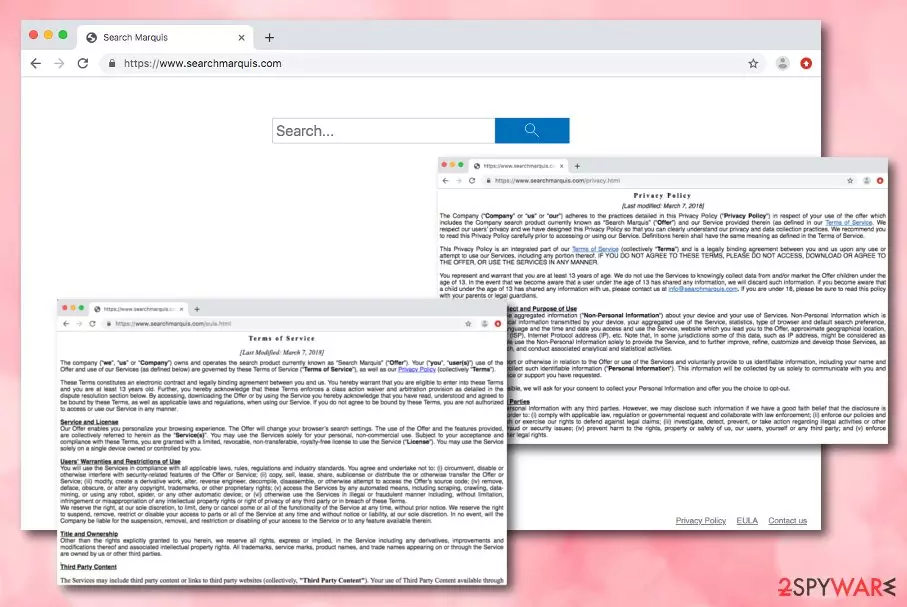
Searchmarquis is a browser hijacking virus that sets its own engine as default to promote sponsored websites and generate income from advertising. It belongs to the group or Potentially Unwanted Applications (PUA) targeting Macs[1] exceptionally with the help of doubtful third-party Mac app bundles. Upon installation, it tends to change the main search engine, homepage, new tab settings to https://www.searchmarquis.com.
Later on, a customized engine may add additional browser-based programs, extensions, or system applications to control more of the online traffic and browsing functions or the device itself. Such infections can be categorized as potentially unwanted programs because of the silent infiltration and intrusive symptoms raging from redirects and pop-up ad display to installations of additional undesired programs.
After such actions, the hijacker starts initiating its deceptive activities – redirecting to advertising services, and collecting income via pay-per-click schemes. The browser hijacker plants cookies into the browser to spy on the user's online sessions and produces attractive adverts. Research showed that Searchbaron is closely related to this browser hijacker, so you shouldn't be surprised if after a few clicks the screen reroutes you to this domain.
There is very little to no value in most browser hijacking applications, so you should clean the machine thoroughly in order to stop the excessive tracking and redirects. The PUP is related to searchbaron.com and searchroute-1560352588.us-west-2.elb.amazonaws.com domains. Users note that these are the ones that searches and browsing sessions get redirected through.
| Name | Searchmarquis.com, Search Marquis |
|---|---|
| Type | Browser-hijacker |
| Sub-type | The potentially unwanted program, browser-based cyber threat |
| Target | Mac OS users |
| SYmptoms | The search engine appears on the web browser out of nowhere and starts redirecting to other sites related to search engines or online advertising services. |
| Distribution | Free or shared programs, unsecured software downloading networks, e.g. peer-to-peer sources all can include PUPs like this hijack as additional installation setup parts. Various promotional ads with claims about useful features and even direct websites can provide direct downloads of the search engine |
| Elimination | You can detect the browser hijacker and all bogus applications related to the threat and remove the hijacker completely with an anti-malware program |
| repair | Since the machine can get even more affected by the background processes and files added in system folders, you should rely on tools compatible with the operating system and capable of checking or even fixing virus damage. Try the repair tool FortectIntego |
All the additional content that is delivered to your screen when browsing sessions get affected by the PUP triggers pop-ups, banners, and other commercial material. Also, online search attempts via this engine deliver results filled with in-text links and other content without creating any alleged value and usefulness.
This app belongs to the potentially unwanted program category because it uses stealth techniques to enter the targeted computer system. This usually refers to bundling measures or security-lacking websites. Once the app is on the machine, be prepared to face bogus activities.
These are the main symptoms of this shady search engine:
- default homepage, new tab, and search engine gets changed to Search Marquis;
- all search attempts redirects to other sites show results filled with links and other types of commercial material;
- toolbars, extensions, add-ons, and other content gets installed without your permission or knowledge;
- advertisements appear on sites where they aren't supposed to be.
The app might present itself as a useful product, however, do not fall for believing in these claims as you might easily get tricked by the developers. They might add “handy features” to the browser hijacker such as fast access to popular networks. However, the true feature of this program is to plant tracking components and gather non-personal data:
We collect non-identifiable aggregated information (“Non-Personal Information”) about your device and your use of Services. Non-Personal Information which is collected includes: technical information transmitted by your device, your aggregated use of the Service, statistics, type of browser and default search preference, operating system type, language and the time and date you access and use the Service, website which you lead you to the Offer, approximate geographical location, Internet Service Provider (ISP), Internet Protocol address (IP), etc.
While this type of gathered information might seem meaningless from the first view, note that browser hijackers generate fake offers and deals that rely on this data and attract a big number of users. Do not click on any ads that come from this hijacker as you might be redirected to somewhere dangerous.

Here we end up with another problem related to the hijacker – redirecting.[2] Frequent redirects are mostly caused to take the visitor to an affiliate web source and convince him to buy some useless products. However, sometimes you might be forced to land on a potentially infectious website.
Search Marquis removal is a necessary step to take if you are heading towards the ultimate computer and browsing safety. You can easily find all bogus products that might have been planted on the computer system with the help of proper anti-malware tool. Of course, feel free to choose any other type of program.
Also, we have provided some detailed guidelines at the end of this article that should help you to remove the unwanted program from your Mac OS X computer and clean bogus modifications from web browser applications such as Google Chrome, Mozilla Firefox, Internet Explorer, and Safari. System optimizers or PC repair tools like FortectIntego can help you further clean the machine by fixing virus damage and repair corrupted or differently affected files.
Remove SearchMarquis.com virus from Chrome for good
While most browser hijackers are relatively harmless and easy to eliminate, others apply various stealth and persistence techniques that would prevent easy removal. For example, some PUPs might establish the “Managed by your organization” status on the web browser, which will repel any attempts to uninstall the suspicious extension. In such a case, the best way to get rid of these settings is by resetting the web browser altogether.
Additionally, some settings might be stored within Google's database – extensions, apps, autofill, themes, history, and other settings. In some cases, these might hold unwanted components within your Google account. As a result, even if you remove the PUP from Chrome, it might come back with all the unwanted activities.
Therefore, you can reset Chrome sync easily by accessing a specific page on your web browser – Data from Chrome sync. Simply scroll down to the bottom of the page and click on “Reset Sync.” This way you can properly eliminate Search Marquis from the device.

Shady download websites are actively involved in affiliate marketing
Tech experts from LesVirus.fr[3] state that browser hijackers and other potentially unwanted programs are likely to infiltrate the targeted machine/device through sources that lack the required protection. These locations are known to be various P2P networks such as Torrents.
Additionally, bogus products are very likely to enter the computer via free software packages. Programs that are shared for free for downloading/installing purposes do not include any recommended security. This is why you always have to opt for the Custom/Advanced installation mode.
Besides, having a reputable antivirus program running on your machine will do half of the security job for you. However, you cannot leave everything for the anti-malware as you are the one who is responsible for your own, your programs', and your machine's/device's safety level.
How to get rid of Search marquis browser hijacker? See the removal guide
If the virus has been bothering you lately, the best thing to do is eliminate the potentially unwanted program together with all additional content that it has brought to the computer system and web browser applications such as Google Chrome, Mozilla Firefox, and Safari.

PUP removal can be carried out in two different ways – by using manual steps or downloading/installing automatical products. Note that the second variant is more effective and will allow you to deal with the entire process in a few minutes of time. This way, you can clean the machine fully from this hijack or any other intruders.
However, if you believe in yourself and think that the skills you have in the cybersecurity field are enough to get rid of the browser-hijacking application, you can remove the app from web browsers and OS with the help of the below-provided guidelines. Double-checking is always advisable before you get back to using the machine normally.
Delete from macOS
Remove the unwanted application:
- From the menu bar, select Go > Applications.
- In the Applications folder, look for any suspicious entries, then drag them to Trash (or right-click and pick Move to Trash).


Delete leftover files and folders:
- Select Go > Go to Folder.
- Enter /Library/Application Support and remove any suspicious folders related to the unwanted program.
- Repeat the same check in the /Library/LaunchAgents and /Library/LaunchDaemons folders, deleting any suspicious entries.

- Finally, empty the Trash to permanently remove the leftovers.

Remove from Mozilla Firefox (FF)
Remove dangerous extensions:
- Open Mozilla Firefox browser and click on the Menu (three horizontal lines at the top-right of the window).
- Select Add-ons.
- In here, select the unwanted extension and click Remove.


Reset the homepage:
- Click three horizontal lines at the top right corner to open the menu.
- Choose Settings.
- Under Home, set your preferred homepage and new tab settings.
Clear cookies and site data:
- Click Menu and pick Settings.
- Go to Privacy & Security section.
- Scroll down to locate Cookies and Site Data.
- Click on Clear Data...
- Select Cookies and Site Data and Temporary cached files and pages, then click Clear.


Reset Mozilla Firefox
If clearing the browser as explained above did not help, reset Mozilla Firefox:
- Open Mozilla Firefox browser and click the Menu.
- Go to Help and then choose Troubleshooting Information.

- Under Give Firefox a tune up section, click on Refresh Firefox...
- Once the pop-up shows up, confirm the action by pressing on Refresh Firefox.



Remove from Google Chrome
Delete malicious extensions from Google Chrome:
- Open Google Chrome, click on the Menu (three vertical dots at the top-right corner) and select More tools > Extensions.
- In the newly opened window, you will see all the installed extensions. Uninstall all suspicious extensions related to the unwanted program by clicking Remove.


Clear cache and web data from Chrome:
- Click on Menu and pick Settings.
- Under Privacy and security, select Clear browsing data.
- Select Browsing history, Cookies and other site data, as well as Cached images and files.
- Click Clear data.


Change your homepage:
- Click menu and choose Settings.
- Look for a suspicious site in the On startup section.
- Click on Open a specific or set of pages and click on three dots to find the Remove option.
Reset Google Chrome:
If the previous methods did not help you, reset Google Chrome to eliminate all the unwanted components:
- Click on Menu and select Settings.
- In the Settings, scroll down and click Advanced.
- Scroll down and locate Reset and clean up section.
- Now click Restore settings to their original defaults.
- Confirm with Reset settings.


Delete from Safari
Remove dangerous extensions:
- Open Safari, click Safari in the menu at the top-left of the screen, and select Preferences.
- Go to the Extensions tab, look for any suspicious entries, and click Uninstall to remove them.


Clear history and website data:
- Click Safari in the menu and pick Clear History.
- Set Clear to all history and confirm with Clear History.


Reset Safari:
- Click Safari in the menu and select Preferences > Advanced.
- Enable Show Develop menu in menu bar.
- From the menu bar, click Develop and select Empty Caches.


Did this guide help?
Be the first to comment