

“System Blocked for Security Reasons” is a fake alert that informs users about a virus infection on their Windows machines
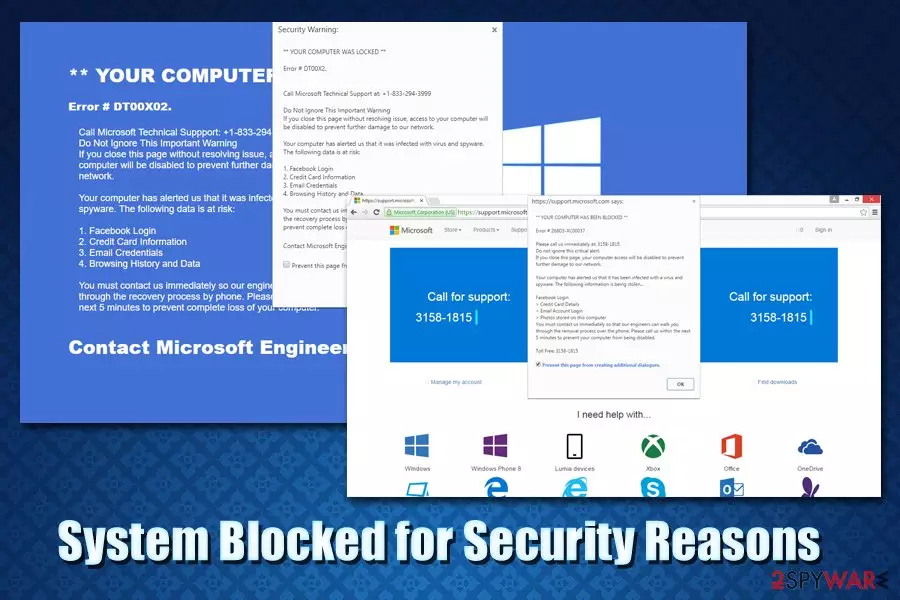
“System Blocked for Security Reasons” virus is a pop-up that tries to trick you into calling alleged Microsoft technicians due to virus infection on your machine. This message can seem like it is legitimate at first, but it does not take long to notice that it is displayed via the browser, such as Google Chrome, Mozilla Firefox, Safari, Internet Explorer, or any other.
Typically, “System Blocked for Security Reasons” tech support scam[1] can be encountered on various shady websites that you get redirected to after clicking on a malicious ad, or if your computer is infected with adware. While in the first case scenario there is nothing to worry about as long as you do not call the self-proclaimed technicians, the latter should be uninstalled from your system, as adware will continue showing you pop-ups, deals, offers, coupons, and other commercial and scam content like “System Blocked for Security Reasons.”
| Name | System Blocked for Security Reasons |
| Type | Tech support scam, online fraud |
| Distribution | The scams are delivered to users whose machines have been infected with adware or after they get redirected from a malicious website |
| Claim | The fake alert claims that users' computers were infected with a dangerous virus, and personal data, system files, banking details, and social network account passwords may have been (or already are) compromised. In order to prevent the damage, users are prompted to call an alleged Microsoft helpline |
| Main risks | Users who call the fake technicians risk of losing money after paying for obscure services, disclose their personal details or infect their machines with malware as soon as remote access is provided to crooks |
| Similar scams | Windows Activation Error Code: 0x44578, Pornographic virus alert from Microsoft, Your device has been blocked, etc. |
| Removal | You can get rid of “System Blocked for Security Reasons” notification by simply closing down the browser and never contacting the crooks; however, in case you often encounter ads and are redirected to suspicious sites seemingly out of nowhere, you will have to get rid of adware app that is installed on your system. For that, you can use anti-malware software or follow our manual instructions below |
| Recovery & optimization | In case your computer works slowly, shows errors frequently and suffers from other instability issues, we suggest you scan your machine with PC repair software FortectIntego – it can fix virus damage and remediate your Windows OS |
“System Blocked for Security Reasons” popup is shown in a way that imitates the Windows Blue Screen of Death,[2] or similar legitimate prompts. However, this scam has nothing to do Microsoft or any other legitimate company, as it is a doing of cybercrooks willing to con money out of you. One of the best tactics of doing so is by scaring you that something is very bad is about to happen – like your personal details might get stolen, as well as funds from your banking accounts.
However, “System Blocked for Security Reasons” alert is just a hoax, and, most likely, there are no viruses present on your machine. The main goal of scams like these is to get you on the phone with a tech support scammer, and then they will do the job of convincing you how “infected” your computer is, and how only they can help you. By operating this illegal business, tech support scammers swindled millions of dollars away from unsuspecting users each year,[3] so do not fall a victim and remove “System Blocked for Security Reasons” virus from your browser by closing the tab it is shown in immediately.
There are several versions of the “System Blocked for Security Reasons” virus in the wild, which typically consists of a pop-up, as well as a background message. Here is one of such examples:
***System Alert***
System Blocked for Security Reasons.
Please ensure you do not restart your computer it may lead to Permanent Damage to the System or data loss.WARNING – Microsoft windows has detected that a porn virus has infected your system and trying to steal pictures, data and social networking passwords. This is a serious hacking issue You may be a victim of online identity theft.
Please Call +1-800-604-9921 for Support or Visit Support.Microsoft.com.Terms & Conditions
Copyright 2019 :copyright:Microsoft. All rights reserved.*******************************************************************
Call Toll Free +1-800-604-9921 Or Visit Support.microsoft.com.
*******************************************************************
Keep in mind that Microsoft never provides contact phone numbers within its error or warning messages, and has other means of contacting is customers. Besides, detecting malware the way System Blocked for Security Reasons scam claims is virtually impossible, as you need an anti-virus program installed on your machine. Thus, do not call cybercriminals, as they will try to convince you to pay for their fake tech support services, install malware after remote access is given, or make you reveal personal information.
While it is highly unlikely that your computer is infected (and all those scary things about the loss of data, virus attack, personal information disclosure, etc., are just lies), it is worth checking your machine for adware – a type of a potentially unwanted program that focuses on displaying commercial content. Unfortunately, many of such programs also lead users to insecure sites like “System Blocked for Security Reasons.”

Adware is typically distributed with the help of software bundles downloaded from third-party freeware sites, so users mostly miss its point of entry. As a result, they are unaware that “System Blocked for Security Reasons” virus alert has appeared on their browsers due to a potentially unwanted program on their machines. Besides, adware might also sometimes act more like malware, preventing its termination, and collecting personal user data.
Therefore, “System Blocked for Security Reasons” virus removal might sometimes cause troubles to users, as it is not immediately clear whether a PUP is related to the browser redirect issues, or it was triggered by a simple miss-click. The best way to know is to perform a full system scan with anti-malware software that could automatically detect suspicious programs and get rid of them for you.
Of course, if you are well familiar with all the apps that should and should not be installed on your machine, you can opt for manual “System Blocked for Security Reasons” adware removal – we provide instructions below for help. Additionally, once you get rid of a PUP, you should also reset the installed browsers and scan the computer with FortectIntego to fix virus damage, in case you are experiencing issues with your PC.
Adware can get installed on your system without a proper warning
Millions of users download free applications every day, and many choose to use third-parities for that. The practice comes from the time no official web stores existed, such as Microsoft Store, App Store, Google Play, etc. Nowadays, however, there are millions of apps that can be downloaded from the official sources, so there is no need to rely on third parties anymore.
However, if you believe that there is no other software that could replace the one that you want to download from third-parties, you should take several things into consideration – it would help you not to compromise your machine with suspicious software. Here are some tips from security experts:[4]
- Install reputable anti-malware and keep it updated at all times;
- Before installing an unknown app from a freeware site, check up on it online – read blogs, forum posts, reviews, etc.;
- Ensure that you de-select all ticks in the pre-ticked boxes;
- When the installation wizard shows up, ensure you rely on Advanced/Custom settings instead of Recommended/Quick ones;
- Read the fine print, as it usually contains information app developers don't want you to know;
- Watch out for deceptive deals, misplaced buttons, and other tricks – be more attentive in general.

“System Blocked for Security Reasons” removal guide
In case the suspicious browser activity is related to adware infection, it is possible to remove System Blocked for Security Reasons virus using two ways. The first option includes manual elimination. Follow the steps provided below carefully to ensure that the malware is rooted out completely.
However, if you are not sure whether adware is involved at all or you don't know which application is the culprit, it is best to proceed with automatic “System Blocked for Security Reasons” virus removal. For that, you should download and install a reputable anti-malware program and perform a full system scan (don't forget to bring security software up to date before that).
Additionally, since adware might change web browser settings without permission, we highly suggest you reset all the installed search tools, including Google Chrome, Internet Explorer, Mozilla Firefox, and others – we provide instructions for that below as well.
Uninstall from Windows
Uninstall from Windows 10/8:
- Type Control Panel into the Windows search box and open the result.
- Under Programs, select Uninstall a program.


Uninstall from Windows 7/XP:
- Click on Windows Start > Control Panel (Windows XP users should click on Add/Remove Programs).
- In Control Panel, select Programs > Uninstall a program.


Remove the unwanted program:
- In the Programs and Features window, look for any recently installed suspicious entries, select them, and click Uninstall.
- If User Account Control appears, click Yes to confirm, then complete the removal.


Reset Internet Explorer
Remove dangerous add-ons:
- Open Internet Explorer, click on the Gear icon (IE menu) on the top-right corner of the browser
- Pick Manage Add-ons.
- You will see a Manage Add-ons window. Here, look for suspicious plugins. Click on these entries and select Disable.


Change your homepage if it was altered:
- Open IE and click on the Gear icon.
- Select Internet Options.
- In the General tab, delete the Home page address and replace it by your preferred one (for example, Google.com).
- Click Apply and then select OK.


Delete temporary files:
- Press on the Gear icon and select Internet Options.
- Under Browsing history, click Delete...
- Select relevant fields and press Delete.


Reset Internet Explorer:
- Click on Gear icon > Internet options and select Advanced tab.
- Select Reset.
- In the new window, check Delete personal settings and select Reset.


Remove from Microsoft Edge
Delete unwanted extensions from MS Edge:
- Select Menu (three horizontal dots at the top-right of the browser window) and pick Extensions.
- From the list, pick the extension and click on the Gear icon.
- Click Remove.


Clear cookies and other browser data:
- Click on the Menu (three horizontal dots at the top-right of the browser window) and select Settings > Privacy, search, and services..
- Under Clear browsing data, pick Choose what to clear.
- Select Cookies and other site data and Cached images and files. (apart from passwords, although you might want to include Media licenses as well, if applicable) and click on Clear.


Restore new tab and homepage settings:
- Click the menu icon and choose Settings.
- Then find On startup section.
- Click Remove next to any suspicious startup page.
Reset MS Edge if the above steps did not work:
- Press on Ctrl + Shift + Esc to open Task Manager.
- Click on More details arrow at the bottom of the window.
- Select Details tab.
- Now scroll down and locate every entry with Microsoft Edge name in it. Right-click on each of them and select End Task to stop MS Edge from running.


Instructions for Chromium-based Edge
Delete extensions from MS Edge (Chromium):
- Open Edge and click select Settings > Extensions.
- Delete unwanted extensions by clicking Remove.


Clear cache and site data:
- Click on Menu and go to Settings.
- Select Privacy, search and services.
- Under Clear browsing data, pick Choose what to clear.
- Under Time range, pick All time.
- Select Clear now.


Reset Chromium-based MS Edge:
- Click on Menu and select Settings.
- On the left side, pick Reset settings.
- Select Restore settings to their default values.
- Confirm with Reset.
- This will disable extensions and reset startup pages but will not delete bookmarks, saved passwords, or browsing history.


Remove from Mozilla Firefox (FF)
Remove dangerous extensions:
- Open Mozilla Firefox browser and click on the Menu (three horizontal lines at the top-right of the window).
- Select Add-ons.
- In here, select the unwanted extension and click Remove.


Reset the homepage:
- Click three horizontal lines at the top right corner to open the menu.
- Choose Settings.
- Under Home, set your preferred homepage and new tab settings.
Clear cookies and site data:
- Click Menu and pick Settings.
- Go to Privacy & Security section.
- Scroll down to locate Cookies and Site Data.
- Click on Clear Data...
- Select Cookies and Site Data and Temporary cached files and pages, then click Clear.


Reset Mozilla Firefox
If clearing the browser as explained above did not help, reset Mozilla Firefox:
- Open Mozilla Firefox browser and click the Menu.
- Go to Help and then choose Troubleshooting Information.

- Under Give Firefox a tune up section, click on Refresh Firefox...
- Once the pop-up shows up, confirm the action by pressing on Refresh Firefox.



Remove from Google Chrome
Delete malicious extensions from Google Chrome:
- Open Google Chrome, click on the Menu (three vertical dots at the top-right corner) and select More tools > Extensions.
- In the newly opened window, you will see all the installed extensions. Uninstall all suspicious extensions related to the unwanted program by clicking Remove.


Clear cache and web data from Chrome:
- Click on Menu and pick Settings.
- Under Privacy and security, select Clear browsing data.
- Select Browsing history, Cookies and other site data, as well as Cached images and files.
- Click Clear data.


Change your homepage:
- Click menu and choose Settings.
- Look for a suspicious site in the On startup section.
- Click on Open a specific or set of pages and click on three dots to find the Remove option.
Reset Google Chrome:
If the previous methods did not help you, reset Google Chrome to eliminate all the unwanted components:
- Click on Menu and select Settings.
- In the Settings, scroll down and click Advanced.
- Scroll down and locate Reset and clean up section.
- Now click Restore settings to their original defaults.
- Confirm with Reset settings.


Delete from Safari
Remove dangerous extensions:
- Open Safari, click Safari in the menu at the top-left of the screen, and select Preferences.
- Go to the Extensions tab, look for any suspicious entries, and click Uninstall to remove them.


Clear history and website data:
- Click Safari in the menu and pick Clear History.
- Set Clear to all history and confirm with Clear History.


Reset Safari:
- Click Safari in the menu and select Preferences > Advanced.
- Enable Show Develop menu in menu bar.
- From the menu bar, click Develop and select Empty Caches.


Did this guide help?
3 comments
BilboBaggins
When did they become so aggressive?
J. Fox
I hate this kind of viruses the most!
Cassandra
For a moment I panicked, but then I scanned the computer and removed this adware. Still, I‘m wondering how I managed to get infected with this cyber parasite.