

Taboola is a legitimate advertising network, although can often be abused by adware developers
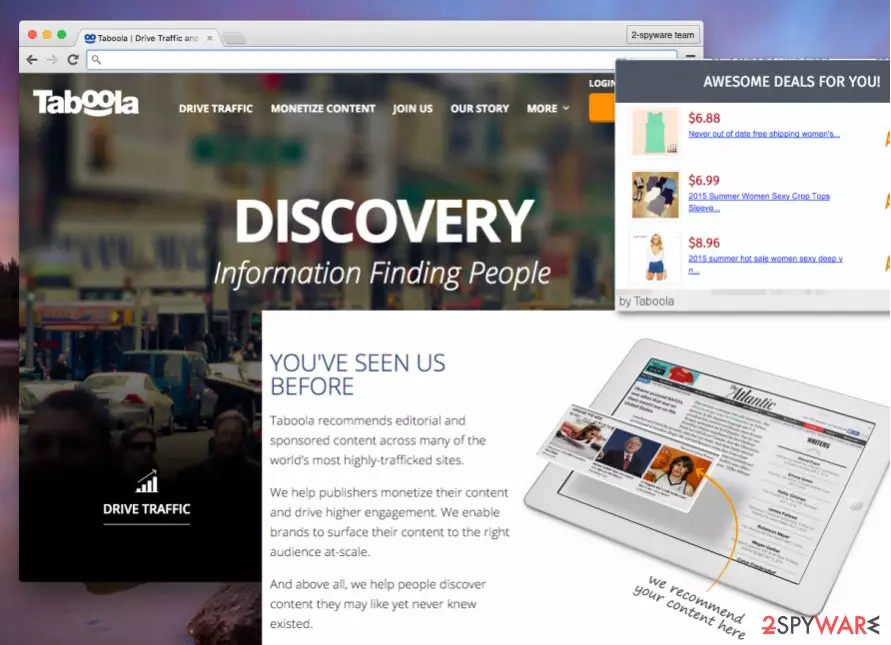
Taboola is a New York-based content recommendation network and advertising service that allows website developers to place ads on their sites for monetization purposes. Unfortunately, these platforms can be greatly abused by adware and other potentially unwanted programs in order to insert pop-ups, deals, offers, flashing windows, hyperlinks, and other intrusive content directly into web browsers. Consequently, users struggle to view legitimate content on various sites that they visit due to ads like “Sponsored by Taboola” or “Taboola ads.”
While the company itself has little to do with adware, users often see the name of the advertiser, and, due to intrusive behavior, makes them think that they are affected by Taboola virus. While this is not the case and no malicious software is installed, the intrusive ads can be stopped by terminating adware and other PUPs installed on the device.
Besides, some ads might be simply embedded within the site and have nothing to do with adware. In such a case, the best way to remove Taboola ads would be by installing the ad-blocking application.
| Name | Taboola ads |
| Type | Adware, potentially unwanted program |
| Infiltration | Software bundling, third-party websites |
| Symptoms | Intrusive ads on all sites that you visit |
| Main dangers | Loss of money, installation of unwanted software, viewing of undesired web content |
| Termination | Delete adware with the help of security software or our manual guide below |
| Recovery | To recover from adware-made changes, scan your computer with FortectIntego |
| Prevention | Use ad-blocking software to stop Taboola ads |
Some of Taboola's publishers are NBC, Aol, The Weather Channel or MSN. However, these ads can be highly annoying because clicking on them usually throws the user to external websites. Besides, you can never be too sure when clicking on them – recently, scammers compromised the ad network to serve malicious ads to computer users across the globe.
Internet is an amazing place to learn new things and algorithms used on websites allow us to learn consistently by providing suggestions on what to read next. Unfortunately, Taboola can turn these things around. Although it hardly differs from other content recommendation platforms such as RevContent, Spoutable, or Outbrain, users tend to call Taboola ads annoying and often start looking for their removal guidelines.
This content recommendation platform is designed to present the users with sponsored news stories and click-bait[1] celebrity news[2]. It actually places annoying and intrusive ads and articles on web pages when the user browses the web. It is important to know that some ads and articles are part of the website you are visiting. Therefore, attempts to find Taboola-associated adware on your computer might be unsuccessful.
However, if you constantly see the following in the address line or at the bottom of Google Chrome, Safari, Internet Explorer, Mozilla Firefox or another browser, there is a high chance a potentially unwanted program is involved:
- Ads bought to you by Taboola;
- Taboola ads;
- Sponsored by Taboola;
- Redirecting to Taboola;
- Provided by Taboola, etc.
Besides Taboola ads, users might also start getting redirected to unknown websites, seeing sponsored links within search results, and have their homepage and new tab default address altered.

Ads might lead you to inappropriate or even disturbing websites – do not click on them to avoid the unwanted consequences
Having in mind all of the things we have already discussed, is not surprising why so many people want to block Taboola ads somehow. They often complain that seeing these ads makes their web browsing experience worse with the constant appearance of pushy ads, “Related articles” and “From around the web” news which distract them from finding relevant information on the Internet.
Taboola spam is not only annoying; you can never trust where you will end up after clicking on these irritating advertisements or articles it suggests reading. Although the ad network claims to be using strict restrictions for advertisers and prohibiting the use of offensive, threatening, inappropriate, dangerous, or scam content, recently the ad network was compromised and clicking on its ads used to redirect victims to tech support scam[3] page.
The only thing that we want to accentuate is that you can never fully trust these ads and click on them without worries. You can never know what hides behind them!
Taboola business model is simple: it places eye-catching content to draw users' attention and make them click on it; in other words, it functions as bait. When the bait servers its purpose and the users click on the ads, Taboola redirect occurs and drops its victims off on some promoted websites.
Each of such redirects generates pay-per-click revenue[4] for the developers of this PUP. You should avoid content marked as “Sponsored links by Taboola,” “Content you may like” or “Related articles.”
To sum up, we want to share our opinion with you – we believe that these marketing strategies are a bit pushy, however, when seeking for security and privacy online, you should see these ads the same way you see any online content. Just do not be too trustful and you will be fine.

Sadly, it seems that it is not really possible to avoid Taboola ads at all times because some websites simply choose to provide their advertisements willingly. In a recent Facebook update, which was rolled out completely silently, a new feature was added to Facebook apps for iOS and Android – an icon with a rocket icon on it.
Some news sites were quick to state that the new feature serves users content that looks like “a mixture of Taboola ads and Snapchat's Discover section.[5]” However, the mysterious rocket button quickly disappeared as it was only a test feature.
Hackers compromise the ad network to push malicious ads
Taboola content recommendation platform has recently become a victim of a cyber attack. While the company strives to strictly check the reliability of every advertiser, rogue ones managed to push malicious ads via security checks and this way abuse ad network for the promotion of deceptive ads.
According to analysis,[6] the malvertising incident was caught on the MSN.com website on September 28th, 2017. Researchers noticed that clicking on one of Taboola's ads placed on the MSN news site initiated a redirect via trc.taboola.com to a tech support scam site on 4vxadfcjdgbcmn.ga that displays a rogue “Windows Security” pop-up which says:
The server 4vxadfcjdgbcmn.ga is asking for your user name and password.
The server reports that it is from Suspicious activity detected on your IP address due to harmful virus installed in your computer.
Call Toll Free now +1-833-335-1333 for any assistance. Your data is at serious risk.
The deceptive message then repeats all problems and issues that the user will run into if he attempts to open an Internet browser or restart the computer. It is obvious why the support scammers try to frighten the user not to take these measures because a) opening another browser could help the user find information about this fake “Windows Security” pop-up online, b) restarting the computer would shut down the scary pop-up.
Distribution of adware that serves annoying ads
However, if you noticed that you see too many ads by this content recommendation network, you might be dealing with an adware[7] program that serves these ads to you. That might be the case why the “Taboola virus” term appeared, say Novirus.uk experts.[8]
Typically, the adware which presents Taboola content for you spreads via freeware and shareware as an additional component, exhibited as a “recommended download.”

When the virus settles down on the computer, it copies its command file taboola.dll to the Program Files and ProgramData folders from which it can then run its processes. In fact, the majority of ad-supported programs or browser hijackers are distributed like that.
The good news is that you can always opt-out of these additional components by adjusting the installation settings appropriately. You have to opt for either the “Custom” or “Advanced” installation option when installing new programs, and then you will be provided with a list of optional programs added to your selected one.
Deselect the checkboxes next to them to avoid installing them. That is all you need to do to prevent installing unlooked-for additions. If you are one of many users who cannot stand these advertisements, you are probably looking for a clear removal guide. Luckily, we have one prepared for your below.
Remove Taboola ads generated by suspicious programs
If you are looking for instructions on how to block Taboola ads, you have come to the right place. We present two different techniques on how to get rid of Taboola virus:
- You can uninstall it manually using manual removal instructions;
- You can remove Taboola using anti-spyware software.
If you do not want to see these Taboola articles or ads anymore, and if you are sure that your computer is free of spyware or malware, you can try to solve the issue manually.
For that, follow the removal instructions given below. However, if you would like to check the security status of your PC, consider installing reliable security software.
We recommend using security software because it can detect and remove the latest computer threats and also provide real-time protection. If you have any questions regarding uninstall, please contact our support team.
Uninstall from Windows
Uninstall from Windows 10/8:
- Type Control Panel into the Windows search box and open the result.
- Under Programs, select Uninstall a program.


Uninstall from Windows 7/XP:
- Click on Windows Start > Control Panel (Windows XP users should click on Add/Remove Programs).
- In Control Panel, select Programs > Uninstall a program.


Remove the unwanted program:
- In the Programs and Features window, look for any recently installed suspicious entries, select them, and click Uninstall.
- If User Account Control appears, click Yes to confirm, then complete the removal.


Delete from macOS
Remove the unwanted application:
- From the menu bar, select Go > Applications.
- In the Applications folder, look for any suspicious entries, then drag them to Trash (or right-click and pick Move to Trash).


Delete leftover files and folders:
- Select Go > Go to Folder.
- Enter /Library/Application Support and remove any suspicious folders related to the unwanted program.
- Repeat the same check in the /Library/LaunchAgents and /Library/LaunchDaemons folders, deleting any suspicious entries.

- Finally, empty the Trash to permanently remove the leftovers.

Reset Internet Explorer
Remove dangerous add-ons:
- Open Internet Explorer, click on the Gear icon (IE menu) on the top-right corner of the browser
- Pick Manage Add-ons.
- You will see a Manage Add-ons window. Here, look for suspicious plugins. Click on these entries and select Disable.


Change your homepage if it was altered:
- Open IE and click on the Gear icon.
- Select Internet Options.
- In the General tab, delete the Home page address and replace it by your preferred one (for example, Google.com).
- Click Apply and then select OK.


Delete temporary files:
- Press on the Gear icon and select Internet Options.
- Under Browsing history, click Delete...
- Select relevant fields and press Delete.


Reset Internet Explorer:
- Click on Gear icon > Internet options and select Advanced tab.
- Select Reset.
- In the new window, check Delete personal settings and select Reset.


Remove from Microsoft Edge
Delete unwanted extensions from MS Edge:
- Select Menu (three horizontal dots at the top-right of the browser window) and pick Extensions.
- From the list, pick the extension and click on the Gear icon.
- Click Remove.


Clear cookies and other browser data:
- Click on the Menu (three horizontal dots at the top-right of the browser window) and select Settings > Privacy, search, and services..
- Under Clear browsing data, pick Choose what to clear.
- Select Cookies and other site data and Cached images and files. (apart from passwords, although you might want to include Media licenses as well, if applicable) and click on Clear.


Restore new tab and homepage settings:
- Click the menu icon and choose Settings.
- Then find On startup section.
- Click Remove next to any suspicious startup page.
Reset MS Edge if the above steps did not work:
- Press on Ctrl + Shift + Esc to open Task Manager.
- Click on More details arrow at the bottom of the window.
- Select Details tab.
- Now scroll down and locate every entry with Microsoft Edge name in it. Right-click on each of them and select End Task to stop MS Edge from running.


Instructions for Chromium-based Edge
Delete extensions from MS Edge (Chromium):
- Open Edge and click select Settings > Extensions.
- Delete unwanted extensions by clicking Remove.


Clear cache and site data:
- Click on Menu and go to Settings.
- Select Privacy, search and services.
- Under Clear browsing data, pick Choose what to clear.
- Under Time range, pick All time.
- Select Clear now.


Reset Chromium-based MS Edge:
- Click on Menu and select Settings.
- On the left side, pick Reset settings.
- Select Restore settings to their default values.
- Confirm with Reset.
- This will disable extensions and reset startup pages but will not delete bookmarks, saved passwords, or browsing history.


Remove from Mozilla Firefox (FF)
Remove dangerous extensions:
- Open Mozilla Firefox browser and click on the Menu (three horizontal lines at the top-right of the window).
- Select Add-ons.
- In here, select the unwanted extension and click Remove.


Reset the homepage:
- Click three horizontal lines at the top right corner to open the menu.
- Choose Settings.
- Under Home, set your preferred homepage and new tab settings.
Clear cookies and site data:
- Click Menu and pick Settings.
- Go to Privacy & Security section.
- Scroll down to locate Cookies and Site Data.
- Click on Clear Data...
- Select Cookies and Site Data and Temporary cached files and pages, then click Clear.


Reset Mozilla Firefox
If clearing the browser as explained above did not help, reset Mozilla Firefox:
- Open Mozilla Firefox browser and click the Menu.
- Go to Help and then choose Troubleshooting Information.

- Under Give Firefox a tune up section, click on Refresh Firefox...
- Once the pop-up shows up, confirm the action by pressing on Refresh Firefox.



Remove from Google Chrome
Delete malicious extensions from Google Chrome:
- Open Google Chrome, click on the Menu (three vertical dots at the top-right corner) and select More tools > Extensions.
- In the newly opened window, you will see all the installed extensions. Uninstall all suspicious extensions related to the unwanted program by clicking Remove.


Clear cache and web data from Chrome:
- Click on Menu and pick Settings.
- Under Privacy and security, select Clear browsing data.
- Select Browsing history, Cookies and other site data, as well as Cached images and files.
- Click Clear data.


Change your homepage:
- Click menu and choose Settings.
- Look for a suspicious site in the On startup section.
- Click on Open a specific or set of pages and click on three dots to find the Remove option.
Reset Google Chrome:
If the previous methods did not help you, reset Google Chrome to eliminate all the unwanted components:
- Click on Menu and select Settings.
- In the Settings, scroll down and click Advanced.
- Scroll down and locate Reset and clean up section.
- Now click Restore settings to their original defaults.
- Confirm with Reset settings.


Delete from Safari
Remove dangerous extensions:
- Open Safari, click Safari in the menu at the top-left of the screen, and select Preferences.
- Go to the Extensions tab, look for any suspicious entries, and click Uninstall to remove them.


Clear history and website data:
- Click Safari in the menu and pick Clear History.
- Set Clear to all history and confirm with Clear History.


Reset Safari:
- Click Safari in the menu and select Preferences > Advanced.
- Enable Show Develop menu in menu bar.
- From the menu bar, click Develop and select Empty Caches.


Did this guide help?
6 comments
raw
I used to think that Taboola ads were part of the websites that I visit. However, I have noticed that sometimes these ads and the content they display differs from the websites content. I dont need additional apps on my computer, so Imma remove Taboola.
TaylorPette
I dont like Taboola ads, because they deliver me offers to read stupid articles that I am not interested in. Vague and worthless content!
Hana97
Horrible ads, intrusive and useless.
Maria
I deleted!!! I deleted this virus! Its FINALLY GONE! YESS!!!
TheHills
None of Taboola deals helped me to save money. Spam app, brings junk to your computer. I bet no one needs this in their life!
Collin_Alb
I swear, i cant stand Taboola ads. Theyre so annoying!