

Top Results App is the unwanted Mac file which is related to adware
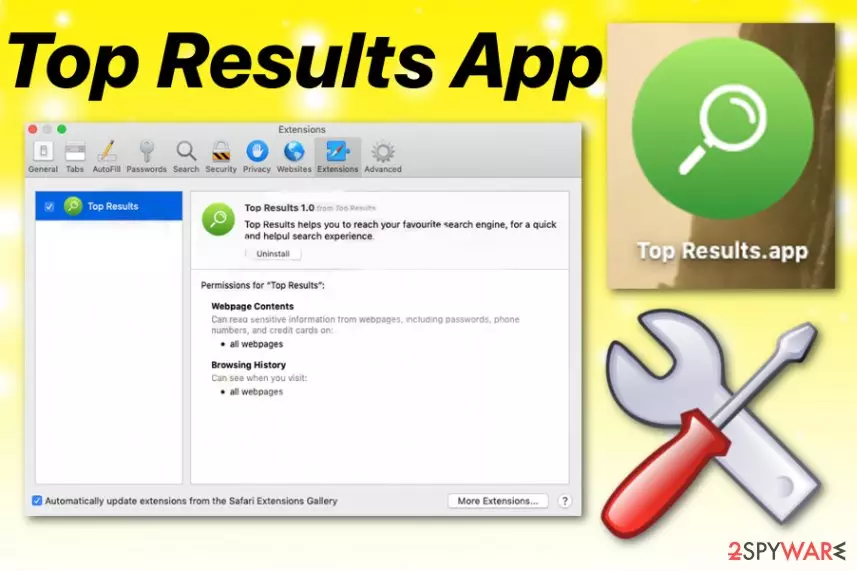
Top Results App is the rogue mac file related to the potentially unwanted application (PUP). Typically, these unwanted programs are used to promote or even install other intruders causing Yahoo redirect, Bing redirect or similar issues. The program claims to help users to reach popular search engines, but it only delivers intrusive content and diminishes time online by redirecting to questionable pages. This application is compatible with MacOS and can be spotted by running in the background. It has also been causing difficulties to remove it completely. While Top Results.App is not considered malicious, it has been reported for its dubious behavior on Safari and other web browsers.[1]
| Name | Top Results App |
|---|---|
| Type | Adware |
| Category | Mac virus |
| Symptoms | Causes additional installations, online traffic redirects, general slowness of the device |
| Affects | Mac OS running devices |
| Distribution | Deceptive websites, pop-up ads, promotional content, freeware bundles |
| Elimination | To remove Top Results App, you need to get FortectIntego and clean the machine fully |
Top Results App is the program that is promoted as improving the way you search the internet, but it affects your time online negatively when it starts redirecting your online traffic to questionable pages and delivering various unwanted advertisements directly on your screen.
Commercial content that this shady application delivers appears on pages that they are not originating from and promotes various in-browser content or programs. You can spot particular statements on such Top Results App Ads like:
- Powered by Top Results,
- Advertisements by Top Results,
- Brought to you by Top Results,
- Ads by Top Results,
- Ads powered by Top Results.
Once you encounter material like this, you should avoid clicking on anything that has Top Results App on it because all these pop-ups, banners and in-text links create redirects to malware-laden pages. Visiting commercial sites, questionable domains, and clicking on material like this can lead to infiltration of other PUPs and even more severe malware.

Unfortunately, besides being annoying and frustrating itself, Top Results App can install other tools, browser extensions, toolbars, or add-ons without requiring any permission from the user. This is a common feature of potentially unwanted programs because all of them mainly are distributed during freeware installations when the software bundles get spread around.
When Top Results App gets on the system, it also alters your Startup preferences and settings like Windows Registry, so all the installed material can start automatically every time the victim reboots the affected device. This is one of many reasons why you need to clean the machine as soon as possible.
Unfortunately, there is a more significant issue regarding the reasons to remove Top Results App. That is malvertising[2] and data tracking related to those campaigns. Advertisers that are the main sponsors of such ad-supported pages create personalized advertisements to trick people into visiting their websites, and for that various user data is needed.
Location, IP address, most viewed items, visited sites, search queries, and similar information about your online preferences get tracked and collected by these third-party companies. Perform Top Results App removal as soon as possible, so all this behavior can end before any serious issues with your privacy.
Remember that Top Results App adware causes redirects to malicious sites that may lead to direct PUP installations, and the application itself adds other content on the system. Get FortectIntego and scan the machine to remove any virus damage and then clean the machine further by manually resetting the browsers. We have a guide below for that.

Avoid stealthily infiltrations by choosing proper installation options
As many experts[3] note, there is a huge reason why you need to pay close attention to all the processes happening in the machine – hidden content. When you browse online without thinking about all the additional infiltration possibilities, you risk getting potentially unwanted programs or even severe malware without even noticing.
You should avoid downloading from random free pages or promotional ads and visiting such pages, since this way all the automatic installations are allowed by clicking on the content alone. When you install anything on purpose from the internet, choose reliable sources and Advanced or Custom options during the installation, so all the program included in the setup can be seen and de-selected if needed. By choosing Recommended or Quick installations, you automatically agree to download all the programs from the list.
You need to end all the processes and eliminate Top Results App related programs to clean the machine fully
You may think that this potentially unwanted program is a Top Results App virus when you attempt to delete the program manually. Since this application came to the system without your permission or knowledge, you should get rid of it by scanning the system entirely.
Users seem to think that macOS is still immune to malware, and viruses are not infecting Apple devices at all. However, this PUA is real and mainly targets Mac machines, so you need to remove Top Results App it from the system if you want to have a smooth-running machine again.
For questionable tools like this and the general system improving purposes, we recommend getting reliable tools that are capable of performing Top Results App removal too. Professional anti-malware can detect these unwanted programs, related files, and even corrupted system data. So scan the machine and clean it fully to improve the performance.
Delete from macOS
Remove the unwanted application:
- From the menu bar, select Go > Applications.
- In the Applications folder, look for any suspicious entries, then drag them to Trash (or right-click and pick Move to Trash).


Delete leftover files and folders:
- Select Go > Go to Folder.
- Enter /Library/Application Support and remove any suspicious folders related to the unwanted program.
- Repeat the same check in the /Library/LaunchAgents and /Library/LaunchDaemons folders, deleting any suspicious entries.

- Finally, empty the Trash to permanently remove the leftovers.

Remove from Mozilla Firefox (FF)
Remove dangerous extensions:
- Open Mozilla Firefox browser and click on the Menu (three horizontal lines at the top-right of the window).
- Select Add-ons.
- In here, select the unwanted extension and click Remove.


Reset the homepage:
- Click three horizontal lines at the top right corner to open the menu.
- Choose Settings.
- Under Home, set your preferred homepage and new tab settings.
Clear cookies and site data:
- Click Menu and pick Settings.
- Go to Privacy & Security section.
- Scroll down to locate Cookies and Site Data.
- Click on Clear Data...
- Select Cookies and Site Data and Temporary cached files and pages, then click Clear.


Reset Mozilla Firefox
If clearing the browser as explained above did not help, reset Mozilla Firefox:
- Open Mozilla Firefox browser and click the Menu.
- Go to Help and then choose Troubleshooting Information.

- Under Give Firefox a tune up section, click on Refresh Firefox...
- Once the pop-up shows up, confirm the action by pressing on Refresh Firefox.



Remove from Google Chrome
Delete malicious extensions from Google Chrome:
- Open Google Chrome, click on the Menu (three vertical dots at the top-right corner) and select More tools > Extensions.
- In the newly opened window, you will see all the installed extensions. Uninstall all suspicious extensions related to the unwanted program by clicking Remove.


Clear cache and web data from Chrome:
- Click on Menu and pick Settings.
- Under Privacy and security, select Clear browsing data.
- Select Browsing history, Cookies and other site data, as well as Cached images and files.
- Click Clear data.


Change your homepage:
- Click menu and choose Settings.
- Look for a suspicious site in the On startup section.
- Click on Open a specific or set of pages and click on three dots to find the Remove option.
Reset Google Chrome:
If the previous methods did not help you, reset Google Chrome to eliminate all the unwanted components:
- Click on Menu and select Settings.
- In the Settings, scroll down and click Advanced.
- Scroll down and locate Reset and clean up section.
- Now click Restore settings to their original defaults.
- Confirm with Reset settings.


Delete from Safari
Remove dangerous extensions:
- Open Safari, click Safari in the menu at the top-left of the screen, and select Preferences.
- Go to the Extensions tab, look for any suspicious entries, and click Uninstall to remove them.


Clear history and website data:
- Click Safari in the menu and pick Clear History.
- Set Clear to all history and confirm with Clear History.


Reset Safari:
- Click Safari in the menu and select Preferences > Advanced.
- Enable Show Develop menu in menu bar.
- From the menu bar, click Develop and select Empty Caches.


Did this guide help?
Be the first to comment