

Trovi is a potentially unwanted program that can be called a redirect virus because of stealthy distribution techniques
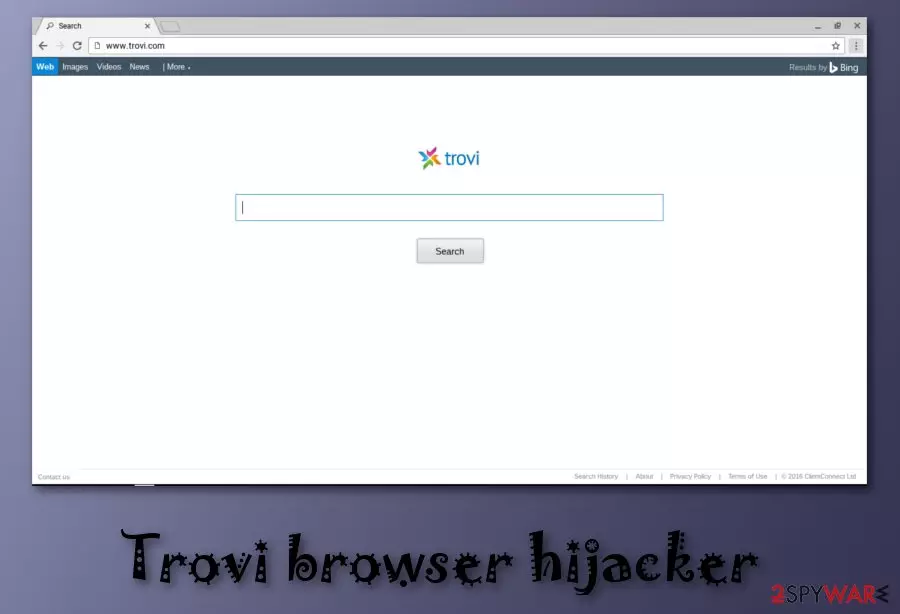
Trovi is the website that manipulates your browser settings and changes homepage, search engine, new tab preferences to force you to visit other ad-supported sites. This highly questionable search engine has been labeled as a “browser hijacker” because of its constant redirects to an infamous trovigo.com site.[1] This search engine creates questionable in-browser search results filled with tons of commercial content and each click on an in-text link, pop-up or banner leads to traffic redirects that lead to possibly malicious pages.
Additionally, the PUP injects commercial content to the victim's favorite sites while trying to generate pay-per-click income to its developer ClientConnect Ltd. As a result, you cannot browse the web as conveniently as you did before the hijack of your Windows or MacOS. The virus was noticed for the first time in 2014. In the beginning, the site redirected its victims to Trovi.com. However, at the moment the domain is closed, but it doesn't mean that you won't suffer from redirects when having this virus on the system. If you noticed changes in your homepage and the default search engine on all your browsers, it is clear that you are dealing with the browser hijacker.
| Name | Trovi |
|---|---|
| Type | Browser hijacker |
| Sub-type | Potentially unwanted program |
| Browsers affected | Chrome, Firefox, Safari, IE, etc. |
| relates search site | trovigo.com, trovi.com |
| detected as |
|
| Symptoms | Redirects to sponsored sites, numerous ads on favorite sites, new bookmarks added, etc. |
| Distribution techniques | Relies on bundling. Spears together with HyperCam, VLC Player, BsPlayer, etc. |
| Removal | Remove Trovi with anti-malware tools. Install FortectIntego to scan the system and see if there is any hijacker on your computer. |
The main question after being hijacked is whether you can trust Trovi results provided during your daily searches or not. According to 2spyware research team, the answer is “No”. You shouldn't put yourself at risk by ignoring changes on your web browsers. No matter it might seem that search results are provided by Bing, they can be filled with numerous commercial content seeking to reroute you to sponsored sites.
Trovi virus can easily infiltrate Windows and Mac operating systems thru their backdoors because its developers have been actively using bundling for its distribution. Once inside the system, it can be set to track its victims to know more information about their likes and preferences. Typically, hijackers, adware-type programs and similar PUPs are set to collect NPII. However, the Privacy Policy of this hijacker notifies that it can also collect personal users' data:
However, the data collected may include personally identifiable information or personal data as such terms are defined under applicable laws (“PII” or “Personal Information”) as a necessary part of using the Software & Services.
As long as there is no guarantee that the developer of the PUP is not sharing users' data with third parties, you should remove Trovi from Safari and other web browsers. Besides, it seems that the developer has also been ignoring requests from the Do Not Track browser setting (DNT) which allows disabling tracking from ad networks, social companies, and other interested parties.

Since Trovi.com gets installed on the machine without your permission, you can only notice symptoms of the browser hijacker, not the infiltration. The unwanted and intrusive activity frustrates people firstly, but the issue is with questionable content that user gets exposed to due to these browser redirects.
Main symptoms of this fake search engine Trovi include:
- Changed default preferences of the browser;
- Homepage set to Trovi.com or trovigo.com;
- All searches automatically go to Trovi Search related sites;
- Commercial content appears on every browser window;
- Browser extensions, tools, toolbars, and add-ons get installed without permission.
All this Trovi behavior, unfortunately, significantly diminishes the time online and affects the speed of your PC. However, to end all the associated processes you need a full system scan. Try to install FortectIntego or SpyHunterCombo Cleaner and run a system check to get rid of all PUPs that got installed behind your back.
Be aware that you may run into several issues while trying to get rid of Trovi Search from Mac and Windows. Similarly to another PUP called Conduit, the virus uses browser helper objects (BHOs)[2] and similar techniques to hide from its user and prevent removal. As a consequence, it might recover itself right after you reboot your computer.[3]
To perform the full Trovi removal from Chrome, Safari, IE and other browsers that have been hijacked, we recommend resetting each of these web browsers. However, before that, you should uninstall the virus with all suspicious apps that could be related to this hijacker. Additionally, check the system with the antivirus tool for leftover files and possible damage.

PUP.Optional.Trovi – a common detection name for Trovi browser hijacker
Trovi.com is a cyber threat based on the browser that affects every online search attempt with questionable content and altered results. PUP.Optional.Trovi is one of the heuristic names that show up on the screen when Malwarebytes, in this case, or other AV tools detect the suspicious activity of the potentially unwanted program. This is not the only result of detection related to Trovi, but the most common.
Users mainly complain that the browser becomes slow and delivers suspicious material when such alerts and results show up on the machine. When PUP.Optional.Trovi alerts show up daily on the screen, and you cannot use the computer normally react as soon as possible and remove this threat. The program may cause difficulties when trying to quarantine this threat because other traces of the hijack are left behind and continue to cause detection alerts.
Try scanning the machine fully with the antivirus tool that you use in the first place or employ another anti-malware program and clean the system entirely. This way you can remove this Trovi hijacker with all the traces and parts that trigger threat detections and PUP.Optional.Trovi alerts stop occurring.
Remember that PUP.Optional.Trovi is not the only detection result that is associated with Trovi. You may also encounter PUP.Optional.Trovi.A, PUP.Optional.Trovi.B, and PUP.Optional.Conduit. All of them show up when Trovi.com lures on the machine.

Choosing Advanced or Custom installation options can help to avoid PUP infiltration
It is very likely that you haven't noticed how this browser hijacker infiltrated your computer. That's because this deceptive program spreads bundled with other free software and might be spotted only if you closely follow the installation of the freeware or shareware.
Main facts to remember when discussing the distribution of this browser hijacker:
- According to researchers[4], you can download this virus together with HyperCam, VLC Player, BsPlayer and many other programs promoted on the Internet for free. This method is called “bundling”;
- To avoid unwanted components, opt for Custom/Advanced installation mode and look for suggestions, such as “Set XXX as a default homepage” or “I agree to install XXX as a default search engine” during the installation of Bs Player and similar programs. Make sure you deselect them;
- Various questionable websites might also include dubious components, such as infected ads. If you like visiting unknown pages on the Internet, like Torrent sites, adult-themed sites and similar, there is a big chance of getting a browser hijacker. Stay away from aggressive ads offering free add-ons, tools to improve your computer's speed, toolbars, etc.
Make sure to remove Trovi from Mac and Windows as soon as possible
Trovi virus is the browser hijacker that involves various browsing tracking functions and potentially may lead to privacy issues or even additional scams when malicious actors use already stolen information to target people. Such potentially unwanted programs cause more problems than you may think.
If you want to remove Trovi from Chrome, Safari, and other web browsers, you need to reset them at first. However, there is always a risk of seeing the same hijacker on the system after rebooting the computer.
To prevent that, you need not only to clean your infected browsers but also get rid of all PUPs hiding in your PC system. The easiest way to do that is to run a full system scan with updated anti-malware. It will refresh your computer system by eliminating each unwanted program.
If you have been struggling with Trovi removal, use programs that we presented below. They have been checked while testing this PUP. However, if you are using your own anti-virus, note that different apps have different files included in their virus database and the software you are running can fail in virus termination. Be careful and try alternative scanners if browser-hijacking app recovered after PC's reboot.
Uninstall from Windows
Uninstall from Windows 10/8:
- Type Control Panel into the Windows search box and open the result.
- Under Programs, select Uninstall a program.


Uninstall from Windows 7/XP:
- Click on Windows Start > Control Panel (Windows XP users should click on Add/Remove Programs).
- In Control Panel, select Programs > Uninstall a program.


Remove the unwanted program:
- In the Programs and Features window, look for any recently installed suspicious entries, select them, and click Uninstall.
- If User Account Control appears, click Yes to confirm, then complete the removal.


Delete from macOS
Remove the unwanted application:
- From the menu bar, select Go > Applications.
- In the Applications folder, look for any suspicious entries, then drag them to Trash (or right-click and pick Move to Trash).


Delete leftover files and folders:
- Select Go > Go to Folder.
- Enter /Library/Application Support and remove any suspicious folders related to the unwanted program.
- Repeat the same check in the /Library/LaunchAgents and /Library/LaunchDaemons folders, deleting any suspicious entries.

- Finally, empty the Trash to permanently remove the leftovers.

Reset Internet Explorer
Remove dangerous add-ons:
- Open Internet Explorer, click on the Gear icon (IE menu) on the top-right corner of the browser
- Pick Manage Add-ons.
- You will see a Manage Add-ons window. Here, look for suspicious plugins. Click on these entries and select Disable.


Change your homepage if it was altered:
- Open IE and click on the Gear icon.
- Select Internet Options.
- In the General tab, delete the Home page address and replace it by your preferred one (for example, Google.com).
- Click Apply and then select OK.


Delete temporary files:
- Press on the Gear icon and select Internet Options.
- Under Browsing history, click Delete...
- Select relevant fields and press Delete.


Reset Internet Explorer:
- Click on Gear icon > Internet options and select Advanced tab.
- Select Reset.
- In the new window, check Delete personal settings and select Reset.


Remove from Microsoft Edge
Delete unwanted extensions from MS Edge:
- Select Menu (three horizontal dots at the top-right of the browser window) and pick Extensions.
- From the list, pick the extension and click on the Gear icon.
- Click Remove.


Clear cookies and other browser data:
- Click on the Menu (three horizontal dots at the top-right of the browser window) and select Settings > Privacy, search, and services..
- Under Clear browsing data, pick Choose what to clear.
- Select Cookies and other site data and Cached images and files. (apart from passwords, although you might want to include Media licenses as well, if applicable) and click on Clear.


Restore new tab and homepage settings:
- Click the menu icon and choose Settings.
- Then find On startup section.
- Click Remove next to any suspicious startup page.
Reset MS Edge if the above steps did not work:
- Press on Ctrl + Shift + Esc to open Task Manager.
- Click on More details arrow at the bottom of the window.
- Select Details tab.
- Now scroll down and locate every entry with Microsoft Edge name in it. Right-click on each of them and select End Task to stop MS Edge from running.


Instructions for Chromium-based Edge
Delete extensions from MS Edge (Chromium):
- Open Edge and click select Settings > Extensions.
- Delete unwanted extensions by clicking Remove.


Clear cache and site data:
- Click on Menu and go to Settings.
- Select Privacy, search and services.
- Under Clear browsing data, pick Choose what to clear.
- Under Time range, pick All time.
- Select Clear now.


Reset Chromium-based MS Edge:
- Click on Menu and select Settings.
- On the left side, pick Reset settings.
- Select Restore settings to their default values.
- Confirm with Reset.
- This will disable extensions and reset startup pages but will not delete bookmarks, saved passwords, or browsing history.


Remove from Mozilla Firefox (FF)
Remove dangerous extensions:
- Open Mozilla Firefox browser and click on the Menu (three horizontal lines at the top-right of the window).
- Select Add-ons.
- In here, select the unwanted extension and click Remove.


Reset the homepage:
- Click three horizontal lines at the top right corner to open the menu.
- Choose Settings.
- Under Home, set your preferred homepage and new tab settings.
Clear cookies and site data:
- Click Menu and pick Settings.
- Go to Privacy & Security section.
- Scroll down to locate Cookies and Site Data.
- Click on Clear Data...
- Select Cookies and Site Data and Temporary cached files and pages, then click Clear.


Reset Mozilla Firefox
If clearing the browser as explained above did not help, reset Mozilla Firefox:
- Open Mozilla Firefox browser and click the Menu.
- Go to Help and then choose Troubleshooting Information.

- Under Give Firefox a tune up section, click on Refresh Firefox...
- Once the pop-up shows up, confirm the action by pressing on Refresh Firefox.



Remove from Google Chrome
Delete malicious extensions from Google Chrome:
- Open Google Chrome, click on the Menu (three vertical dots at the top-right corner) and select More tools > Extensions.
- In the newly opened window, you will see all the installed extensions. Uninstall all suspicious extensions related to the unwanted program by clicking Remove.


Clear cache and web data from Chrome:
- Click on Menu and pick Settings.
- Under Privacy and security, select Clear browsing data.
- Select Browsing history, Cookies and other site data, as well as Cached images and files.
- Click Clear data.


Change your homepage:
- Click menu and choose Settings.
- Look for a suspicious site in the On startup section.
- Click on Open a specific or set of pages and click on three dots to find the Remove option.
Reset Google Chrome:
If the previous methods did not help you, reset Google Chrome to eliminate all the unwanted components:
- Click on Menu and select Settings.
- In the Settings, scroll down and click Advanced.
- Scroll down and locate Reset and clean up section.
- Now click Restore settings to their original defaults.
- Confirm with Reset settings.


Delete from Safari
Remove dangerous extensions:
- Open Safari, click Safari in the menu at the top-left of the screen, and select Preferences.
- Go to the Extensions tab, look for any suspicious entries, and click Uninstall to remove them.


Clear history and website data:
- Click Safari in the menu and pick Clear History.
- Set Clear to all history and confirm with Clear History.


Reset Safari:
- Click Safari in the menu and select Preferences > Advanced.
- Enable Show Develop menu in menu bar.
- From the menu bar, click Develop and select Empty Caches.


Did this guide help?
Be the first to comment