

Yeabests.top is a browser hijacker that changes your browser settings without permission
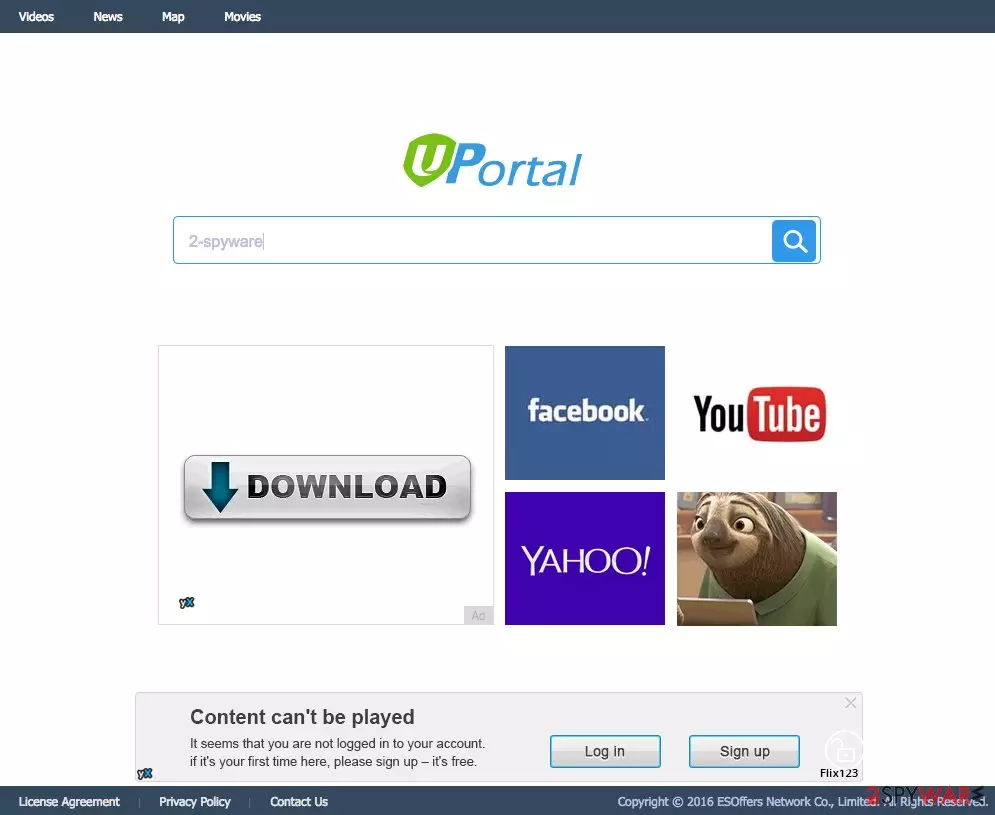
If you have just noticed that your homepage suddenly changed to UPortal, you might be infected with the Yeabests.top virus. Developed by ESOffers Network Co., Limited, the app is designed to change the homepage, new tab, and the search engine of your browser, regardless if you use Google Chrome, Mozilla Firefox, or MS Edge.
These changes are implemented in order to alter the websites users visit and show them sponsored content when possible. Besides, data tracking can also occur – the developers of the app track users to profit from targeted advertising even more. If you want to get rid of these changes and information gathering, you need to find and uninstall the potentially unwanted program from your computer.
| Name | Yeabests.top |
| Type | Browser hijacker |
| Distribution | Third-party websites, ads, software bundles |
| Symptoms | Sponsored content present at the top of search results; homepage and new tab address altered to UPortal |
| Removal | Follow the instructions below to eliminate the PUP manually and then scan your PC with security software |
| Browser fix | In some cases, the hijack will not go away until you get rid of unwanted extensions from your web browsers and delete web data |
According to research, it appears that this site has been developed by a company situated in Hong Kong. The origin of the program is evident in the site’s source code as well, in which some of the entries are written in Chinese. Apart from that, there are a lot of aspects about this program that leaves us questioning.
For instance, the License Agreement, and Privacy Policy do not even belong to this site and point to another UPortal’s website greenet.xyz. It is interesting that both of these sites look identical and feature a similar layout. It is also peculiar that another suspicious domain Yeabests.cc which we have already discussed in one of our previous articles now redirects to Yeabests.top as well.
All these shady relationships between different websites do not add trustworthiness to this site whatsoever. In fact, all of these domains have been deemed as ad-based browser hijackers, which only suggests that this app might belong to the same category of cyber infections too.
It would not be smart to keep this app installed on your computer for long. Thus, you should not hang around and remove the unwanted ads and browser changes from the system without delay. SpyHunterCombo Cleaner is one of the professional antivirus software you can trust this task with. Also, use FortectIntego to quickly remediate all your browsers.
Talking about the hijack itself, we should urge you not to ignore it. Of course, this site is designed to deceive users into thinking that they are subscribing to quite a useful tool, offering speed dial links to:
- YouTube
- Yahoo
- Google Maps, etc.
These links may be functional; unfortunately, that’s about all you can expect from this site initially presented as a search engine. The actual search functionality is very poor and runs on Plus network search — yet another shady website you should normally keep away from.
In this search engine, the regular results are changed with links leading to sponsored websites that do not necessarily promote the most reliable content. To put it simply, the redirect virus is another malicious program that has been designed to leave users’ interests aside and to focus merely on generating advertising revenue.
To make the process more effective and profitable, the site creators may disregard any means of decency and put links to malware-infested sites and other potentially dangerous content directly on your homepage or embed them into your search results. So, if you do not uninstall the app soon, some more unpleasant issues may follow.
Ways to avoid browser hijackers
If you haven’t set a different URL as your homepage or default search engine yourself, then this malware has probably infiltrated your computer via “bundling.” It means that the hijacker may have been attached to the software package along with a new video player, picture editing software, Flash Player or Java update and you unknowingly allowed it to install on your PC thinking that you are obtaining a single legitimate application. It is a common mistake that most computer users tend to make.
They skip the EULA and Terms of Agreement sections and rush through the installation mindlessly clicking the “Next” button. In reality, to have more control over what you are allowing on your PC, it is absolutely necessary to choose “Custom” and “Advanced” installation settings. In these settings, you should look for undesirable components or pre-marked options and cancel them all.
The most effective way to remove PUPs
If you are already on this part of the article, you are probably interested in browser hijacker removal options. In such a case, we have a few options for you. Depending on whether you want a quick virus removal or feel prepared for a lengthier procedure, you can choose between automatic and manual virus elimination. The most accessible option is, without a doubt, the manual one.
If you are attentive enough and can follow instructions carefully, do not hesitate to give it a try. The detailed removal steps are listed down below. If your attempts to remove Yeabests.top manually were unsuccessful and this clingy virus keeps bouncing back to your browser, you should run a scan of your system with an automatic anti-malware suite. It might be that there are some virus components that you are missing and which antivirus software can help you find and delete.
Uninstall from Windows
Uninstall from Windows 10/8:
- Type Control Panel into the Windows search box and open the result.
- Under Programs, select Uninstall a program.


Uninstall from Windows 7/XP:
- Click on Windows Start > Control Panel (Windows XP users should click on Add/Remove Programs).
- In Control Panel, select Programs > Uninstall a program.


Remove the unwanted program:
- In the Programs and Features window, look for any recently installed suspicious entries, select them, and click Uninstall.
- If User Account Control appears, click Yes to confirm, then complete the removal.


Remove from Microsoft Edge
Delete unwanted extensions from MS Edge:
- Select Menu (three horizontal dots at the top-right of the browser window) and pick Extensions.
- From the list, pick the extension and click on the Gear icon.
- Click Remove.


Clear cookies and other browser data:
- Click on the Menu (three horizontal dots at the top-right of the browser window) and select Settings > Privacy, search, and services..
- Under Clear browsing data, pick Choose what to clear.
- Select Cookies and other site data and Cached images and files. (apart from passwords, although you might want to include Media licenses as well, if applicable) and click on Clear.


Restore new tab and homepage settings:
- Click the menu icon and choose Settings.
- Then find On startup section.
- Click Remove next to any suspicious startup page.
Reset MS Edge if the above steps did not work:
- Press on Ctrl + Shift + Esc to open Task Manager.
- Click on More details arrow at the bottom of the window.
- Select Details tab.
- Now scroll down and locate every entry with Microsoft Edge name in it. Right-click on each of them and select End Task to stop MS Edge from running.


Instructions for Chromium-based Edge
Delete extensions from MS Edge (Chromium):
- Open Edge and click select Settings > Extensions.
- Delete unwanted extensions by clicking Remove.


Clear cache and site data:
- Click on Menu and go to Settings.
- Select Privacy, search and services.
- Under Clear browsing data, pick Choose what to clear.
- Under Time range, pick All time.
- Select Clear now.


Reset Chromium-based MS Edge:
- Click on Menu and select Settings.
- On the left side, pick Reset settings.
- Select Restore settings to their default values.
- Confirm with Reset.
- This will disable extensions and reset startup pages but will not delete bookmarks, saved passwords, or browsing history.


Remove from Mozilla Firefox (FF)
Remove dangerous extensions:
- Open Mozilla Firefox browser and click on the Menu (three horizontal lines at the top-right of the window).
- Select Add-ons.
- In here, select the unwanted extension and click Remove.


Reset the homepage:
- Click three horizontal lines at the top right corner to open the menu.
- Choose Settings.
- Under Home, set your preferred homepage and new tab settings.
Clear cookies and site data:
- Click Menu and pick Settings.
- Go to Privacy & Security section.
- Scroll down to locate Cookies and Site Data.
- Click on Clear Data...
- Select Cookies and Site Data and Temporary cached files and pages, then click Clear.


Reset Mozilla Firefox
If clearing the browser as explained above did not help, reset Mozilla Firefox:
- Open Mozilla Firefox browser and click the Menu.
- Go to Help and then choose Troubleshooting Information.

- Under Give Firefox a tune up section, click on Refresh Firefox...
- Once the pop-up shows up, confirm the action by pressing on Refresh Firefox.



Remove from Google Chrome
Delete malicious extensions from Google Chrome:
- Open Google Chrome, click on the Menu (three vertical dots at the top-right corner) and select More tools > Extensions.
- In the newly opened window, you will see all the installed extensions. Uninstall all suspicious extensions related to the unwanted program by clicking Remove.


Clear cache and web data from Chrome:
- Click on Menu and pick Settings.
- Under Privacy and security, select Clear browsing data.
- Select Browsing history, Cookies and other site data, as well as Cached images and files.
- Click Clear data.


Change your homepage:
- Click menu and choose Settings.
- Look for a suspicious site in the On startup section.
- Click on Open a specific or set of pages and click on three dots to find the Remove option.
Reset Google Chrome:
If the previous methods did not help you, reset Google Chrome to eliminate all the unwanted components:
- Click on Menu and select Settings.
- In the Settings, scroll down and click Advanced.
- Scroll down and locate Reset and clean up section.
- Now click Restore settings to their original defaults.
- Confirm with Reset settings.


Did this guide help?
Be the first to comment