

Google Prize scam tricks people into disclosing their personal data in hopes to receive an imaginary prize
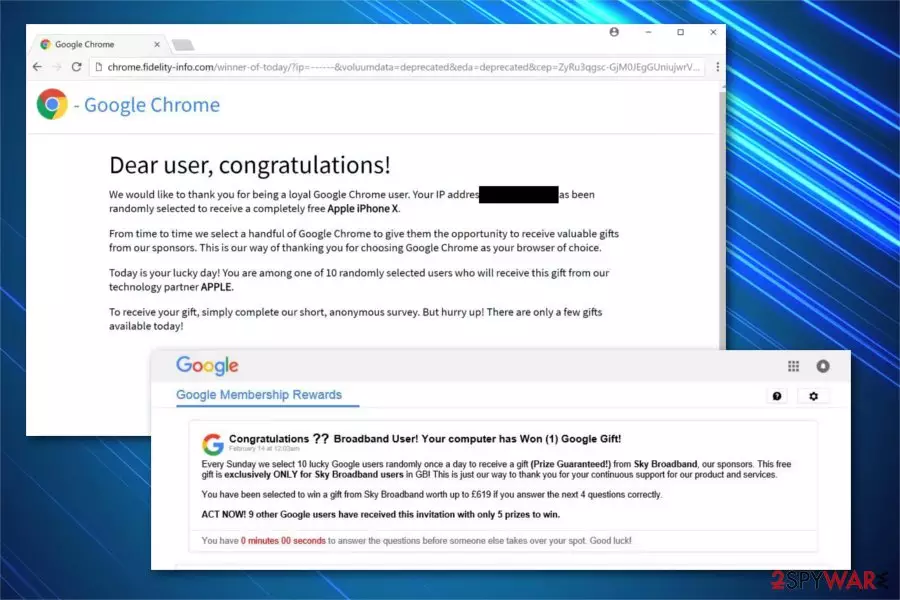
Google Prize scam is a fraudulent page that claims that users have been randomly selected to win great prizes by Google. Usually, people are redirected to such scam websites[1] by an ad-supported program that enters the system via software bundles[2] or fake updates.
Due to deceptive infiltration methods, users most commonly do not notice the point of entry of these potentially unwanted programs. Nonetheless, a simple click on a random website might redirect them to various malicious domains that serve scams.
There are two versions of the Google Prize virus — one asks to join the survey to win valuable prizes (iPhone, Samsung Galaxy phone, PlayStation, and similar) while the other wants users to answer some questions to help improve Google services.
However, security researchers warn users that the popups and other notifications promising expensive gifts are just hoaxes. Those who participate in the scheme might be tricked into providing sensitive information or performing payments for alleged shipment costs of items that never arrive.
| Name | Google Prize scam |
|---|---|
| Type | Online scam, phishing, adware |
| Danger level | Medium. Doesn't perform system changes rather than use social engineering tactics to trick people |
| Affected browsers | Google Chrome, Internet Explorer, Safari, Mozilla Firefox, Microsoft Edge |
| Recent activity | IT experts discovered that this adware is actively infecting iPhones, iPads, and Android devices |
| Distribution techniques | Malicious ads or software-bundles |
| Removal | You should get rid of adware if you want to avoid financial losses. For that, scan your computer or smartphone with anti-malware software or check the manual removal guide below |
| System fix | After PUP elimination, scan your machine with FortectIntego to prevent computer issues |
According to the analysis, cybercriminals have developed sophisticated adware[3] programs designed to take over regular browsers and modify their settings. As a result, users are continuously redirected to less than reliable websites that display scams or other deceptive content.
Note that Google Prize scam has alternative names as there are numerous different pages designed to trick users into believing that they are applying to win valuable prizes. The most notable ones are the following:
- Google Membership Rewards scam;
- Google Customer Reward Program;
- Google Survey scam;
- Congratulations, you won;
- 5 Billionth Search;
- Google Sunday prize scam, etc.
Despite the different names, the scam virus is created for one purpose — to record and save various information about its targets. Researchers note that people encounter legitimate-looking websites that claim to be developed by Google. Although, we can assure you that these scam pages are not related to Google or any legitimate corporation in any way.

In case Google Prize scam is related to virus infection, it hijacks all of the installed browsers on the system and starts accessing non-personally identifiable information, including browser history, frequently visited pages, clicked ads, IP address, ISP, and other details. Since this activity is performed in the background, you might not even notice that you have adware installed on your computer.
Be aware that the adware displaying scam pop-ups might access personally identifiable information among your search queries if you accidentally submit them. Additionally, it tries to collect sensitive data by claiming that you are rewarded for using Google services and win a prize. For that, users are asked to enter the survey or answer a few simple questions.
Unfortunately, all surveys generated by the Google Prize scam include the demands to sign up at the end of the quiz. This is the part where unsuspecting computer users are tricked into providing personal information, like email addresses, phone numbers, login credentials, or even credit card details.
Most commonly, scam authors justify this behavior by claiming that all the information is needed to deliver the won goods and that credit card verification needs to be performed. This is just a mere trick to extort sensitive data, as scammers save the gathered data and might sell it in the underground market for monetary benefit or use it in further phishing attacks.
Therefore, it is essential to identify the fraudulent website and remove Google Prize scam from your web browser immediately – do not interact with website contents at all and simply close the new tab or window right away.
Although it is just a temporary removal, as redirects to phishing sites such as this one or a similar one might continue. You should uninstall the adware to stop being redirected to scam websites. You can do that either by using our detailed guides below or by running a virus scan with MalwarebytesMalwarebytes or SpyHunterCombo Cleaner. After elimination, scan your computer with FortectIntego to fix virus damage and reset the installed browsers to prevent ads from returning.
Learn to avoid potentially unwanted programs so your browsing won't be interrupted
It is not a secret that most potentially unwanted programs (PUPs) infiltrate the systems when users tend to click on suspicious ads or download questionable applications online. These distribution techniques helping to spread adware-type programs are known as malvertising and bundling:
- Malicious online ads. Cybercriminals design legitimate-looking advertisements that are usually customized according to the victim's interests. This way, people are more likely to be lured into clicking on the ad. Note that malvertising is based on bogus scripts which are executed once the advertisement is clicked. Thus, people who are not aware of malicious online ads might automatically install the adware by clicking on them.
- Software bundling. When people download free applications, they are not aware that they might include additional components. Likewise, agreeing to install freeware with Quick/Recommended mode might lead to adware infection. You can easily avoid PUPs by picking Custom/Advanced settings and opting out all suspicious extra elements.

Remove Google Prize scam by terminating all PUPs from the device
Even though there is a possibility to remove Google Prize scam manually, we suggest downloading and installing reputable security tools to deal with the adware. Researchers[4] cannot still identify the adware which generates redirects to suspicious pages. Thus, it would be easier to terminate the virus with an anti-malware program.
Although, if you still persist in performing the removal on your own, you should locate and delete all unknown extensions, plug-ins, or add-ons along with unverified programs. Our experts are willing to help — check the instructions appended at the end of this article.
Uninstall from Windows
Uninstall from Windows 10/8:
- Type Control Panel into the Windows search box and open the result.
- Under Programs, select Uninstall a program.


Uninstall from Windows 7/XP:
- Click on Windows Start > Control Panel (Windows XP users should click on Add/Remove Programs).
- In Control Panel, select Programs > Uninstall a program.


Remove the unwanted program:
- In the Programs and Features window, look for any recently installed suspicious entries, select them, and click Uninstall.
- If User Account Control appears, click Yes to confirm, then complete the removal.


Delete from macOS
Remove the unwanted application:
- From the menu bar, select Go > Applications.
- In the Applications folder, look for any suspicious entries, then drag them to Trash (or right-click and pick Move to Trash).


Delete leftover files and folders:
- Select Go > Go to Folder.
- Enter /Library/Application Support and remove any suspicious folders related to the unwanted program.
- Repeat the same check in the /Library/LaunchAgents and /Library/LaunchDaemons folders, deleting any suspicious entries.

- Finally, empty the Trash to permanently remove the leftovers.

Remove from Microsoft Edge
Delete unwanted extensions from MS Edge:
- Select Menu (three horizontal dots at the top-right of the browser window) and pick Extensions.
- From the list, pick the extension and click on the Gear icon.
- Click Remove.


Clear cookies and other browser data:
- Click on the Menu (three horizontal dots at the top-right of the browser window) and select Settings > Privacy, search, and services..
- Under Clear browsing data, pick Choose what to clear.
- Select Cookies and other site data and Cached images and files. (apart from passwords, although you might want to include Media licenses as well, if applicable) and click on Clear.


Restore new tab and homepage settings:
- Click the menu icon and choose Settings.
- Then find On startup section.
- Click Remove next to any suspicious startup page.
Reset MS Edge if the above steps did not work:
- Press on Ctrl + Shift + Esc to open Task Manager.
- Click on More details arrow at the bottom of the window.
- Select Details tab.
- Now scroll down and locate every entry with Microsoft Edge name in it. Right-click on each of them and select End Task to stop MS Edge from running.


Instructions for Chromium-based Edge
Delete extensions from MS Edge (Chromium):
- Open Edge and click select Settings > Extensions.
- Delete unwanted extensions by clicking Remove.


Clear cache and site data:
- Click on Menu and go to Settings.
- Select Privacy, search and services.
- Under Clear browsing data, pick Choose what to clear.
- Under Time range, pick All time.
- Select Clear now.


Reset Chromium-based MS Edge:
- Click on Menu and select Settings.
- On the left side, pick Reset settings.
- Select Restore settings to their default values.
- Confirm with Reset.
- This will disable extensions and reset startup pages but will not delete bookmarks, saved passwords, or browsing history.


Remove from Mozilla Firefox (FF)
Remove dangerous extensions:
- Open Mozilla Firefox browser and click on the Menu (three horizontal lines at the top-right of the window).
- Select Add-ons.
- In here, select the unwanted extension and click Remove.


Reset the homepage:
- Click three horizontal lines at the top right corner to open the menu.
- Choose Settings.
- Under Home, set your preferred homepage and new tab settings.
Clear cookies and site data:
- Click Menu and pick Settings.
- Go to Privacy & Security section.
- Scroll down to locate Cookies and Site Data.
- Click on Clear Data...
- Select Cookies and Site Data and Temporary cached files and pages, then click Clear.


Reset Mozilla Firefox
If clearing the browser as explained above did not help, reset Mozilla Firefox:
- Open Mozilla Firefox browser and click the Menu.
- Go to Help and then choose Troubleshooting Information.

- Under Give Firefox a tune up section, click on Refresh Firefox...
- Once the pop-up shows up, confirm the action by pressing on Refresh Firefox.



Remove from Google Chrome
Delete malicious extensions from Google Chrome:
- Open Google Chrome, click on the Menu (three vertical dots at the top-right corner) and select More tools > Extensions.
- In the newly opened window, you will see all the installed extensions. Uninstall all suspicious extensions related to the unwanted program by clicking Remove.


Clear cache and web data from Chrome:
- Click on Menu and pick Settings.
- Under Privacy and security, select Clear browsing data.
- Select Browsing history, Cookies and other site data, as well as Cached images and files.
- Click Clear data.


Change your homepage:
- Click menu and choose Settings.
- Look for a suspicious site in the On startup section.
- Click on Open a specific or set of pages and click on three dots to find the Remove option.
Reset Google Chrome:
If the previous methods did not help you, reset Google Chrome to eliminate all the unwanted components:
- Click on Menu and select Settings.
- In the Settings, scroll down and click Advanced.
- Scroll down and locate Reset and clean up section.
- Now click Restore settings to their original defaults.
- Confirm with Reset settings.


Delete from Safari
Remove dangerous extensions:
- Open Safari, click Safari in the menu at the top-left of the screen, and select Preferences.
- Go to the Extensions tab, look for any suspicious entries, and click Uninstall to remove them.


Clear history and website data:
- Click Safari in the menu and pick Clear History.
- Set Clear to all history and confirm with Clear History.


Reset Safari:
- Click Safari in the menu and select Preferences > Advanced.
- Enable Show Develop menu in menu bar.
- From the menu bar, click Develop and select Empty Caches.


Did this guide help?
Be the first to comment