

Notice-device.club – a form of calendar spam that is caused by a PUP and produces fake cyberattack alerts
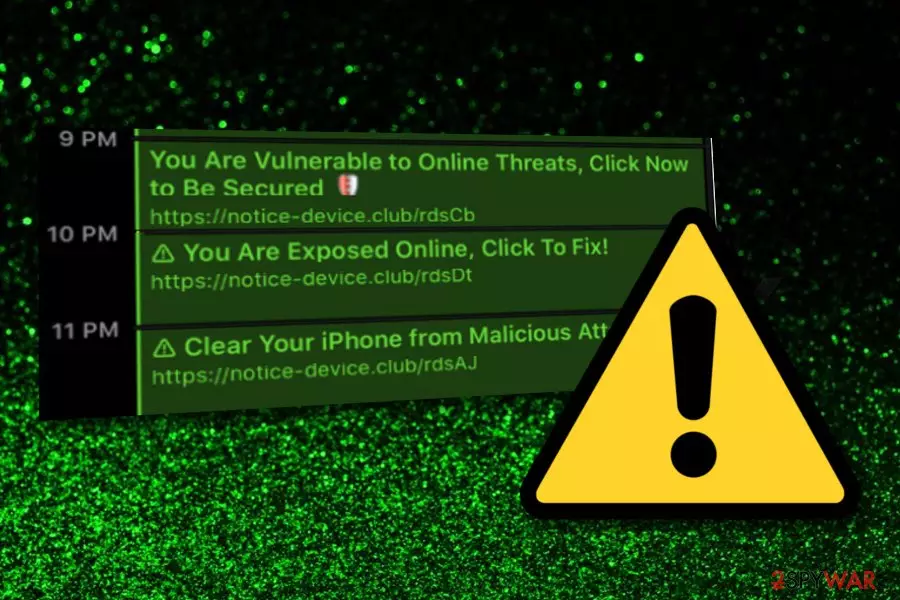
Notice-device.club is a virus that places fake threat alerts as calendar events on Apple devices. Belonging to the Calendar virus category, this product is usually a sign of a PUP infection lurking on your mobile phone or computer. It often invades iPhone devices but can appear on macOS too. Notice-device.club virus will try to encourage you to secure, protect, and fix your computer system from non-existing malware and problems by adding questionable notifications to your calendar. Cybersecurity researchers have spotted the big popularity of these calendar viruses as there are more of them: Notice-cellphone.club, Notice-iphone.club, Alert-booster.club all of which include the same functionality.
| Name | Notice-device.club |
|---|---|
| Type | Mac virus, Calendar virus, iPhone virus |
| Cause | This rogue product can appear on your mobile phone device or computer system if there is a potentially unwanted program such as adware installed on your machine/device |
| Targets | This particular spam mostly targets iPhone users but it can also show up on other Apple devices such as iPads and macOS computers, laptops |
| Symptoms | If you have caught this infection, the first thing that you are likely to notice is your modified calendar. In the sections of events, you will see various questionable notifications that provide fake virus alerts and warnings about non-existing cyber attacks |
| Activities | However, the PUP that is hiding behind this spam can initiate a big variety of activities. You can find your web browsers such as Google Chrome, Mozilla Firefox, and Safari filled with bogus extensions, encounter frequent advertising and redirecting during browsing sessions. Also, adware is capable of collecting non-personal information by using tracking objects |
| Distribution | Potentially unwanted programs are mostly distributed by using a deceptive technique known as “bundling”. Also, you can receive this type of product by clicking on an infectious link or advertisement that you encounter on a deceptive website |
| Elimination | If you have been wondering how to get rid of the threat, we recommend completing the process automatically with the help of reliable antimalware software. However, you can also terminate the suspicious product with the help of the manual step-by-step guidelines that have been added to the end of this article |
| Fix tool | After the adware attack, you might also discover some unexpected changes in your system. If any compromisation occurs to you, try cleaning the device with FortectIntego |
Notice-device.club Calendar virus is usually provoked by potentially unwanted programs such as adware. If you are infected with this type of app, there is a big chance that you will receive even more intrusive activities that just the modification of your device's calendar.
However, first of all, you should put no trust in Notice-device.club as all the virus and damage alerts that it provides, are completely fake. We strongly recommend avoiding to click on the website links that come provided in the notifications as they can take you to unknown places some of which might be hazardous to your phone or computer.
Furthermore, the developers of Notice-device.club are likely to collect income from the provided virus alerts as they might encourage users to purchase some type of system utility that is supposed to fix all the remaining problems. The development of rogue security software is very popular nowadays and you should be aware of it.
Notice-device.club can convince you to pay an inadequate amount of money for a completely useless tool that will only take space on your device and interrupt you with odd notifications. If you are concerned about your phone's or PC's state, you should perform o thorough system scan with a reliable piece of software.
To continue, if there is adware[1] hiding in your system, you are likely to experience not only Notice-device.club spam but also some intrusive advertising during browsing sessions. The main goal of adware developers is to push as many notifications as possible and collect monetary revenue from the pay-per-click strategy.

Also, there is a big chance that you will receive changes on web browsers such as Google Chrome, Safari, and Mozilla Firefox. Adware apps are capable of interfering with sections such as the homepage and new tab URL bar. Besides, you might discover questionable extensions added too.
Furthermore, the PUP that is responsible for the appearance of Notice-device.club can start recording information about your browsing sessions and online habits. For this purpose, the app mostly includes tracking objects such as HTTP cookies[2] in the infected web browser app.
When this is done, the adware behind Notice-device.club can start tracking the websites you visit, search queries performed, clicks made on specific ads and links, saved bookmarks, your IP address, and browser type. Once such information is recorded, the developers usually pass it to other parties for monetary benefits.
If you want to end these types of questionable activities and bring your calendar back to its previous state, you will have to remove Notice-device.club together with the potentially unwanted program that is provoking its appearance. Also, you will need to do browser cleaning, otherwise, the app might reappear soon.
For Notice-device.club removal and adware termination, we recommend using reliable antimalware software, however, you can also try completing the manual guiding steps that have been included at the end of our article. Also, if your system has experienced any compromisation, try taking care of it by employing a repair tool such as FortectIntego.

Software bundling is the most common way of receiving a PUP
Getting infected with a potentially unwanted program nowadays is not an uncommon thing, so all computer users should know where they can expect such threats and what to do to avoid them properly. First of all, get introduced to the most popular PUP spreading techniques that are described below:
- Software bundling.[3] This is the most common method employed by PUP developers as it allows injecting the rogue app into an entire package of software and delivering it to computers that have Quick or Recommended settings set as default. Also, users who are likely to skip or rush downloading/installing steps are vulnerable to PUP attacks.
- Infectious ads and links. These types of components can be found anywhere on the Internet sphere, especially on third-party websites. By clicking on such content you increase the risk of getting infected with adware or another PUP.
- Fake updates. Some times developers use fake Flash Player updates to disguise their suspicious applications. By clicking on the “Update” button, you will likely launch the downloading process of the PUP.
To avoid unwanted installations, you have to pick the safest installation settings possible. We recommend choosing the Advanced or Custom configuration where you will be allowed to deselect checkmarks next to each questionable product. Furthermore, you should download reliable antimalware protection that includes the safe browsing feature and will alert if any deceptive website is waiting ahead. Finally, do not initiate any unknown software updates if you are not sure that they are original and legitimate. Go to the developer's official website and find all upgrade-related information there.
Make sure that your iPhone is virus-free
Regarding the fact that Notice-device.club belongs to both iPhone virus and Mac virus categories, we decided to provide cleaning instructions for computers and mobile phone devices too. If you are employing an iPhone and have been interrupted with advertising and redirecting activities lately, completing the following step-by-step guidelines might help you to get rid of them:
- Open the Settings option on your mobile phone.
- Select the Safari web browser icon.
- Choose the Clear History and Website Data feature.
- Close the browser window.
However, if you still find your mobile phone struggling after the Notice-device.club attack, there might be some suspicious apps installed in the system directly. Try to eliminate all unknown content by applying these steps:
- Navigate to Settings.
- Opt for General.
- Choose to Erase All Contents.
Completing Notice-device.club removal from your Mac and browsers
If you have received this spam on your Mac laptop or PC, do not worry, there are ways to get rid of it. The method that will suit you the most depends on your skills and capabilities as a user. If you think of yourself as an advanced computer user, you can go ahead and try the manual Notice-device.club removal guide that has been provided at the end of this page.
Furthermore, do not forget that the PUP might include suspicious products into your web browsers and initiate some changes to them. While dealing with the adware that is responsible for the appearance of Notice-device.club virus, you should not forget to clean and refresh web browser applications, including Google Chrome, Mozilla Firefox, and Safari.
However, if you find the manual technique to difficult for you, you can always rely on automatical removal software. Reliable antimalware tools will help you to remove Notice-device.club within a few clicks. According to cybersecurity experts from Virusai.lt,[4] it is better to use trustworthy software than risk making mistakes, otherwise, you might leave some suspicious content hanging in your computer system. This can revive the PUP.
Delete from macOS
Remove the unwanted application:
- From the menu bar, select Go > Applications.
- In the Applications folder, look for any suspicious entries, then drag them to Trash (or right-click and pick Move to Trash).


Delete leftover files and folders:
- Select Go > Go to Folder.
- Enter /Library/Application Support and remove any suspicious folders related to the unwanted program.
- Repeat the same check in the /Library/LaunchAgents and /Library/LaunchDaemons folders, deleting any suspicious entries.

- Finally, empty the Trash to permanently remove the leftovers.

Remove from Google Chrome
Delete malicious extensions from Google Chrome:
- Open Google Chrome, click on the Menu (three vertical dots at the top-right corner) and select More tools > Extensions.
- In the newly opened window, you will see all the installed extensions. Uninstall all suspicious extensions related to the unwanted program by clicking Remove.


Clear cache and web data from Chrome:
- Click on Menu and pick Settings.
- Under Privacy and security, select Clear browsing data.
- Select Browsing history, Cookies and other site data, as well as Cached images and files.
- Click Clear data.


Change your homepage:
- Click menu and choose Settings.
- Look for a suspicious site in the On startup section.
- Click on Open a specific or set of pages and click on three dots to find the Remove option.
Reset Google Chrome:
If the previous methods did not help you, reset Google Chrome to eliminate all the unwanted components:
- Click on Menu and select Settings.
- In the Settings, scroll down and click Advanced.
- Scroll down and locate Reset and clean up section.
- Now click Restore settings to their original defaults.
- Confirm with Reset settings.


Delete from Safari
Remove dangerous extensions:
- Open Safari, click Safari in the menu at the top-left of the screen, and select Preferences.
- Go to the Extensions tab, look for any suspicious entries, and click Uninstall to remove them.


Clear history and website data:
- Click Safari in the menu and pick Clear History.
- Set Clear to all history and confirm with Clear History.


Reset Safari:
- Click Safari in the menu and select Preferences > Advanced.
- Enable Show Develop menu in menu bar.
- From the menu bar, click Develop and select Empty Caches.


Did this guide help?
Be the first to comment