

StreaminSearchs – a browser-hijacking app that should not be trusted as your search provider
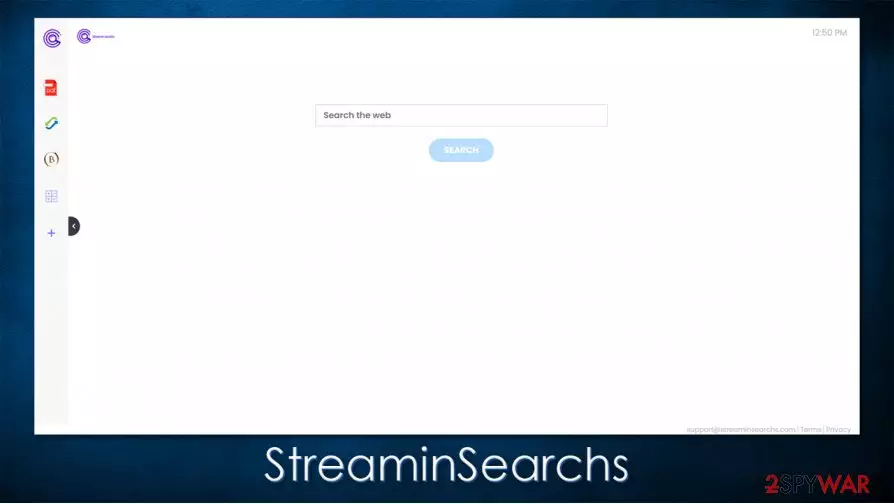
StreaminSearchs is a potentially unwanted program[1] that typically arrives as an extension and affects most popular web browsers, including Google Chrome, Mozilla Firefox, or MS Edge. The app is advertised as a tool to help users look for streaming content easier, although there is little functionality there besides the basic search function. Speaking of which, all search results provided by the hijacker are not genuine, as they are “filtered” through portal.streaminsearchs.com address. As a result, search results are all redirected to Yahoo and are littered with ads in the form of sponsored links.
StreaminSearchs hijack can also affect not only users' searches and the browsing experience but also negatively impact their privacy, as many of such potentially unwanted applications collect a variety of user information in the background.
| Name | StreaminSearchs |
|---|---|
| Type | Browser hijacker, potentially unwanted program |
| IP address | 184.168.221.52 |
| Distribution | Software bundles, fake updates, deceptive ads |
| Symptoms | Altered web browser settings, such as homepage, new tab address and the search engine |
| Risks | Installation of other potentially unwanted programs, privacy risks due to information gathering practices, financial losses |
| Removal | You can uninstall potentially unwanted programs by following the manual guide below or by scanning the computer with powerful anti-malware |
| Optional steps | Computer infections can cause significant damage to system files or disrupt normal settings. To revert these changes and remediate the OS, perform a full system scan with FortectIntego repair software |
There are thousands of potentially unwanted applications created on a regular basis, and they are particularly common – they serve as an easy way to monetize on users' clicks and ad exposure. The prevalence of such programs can be explained with bundling – a deceptive software distribution technique that typically results in the unintentional installation of browser hijackers, adware, scareware, and other PUPs.
As soon as a browser hijacker is installed, it changes the way a web browser operates. Here are a few signs and symptoms that are difficult to miss after the so-called StreaminSearchs virus infection:
- An extension is installed on the browser without permission;
- Homepage an new tab address are set to portal.streaminsearchs.com;
- All search results are redirected to Yahoo;
- Ads are shown at the top of search results instead of genuine ones;
- Overall decreased performance of the web browser.
In the background, the PUP would also gather various data about users, which includes IP address, approximate location, internet provider, installed apps on the device, links clicked, search queries entered, timestamps, and much more. Here's what the developer reveals within the Privacy Policy:[2]
Non-Personal Information may be automatically transmitted by the user's device. When using our Service, we assign your device with a log file, a cookie (session or persistent), web beacons or other related technologies, to collect Non-Personal Information with respect to your activity in connection with our Service.
Despite all these negative sides of the app, it is still trying to appeal to the audience using various seemingly useful features. Judging by the name itself, the extension is meant to help users find online video streams easily, although it does not contain any tools that would support this functionality. There plenty of other apps with identical themes from the same developer – including UltimateStreamSearch, ProStreamsSearch, HDMusicStreamSearch, and many others. These hijackers are copies of one another – a common trait within the potentially unwanted program industry.

Instead of the “streaming” support, users are presented with several other (seemingly useful) features that can be accessed via the panel of the left side of the set homepage – calculator, currency converter, PDF converter, etc. It is important to note that these perks are not actually unique in any way, and be provided with a quick Google search, thus making the presence of the app relatively useless. Only StreaminSearchs removal can stop unwanted browser behavior.
Since the app typically arrives on the web browser as an extension, it should not cause you problems when trying to remove StreaminSearchs. In case you are not aware of how to do it, we provide comprehensive instructions below – we also explain how to clean the browser to ensure no data tracking would take place. Additionally, experts[3] also advise scanning the machine with powerful anti-malware (such as SpyHunterCombo Cleaner or MalwarebytesMalwarebytes) and then repairing any damage sustained due to the infection with FortectIntego.
Avoiding browser hijackers is easier than you might think
As previously mentioned, PUPs are typically distributed via software bundling technique, which often results in unintentional installation from the users' side. This is also one of the main reasons why these apps are categorized as potentially unwanted programs in the first place – they are generally undesirable. Not only do they fail to deliver the promised functionality, but they also provide ads and track users' online activities for maximum financial benefits. In other words, most adware, browser hijackers, and similar apps are useless.
Thus, it is best to avoid PUPs altogether, and it is easier to do than you might think. All you have to do is be attentive during the installation of freeware apps that you download from third party websites and be overall more cautious about what you install on your system. It is beneficial to read app reviews and blog posts before making such a decision.
To prevent the unintentional installation of various apps, you should always pick the Advanced/Custom option if such is provided (instead of Recommended/Quick one), as it would allow you to stay in control of the process from start to finish. Also, be aware of pre-ticked boxes, fine print text, misleading button placements, and other tricks that might be used by app authors and distributors.
Uninstall StreaminSearchs from your browser
StreaminSearchs removal should not be a complicated process as long as you have dealt with browser extensions before. All you have to do is access the settings section of your browser and eliminate it for good. It would be a good idea to go through all the installed add-ons, as well as programs on your Windows or Mac system, as we explain below. Many potentially unwanted apps travel in bulk, which means that there could be other PUPs hidden on your system.

After you remove StreaminSearchs from your browser, you should also check your device with a powerful anti-malware tool. This would ensure that no invisible malware is stealing your passwords in the background, or malicious actors control your PC remotely via the installed backdoor or a remote access trojan (RAT).
Once you get rid of all browser hijackers and malware, you can ensure that your system is safe, and you can go back to ad-free and safe browsing activities.
Uninstall from Windows
Uninstall from Windows 10/8:
- Type Control Panel into the Windows search box and open the result.
- Under Programs, select Uninstall a program.


Uninstall from Windows 7/XP:
- Click on Windows Start > Control Panel (Windows XP users should click on Add/Remove Programs).
- In Control Panel, select Programs > Uninstall a program.


Remove the unwanted program:
- In the Programs and Features window, look for any recently installed suspicious entries, select them, and click Uninstall.
- If User Account Control appears, click Yes to confirm, then complete the removal.


Delete from macOS
Remove the unwanted application:
- From the menu bar, select Go > Applications.
- In the Applications folder, look for any suspicious entries, then drag them to Trash (or right-click and pick Move to Trash).


Delete leftover files and folders:
- Select Go > Go to Folder.
- Enter /Library/Application Support and remove any suspicious folders related to the unwanted program.
- Repeat the same check in the /Library/LaunchAgents and /Library/LaunchDaemons folders, deleting any suspicious entries.

- Finally, empty the Trash to permanently remove the leftovers.

Reset Internet Explorer
Remove dangerous add-ons:
- Open Internet Explorer, click on the Gear icon (IE menu) on the top-right corner of the browser
- Pick Manage Add-ons.
- You will see a Manage Add-ons window. Here, look for suspicious plugins. Click on these entries and select Disable.


Change your homepage if it was altered:
- Open IE and click on the Gear icon.
- Select Internet Options.
- In the General tab, delete the Home page address and replace it by your preferred one (for example, Google.com).
- Click Apply and then select OK.


Delete temporary files:
- Press on the Gear icon and select Internet Options.
- Under Browsing history, click Delete...
- Select relevant fields and press Delete.


Reset Internet Explorer:
- Click on Gear icon > Internet options and select Advanced tab.
- Select Reset.
- In the new window, check Delete personal settings and select Reset.


Remove from Microsoft Edge
Delete unwanted extensions from MS Edge:
- Select Menu (three horizontal dots at the top-right of the browser window) and pick Extensions.
- From the list, pick the extension and click on the Gear icon.
- Click Remove.


Clear cookies and other browser data:
- Click on the Menu (three horizontal dots at the top-right of the browser window) and select Settings > Privacy, search, and services..
- Under Clear browsing data, pick Choose what to clear.
- Select Cookies and other site data and Cached images and files. (apart from passwords, although you might want to include Media licenses as well, if applicable) and click on Clear.


Restore new tab and homepage settings:
- Click the menu icon and choose Settings.
- Then find On startup section.
- Click Remove next to any suspicious startup page.
Reset MS Edge if the above steps did not work:
- Press on Ctrl + Shift + Esc to open Task Manager.
- Click on More details arrow at the bottom of the window.
- Select Details tab.
- Now scroll down and locate every entry with Microsoft Edge name in it. Right-click on each of them and select End Task to stop MS Edge from running.


Instructions for Chromium-based Edge
Delete extensions from MS Edge (Chromium):
- Open Edge and click select Settings > Extensions.
- Delete unwanted extensions by clicking Remove.


Clear cache and site data:
- Click on Menu and go to Settings.
- Select Privacy, search and services.
- Under Clear browsing data, pick Choose what to clear.
- Under Time range, pick All time.
- Select Clear now.


Reset Chromium-based MS Edge:
- Click on Menu and select Settings.
- On the left side, pick Reset settings.
- Select Restore settings to their default values.
- Confirm with Reset.
- This will disable extensions and reset startup pages but will not delete bookmarks, saved passwords, or browsing history.


Remove from Mozilla Firefox (FF)
Remove dangerous extensions:
- Open Mozilla Firefox browser and click on the Menu (three horizontal lines at the top-right of the window).
- Select Add-ons.
- In here, select the unwanted extension and click Remove.


Reset the homepage:
- Click three horizontal lines at the top right corner to open the menu.
- Choose Settings.
- Under Home, set your preferred homepage and new tab settings.
Clear cookies and site data:
- Click Menu and pick Settings.
- Go to Privacy & Security section.
- Scroll down to locate Cookies and Site Data.
- Click on Clear Data...
- Select Cookies and Site Data and Temporary cached files and pages, then click Clear.


Reset Mozilla Firefox
If clearing the browser as explained above did not help, reset Mozilla Firefox:
- Open Mozilla Firefox browser and click the Menu.
- Go to Help and then choose Troubleshooting Information.

- Under Give Firefox a tune up section, click on Refresh Firefox...
- Once the pop-up shows up, confirm the action by pressing on Refresh Firefox.



Remove from Google Chrome
Delete malicious extensions from Google Chrome:
- Open Google Chrome, click on the Menu (three vertical dots at the top-right corner) and select More tools > Extensions.
- In the newly opened window, you will see all the installed extensions. Uninstall all suspicious extensions related to the unwanted program by clicking Remove.


Clear cache and web data from Chrome:
- Click on Menu and pick Settings.
- Under Privacy and security, select Clear browsing data.
- Select Browsing history, Cookies and other site data, as well as Cached images and files.
- Click Clear data.


Change your homepage:
- Click menu and choose Settings.
- Look for a suspicious site in the On startup section.
- Click on Open a specific or set of pages and click on three dots to find the Remove option.
Reset Google Chrome:
If the previous methods did not help you, reset Google Chrome to eliminate all the unwanted components:
- Click on Menu and select Settings.
- In the Settings, scroll down and click Advanced.
- Scroll down and locate Reset and clean up section.
- Now click Restore settings to their original defaults.
- Confirm with Reset settings.


Delete from Safari
Remove dangerous extensions:
- Open Safari, click Safari in the menu at the top-left of the screen, and select Preferences.
- Go to the Extensions tab, look for any suspicious entries, and click Uninstall to remove them.


Clear history and website data:
- Click Safari in the menu and pick Clear History.
- Set Clear to all history and confirm with Clear History.


Reset Safari:
- Click Safari in the menu and select Preferences > Advanced.
- Enable Show Develop menu in menu bar.
- From the menu bar, click Develop and select Empty Caches.


Did this guide help?
Be the first to comment