

ActivityConfig – a potentially unwanted program that displays ads and alters browser settings on macOS computers
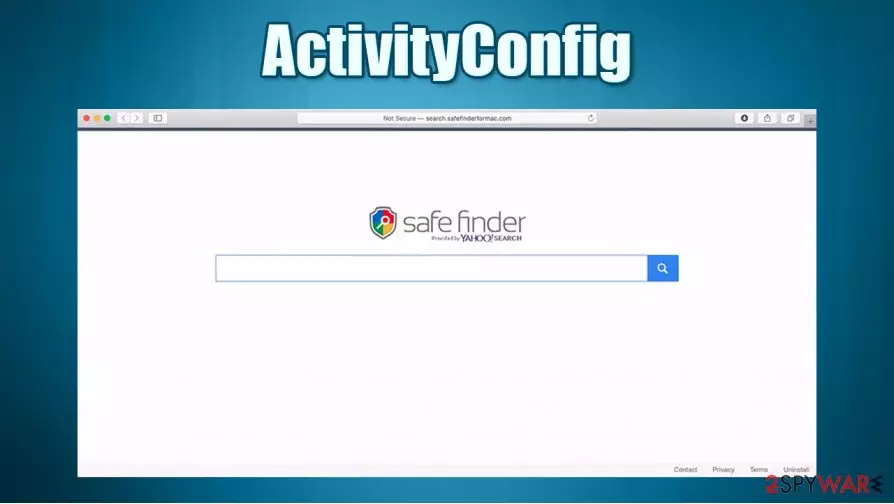
ActivityConfig is a mix between adware and a browser hijacker because it changes several browser settings to promote a fake search site and displays a lot of ads. Apart from all of this, it can also gather browsing data (search inquiries, IP addresses, geolocations, etc.). This hybrid belongs to the AdLoad virus family which exclusively targets Macs.
When ActivityConfig is installed, whether as an app or as a browser extension (or both), it changes the default search engine, new tab, and home page preferences to promote ActivityConfig Search. In some cases, Safe Finder can also be used. Regardless of which one is used, the search results provided by them should never be trusted, as links to potentially dangerous sites might show up.
Since rarely someone ever downloads apps like ActivityConfig willingly and for the way it functions, it is categorized as a potentially unwanted program[1] (PUP). If you see an abnormal amount of ads and all your searches are redirected, you came to the right place. In this article, we explain how to get rid of this intruder immediately.
| name | ActivityConfig |
|---|---|
| Type | Adware, browser hijacker, PUP |
| Family | AdLoad |
| Distribution | Fake alerts, deceptive ads, freeware/software bundles |
| Symptoms | Altered browser settings (search engine, homepage, new tab). All searches redirected through ActivityConfig Search to Yahoo Search. An increased amount of advertisements |
| Risks | Possible other PUP installation, browser-related data leakage |
| Removal | Detailed instructions on how to remove adware are provided at the bottom of this article |
| System fix | Users should perform a full system sweep with the FortectIntego app to ensure the adware with all its parts is completely removed |
ActivityConfig can get installed on any Mac computer and attach an extension to many different browsers, including Safari or Google Chrome. Applications from this virus family (for example, OperativeMachine, ExploreParameter, or PracticalProcesser) are commonly spread via fake Flash Player installers or might be installed as an optional component within a software bundle downloaded from malicious sites.
PUPs aren't considered malware,[2] although this one has more malware-like features in comparison to other adware apps. These are a few of the symptoms and reason why applications like ActivityConfig, should be uninstalled and never used again:
- They slow down the computer noticeably
- Bombard their users with tons of ads (some may can even pop-up when the browsers are closed)
- Make modifications to system settings
- Redirect to pages where more PUPs can get installed
- Gather browsing-related data that can be monetized by selling it to third-parties
Our cybersecurity experts recommend users to remove ActivityConfig from whatever devices they have it on. That's why we provide free instructions at the bottom of this page on how to do it. Also, we recommend scanning the entire device with trusty anti-malware tools, like SpyHunterCombo Cleaner or MalwarebytesMalwarebytes, to make sure that there are no malicious files left behind.

The manual ActivityConfig removal is not very simple in this case, as malware drops a variety of .plist files and establishes other persistence mechanisms. However, if you are still up to the challenge, you can follow our step-by-step guide, and you'll be done eventually. Afterward, cybersecurity experts at DieViren.de[3] suggest repairing the altered system files with the FortectIntego app to prevent the device from exhibiting any strange behavior, such as freezing, crashing, and so on.
Guidelines to avoid stealthy installation techniques used to distribute PUPs
Potentially unwanted programs have been around for ages now, and previously used to be labelled as “spyware.” Internet users should know how to identify and avoid them. That's why we're here – to help you improve your cybersecurity level by increasing your knowledge about this bloatware.
First and foremost, don't ever trust an advertisement or an error message on a website that tells you that your software is out of date. Websites can't identify that, so if such a link is clicked, you are more than likely to get PUPs installed on the user device. Flash Player is one of the most abused plugins to date. Keep in mind that it is no longer supported by Adobe, so you shouldn't even be using a legitimate version of the app.
When installing software bundles, please choose the Advanced, Custom, or another installation method opposite to Quick, Standard, and Recommended installation. All apps on such bundles are preselected for installation, so if a Quick installation is chosen, every app is installed. Take your time, and remove the ticks opting in for installation from any software that you're not willing to install. If you're on the fence about certain offered apps, you can google each app to find out whether it's a PUP or not.

ActivityConfig removal from Mac devices
As we made clear in the first part of this article – it's unsafe to keep using this PUP as it not only slows down devices but poses some threats too. If you have this hybrid of a browser hijacker and adware installed on your device and would like to uninstall it but don't know how – scroll past this paragraph where we provide instructions on how to remove ActivityConfig from Mac devices.
For peace of mind, please don't forget to scan your device with a trustworthy anti-malware tool. After manual ActivityConfig removal is done, perform a full system scan with powerful system repair tools to avoid system performance issues, such as freezing, crashing, severe lag, etc.
Delete from macOS
Remove the unwanted application:
- From the menu bar, select Go > Applications.
- In the Applications folder, look for any suspicious entries, then drag them to Trash (or right-click and pick Move to Trash).


Delete leftover files and folders:
- Select Go > Go to Folder.
- Enter /Library/Application Support and remove any suspicious folders related to the unwanted program.
- Repeat the same check in the /Library/LaunchAgents and /Library/LaunchDaemons folders, deleting any suspicious entries.

- Finally, empty the Trash to permanently remove the leftovers.

Remove from Mozilla Firefox (FF)
Remove dangerous extensions:
- Open Mozilla Firefox browser and click on the Menu (three horizontal lines at the top-right of the window).
- Select Add-ons.
- In here, select the unwanted extension and click Remove.


Reset the homepage:
- Click three horizontal lines at the top right corner to open the menu.
- Choose Settings.
- Under Home, set your preferred homepage and new tab settings.
Clear cookies and site data:
- Click Menu and pick Settings.
- Go to Privacy & Security section.
- Scroll down to locate Cookies and Site Data.
- Click on Clear Data...
- Select Cookies and Site Data and Temporary cached files and pages, then click Clear.


Reset Mozilla Firefox
If clearing the browser as explained above did not help, reset Mozilla Firefox:
- Open Mozilla Firefox browser and click the Menu.
- Go to Help and then choose Troubleshooting Information.

- Under Give Firefox a tune up section, click on Refresh Firefox...
- Once the pop-up shows up, confirm the action by pressing on Refresh Firefox.



Remove from Google Chrome
Delete malicious extensions from Google Chrome:
- Open Google Chrome, click on the Menu (three vertical dots at the top-right corner) and select More tools > Extensions.
- In the newly opened window, you will see all the installed extensions. Uninstall all suspicious extensions related to the unwanted program by clicking Remove.


Clear cache and web data from Chrome:
- Click on Menu and pick Settings.
- Under Privacy and security, select Clear browsing data.
- Select Browsing history, Cookies and other site data, as well as Cached images and files.
- Click Clear data.


Change your homepage:
- Click menu and choose Settings.
- Look for a suspicious site in the On startup section.
- Click on Open a specific or set of pages and click on three dots to find the Remove option.
Reset Google Chrome:
If the previous methods did not help you, reset Google Chrome to eliminate all the unwanted components:
- Click on Menu and select Settings.
- In the Settings, scroll down and click Advanced.
- Scroll down and locate Reset and clean up section.
- Now click Restore settings to their original defaults.
- Confirm with Reset settings.


Delete from Safari
Remove dangerous extensions:
- Open Safari, click Safari in the menu at the top-left of the screen, and select Preferences.
- Go to the Extensions tab, look for any suspicious entries, and click Uninstall to remove them.


Clear history and website data:
- Click Safari in the menu and pick Clear History.
- Set Clear to all history and confirm with Clear History.


Reset Safari:
- Click Safari in the menu and select Preferences > Advanced.
- Enable Show Develop menu in menu bar.
- From the menu bar, click Develop and select Empty Caches.


Did this guide help?
Be the first to comment