

CheckAMap is the search engine that claims to offer more useful features
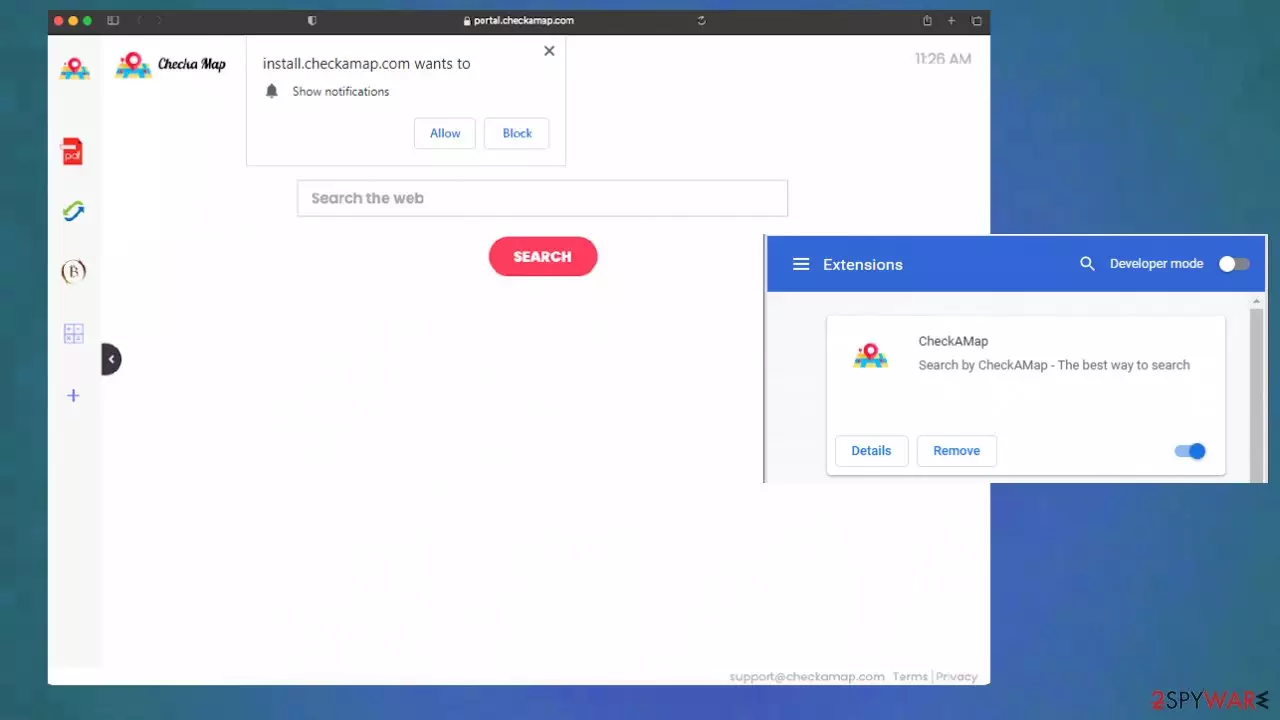
CheckAMap browser hijacker is not a particularly safe search engine because the application shows various intrusive ads and triggers redirects to other pages. The potentially unwanted program[1] can significantly affect macOS and Windows devices since the browser plugin gets installed and various browser-based activities are controlled by the intruder. You can either notice the application added on the browser without your permission or receive redirects to advertising platforms, get pop-ups, notifications with the indication related to the browser hijack. If this behavior is becoming common, you might need to clear the machine fully, so the PUA is terminated.
The main search engine of the intruder – portal.checkamap.com, redirects to the engine that is known for triggering unwanted activities on macOS – Nearbyme.io. These searches on Windows devices get rerouted through Yahoo and other more questionable engines. The site itself has other features, but there is nothing valuable in this browser plugin as in any identical browser hijacker like TigerVideoSearches, HDMusicStreamSearch, SmartSportSearch.
| Name | CheckAMap |
|---|---|
| Type | Browser hijacker, redirect, potentially unwanted program |
| Issues | The homepage, new tab, default search engine get set to this portal, and other intruders get added to the system without permission. The speed and performance suffers significantly |
| The website | Checkamap.com |
| Danger level | Low. The intruder is potentially unwanted and intrusive, but not malicious. However, developers nor sponsors have no control over what content you get exposed to, so the existence of this PUp can lead to additional issues with the security of the PC |
| Distribution | Freeware installations, bundling methods, deceptive online material or torrent sites[2] |
| Elimination | The system can be cleared with anti-malware tools, so all the related applications no longer work |
| Repair | Your device can get affected significantly, and alterations in system folders or directories lead to low performance or damage. Run FortectIntego and fix any occurring virus damage |
Manipulation of the browser can start with the homepage and default search engine, but new tab settings get altered, and your browsing experience gets even more affected when extensions or different pieces get installed without additional permission. Once those alterations are done, removing the PUP that caused all the advertisements, push notifications, and page redirects becomes more difficult.
It is possible to remove the PUA with anti-malware tools because apps like SpyHunterCombo Cleaner or MalwarebytesMalwarebytes can automatically find the intruder and clear other possibly malicious pieces from the computer. However, those direct changes in the web browser need to be set back to your preference manually. This is the worst thing about browser hijackers – intrusiveness.
You can take care of these annoying changes by eliminating the browser hijacker itself, and get back to browsing online normally. However, do not forget about other installed programs and the main PUP that possibly controls other activities. You should follow these steps and clear unwanted pieces from mainly targeted browsers.

Change your homepage:
- Click the menu and choose Settings.
- Look for a suspicious site in the On startup section.
- Click on Open a specific or set of pages and click on three dots to find the Remove option.
Delete malicious extensions from Google Chrome:
- Open Google Chrome, click on the Menu (three vertical dots at the top-right corner) and select More tools > Extensions.
- In the newly opened window, you will see all the installed extensions. Uninstall all the suspicious plugins that might be related to the unwanted program by clicking Remove.
Clear cache and web data from Chrome:
- Click on Menu and pick Settings.
- Under Privacy and security, select Clear browsing data.
- Select Browsing history, Cookies and other site data, as well as Cached images and files.
- Click Clear data.


Reset Google Chrome:
If the previous methods did not help you, reset Google Chrome to eliminate all the unwanted components:
- Click on Menu and select Settings.
- In the Settings, scroll down and click Advanced.
- Scroll down and locate Reset and clean up section.
- Now click Restore settings to their original defaults.
- Confirm with Reset settings.
CheckAMap is the browser extension that gets installed without having the right permission or even informing you as the user. The Google Chrome extension is also distributed online in various stores and on the main website belonging to the hijacker creators. You may encounter various promotional ads, banners online that push this sort of identical application. Avoid them as much as possible.
The particular intruder can lead to issues because when you start seeing this page instead of any other site, your device gets exposed to much more malicious content than ever before. Clicking on any ads, banners, pop-ups, or push notification can lead to serious problems.
Remove unwanted extensions from Safari:
- Click Safari > Preferences…
- In the new window, pick Extensions.
- Select the unwanted extension and select Uninstall.


Reset Safari if the above-mentioned steps did not help you:
- Click Safari > Preferences…
- Go to Advanced tab.
- Tick the Show Develop menu in menu bar.
- From the menu bar, click Develop, and then select Empty Caches.


Questionable functions of the promoted hijacker
The first and the most common complaint about the CheckAMap browser hijacker is silent and intrusive behavior. It is not known when the app gets on the PC, according to affected users, but the appearance of various warning messages can indicate that the app wants to change particular preferences.
In most cases, people tend to skip through steps during the freeware installation, so all the PUP developers use this fact to their advantage and distribute products via deceptive sites, shady sources of applications. You can control the drop of all the undesired programs during the installation if you choose the Advanced or Custom options.
Otherwise, if you choose recommended or quick options and skip through those lists, all the intruders and pre-packed programs get to directly access the machine without the need to ask for additional permission. However, these messages about specific changes and features of the app have to occur on the screen when the browser-based app gets added. If you ignore such indications – it is on you.
We also need to not rule out the opportunity that the CheckAMap browser plugin is added on purpose when people fall for the trick that encourages users to get the useful application. Pay close attention to various details like the source of the app or developers to avoid PUP infiltration.

Tracking and malvertising danger related to PUPs
This CheckAMap browser hijacker can change or read data on your browser, read through history, access most viewed or searched sites, change search settings, and install other pieces. These are major changes to preferences on the web browser. Additionally, sponsored content creators and particular advertisers can access this information too.
Experts[3] always note that ad-tracking is an issue regarding these potentially unwanted applications because loads of advertisements cannot be safe. You get exposed to malicious online sites, and clicking on the commercial content constantly leads to infiltration of more notorious programs.
Unfortunately, tracking and advertising campaigns have a relationship because all the information about your habits while browsing or searching online can lead to more personalized ads and redirects, so the user is more eager to click on those pop-ups and infect the machine without knowing. You need to remove CheckAMap as soon as possible and clear all the problems regarding the browser.
Uninstall from Windows
Uninstall from Windows 10/8:
- Type Control Panel into the Windows search box and open the result.
- Under Programs, select Uninstall a program.


Uninstall from Windows 7/XP:
- Click on Windows Start > Control Panel (Windows XP users should click on Add/Remove Programs).
- In Control Panel, select Programs > Uninstall a program.


Remove the unwanted program:
- In the Programs and Features window, look for any recently installed suspicious entries, select them, and click Uninstall.
- If User Account Control appears, click Yes to confirm, then complete the removal.


Delete from macOS
Remove the unwanted application:
- From the menu bar, select Go > Applications.
- In the Applications folder, look for any suspicious entries, then drag them to Trash (or right-click and pick Move to Trash).


Delete leftover files and folders:
- Select Go > Go to Folder.
- Enter /Library/Application Support and remove any suspicious folders related to the unwanted program.
- Repeat the same check in the /Library/LaunchAgents and /Library/LaunchDaemons folders, deleting any suspicious entries.

- Finally, empty the Trash to permanently remove the leftovers.

Did this guide help?
Be the first to comment