

SearchTab Search – a suspicious extension that takes over your browsing sessions
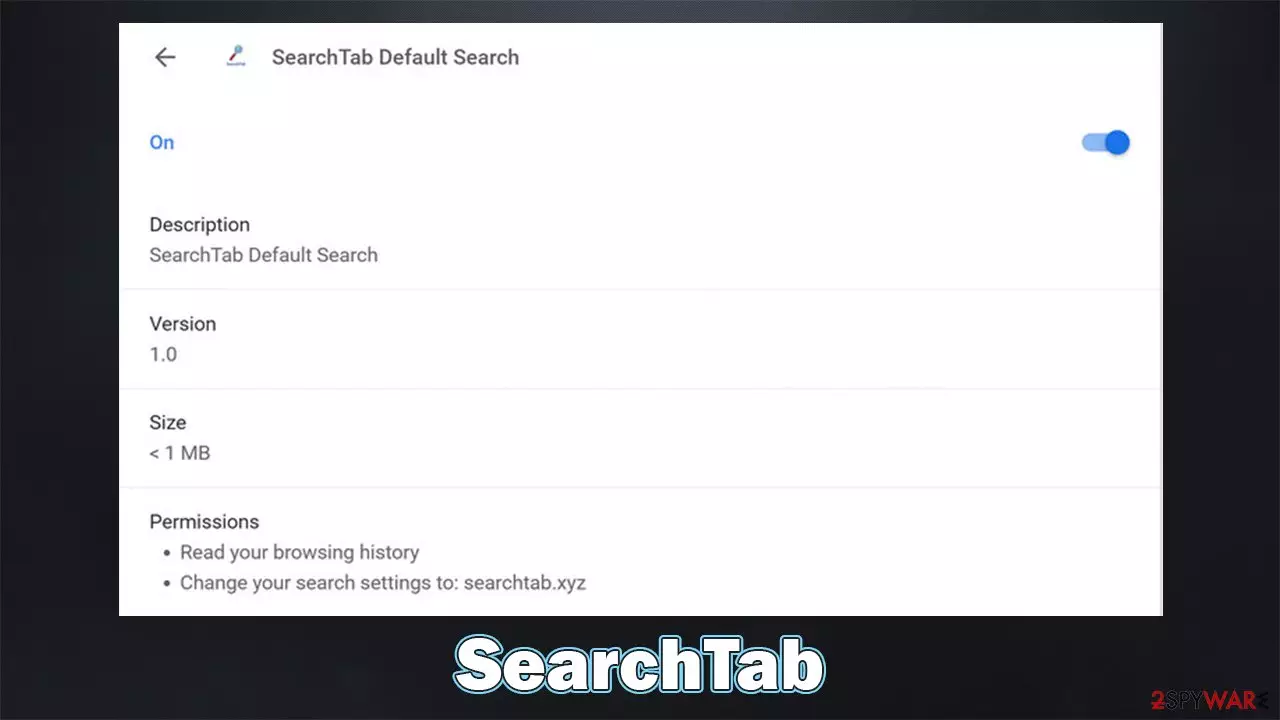
SearchTab is a browser extension that is compatible with Google Chrome, Mozilla Firefox, MS Edge, or another modern browser. However, due to its various deceptive distribution and operation practices, it has also been assigned to the browser hijacker category – a type of potentially unwanted application (PUA).
Most people for not install SearchTab Search on purpose but rather find it after noticing the changes done to the homepage and new tab function. In this case, they would see searchtab.xyz set as their starting page, which would also change the looks of their previous homepage.
The browser settings changes are one of the main symptoms of the browser hijacker infection. It forces users to use a customized search, which also alters the provider the results are being pulled from. Thus, if you were using Google.com before, your search results will look nothing like before.
While known providers such as Yahoo or Bing can be used, there are also plenty of shady ones employed by browser hijackers, so you should be wary of that. The search results are also commonly littered with sponsored links and ads, some of which might be misleading, promoting insecure software, or fake services.
In the background, the hijacker is set to collect various user information in order to benefit from personalized advertisements. This can put user privacy at risk, as the data might be shared with third parties. If you have found your browser settings changed accidentally, check out the instructions on how to retrieve them and ensure your computer is safe from other threats.
| Name | SearchTab Search |
|---|---|
| Type | Browser hijacker |
| Distribution | Potentially unwanted programs are spread through software bundles, deceptive advertisements, or installed by users intentionally |
| Symptoms | Unknown extension or application is installed on the system; homepage and new tab address are swapped to searchtab.xyz; a customized search engine is appended to the homepage; search results are filled with sponsored links and ads |
| Risks | Installation of other potentially unwanted programs/malware, personal data disclosure to unknown parties, monetary loss |
| Removal | You can uninstall potentially unwanted programs by following the manual guide below or by scanning the computer with powerful SpyHunterCombo Cleaner anti-malware |
| Optional steps | After you eliminate all PUPs from your system, make sure you clean your web browsers and repair system files. You can also do that automatically with FortectIntego |
How browser hijackers are distributed
As mentioned already, browser hijackers are not usually installed intentionally. This is one of the main traits of potentially unwanted programs; this also explains why people find unknown extensions of applications installed on their devices seemingly out of nowhere.
The main distribution technique of browser hijackers is software bundling – a deceptive marketing technique that abuses users' inability to pay attention to the installation process of apps. It is the most commonly used on third-party websites designed for freeware[1] or shareware distribution, as well as illegal places such as torrents or crack sites.
Therefore, if you are somebody who likes downloading software from various websites, you should be particularly careful of this technique. Here are some tips from cybersecurity experts:[2]
- Do not visit sites that distribute illegal software; otherwise, you might get infected with threats such as Vtua virus;
- Before installing the software, you have never heard of, read some reviews online;
- Don't believe alerts that claim that your system is infected, that you won a free expensive item, or that you need to contact the alleged technical support for one reason or another – these are all phishing[3] attempts;
- During the installation process of new apps from third-party websites, be attentive and never rush through steps;
- Pick the Advanced/Custom settings if such option is provided;
- Watch out for other commonly used tricks, including pre-ticked checkboxes, misleading button placements, fine print text, and similar;
- Install powerful security software and keep it updated, as it could warn you about all the incoming threats.
It is important to note that some browser hijackers are distributed even via legitimate sources such as Chrome web store bore being removed due to multiple user complaints. Before that happens, quite a few users might install them without realizing that the app is dubious. In fact, Google continually removes malicious apps that bypass security scanners and embeds malware, which might be downloaded by thousands of users.
PUPs try to present themselves as useful tools
Initially, potentially unwanted programs were almost as bad as malware currently is – they took over users' browsers, inserted search bars and search boxes, actively spied on people, and were a nightmare to remove. It is not a secret that at some point, several security vendors started marking the notorious Ask Toolbar as malicious before it was remediated and fixed by its high-profile developer.
Nowadays, browser hijackers are rarely considered malicious, although they often have undesirable features, some of which could potentially put users' safety and security at risk. Many PUPs are advertised as useful apps which are capable of particular functions, usually, the “improved search results” and SearchTab browser hijacker is not an exception in that regard.

Some developers tend to use the same app “bones” and rebrand it as something completely new, without providing any alterations or features. Best examples are hijackers like MovieSearchHome, TopGameSearch, and StreamSearchApp. They use exactly the same features, all while not providing anything intricate or useful. This is typically done in order to avoid detection by the security software, as well as a bad reputation among users.
In reality, all of this is just a facade, and these apps provide little to no benefit for users. The main goal is t push ads at the top of search results, hoping that users would click them (which is often true as the markings might not always be distinguished). Likewise, one might expect an increased amount of ads while browsing the web.
While meddling with browser settings and showing ads in search results might seem bad enough, browser hijackers are commonly used to spy on users. The data is usually anonymous, although some of it can be considered personal information in some US jurisdictions, as well as the EU (for example, unique device identifiers).
All in all, if you want to retake control of your browsing and get rid of the pesky ads, you should remove SearchTab from your computer. We explain how to do that below.
SearchTab Search removal steps
Browser hijacker elimination is usually not that difficult, although there could be some issues while doing so. For example, ads might return if the web browser is cleaned accordingly. Below you will find the instructions to clean your computer thoroughly.
Step 1. Uninstall browser extensions
Let's start with browser extensions, as that's how the hijacker spreads.
Google Chrome
- Open Google Chrome, click on the Menu (three vertical dots at the top-right corner) and select More tools > Extensions.
- In the newly opened window, you will see all the installed extensions. Uninstall all the suspicious plugins that might be related to the unwanted program by clicking Remove.


Mozilla Firefox
- Open Mozilla Firefox browser and click on the Menu (three horizontal lines at the window's top-right).
- Select Add-ons.
- In here, select the unwanted plugin and click Remove.


MS Edge (Chromium)
- Open Edge and click select Settings > Extensions.
- Delete unwanted extensions by clicking Remove.


Safari
- Click Safari > Preferences…
- In the new window, pick Extensions.
- Select the unwanted extension and select Uninstall.


2. Clean your browsers
As we already mentioned, browser hijackers are known for their data collection practices. With the help of cookies, web beacons, and other tracking technologies, they can find out your IP address, websites that you visit, links you click, ads you interact with, as well as your device, ISP, and browser information.
To prevent browser tracking, you should clean them well after the hijacker is eliminated. You can use FortectIntego to do that quickly, although a manual option is also available.
Google Chrome
- Click on Menu and pick Settings.
- Under Privacy and security, select Clear browsing data.
- Select Browsing history, Cookies and other site data, as well as Cached images and files.
- Click Clear data.


Mozilla Firefox
- Click Menu and pick Options.
- Go to Privacy & Security section.
- Scroll down to locate Cookies and Site Data.
- Click on Clear Data…
- Select Cookies and Site Data, as well as Cached Web Content, and press Clear.


MS Edge (Chromium)
- Click on Menu and go to Settings.
- Select Privacy and services.
- Under Clear browsing data, pick Choose what to clear.
- Under Time range, pick All time.
- Select Clear now.


Safari
- Click Safari > Clear History…
- From the drop-down menu under Clear, pick all history.
- Confirm with Clear History.


3. Check for other infections
This step is particularly important, especially if you have found the SearchTab browser hijacker installed on the system without permission. It means that there could be other potentially unwanted programs or even malware installed on your device. This is especially true of you frequent at various malicious websites, such as torrents or free video streaming.
While you could uninstall apps in a regular way (we provide the instructions below you are in need of such), we strongly recommend you check your system with SpyHunterCombo Cleaner, MalwarebytesMalwarebytes, or another reputable antivirus. Security software is brilliant when it comes to finding and removing malicious components from an infected system, especially when it comes to more serious and dangerous malware.
Uninstall from Windows
Uninstall from Windows 10/8:
- Type Control Panel into the Windows search box and open the result.
- Under Programs, select Uninstall a program.


Uninstall from Windows 7/XP:
- Click on Windows Start > Control Panel (Windows XP users should click on Add/Remove Programs).
- In Control Panel, select Programs > Uninstall a program.


Remove the unwanted program:
- In the Programs and Features window, look for any recently installed suspicious entries, select them, and click Uninstall.
- If User Account Control appears, click Yes to confirm, then complete the removal.


Delete from macOS
Remove the unwanted application:
- From the menu bar, select Go > Applications.
- In the Applications folder, look for any suspicious entries, then drag them to Trash (or right-click and pick Move to Trash).


Delete leftover files and folders:
- Select Go > Go to Folder.
- Enter /Library/Application Support and remove any suspicious folders related to the unwanted program.
- Repeat the same check in the /Library/LaunchAgents and /Library/LaunchDaemons folders, deleting any suspicious entries.

- Finally, empty the Trash to permanently remove the leftovers.

Did this guide help?
Be the first to comment