

BlendedSearch is a browser hijacker that negatively impacts your browsing experience
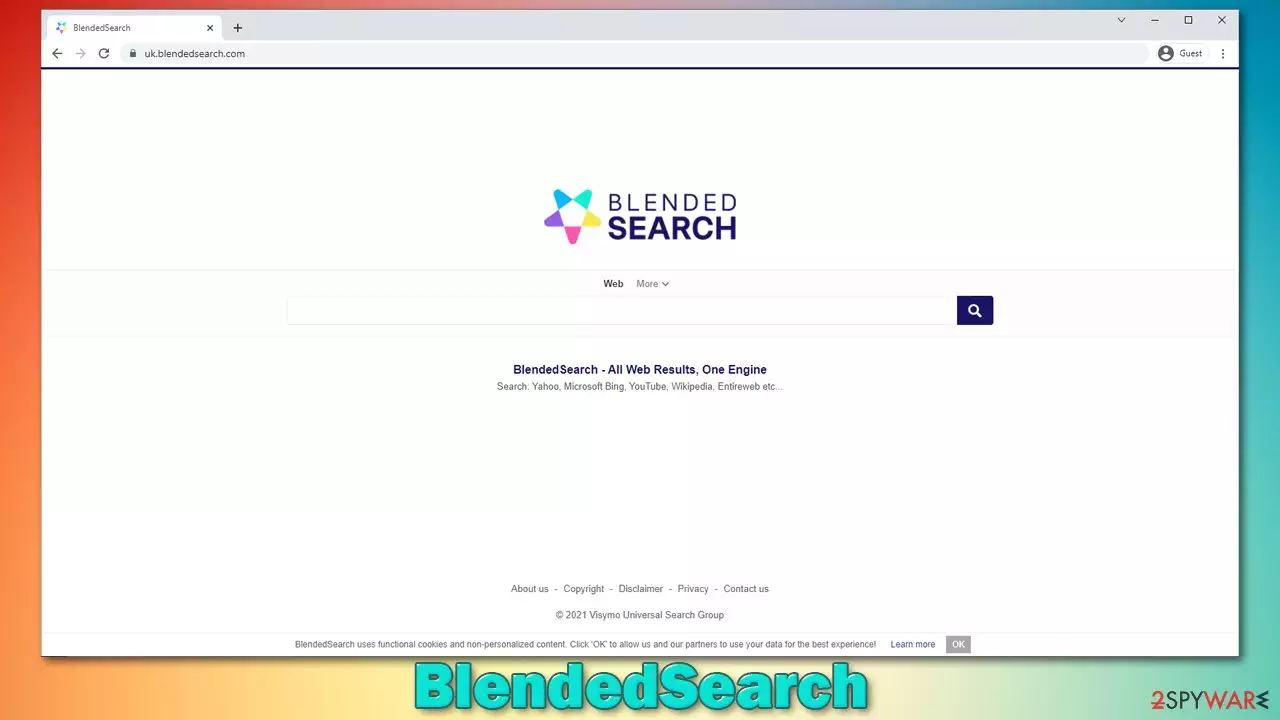
When using your computer, you are used to certain applications that are useful for one reason or another, e.g., you use Chrome for browsing. However, you might find programs on your system you did not expect to find, and BlendedSearch is one of them – a potentially unwanted application that takes over your browser.
You might find the app installed on your browser one day and wonder where did it come from because you did not install it yourself. Well, browser hijackers are commonly spread in software bundle packages downloaded from third-party websites. Thus, if you have recently installed freeware[1] or shareware, it is likely that BlendedSearch managed to get it along with it. Alternatively, you might have installed it after being tricked by a deceptive ad.
Once installed, you would see plenty of differences made to your Google Chrome, Mozilla Firefox, MS Edge, or Safari browsers. For example, the homepage would not incorporate a new search box that, once used, would no longer provide results from your preferred provider. Instead, it would show its own results that are filled with ads and promotional links at the top. Just like that, your browsing routine is completely altered, and not to the positive side.
Links that are embedded at the top of the results might not be completely secure or useful. In fact, they can lead users to websites where they could be tricked into subscribing to some deceptive services or downloading useless apps. Thus, we strongly recommend avoiding these sponsored links entirely.
BlendedSearch browser hijacker is also known for its data tracking capabilities. While PUPs rarely collect data that is considered personal, their developers commonly share the information with third parties. This can bring them more revenue in the long run.
All in all, you should not keep the hijacker installed on your system and remove it, especially if you did not install it on purpose. In this article, you will find all the information you need to do just that, and also, we'll explain how to check your system for other threats.
| Name | BlendedSearch |
|---|---|
| Type | Browser hijacker |
| Distribution | Software bundling, deceptive ads, third-party websites |
| Symptoms | Altered web browser settings (homepage, new tab, and search engine set to blendedsearch.com); all searches are filled with sponsored links |
| Risks | Installation of other potentially unwanted programs, financial losses, personal data disclosure to unknown parties |
| Uninstall | You can get rid of potentially unwanted programs manually, although performing a full system scan with SpyHunterCombo Cleaner or another security software can be much more efficient |
| Optional steps | After you eliminate the hijacker, you should also clean your web browsers to avoid tracking and other issues. You can use FortectIntego as a quick solution |
How do browser hijackers spread?
Many users are baffled when they see a browser extension or a program installed on their systems seemingly out of nowhere. They also often believe that these apps came in automatically, although this is not true. PUPs do not propagate themselves but are rather installed by users themselves, even though it might be hard to believe. There are a few ways that this happens:
- Software bundles. Third-part websites often distribute software in bulks. This means that when you attempt to download an app you want, you might be offered optional ones. Unfortunately, these optional components are commonly hidden behind the fine print text, misleading button placements, pre-ticked boxes, and similar. Thus, be warry when installing freeware, and always choose the Advanced/Custom method instead of Recommended one.
- Deceptive ads. This method commonly uses fake messages, such as claims that your PC is infected with viruses, and that you need to download some removal tool. Also, fake updates for various popular software such as Flash might also be used to infect users with all sorts of nasties. Thus, never download software from random websites that claim you need it because of virus infections or that the content can't be shown without it.
- Intentional installation. Sometimes, people might be tricked into thinking that the app is useful in one way or another. For example, browser hijackers are commonly advertised as tools that can “enhance” the browsing experience, even though all they do is insert ads into searches and track users. To avoid this, check user comments or reviews online.
You can also avoid potentially unwanted programs by being more careful online. For example, visiting software crack websites can not only result in PUP but also malware infection; e.g., Vtua ransomware. Employing powerful security software can also make a huge difference when it comes to IT security.

Removal steps for unwanted programs
Browser hijackers are not considered to be malicious, at least most of them. They are more like a nuisance or a minor browser infection. Likewise, it does not mean that it has no impact on your web browsing and that it should be ignored. As we already explained, PUPs are mostly spread via software bundles, and people don't install them on purpose.
That being said, there are some browser hijackers that use some dirty tricks to stay on the system as long as possible. For example, Flare Search, Kwiqsearch.com, and a few others apply the “Managed by your organization” status on the web browser, which prevents users from removing the app in the usual way. Luckily, BlendedSearch does not possess such functionality, so its removal shouldn't cause any difficulties.
There are two different ways how a potentially unwanted program could be installed on your system – either on the system level or on a browser level as an extension. The app usually has less impact when it is installed as an extension and is much easier to eliminate. Apps that are installed on the system level might leave various leftover files.
If you find manual removal difficult, we recommend you instead employ SpyHunterCombo Cleaner, MalwarebytesMalwarebytes, or another security software and perform a full system scan with it. If can also check your device for more dangerous threats such as rootkits[2] or Trojans – infections that emit no symptoms during their operation. Alternatively, proceed with the steps described below.
Check the installed programs
You should check for unwanted programs within Control Panel (Windows) or Applications (Mac) sections. Keep in mind that the app that causes browser redirects can be named as anything, not necessarily BlendedSearch.
- Enter Control Panel into Windows search box and hit Enter or click on the search result.
- Under Programs, select Uninstall a program.

- From the list, find the entry of the suspicious program.
- Right-click on the application and select Uninstall.
- If User Account Control shows up, click Yes.
- Wait till uninstallation process is complete and click OK.



As a Mac user, follow these steps:
- From the menu bar, select Go > Applications.
- In the Applications folder, look for all related entries.
- Click on the app and drag it to Trash (or right-click and pick Move to Trash)


To fully remove an unwanted app, you need to access Application Support, LaunchAgents, and LaunchDaemons folders and delete relevant files:
- Select Go > Go to Folder.
- Enter /Library/Application Support and click Go or press Enter.
- In the Application Support folder, look for any dubious entries and then delete them.
- Now enter /Library/LaunchAgents and /Library/LaunchDaemons folders the same way and terminate all the related .plist files.


Remove unwanted browser extensions
Browser hijackers mostly come as browser extensions, so if you didn't find anything suspicious on the system, you should check your browser for unwanted add-ons.
Google Chrome
- Open Google Chrome, click on the Menu (three vertical dots at the top-right corner) and select More tools > Extensions.
- In the newly opened window, you will see all the installed extensions. Uninstall all the suspicious plugins that might be related to the unwanted program by clicking Remove.


Mozilla Firefox
- Open Mozilla Firefox browser and click on the Menu (three horizontal lines at the top-right of the window).
- Select Add-ons.
- In here, select the unwanted plugin and click Remove.


MS Edge
- Open Edge and click select Settings > Extensions.
- Delete unwanted extensions by clicking Remove.


Safari
- Click Safari > Preferences…
- In the new window, pick Extensions.
- Select the unwanted extension and select Uninstall.


Clean your browser cache
Once you have eliminated the potentially unwanted program in one way or another, you should not forget that there are likely to be residue items left on your browser. For example, cookies are used to track user data and send it to third parties. In fact, they can also be hijacked[3] by cybercriminals under certain circumstances, which allows the attackers to take over your log-in sessions, meaning they might access your personal accounts.
To avoid this, clear all the caches in your browser. You can do this quickly ith FortectIntego or you can follow the instructions below.
Google Chrome
- Click on Menu and pick Settings.
- Under Privacy and security, select Clear browsing data.
- Select Browsing history, Cookies and other site data, as well as Cached images and files.
- Click Clear data.


Mozilla Firefox
- Click Menu and pick Options.
- Go to Privacy & Security section.
- Scroll down to locate Cookies and Site Data.
- Click on Clear Data…
- Select Cookies and Site Data, as well as Cached Web Content and press Clear.


MS Edge
- Click on Menu and go to Settings.
- Select Privacy and services.
- Under Clear browsing data, pick Choose what to clear.
- Under Time range, pick All time.
- Select Clear now.


Safari
- Click Safari > Clear History…
- From the drop-down menu under Clear, pick all history.
- Confirm with Clear History.


Did this guide help?
Be the first to comment