

ProductionElements is a malicious application you should get rid of ASAP
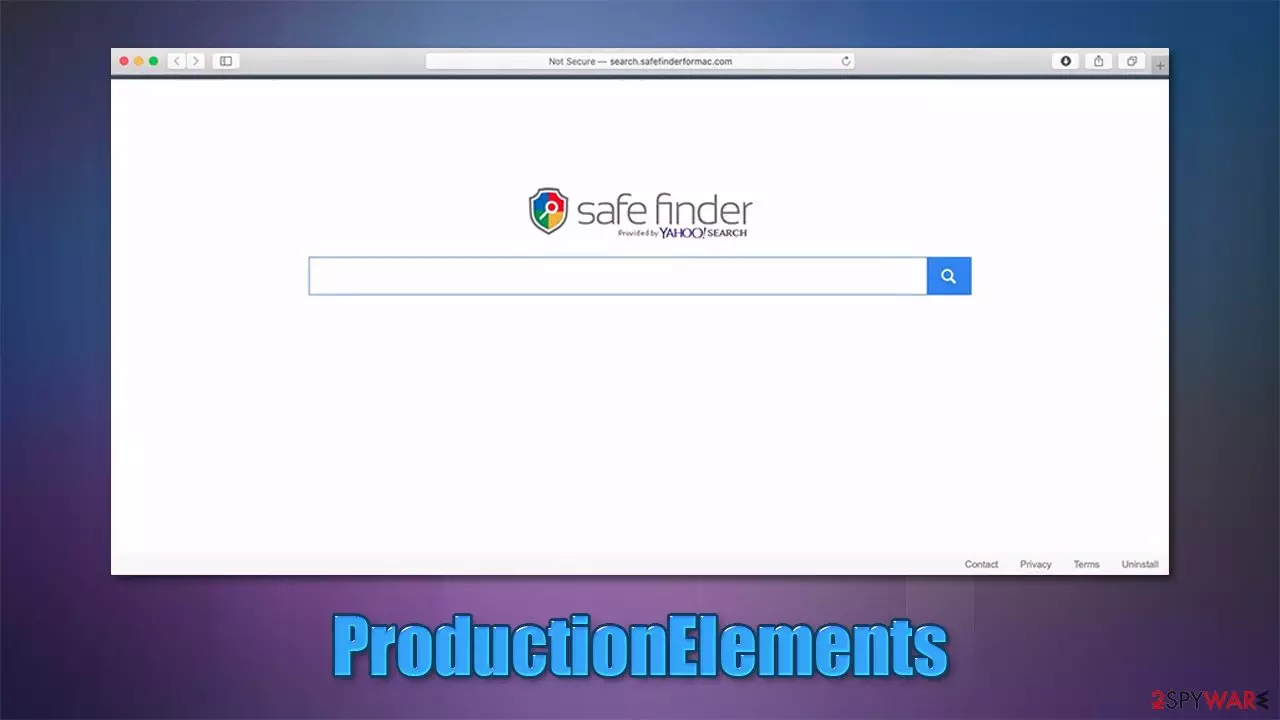
ProductionElements is a potentially dangerous software developed for Mac operating systems. Evidently, people do not install this app intentionally but are tricked into using fake Flash Player installers or pirated application bundles downloaded from dangerous websites. This is one of the main reasons users notice its presence only after using their browser.
Once installed, the ProductionElements virus would change several preferences, drop various files, and apply an extension to Safari, Google Chrome, Mozilla Firefox, or any other browser used. The browser add-on, along with the main application, uses a magnifying glass icon placed on a green, teal, or blue background in most cases – a common trait for Adload malware versions.
Changes to the browser's homepage and the new tab are also established immediately as, instead of the default page, users would see something they aren't used to. Typically, Safe Finder – a prominent browser hijacker which targets Macs – is set as the browser's homepage, although other providers might be used as well.
Users might also notice something unusual when the searches are performed: their URL bar would display several different web addresses (Akamaihd, for example) before providing search results through an alternative provider, such as Yahoo. The results would also be filled with sponsored links and ads, which could, in some cases, be dangerous to click on, so we recommend staying away from those.
If you have spotted changes to your browser and other aspects of your Mac's operation due to the ProductionElements infection, you should immediately take action, as there might be a chance that there are more dangerous apps also installed on the system. In this article, we will explain how to clean your system from all the nasties thoroughly.
| name | ProductionElements |
|---|---|
| Type | Mac virus, adware, browser hijacker |
| Family | AdLoad |
| Distribution | Third-party domains distributing pirated software, software bundles, fake Flash Player updates |
| Symptoms | Installs a browser extension that can not be deleted easily; changes homepage/new tab to Safe Finder or something else; redirects lead to potentially malicious or scam sites, promotes suspicious software, etc. |
| Risks | Identity theft, installation of other malicious/unwanted software, financial losses |
| Elimination | The easiest way to eliminate unwarned and malicious software on Macs is by performing a full system scan with SpyHunterCombo Cleaner or MalwarebytesMalwarebytes security software. Alternatively, you can attempt to terminate the infection manually |
| System fix | After you terminate the infection with all its associated components, we recommend you also scan your machine with FortectIntego for best results |
Adload family: a Mac problem here to stay
Windows has been dominating the computer market for a very long time now. However, if we look at the second most popular desktop operating system, it is macOS with a 15% market share, in comparison to 75% that of Windows. Despite these statistics, the number of people using Macs is constantly increasing. This is why cybercriminals also started paying more attention to the latter.
The main problem of macOS is adware and has been for some years now. In fact, the production of malicious software for Macs outpaced that of Windows in 2019, which is an alarming statistic. Adload, along with a few other adware families, is particularly active, and its authors are releasing new versions on a regular basis – EdgeAdvanced, LatestStructured, and EdgeManagement are just a few latest additions.
Distribution
There are two different ways most users get infected with Adload – they either are tricked by fake Flash Player updates or install it unintentionally along with illegal software. Here is some advice from security experts[1] that should help you avoid this from happening:
- Always download software from official sources – pirated apps might be just a disguise for malware;
- When dealing with software installation, always check the optional components that are being offered and decline them immediately. Watch out of pre-ticked boxes, read the fine print, and always select Advanced settings;
- Have powerful security software, such as SpyHunterCombo Cleaner or MalwarebytesMalwarebytes, installed on your system at all times;
- Never trust prompts that claim that your system has been infected with viruses or that it's missing some type of update – especially Flash Player, as this plugin has been discontinued by its creator Adobe;[2]
- Be warier when dealing with ads online – use ad-blockers if need be.

Operation
Initially, Adload versions have a lot of traits of adware and a browser hijacker – they take over browsers, show ads, redirect to potentially dangerous websites, and change the way searches are performed. The main goal of these applications is to expose users to as much commercial content as possible, and it doesn't have to be secure for as long as possible.
In other to be successful in this, the developers of ProductionElements malware use several features that could be easily described as malicious. The takeover of the browser is one of the traits that help malware authors to achieve their goal, as it is the primary source where users can be shown pop-ups, banners, in-text links, and other ads. Likewise, redirects to scams and phishing websites are also not uncommon.
User exposure to malicious content online is just the tip of the iceberg, however. Due to the advanced capabilities of the virus, it is installed with elevated permissions on the system, which allows it to bypass the built-in security measures of Mac, including Gatekeeper and Xprotect.[3]
To add to this, the installed extension usually has permissions that should not be given to any application – to read and gather sensitive user data, including passwords and credit card details. Without a doubt, this can lead to serious privacy issues or even serious consequences such as identity theft. Thus, remove ProductionElements and all the other unwanted applications to make sure that you are secure online.
ProductionElements removal explained
Due to malware's advanced capabilities, we strongly recommend you rely on powerful security software, such as SpyHunterCombo Cleaner, to remove malicious apps from your device. Many components of the virus are connected to one another and might be difficult to get rid of. If you still want to try doing that, please continue with the instructions below.
Remove the main app
Background processes could hinder the elimination of the malicious application. Therefore, before you do anything, force-close all the suspicious processes running in the background:
- Open Applications folder
- Select Utilities
- Double-click Activity Monitor
- Here, look for suspicious processes related to adware and use the Force Quit command to shut them down
- Go back to the Applications folder
- Find ExtendedService in the list and move it to Trash.
Unwanted Profiles/Login items
Upon infiltration, ProductionElements might create new Profiles and Login items, which might make the removal of all its components a difficult task. You can try removing them with the help of the following steps:
- Go to Preferences and pick Accounts
- Click Login items and delete everything suspicious
- Next, pick System Preferences > Users & Groups
- Find Profiles and remove unwanted profiles from the list.
Get rid of the extension
This step might not be easy to accomplish, as the extension might be grayed out within the web browser, preventing it from being removed. If that is the case for you, ignore the steps on the extension removal and head directly to the browser reset section under it.
Note: if you are using Google Chrome or Mozilla Firefox, scroll to the very bottom of this post.
- Click Safari > Preferences…
- In the new window, pick Extensions.
- Select the unwanted extension and select Uninstall.


Next, clean your browser caches and web data. This would prevent third parties from tracking you with the help of cookies and other technologies. It is overall recommended to clean web browsers from time to time for better security and privacy. Instead of doing it manually, you can instead employ a maintenance tool FortectIntego.
- Click Safari > Clear History…
- From the drop-down menu under Clear, pick all history.
- Confirm with Clear History.


If the above was not possible for you, reset the browser altogether:
- Click Safari > Preferences…
- Go to the Advanced tab.
- Tick the Show Develop menu in the menu bar.
- From the menu bar, click Develop, and then select Empty Caches.


Delete remaining files
The PLIST files are small config files, also known as “Properly list.” They hold various user settings and hold information about certain applications. In order to remove the virus, you have to find the related PLIST files and remove them.
- Select Go > Go to Folder.
- Enter /Library/Application Support and click Go or press Enter.
- In the Application Support folder, look for any dubious entries and then delete them.
- Now enter /Library/LaunchAgents and /Library/LaunchDaemons folders the same way and delete all the related .plist files.


Remove from Mozilla Firefox (FF)
Remove dangerous extensions:
- Open Mozilla Firefox browser and click on the Menu (three horizontal lines at the top-right of the window).
- Select Add-ons.
- In here, select the unwanted extension and click Remove.


Reset the homepage:
- Click three horizontal lines at the top right corner to open the menu.
- Choose Settings.
- Under Home, set your preferred homepage and new tab settings.
Clear cookies and site data:
- Click Menu and pick Settings.
- Go to Privacy & Security section.
- Scroll down to locate Cookies and Site Data.
- Click on Clear Data...
- Select Cookies and Site Data and Temporary cached files and pages, then click Clear.


Reset Mozilla Firefox
If clearing the browser as explained above did not help, reset Mozilla Firefox:
- Open Mozilla Firefox browser and click the Menu.
- Go to Help and then choose Troubleshooting Information.

- Under Give Firefox a tune up section, click on Refresh Firefox...
- Once the pop-up shows up, confirm the action by pressing on Refresh Firefox.



Remove from Google Chrome
Delete malicious extensions from Google Chrome:
- Open Google Chrome, click on the Menu (three vertical dots at the top-right corner) and select More tools > Extensions.
- In the newly opened window, you will see all the installed extensions. Uninstall all suspicious extensions related to the unwanted program by clicking Remove.


Clear cache and web data from Chrome:
- Click on Menu and pick Settings.
- Under Privacy and security, select Clear browsing data.
- Select Browsing history, Cookies and other site data, as well as Cached images and files.
- Click Clear data.


Change your homepage:
- Click menu and choose Settings.
- Look for a suspicious site in the On startup section.
- Click on Open a specific or set of pages and click on three dots to find the Remove option.
Reset Google Chrome:
If the previous methods did not help you, reset Google Chrome to eliminate all the unwanted components:
- Click on Menu and select Settings.
- In the Settings, scroll down and click Advanced.
- Scroll down and locate Reset and clean up section.
- Now click Restore settings to their original defaults.
- Confirm with Reset settings.


Did this guide help?
Be the first to comment