

TopCouponSearch is a browser hijacker that produces fake search results
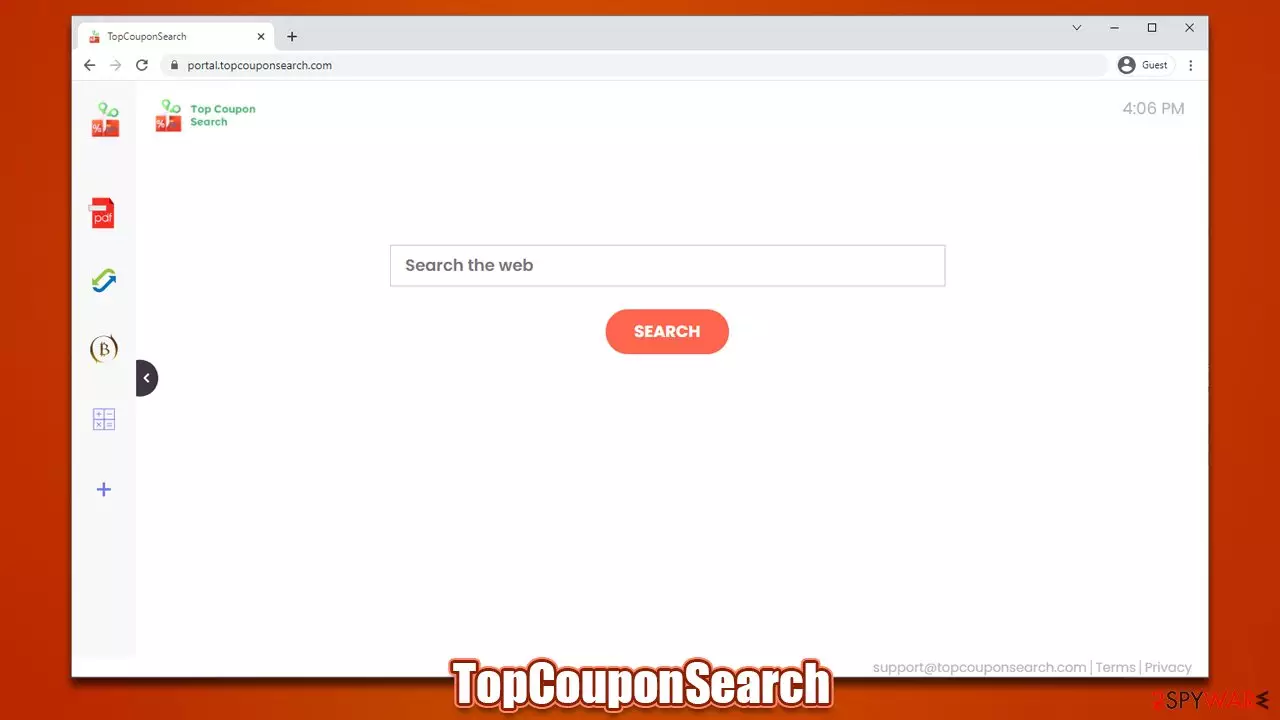
TopCouponSearch is a typical browser-hijacking application that users might install unintentionally, as its propagation methods are frequently deceptive. Distributors of these apps commonly rely on software bundling, fake or deceitful ads to make people install them on their devices. Nonetheless, PUPs are always installed by users themselves.
As soon as it ends up on the system, the changes can be seen right away, especially when it comes to browsers – homepage and new tab would be immediately swapped to portal.topcouponsearch.com. This change is not only visual, as it also changes the way users browse the web radically.
Usually, people have predetermined browser settings, including what their homepage is which provider is used for browsing. The so-called TopCouponSearch virus changes the search provider to one of the following ones (it all depends on your location):
Thus, each time a search query is typed into the search box, one of the above-mentioned providers would be used. It is not a secret that users are used to their providers and rarely want to change that, although this is just a scratch on the surface. It quickly becomes apparent that the provided results are littered with ads, although they are not always noticeable. Some of the sponsored links might not be trustworthy and result in the installation of other potentially unwanted programs or subscriptions to useless services.
Besides, the presence of the browser hijacker also increases the number of ads encountered on various websites as well. This is done in order to increase the monetization of ad clicks made by users. Additionally, TopCouponSearch would collect various user-related data to increase the usefulness of targeted advertising.[1]
All in all, if you have accidentally installed a potentially unwanted application on your system, you should not ignore its presence and remove it to regain control of your browsing and secure your online privacy and security. We provide all the needed information just for that below.
| Name | TopCouponSearch |
|---|---|
| Type | Browser hijacker, potentially unwanted application |
| Distribution | Bundled software, third-party websites, |
| Symptoms | Homepage and new tab address is set to portal.topcouponsearch.com; all search results are displayed through an alternative search provider; ads and promotional links are shown at the top of results |
| Risks | While browser hijackers rarely pose a danger in terms of security point of view, users might end up installing other suspicious or unwanted programs, suffer financial losses, as have their privacy compromised |
| Removal | You can get rid of potentially unwanted applications manually, although performing a full system scan with SpyHunterCombo Cleaner or another security software is also recommended |
| Further steps | Do not forget to remediate your web browsers – you can do it as we describe below or opt for a quicker solution with FortectIntego |
TopCouponSearch comes from an extensive browser hijacker family
There are thousands of browser hijackers produced regularly – they are usually lightweight applications that change web browser settings with plenty of traits that are mostly considered unwanted. That being said, a browser hijacker is rarely considered to be malicious in the same way a Trojan, ransomware,[2] or other devastating malware is.
TopCouponSearch, while not dangerous, is an app that easily falls into the gray area. There are plenty of issues with this operation and should be why it is uninstalled from the system as soon as possible.
First of all, the app comes from a widespread browser hijacker family, and we have already discussed hundreds of its versions – DirectConverterz, WebAdblockSearch, QuickSearchMaps, and SocialCouponSearch are just a few examples. It becomes apparent that the word combinations for names of these apps follow a specific pattern – it usually implies what they are capable of.
In reality, it is all fake, as all of these extensions are mere copies of one another. They all incorporate certain elements, such as a currency converter, calculator, and similar. All of these items are shared between all versions of the browser hijacker, and the differences are only within names and visuals. This is done in order to avoid bad reputation and detection by security software – many rogue app authors rely on this.

Thus, while TopCouponSearch implies that it can find you the best coupons, it is not the case. It only changes your browser settings in order to show you commercial content and monetize the ad clicks. We strongly recommend removing the app if you'd like to go back to your default settings.
Process of removal simplified
Browser hijackers, while prevalent, usually do not employ advanced persistence methods and can be easily removed. This hijacker spreads as a browser extension, so you should start by eliminating it via your browser settings, as we explain below.
Google Chrome
- Open Google Chrome, click on the Menu (three vertical dots at the top-right corner) and select More tools > Extensions.
- In the newly opened window, you will see all the installed extensions. Uninstall all the suspicious plugins that might be related to the unwanted program by clicking Remove.


Mozilla Firefox
- Open Mozilla Firefox browser and click on the Menu (three horizontal lines at the top-right of the window).
- Select Add-ons.
- In here, select unwanted plugin and click Remove.


MS Edge
- Open Edge and click select Settings > Extensions.
- Delete unwanted extensions by clicking Remove.


ME Edge (legacy)
- Select Menu (three horizontal dots at the top-right of the browser window) and pick Extensions.
- From the list, pick the extension and click on the Gear icon.
- Click on Uninstall at the bottom.


Safari
- Click Safari > Preferences…
- In the new window, pick Extensions.
- Select the unwanted extension and select Uninstall.


Once you are done with the extension removal, your job is not yet finished. Browser hijackers track various user data (IP address, unique device identifiers, search queries, visited websites, and similar) with the help of cookies, web beacons, pixels, and other tracking technologies, components of which reside in your browser's caches.
Thus, it is strongly recommended to remove web data after eliminating all the potentially unwanted applications. You can either rely on an automatic FortectIntego solution or perform the steps listed below.
Google Chrome
- Click on Menu and pick Settings.
- Under Privacy and security, select Clear browsing data.
- Select Browsing history, Cookies and other site data, as well as Cached images and files.
- Click Clear data.


Mozilla Firefox
- Click Menu and pick Options.
- Go to Privacy & Security section.
- Scroll down to locate Cookies and Site Data.
- Click on Clear Data…
- Select Cookies and Site Data, as well as Cached Web Content and press Clear.


MS Edge
- Click on Menu and go to Settings.
- Select Privacy and services.
- Under Clear browsing data, pick Choose what to clear.
- Under Time range, pick All time.
- Select Clear now.


MS Edge (legacy)
- Click on the Menu (three horizontal dots at the top-right of the browser window) and select Privacy & security.
- Under Clear browsing data, pick Choose what to clear.
- Select everything (apart from passwords, although you might want to include Media licenses as well, if applicable) and click on Clear.


Safari
- Click Safari > Clear History…
- From the drop-down menu under Clear, pick all history.
- Confirm with Clear History.


Note: if you are using Internet Explorer, check the instructions at the bottom of this post.
How do potentially unwanted programs spread and how to avoid them
As we mentioned at the start of this article, most people don't install PUPs intentionally. This happens for numerous reasons, but it is fair to say that the users themselves always initiate the installation process. Here are a few examples of how this can happen:
- Software bundling is possibly the most commonly-used distribution method for browser hijackers and even malware. Distributors compile several optional components into a standalone installer and then try to hide this fact with the help of pre-ticked boxes, fine print, misleading button placements, and similar tricks. To avoid this, try downloading apps from official sources when possible; never rush through the installation steps and pick Advanced/Custom settings when prompted to have more control over what is being installed on your device.
- Fake advertisements can be encountered everywhere, although it is incredibly more common when visiting high-risk websites, such as torrents or illegal video streaming. Thus, steer away from sites that have low-security ratings (everything that is illegal) and employ a decent ad-blocker to prevent malicious scripts[3] from being executed.
- An intentional installation is also a viable option. Potentially unwanted applications can also be described as something very useful (“increases browsing speed,” “improves search results,” etc.), hence users might believe that the program is actually useful without knowing the full scope of its operations. Likewise, some of the apps might suddenly go rogue and start the unwanted browser behavior seemingly out of nowhere.
You should be aware that there is no 100% protection from unwanted or malicious software. However, by using the tips we provided above and employing SpyHunterCombo Cleaner, MalwarebytesMalwarebytes, or another powerful security software, the probability of that happening is reduced significantly. Most importantly, always be aware that scams, potentially unwanted software, and other malicious things might come up at the time you least expect.
Reset Internet Explorer
Remove dangerous add-ons:
- Open Internet Explorer, click on the Gear icon (IE menu) on the top-right corner of the browser
- Pick Manage Add-ons.
- You will see a Manage Add-ons window. Here, look for suspicious plugins. Click on these entries and select Disable.


Change your homepage if it was altered:
- Open IE and click on the Gear icon.
- Select Internet Options.
- In the General tab, delete the Home page address and replace it by your preferred one (for example, Google.com).
- Click Apply and then select OK.


Delete temporary files:
- Press on the Gear icon and select Internet Options.
- Under Browsing history, click Delete...
- Select relevant fields and press Delete.


Reset Internet Explorer:
- Click on Gear icon > Internet options and select Advanced tab.
- Select Reset.
- In the new window, check Delete personal settings and select Reset.


Did this guide help?
Be the first to comment